How to Manage Alert Sounds in Ubuntu Linux


Alert sounds in Ubuntu Linux are the short beeps and chimes your computer plays for system events and pop-up messages. These noises run on a separate volume track from your music and videos, so you can turn them off without affecting your media playback.
Ubuntu 22.04 LTS and newer releases include dedicated sliders in the main settings menu to lower or mute these notifications. Open Settings and select the Sound tab to manage your alert volume.
Adjust alert sounds in Ubuntu Linux through the Sound settings. Open System Settings, click Sound, and then use the Volume Levels slider for System Sounds. You can also select and test individual alert sounds or mute them entirely.
How to mute the alert Sound in Ubuntu Linux
Ubuntu alert sounds can be turned off quickly through the main settings menu if you want to stop annoying computer beeps. Open Settings from the app menu, click the Sound tab on the left side, and scroll down to the Sound Effects section where you can move the alert volume slider all the way to the left to mute them completely.
Ubuntu Linux keeps most of its settings in one central place: the System Settings panel. This is where you can manage everything from system configurations to user accounts and updates.

Alternatively, access settings by clicking the System menu in the top-right corner of your desktop.
Select Settings from that menu.

Click on the Sound tile inside the Settings app to open its panel.
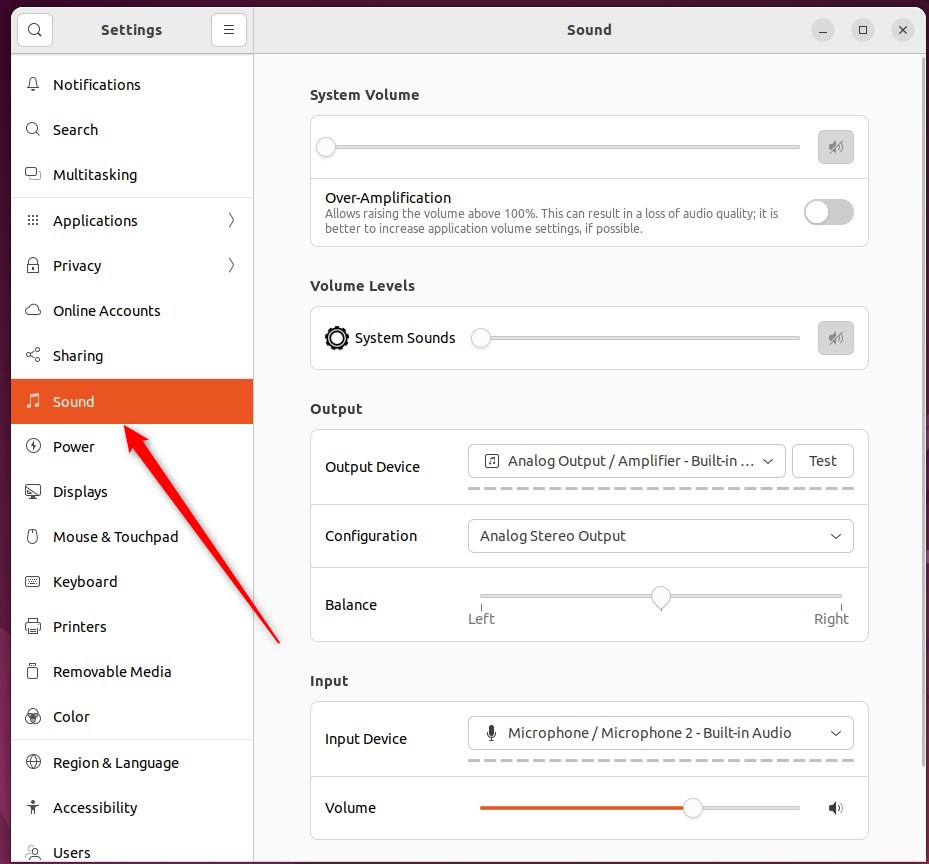
In the System Settings - Sound panel, look for Volume Levels and use the slider to change the volume for System Sounds.
Select an alert sound that will play when clicked to hear how it sounds, provided Alert Sound remains unmuted.
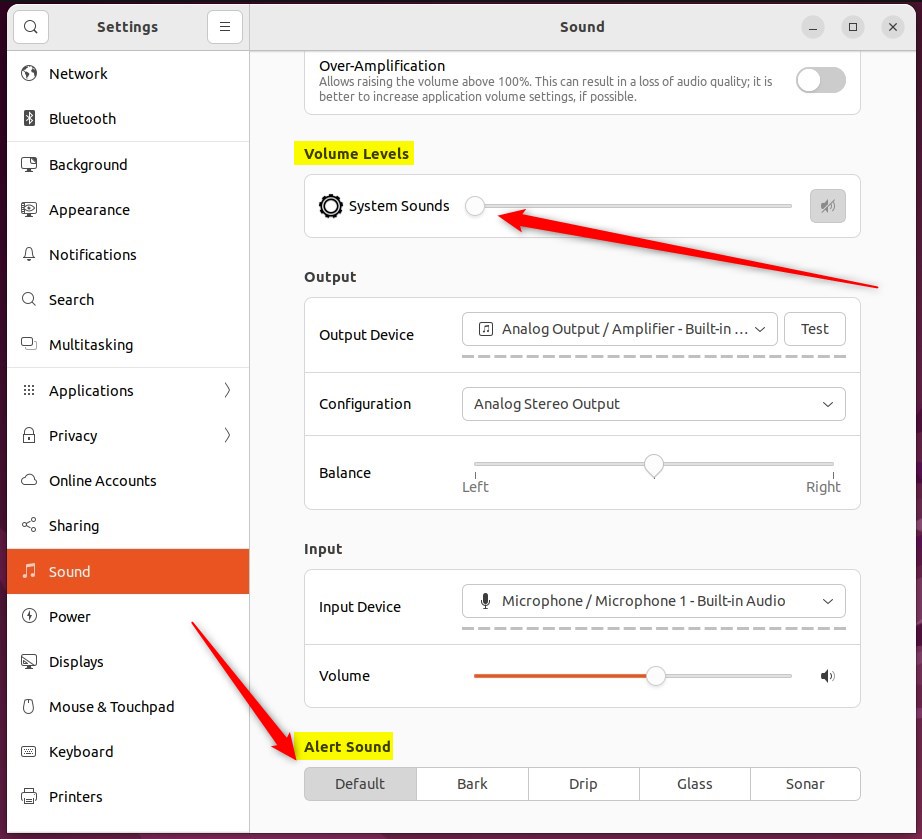
Changing the volume level or muting the System Sounds will not affect the volume of music, movies, or other sound files.
Ubuntu keeps these audio preferences flexible, letting users fine-tune notification sounds without touching media playback.
Conclusion:
- Ubuntu Linux allows you to easily customize alert sounds for notifications and system events.
- You can independently adjust the volume for alert sounds in the System Settings panel.
- Disabling or muting the alert sound will not impact the volume of music, movies, or other sound files on your system.
Was this guide helpful?

About the Author
Richard
Tech Writer, IT Professional
Richard is a writer at Geek Rewind who turns complex IT tasks into clear, step-by-step guides. He draws on years of hands-on experience in system administration and enterprise IT operations, focusing on Windows, Linux and WordPress: the problems people actually run into, and the fixes that work. His server and WordPress guides come from systems he runs himself. Richard builds and maintains the platform behind Geek Rewind, from its Ubuntu servers and Nginx configuration to its custom WordPress plugins. Many new tutorials start with readers' questions, and he's always glad to answer them in the comments.



[…] Ubuntu Linux computer, by default, will play a sound when you get a user or system alert. System alerts are there to notify you when something is wrong or when an event […]