Adjusting Sound Volume in Ubuntu Linux: A Simple Guide


Adjusting sound volume in Ubuntu Linux lets you control audio output levels for your entire computer or specific apps using the desktop menu or Settings panel. Moving the volume slider in the top-right status menu all the way to the left mutes your audio completely, while dragging it to the right makes sound louder.
Adjust sound volume by clicking the speaker icon in the top bar and using the slider. Alternatively, open Settings , navigate to Sound, and use the system volume slider for more options.
How to increase or decrease the sound volume in Ubuntu Linux
You can quickly adjust sound volume in Ubuntu Linux by clicking the system menu on the right side of the top bar. Move the volume slider up to make sounds louder or down to make them quieter until you reach your preferred level.
The most accessible way to do this is from the system menu. The system menu appears on the right side of the top bar near icons for Wi-Fi , Speaker, and/or Battery.

Clicking the system menu opens a panel with a slider. Use this slider to adjust the volume on your PC.
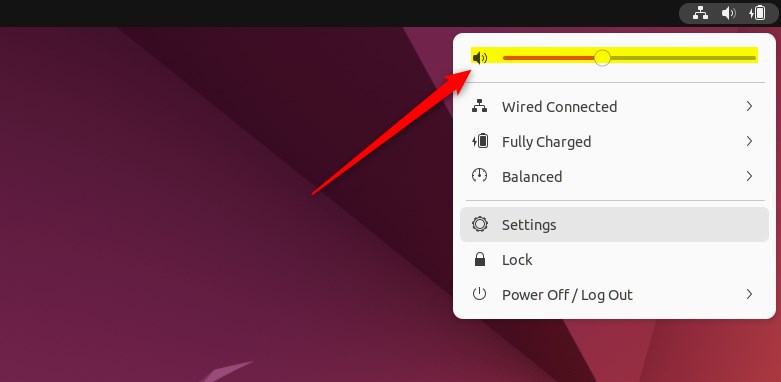
Move the slider left to lower the volume or right to increase it.
How to turn off or mute Sound on Ubuntu Linux
If you need to mute sounds from your PC quickly, move the slider to the left until the sound level reaches 0.
An indicator, such as an x or a slider positioned far left, will appear, showing that the computer is muted.
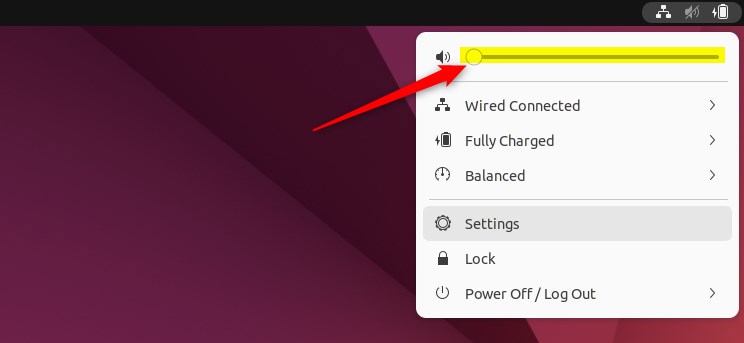
How to adjust the Sound from the Ubuntu Linux settings app
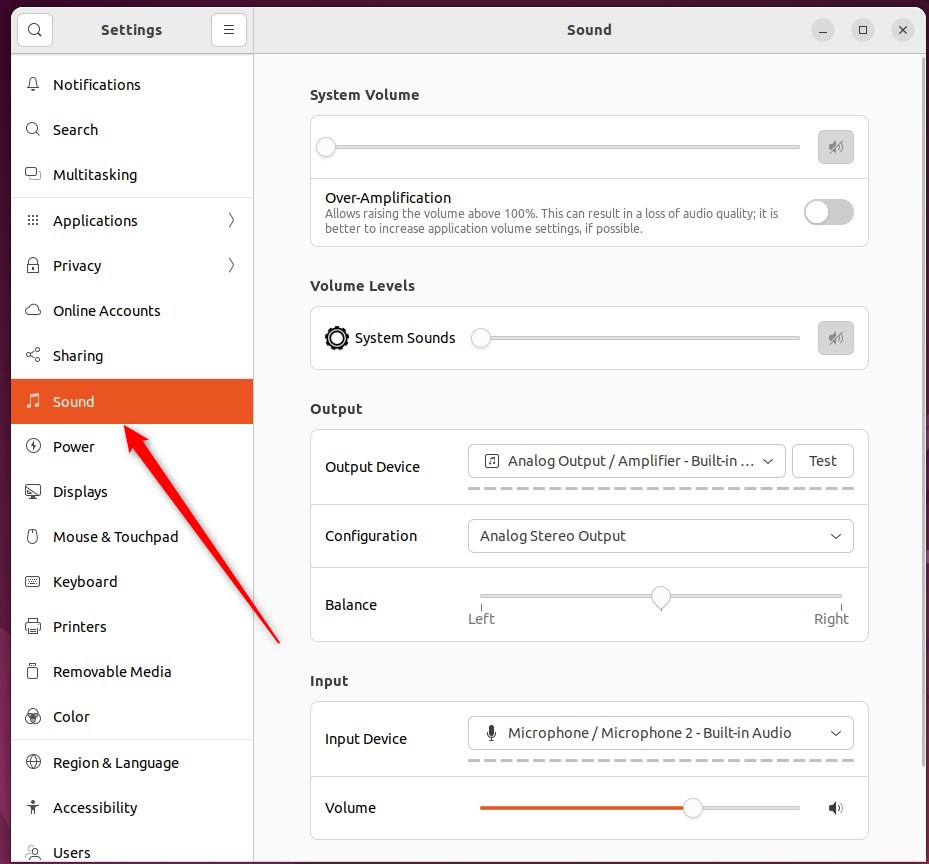
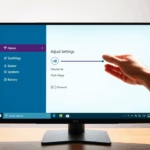
You can also adjust sound volume in Ubuntu Linux by opening the Settings app and selecting the Sound tab. This menu lets you change output levels for your speakers or headphones, test your audio devices, and manage sound levels for each open app individually.
Ubuntu Linux centralizes most system settings in the System Settings panel. Manage system configurations, user accounts, and software updates within this single panel.

Alternatively, click the System menu at the top-right of your desktop.
On the System menu, select Settings, as highlighted below.

In the Settings app, click on a Sound tile to open the panel.
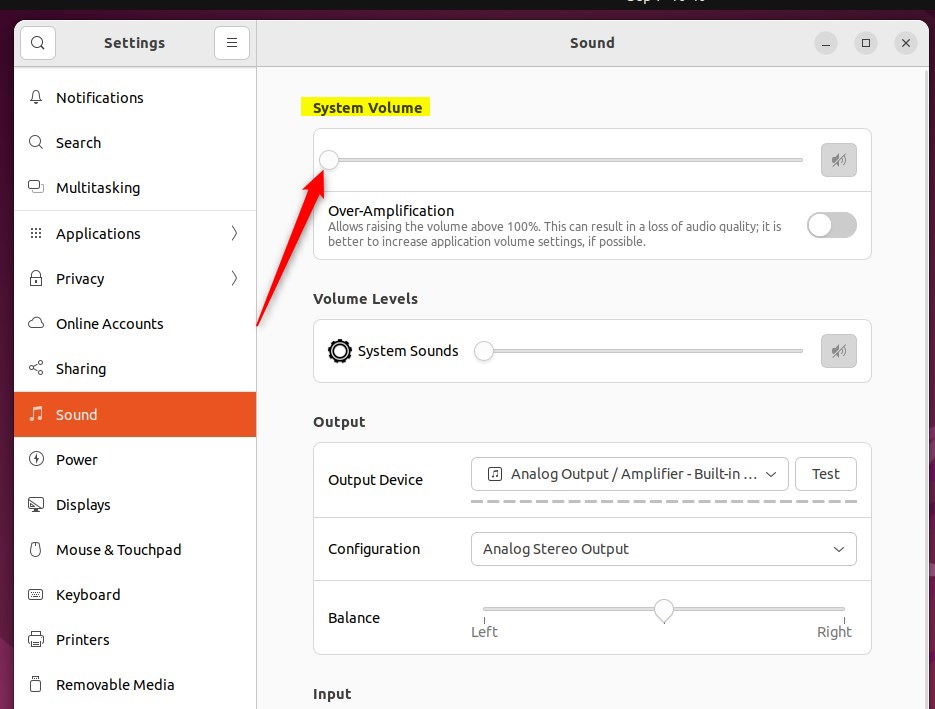
In the System Settings - Sound panel, find the System Volume slider to change your computer's sound.
Special keyboard keys control sound volume. On most modern laptops, these volume controls are located on the 'F' keys. To use these special keys for sound volume adjustment, hold down the Fn key on your keyboard.
That completes the process.
Conclusion:
- Adjusting the sound volume in Ubuntu Linux is a straightforward process that can be done through the system menu on the top bar or the Ubuntu Linux settings app.
- Users can easily increase, decrease, or mute the sound output from their computers by utilizing the sliders in the system menu or settings app.
- Users with specialized keyboards can conveniently control the volume using dedicated keys.
- Whether adjusting the volume for personal preference, muting the sound, or finding the optimal level, Ubuntu Linux offers intuitive options for managing sound output.
Was this guide helpful?
0% of readers found this helpful (1 votes)

About the Author
Richard
Tech Writer, IT Professional
Richard is a writer at Geek Rewind who turns complex IT tasks into clear, step-by-step guides. He draws on years of hands-on experience in system administration and enterprise IT operations, focusing on Windows, Linux and WordPress: the problems people actually run into, and the fixes that work. His server and WordPress guides come from systems he runs himself. Richard builds and maintains the platform behind Geek Rewind, from its Ubuntu servers and Nginx configuration to its custom WordPress plugins. Many new tutorials start with readers' questions, and he's always glad to answer them in the comments.



[…] can choose different sound clips for alerts, set the alert volume independently of your system volume, or disable alert sounds […]
[…] one can adjust the sound volume in Ubuntu Linux, sometimes, one may want to mute or completely turn off the sound from their […]