How to Manage Notifications in Microsoft Teams on Windows 11

Microsoft Teams is a popular tool for chats, meetings, and video calls. While it keeps you connected, it can also become noisy. Constant pings can break your concentration. This guide shows you how to take control of your alerts so you only hear about what matters.
Why manage notifications? To stop constant interruptions and stay productive during your workday.
What happens when done? You will have a quiet workspace that only alerts you for the messages and meetings you choose.
You can connect your Google calendar, turn the camera and mic on or off on the lock screen, turn read receipts on or off, auto start Teams, disable Teams chat, sync contacts with Teams, connect to Google Calendar, link your mobile device, turning message preview on or off, turn spell check on or off, and turn on or off phone number in search results to the app to get started.
How to change your Teams alerts
Follow these steps to customize your settings:
- Open the Start menu and find Microsoft Teams in your list of apps to launch it.

You can also open the app using the Taskbar or Taskbar overflow.

If a small window opens, click the expansion button on the top menu bar to see the full app view.

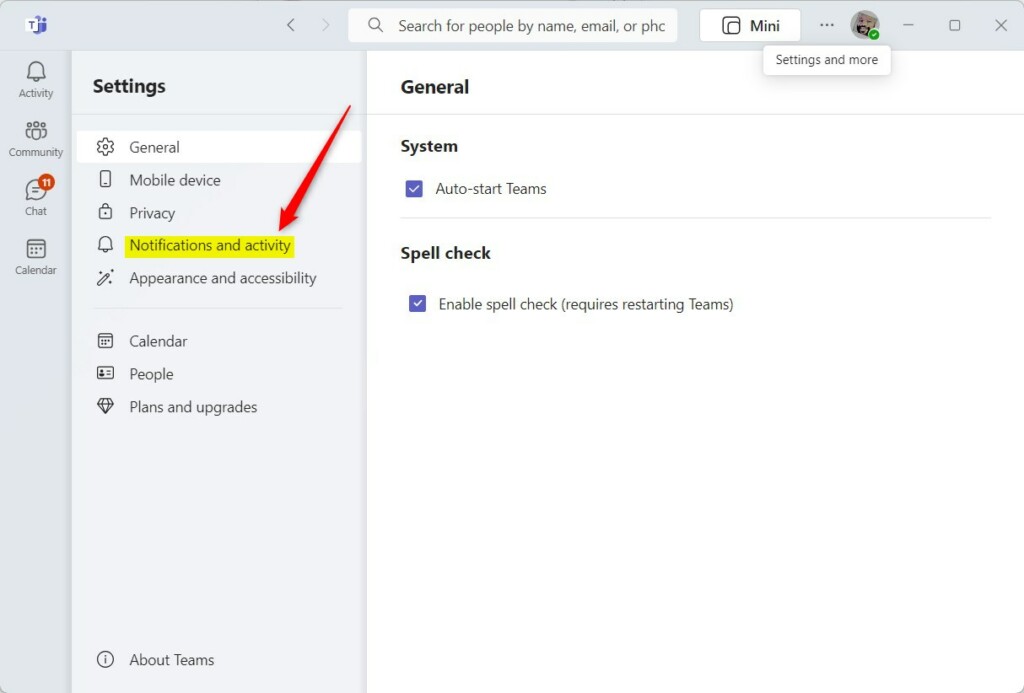
Click the Settings and more (…) button located next to your profile picture. Select Settings from the menu that appears.

Click the Notifications and activity tab on the left side of your screen.
Look at the options on the right side. You can click Edit next to any category to change how you receive alerts, including:
- Email: Choose if you want daily summaries of missed activity.
- Chat: Decide if you want to see a banner or just a notification in your feed for @mentions.
- Messages: Turn banners on or off for new messages.
- Likes and reactions: Choose how you see when someone reacts to your post.
- Meetings: Toggle notifications for when a meeting starts.
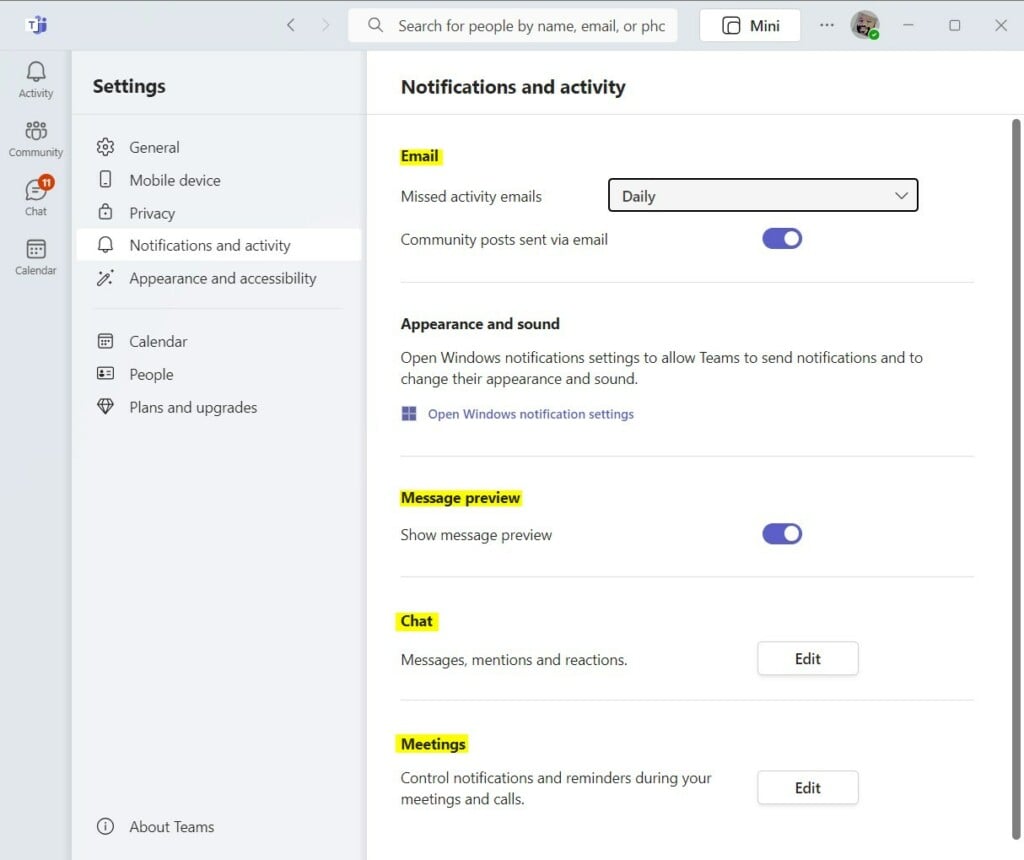
Microsoft Teams works with your system settings. You can also manage how these alerts appear in the Notifications Center by adjusting your Windows Notifications settings. If you select Only show feed, you will only see alerts when you click on the Activity pane inside the Teams app.
Note: If you need to reset system-wide notification permissions, you may need admin privileges to modify files in C:\Windows\System32 or registry keys like HKEY_CURRENT_USER\Control Panel\Desktop, though standard user settings in Teams do not require this.
Summary
Managing your notifications in Microsoft Teams is the best way to avoid distractions. By customizing your sounds, banners, and email alerts, you can ensure your computer stays quiet while you work. You can always change these settings back if you decide you want to see more or fewer alerts in the future.
For more help with message previews, see Turn Message preview On/Off.
Was this guide helpful?




[…] preview on or off, turn spell check on or off, turn on or off phone number in search results, manage notifications, turn on or off suggested replies in chat, and […]
[…] or off, turn spell check on or off, turn on or off phone number in search results, manage notifications, turn on or off suggested replies in chat, and […]
[…] preview on or off, turn spell check on or off, turn on or off phone number in search results, manage notifications, turn on or off suggested replies in chat, enable or disable sound notifications, and […]
[…] or off, turn spell check on or off, turn on or off phone number in search results, manage notifications, turn on or off suggested replies in chat, enable or disable sound […]