How to Enable or Disable Exclusive Mode for Audio Device in Windows 11

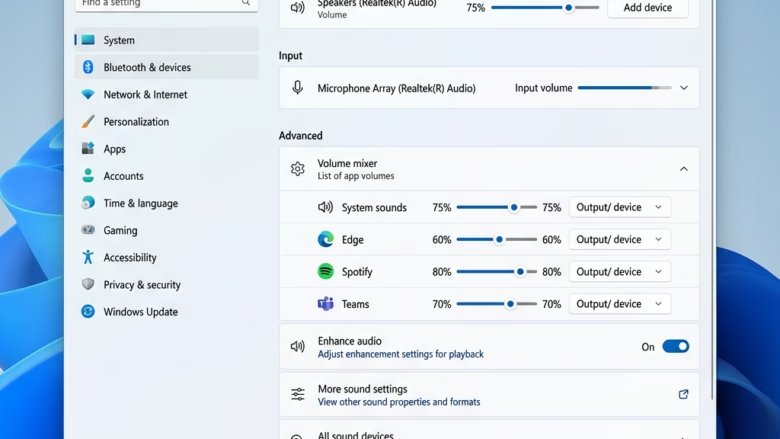
You can enable or disable Exclusive Mode for audio devices in Windows 11 to give applications direct control over your sound hardware.
Exclusive Mode lets applications take direct control of your sound hardware. This means programs, like professional audio software or certain games, can use your speakers or microphone without Windows getting in the way. This often leads to less delay (latency) and better sound quality (fidelity).
However, when Exclusive Mode is active for an application, other programs on your PC will be unable to play sound. This makes sure your main audio application gets the full, clean access it needs.
For example, enabling Exclusive Mode for a digital audio workstation (DAW) on Windows 11 can significantly reduce audio delay for real-time monitoring.
Open Settings, go to System > Sound > All sound devices, select your device, and toggle “Exclusive mode” under Advanced settings. Alternatively, open Control Panel, click Sound, select your device, go to Properties > Advanced, and check or uncheck the “Allow applications to take exclusive control” box.
Option One
You can turn Windows 11 exclusive mode on or off directly in the Sound Settings app.
- Open Settings (press ⊞ Win+I).
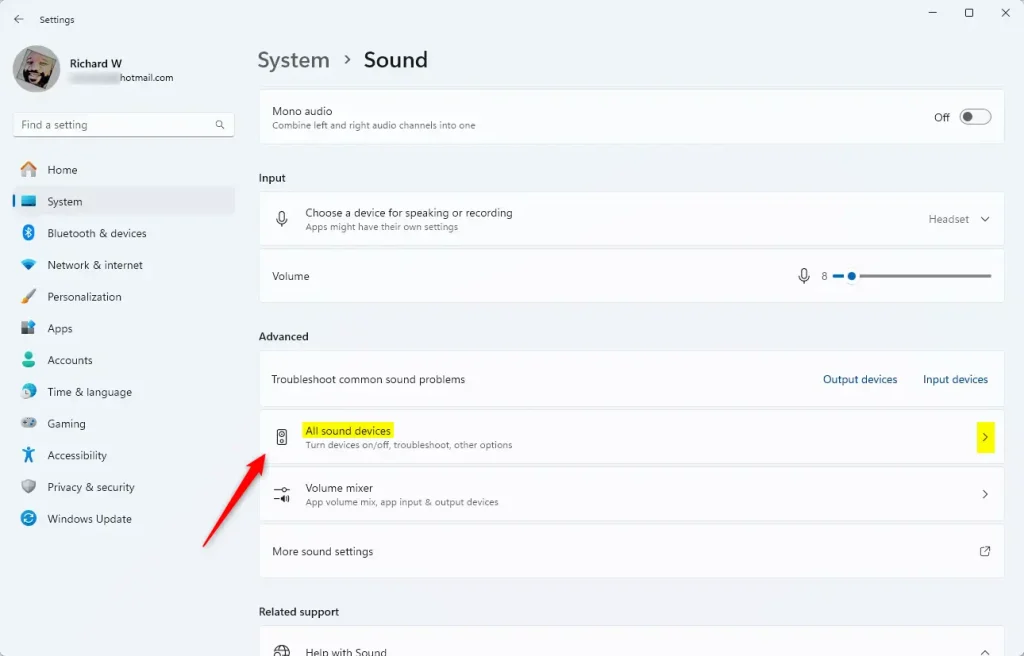
- Click System on the left, then click Sound on the right. Open Sound settings

- Click All sound devices. Open All sound devices settings
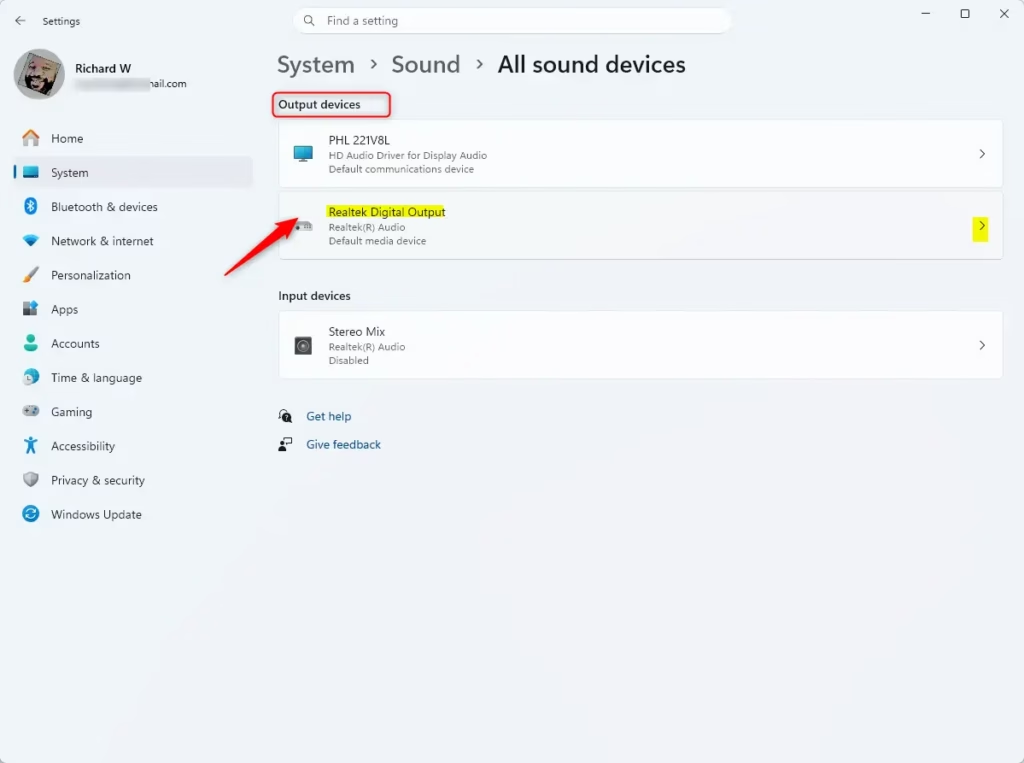
- Select the output or input device you want to change.
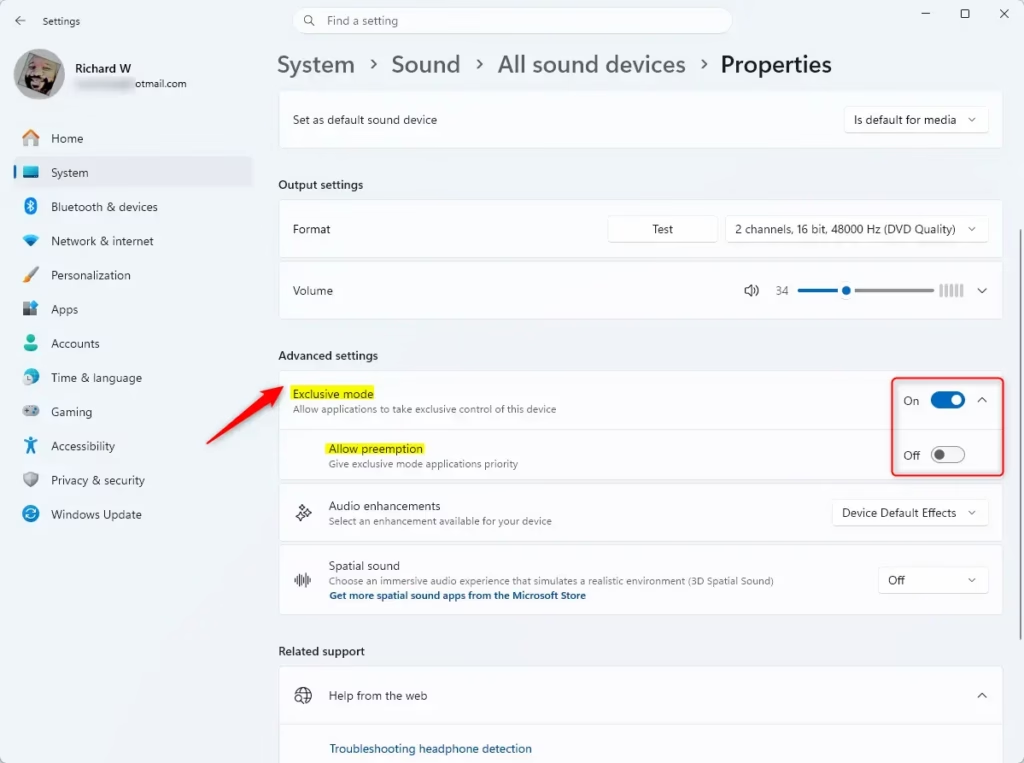
- Under Advanced settings, use the toggle switch to turn Exclusive mode on or off.
- If you turned it on, you can also toggle Allow preemption to decide if those apps get priority.
- Close the Settings window when finished.
Option Two
You can also manage Windows 11 exclusive mode for your audio device using the older Control Panel.
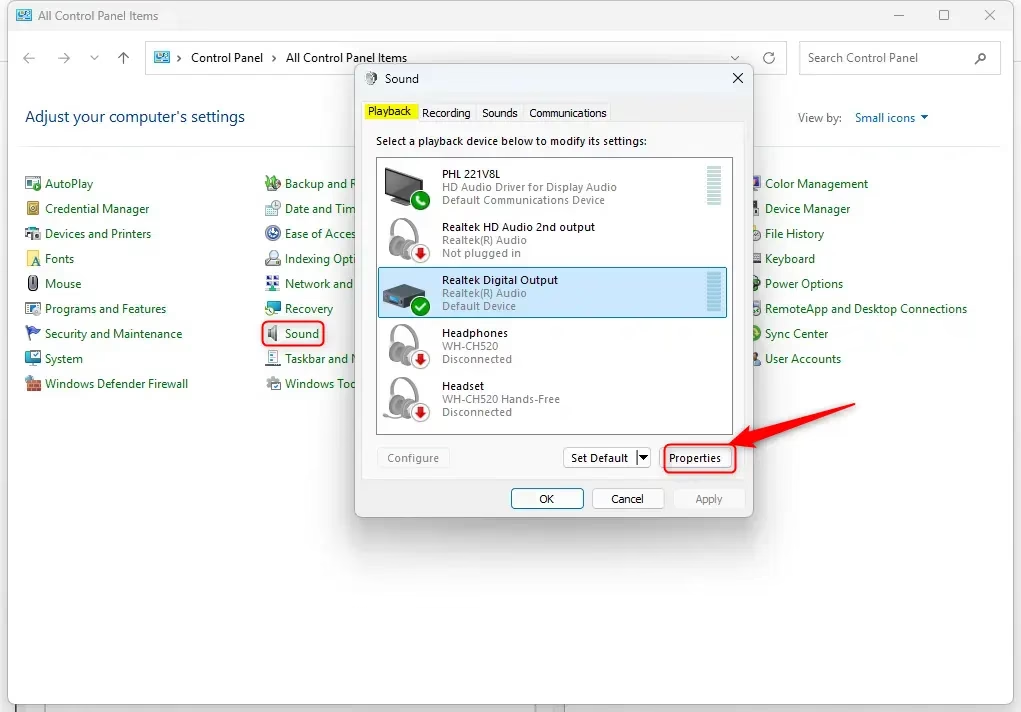
- Open the Control Panel and click the Sound icon.
- Select the Playback (output) or Recording (input) tab. Pick your device and click Properties.
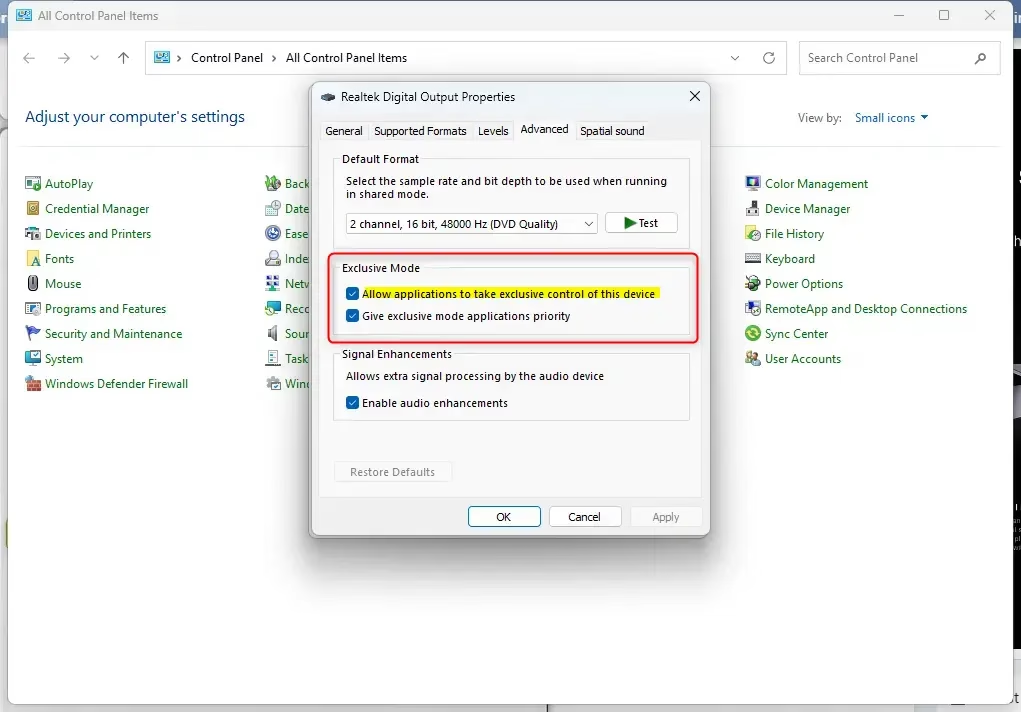
- Click the Advanced tab.
- Check or uncheck the box for Allow applications to take exclusive control of this device.
- If checked, you can also check or uncheck Give exclusive mode applications priority.
- Click OK.
- Click OK again to save your changes.
Summary
Exclusive mode gives apps direct access to your audio hardware. You can manage this setting using the modern Settings menu or the classic Control Panel. Turning this on is great for high-quality audio work, but it may silence other apps while it is active.
Should I turn off exclusive mode for audio?
Turn off Windows 11 exclusive mode if you often use several audio programs at once, like listening to music while watching a video.
How do I turn off exclusive mode audio in 🪟 Windows 11?
To turn off Windows 11 exclusive mode, open Settings (press ⊞ Win+I), go to System, then Sound, and pick All sound devices.
Does Tidal Exclusive Mode Sound better?
Tidal’s Exclusive Mode can make music sound better because it lets the app skip the usual Windows audio system.
What does exclusive mode do for a microphone?
When a microphone is in Windows 11 exclusive mode, only one app can use it at a time, stopping other programs from interfering with the sound.
Was this guide helpful?
100% of readers found this helpful (2 votes)

About the Author
Richard
Tech Writer, IT Professional
Richard, a writer for Geek Rewind, is a tech enthusiast who loves breaking down complex IT topics into simple, easy-to-understand ideas. With years of hands-on experience in system administration and enterprise IT operations, he’s developed a knack for offering practical tips and solutions. Richard aims to make technology more accessible and actionable. He's deeply committed to the Geek Rewind community, always ready to answer questions and engage in discussions.

No comments yet — be the first to share your thoughts!