How to Update Printer Drivers in Windows 11

Updating printer drivers in Windows 11 fixes printing problems and makes your printer work better.
A printer driver is like a translator that helps your Windows 11 computer talk to your printer.
Keeping drivers updated can solve common glitches, like when your printer won’t print, and lets you use all your printer’s features. For example, ensuring your Canon PIXMA TS5320 has the latest driver can prevent connection issues.
Outdated drivers were a top reason for printing errors, according to a 2023 PC Magazine study. Updating them stops annoying error messages and makes sure your printer works with the newest Windows 11 features.
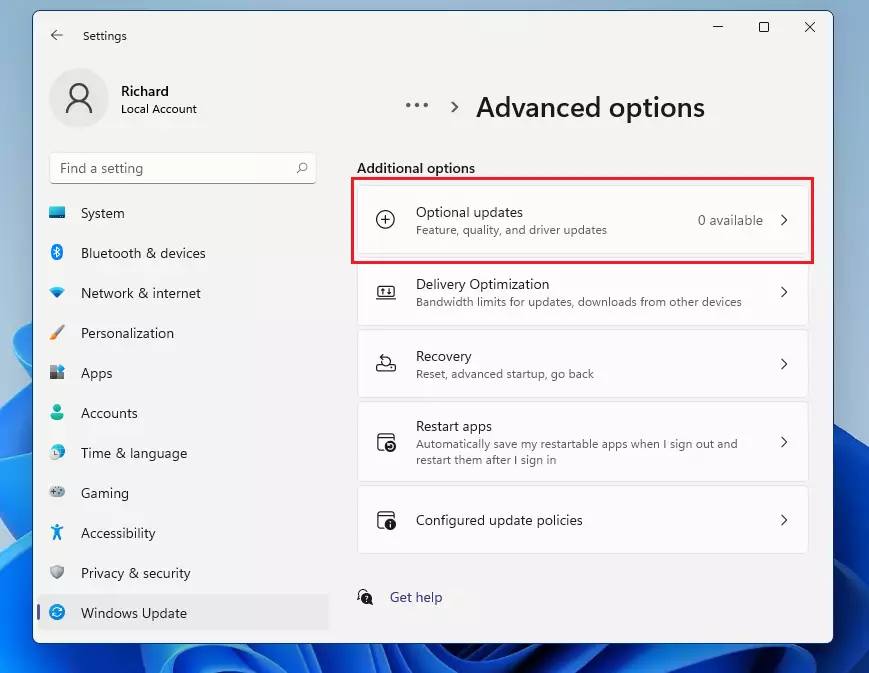
Update your printer driver through Windows Update, or download the latest version from the manufacturer’s website. You can also use Device Manager to search for driver updates.
Recommended Method: Windows Update
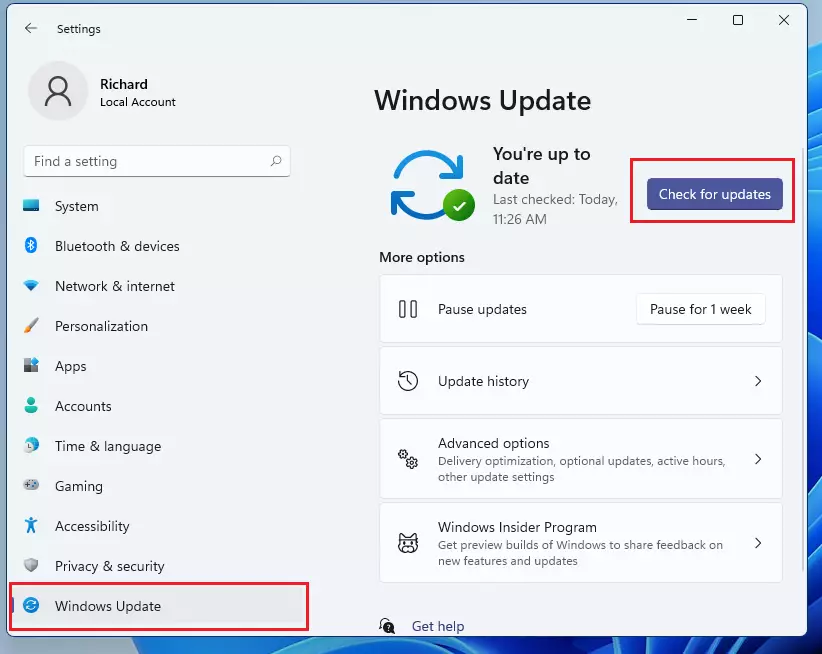
The easiest way to update printer drivers in Windows 11 is by using Windows Update. This built-in tool automatically checks for and installs the latest driver if one is available, helping your device run smoothly with minimal effort.
- Press
Windows key + Ito open Settings. - Click Windows Update in the left menu.
- Click Check for updates.
- If Windows finds a printer driver, it will install it automatically.
How to Check Your Current Driver Version
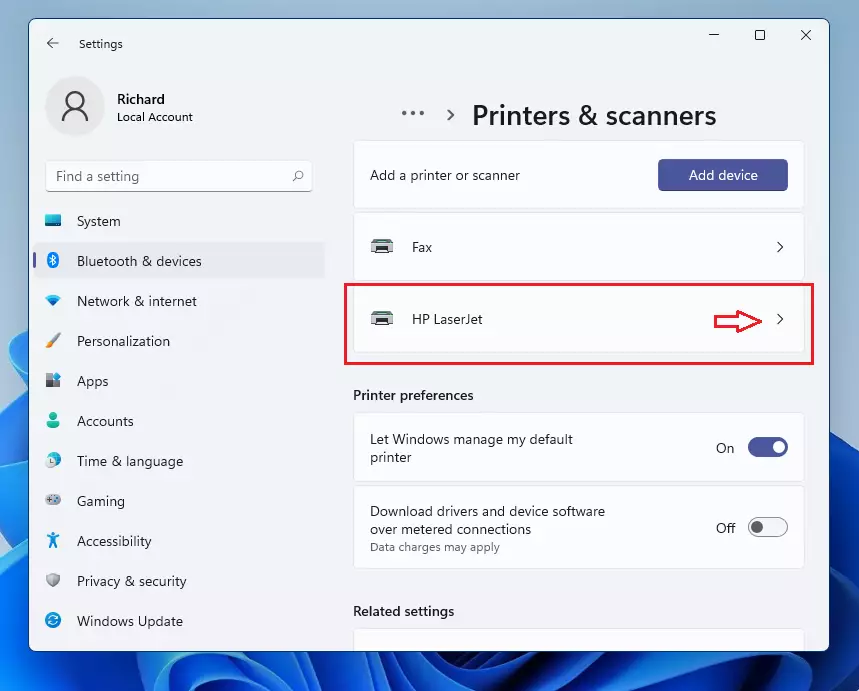
You can check if your driver is already up to date by looking at the printer properties.
- Open Settings > Bluetooth & devices > Printers & scanners.
- Select your printer from the list.
- Click Printer properties.
- Go to the Advanced tab. You will see the driver name and version listed there.
Using the Manufacturer’s Website
If Windows Update doesn’t find the right driver, the best next step is to visit your printer manufacturer’s website. The company that made your printer offers the most up-to-date drivers for your specific model, ensuring compatibility and optimal performance.
- Visit the official support site for your printer brand (e.g., HP, Epson, or Canon).
- Search for your exact model number.
- Download the latest driver for Windows 11.
- Run the downloaded file to install the software.
Using Device Manager for Updates
Device Manager is a built-in Windows tool that lets you manage all your computer’s hardware.
- Right-click the Start button and select Device Manager.
- Expand Print queues.
- Right-click your printer and select Update driver.
- Choose Search automatically for drivers.
Troubleshooting: Rollback and Reinstallation
If your printer stops working correctly after a driver update, you can often fix it by rolling back to the older driver. This process, done through Device Manager, reverts to a previous version of the driver, resolving conflicts caused by the new update.
- In Device Manager, right-click your printer and select Properties.
- Go to the Driver tab.
- Click Roll Back Driver if the button is active.
If rolling back doesn’t work, you might need to reinstall the device:
- Go to Settings > Bluetooth & devices > Printers & scanners.
- Select your printer and click Remove.
- Restart your computer.
- Click Add device to let Windows find the printer again.
Manual Driver Installation
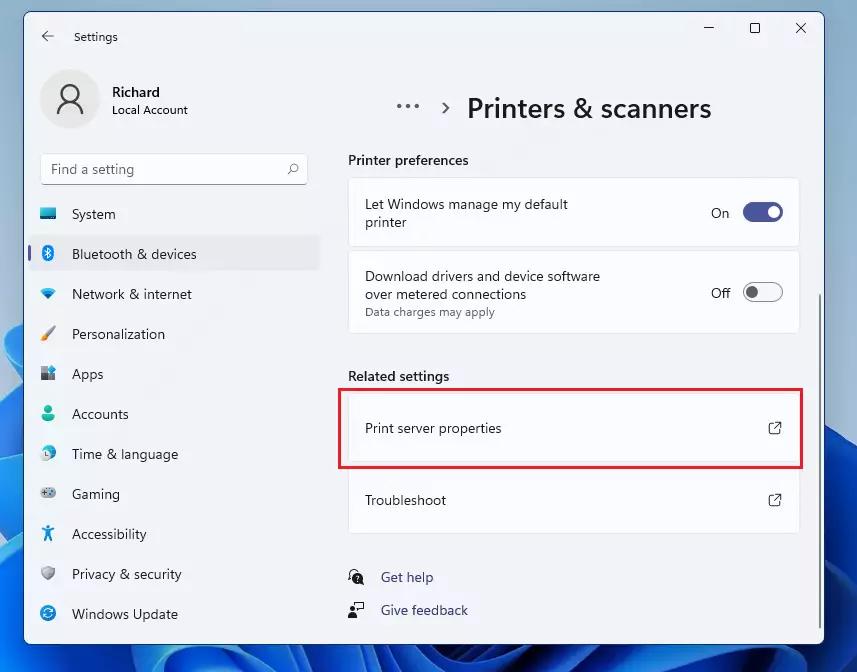
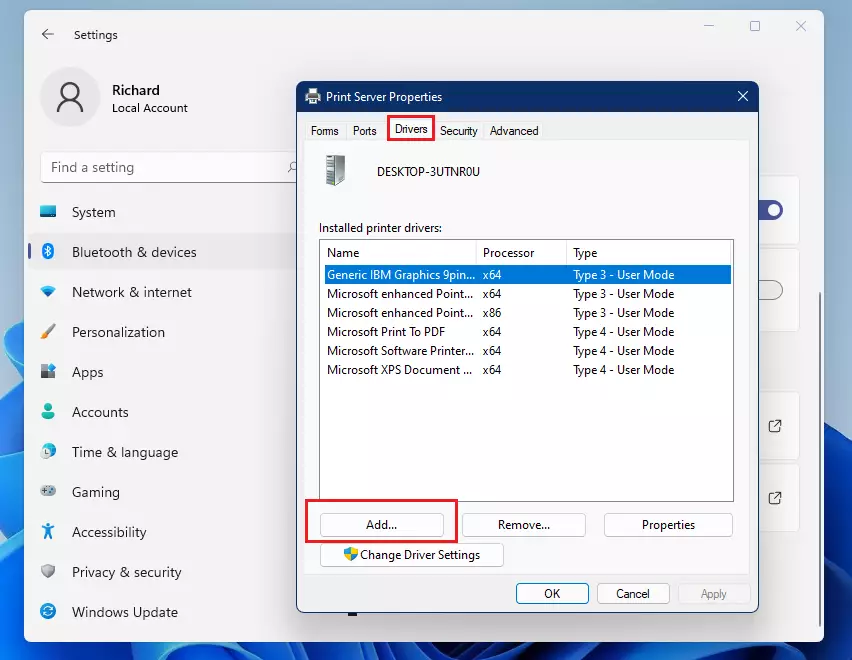
ADMIN REQUIRED: If you have a specific driver file, use Print Server Properties.
- Open Settings > Bluetooth & devices > Printers & scanners.
- Scroll down to Print server properties.
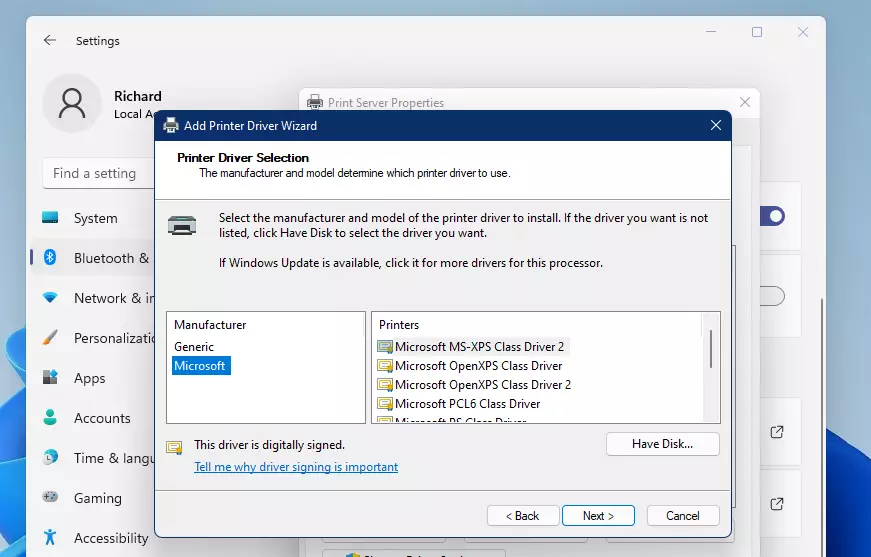
- Go to the Drivers tab and click Add.
- Follow the wizard to select your downloaded driver file.
What should I do if my printer driver update fails?
If an update fails, try removing the printer from your settings entirely. Restart your computer and then add the printer again using the Add device button. If the issue persists, visit the manufacturer’s website to download the latest full software suite specifically designed for your printer model.
How to fix printer driver compatibility issues in 🪟 Windows 11?
Compatibility issues often occur when using older drivers. Try running the printer in compatibility mode by right-clicking the driver installer, selecting Properties, and choosing the Compatibility tab. Alternatively, check the manufacturer’s site for a Windows 11 specific driver, as older Windows 10 drivers may not function correctly.
Summary
- Use Windows Update as your first choice for driver updates.
- Check the manufacturer’s website if Windows cannot find a driver.
- Use Device Manager to update or roll back drivers if you encounter errors.
- Always remove and re-add your printer if you experience persistent connection issues.
- Manual installation via Print Server Properties is an advanced option for custom drivers.
To update printer drivers in Windows 11, start with Windows Update as it’s the simplest method. If that doesn’t work, get the latest driver from your printer manufacturer’s website. For troubleshooting, use Device Manager to roll back or reinstall drivers if problems arise.
Was this guide helpful?

About the Author
Richard
Tech Writer, IT Professional
Richard, a writer for Geek Rewind, is a tech enthusiast who loves breaking down complex IT topics into simple, easy-to-understand ideas. With years of hands-on experience in system administration and enterprise IT operations, he’s developed a knack for offering practical tips and solutions. Richard aims to make technology more accessible and actionable. He's deeply committed to the Geek Rewind community, always ready to answer questions and engage in discussions.


No comments yet — be the first to share your thoughts!