

Installing Drupal with WSL on Windows 11 lets you run the popular content management system inside a Linux environment right on your PC. Windows Subsystem for Linux (WSL, a built-in feature that runs real Linux tools alongside your regular apps) gives you a fast, native setup for web development without needing a heavy virtual machine.
You can finish the initial setup in just a few minutes, making it much easier to build and test websites on Windows 11 version 22H2 or newer.
Install the Windows Subsystem for Linux by opening Command Prompt as administrator and running “wsl –install.” After restarting, install a Linux distribution like Ubuntu using “wsl –install -d ubuntu-20.04.
Install Windows Subsystem for Linux in 🪟 Windows 11
Windows Subsystem for Linux (WSL) lets you run Linux programs directly on your Windows 11 PC without needing a separate computer or dual-boot setup. Open Command Prompt as an administrator, type wsl, and press Enter to install the required tools for your Drupal website.
Next, right-click the Command Prompt app and choose to Run as administrator.

When the console opens, run the commands below to install Windows Subsystem for Linux (WSL):
wsl --install
Wait for WSL to be installed.
After installing, you should get a success message similar to the lines below:
Installing: Virtual Machine Platform
Virtual Machine Platform has been installed.
Installing: Windows Subsystem for Linux
Windows Subsystem for Linux has been installed.
Downloading: WSL Kernel
Installing: WSL Kernel
WSL Kernel has been installed.
Downloading: GUI App Support
Installing: GUI App Support
GUI App Support has been installed.
Downloading: Ubuntu
The requested operation is successful. Changes will not be effective until the system is rebooted.
Restart your computer.
WSL should be installed and ready to use. When you want to update, run the commands below:
wsl --update
Install Specific Linux distro on 🪟 Windows 11
Choosing a Linux distribution like Ubuntu on Windows Subsystem for Linux gives you the operating system environment needed to run your Drupal website. Run wsl --list --online in your terminal to view all available versions you can install on your PC.
wsl --list --online
You should then see all available distributions that can be installed on WSL.
NAME            FRIENDLY NAME
Ubuntu          Ubuntu
Debian          Debian GNU/Linux
kali-linux      Kali Linux Rolling
openSUSE-42     openSUSE Leap 42
SLES-12         SUSE Linux Enterprise Server v12
Ubuntu-16.04    Ubuntu 16.04 LTS
Ubuntu-18.04    Ubuntu 18.04 LTS
Ubuntu-20.04    Ubuntu 20.04 LTS
To install a Linux distribution from the list above, run the commands below using the distribution name. For example, to install Ubuntu 20.04, run the commands below:
wsl --install -d ubuntu-20.04
You should then get a message that the distribution is installed.
Downloading: Ubuntu 20.04 LTS
Installing: Ubuntu 20.04 LTS
Ubuntu 20.04 LTS has been installed.
Launching Ubuntu 20.04 LTS.
After installing, you should get a Ubuntu command console with setup details.
Installing, this may take a few minutes.
Please create a default UNIX user account. The username does not need to match your Windows username.
For more information visit: https://aka.ms/wslusers
Enter new UNIX username: Richard
New password:
Retype new password:
passwd: password updated successfully
Installation successful!
To run a command as administrator (user "root"), use "sudo <command>".
See "man sudo_root" for details.

Welcome to Ubuntu 20.04 LTS (GNU/Linux 4.4.0-22000-Microsoft x86_64)
Some troubleshooting commands to run when you run into issues.
wsl --set-default-version 1
bcdedit /set hypervisorlaunchtype auto start
Now that Ubuntu Linux is installed and ready, continue below to install the LEMP server to run Drupal. First, install the Nginx HTTP Server.
Install Nginx HTTP Server
Nginx acts as the web server that delivers your Drupal pages to visitors when they type your web address into a browser. Install Nginx inside your Ubuntu environment by running the sudo apt update and sudo apt install nginx commands in your terminal.
To install Nginx on Ubuntu, run the commands below:
sudo apt update
sudo apt install nginx
After installing Nginx, the commands below can be used to stop and start Nginx services.
sudo service nginx stop
sudo service nginx start
To test whether Nginx is installed and functioning, open your web browser and browse to the server's IP address or hostname.
http://localhost
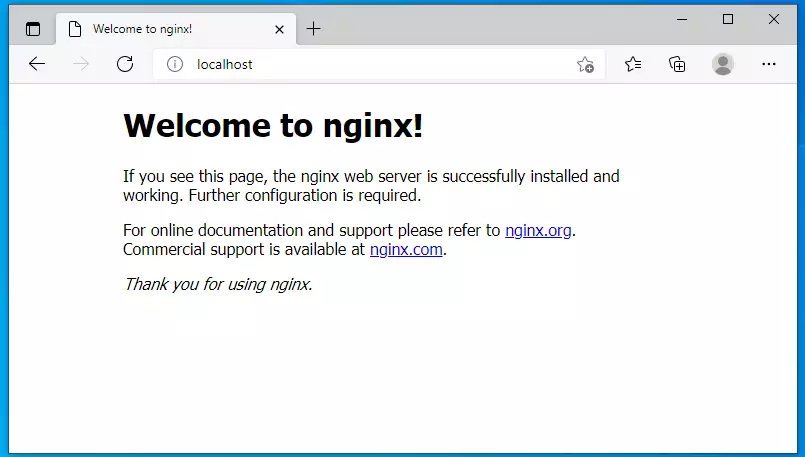
If you see the above page in your browser, Nginx works as expected.
Install MariaDB Server
MariaDB stores all your Drupal site data, including user accounts, posts, and settings, in a secure database format. You can set up the database server on your Linux system by running the standard package installation commands in your terminal.
The MariaDB database server, a fast and secure open-source option, works with Drupal. MariaDB is the default server for most Linux servers, making it a common choice for your Drupal installation.
To install MariaDB, run the commands below:
sudo apt install mariadb-server mariadb-client
After installing MariaDB, the commands below can stop, start, and enable the service to start when the server boots.
sudo service mysql stop
sudo service mysql start
sudo mysql_secure_installation
When prompted, answer the questions below by following the guide.
- Enter current password for root (enter for none): Just press the Enter
- Set root password? [Y/n]: Y
- New password: Enter password
- Re-enter new password: Repeat password
- Remove anonymous users? [Y/n]: Y
- Disallow root login remotely? [Y/n]: Y
- Remove test database and access to it? [Y/n]: Y
- Reload privilege tables now? [Y/n]: Y
To verify and validate that MariaDB is installed and working, log in to the database console using the commands below:
sudo mysql -u root -p
Type the root password when prompted.
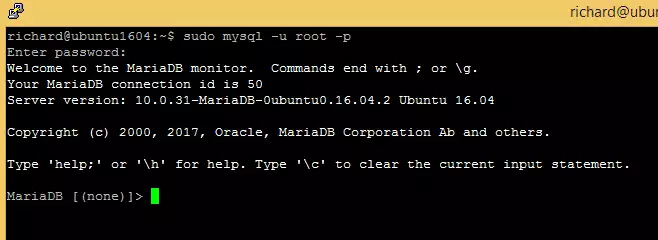
The server was successfully installed if you see a similar screen.
Install PHP and Related Modules
PHP is the programming language Drupal uses to run its code and talk to your database. Install PHP along with the required modules like php-mysql and php-gd by running the package manager command in your Linux terminal.
sudo apt install php-fpm php-common php-mysql php-gmp php-curl php-intl php-mbstring php-xmlrpc php-gd php-xml php-cli php-zip
After installing PHP, configure some basic settings required for Drupal to function properly.
Based on your environment, another version of PHP might be installed. So verify that.
sudo nano /etc/php/7.4/fpm/php.ini
Below are good settings to configure for most Drupal websites.
file_uploads = On
allow_url_fopen = On
short_open_tag = On
memory_limit = 256M
cgi.fix_pathinfo = 0
upload_max_filesize = 100M
max_execution_time = 360
date.timezone = America/Chicago
That should get PHP 7.4 installed with some basic settings to allow Drupal to function.
After setting up PHP, the command below can be used to stop and start PHP7.4 services.
sudo service php7.4-fpm stop
sudo service php7.4-fpm start
Create Drupal Database
Creating a dedicated database gives Drupal a secure place to store all your website content and configuration settings. Log into the MariaDB console using your root account and run the CREATE DATABASE drupaldb; command to set it up.
Login to the MariaDB database console using the commands below:
sudo mysql -u root -p
Then, create a database called drupaldb
CREATE DATABASE drupaldb;
Next, create a database user called Drupal user and set a password
CREATE USER 'drupaldbuser'@'localhost' IDENTIFIED BY 'new_password_here';
Then, grant the user full access to the database.
GRANT ALL ON drupaldb.* TO 'drupaldbuser'@'localhost' WITH GRANT OPTION;
Finally, save your changes and exit.
FLUSH PRIVILEGES;
EXIT;
Download Drupal
Downloading the official Drupal files brings the actual website code into your local Linux environment on Windows 11. Use tools like curl and Composer in your terminal to fetch the latest release files and set up your project.
To get Drupal's latest release, you may want to use the GitHub repository… Install Composer, Curl, and other dependencies to get started…
sudo apt install curl git
curl -sS https://getcomposer.org/installer | sudo php -- --install-dir=/usr/local/bin --filename=composer
After installing curl and Composer above, change into the Nginx root directory and download Drupal packages from GitHub… Always replace the branch number with the latest branch.
To view Drupal releases, see this page.
cd /var/www/
sudo git clone --branch 9.1.9 https://git.drupal.org/project/drupal.git
cd /var/www/drupal
sudo composer install
Then, run the command below to allow the www-data user to own the Drupal directory.
sudo chown -R www-data:www-data /var/www/drupal/
sudo chmod -R 755 /var/www/drupal/
Configure Nginx VirtualHost
An Nginx VirtualHost configuration file tells your web server where to find your Drupal files and how to handle incoming visitor requests. Create this file inside the /etc/nginx/sites-available/ directory using the nano text editor in your terminal.
Run the commands below to create a new VirtualHost file called Drupal in the /etc/nginx/sites-available/ directory.
sudo nano /etc/nginx/sites-available/drupal
Below is a very good configuration setting for most Drupal sites on the Nginx server. This configuration should work great.
Copy the content below and save it into the file created above.
The Nginx configuration block manages PHP files for Drupal versions 7 and newer, sending requests for `.php` files and `update.php` to the FastCGI Process Manager via `php7.4-fpm.sock`. This Nginx block sets the `SCRIPT_FILENAME` parameter for accurate script running, includes standard FastCGI parameters, and sets up Drupal's file and image caching.
After saving the file above, run the commands below to enable the new site, then restart the Nginx server.
sudo ln -s /etc/nginx/sites-available/drupal /etc/nginx/sites-enabled/
sudo service nginx restart
At this stage, Drupal is ready and can be launched by going to the server's IP or hostname.
http://example.com
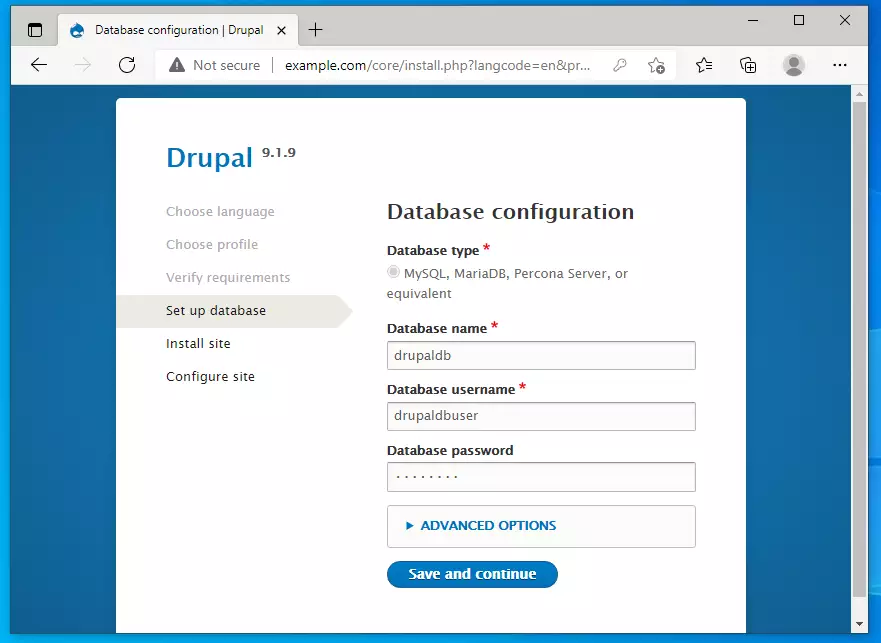
That should bring up the Drupal setup wizard.

Type in the database connection and continue
Create a Drupal admin account and password, save, and continue.
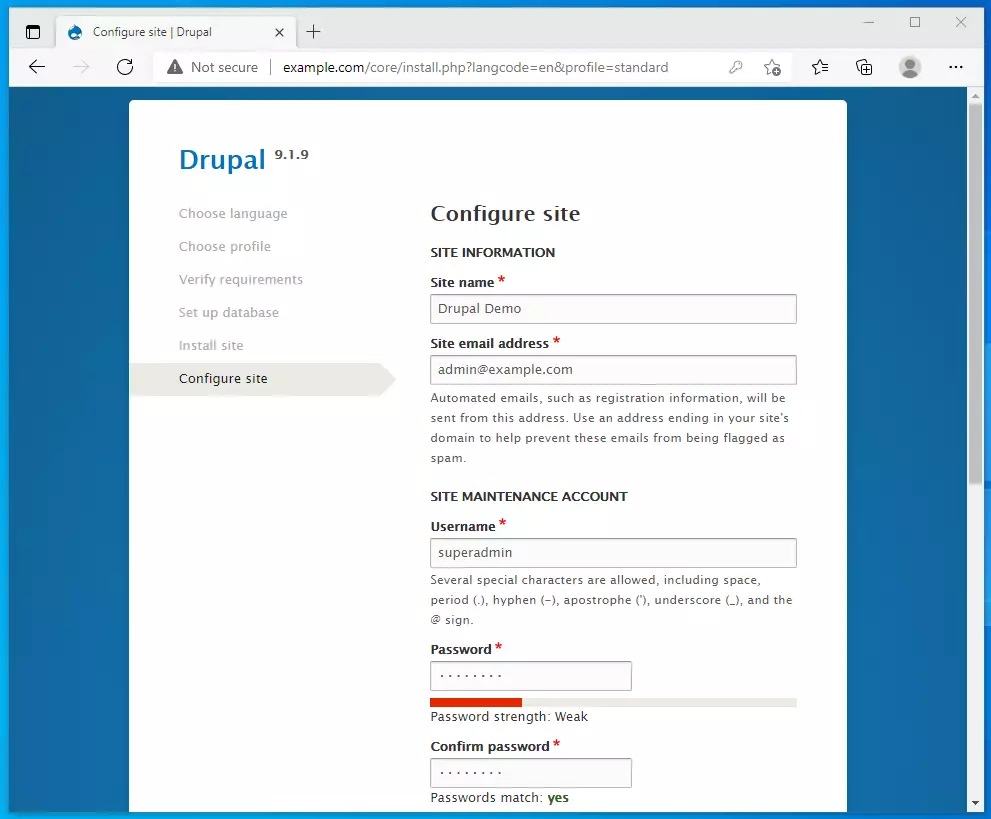
Log in with the account above, and you're done.
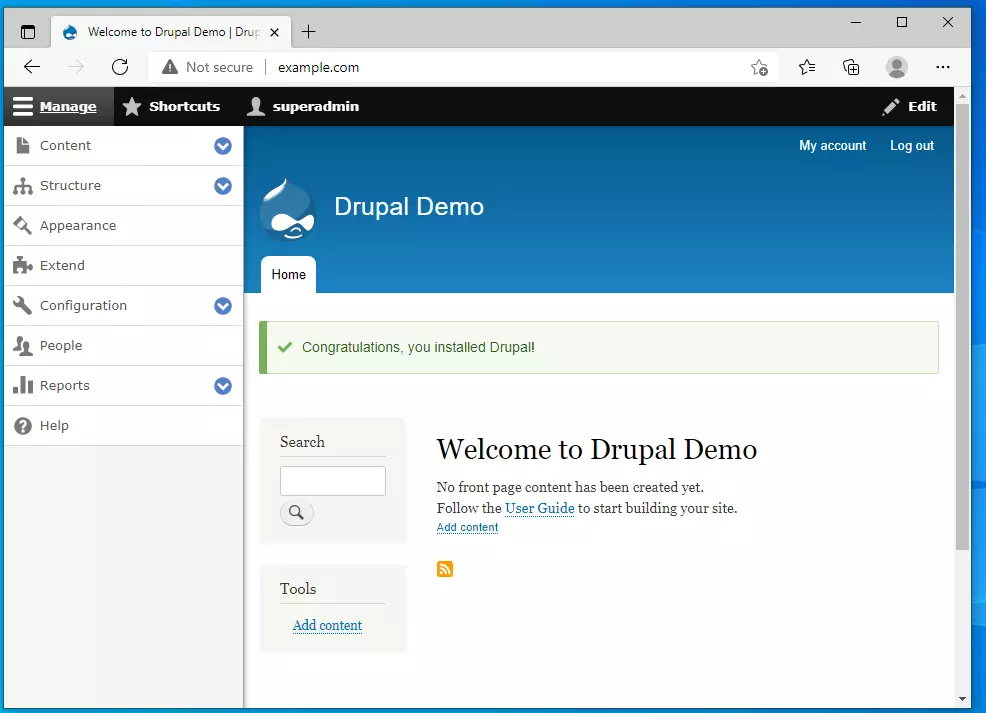
That's it!
Conclusion:
This post showed you how to install Drupal on Windows 10 with Ubuntu. If you find any error above, please use the comment form below to report.
Was this guide helpful?

About the Author
Richard
Tech Writer, IT Professional
Richard, a writer for Geek Rewind, is a tech enthusiast who loves breaking down complex IT topics into simple, easy-to-understand ideas. With years of hands-on experience in system administration and enterprise IT operations, he’s developed a knack for offering practical tips and solutions. Richard aims to make technology more accessible and actionable. He's deeply committed to the Geek Rewind community, always ready to answer questions and engage in discussions.



No comments yet — be the first to share your thoughts!