How to Hide Restart on Windows 11 Power Menu

Hiding the Restart option on the Windows 11 power menu removes the button from the Start menu popup so you stop clicking it by mistake. Windows 11 shows Shut down, Sleep, and Restart together by default, but you can alter this list using the Registry Editor (a built-in database for system settings).
This tweak works on Windows 11 Home and Pro builds. You need administrator rights on your PC to save the change.
Modify the Group Policy Editor or Registry Editor to hide or unhide the Restart button. Access gpedit.msc for Pro/Enterprise or regedit for Home, then navigate to the specified policy or registry key to disable or enable the restart option.
Understanding the Power Menu
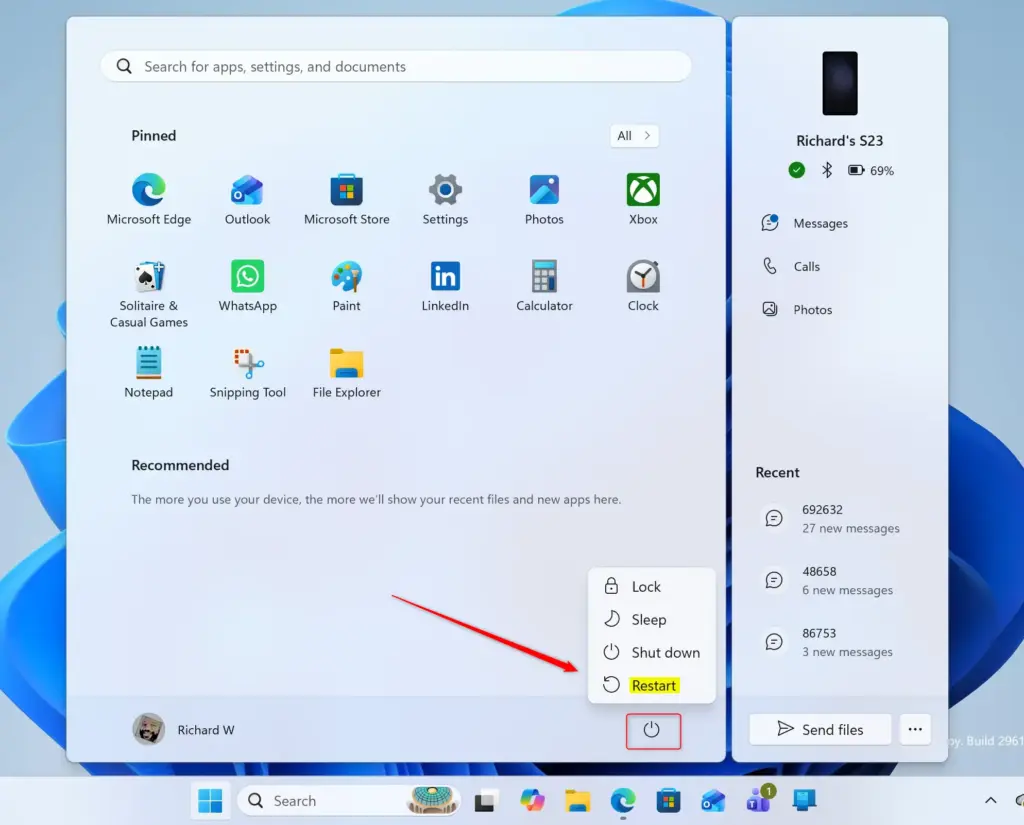
The power menu appears when you click the Start button and select the power icon. By default, Windows 11 usually shows the ‘Restart’ option for everyone to use.
Why Hide or Show Restart?
- Stop Accidental Restarts: If others use your computer, someone might click “Restart” by mistake. This can interrupt their work.
- Cleaner Menu: If you rarely restart your PC, removing the option can make the power menu less cluttered.
- System Control: In some work environments, managers might want to limit which power options users can see.
You might want to hide restart Windows 11 power menu options to stop other people from accidentally rebooting your computer while you are away. Removing this button also helps clean up a cluttered start menu if you rarely use the feature, and it lets system administrators control power settings on shared computers.
How to Hide Restart from the Power Menu
To change this setting, we will use a tool called the Windows Registry Editor. The registry stores Windows settings . Be careful when making changes here, as mistakes can cause problems. Follow these steps closely.
Step 1Open Registry Editor
Opening Registry Editor (an advanced tool for changing system settings) is the first step to hide restart Windows 11 options. You open this tool by using the built-in Run command box on your taskbar , which lets you launch system utilities directly with administrator permissions.
- Press the Windows key + R on your keyboard. The "Run" box will appear.
- Type
regeditand press Enter or click OK. - If a User Account Control (UAC) window pops up, click Yes.
To check if you have administrator rights, try opening File Explorer and navigating to C:\Windows. If you encounter an access denied message, you likely don't have the necessary permissions.
Step 2Go to the Right Registry Location
Navigating to the correct folder path in Registry Editor lets you access the specific code that controls power menu items. You need to go to HKEY_LOCAL_MACHINE\SOFTWARE\Microsoft\PolicyManager\default\Start\HideRestart to change how the restart button behaves on your screen.
If you don't see the HideRestart key under Start, you need to create it. Right-click on the Start key, select New, then Key. Name the new key HideRestart.
Typing the path wrong could change the wrong settings.
Step 3Change the Setting to Hide Restart
Modifying a specific registry value inside the HideRestart folder is how you actually hide restart Windows 11 power choices. Creating a new DWORD key and setting its data to 1 tells the operating system to remove the restart button from your start menu completely.
- Right-click in the empty space on the right side.
- Select New, then choose DWORD (32-bit) Value.
- Name this new value exactly
valueand press Enter. - Double-click on the
valueentry. - A small window will open. Change the 'Value data' field.
- To hide "Restart," type
1in the 'Value data' box. - Make sure 'Base' is set to 'Hexadecimal'.
- Click OK.
Explanation: Setting this value to 1 tells Windows to hide the "Restart" option. A value of 0 (which is often the default) would show it.
Step 4Restart Your Computer
Your changes won't work until you restart your computer.
- Close the Registry Editor.
- Click the Start button, then the Power icon.
- Choose Restart.
After your computer starts up again, check the power menu. The "Restart" option should be gone.
How to Show Restart on the Power Menu
Restoring the missing reboot button to your computer is possible when you reverse the registry tweak used to hide restart Windows 11 power menu entries. Going back into the Registry Editor and updating the key ensures the restart command shows up normally again.
Step 1Open Registry Editor
If you closed it, open it again:
- Press Windows key + R.
- Type
regeditand press Enter or click OK. - Click Yes on the User Account Control prompt.
Step 2Go to the HideRestart Key
Go back to the same registry location:HKEY_LOCAL_MACHINE\SOFTWARE\Microsoft\PolicyManager\default\Start\HideRestart
If the HideRestart key is not there, right-click on the Start key, select New Key, and name it HideRestart.
Step 3Change the Setting to Show Restart
Changing the registry data back to zero is how you undo the hide restart Windows 11 configuration and make the reboot button visible again. Editing the value inside the HideRestart folder forces Windows to display the standard power options on your menu.
- In the right-hand pane, double-click on the
valueentry. - In the 'Value data' field, type
0. - Make sure 'Base' is set to 'Hexadecimal'.
- Click OK.
Explanation: Setting the 'Value data' to 0 tells Windows to show the "Restart" option on the power menu.
Important Note: If the value entry doesn't exist and you previously hid "Restart," it means the default setting (which shows it) is active. If "Restart" is missing and you didn't hide it, there might be another issue. Setting the value to 0 will make sure it shows.
Step 4Restart Your Computer
You need to restart your PC for this change to work.
- Close the Registry Editor.
- Click Start, then the Power icon.
- Choose Restart.
After your computer restarts, the "Restart" option should be back on the power menu.
Summary
Controlling power options lets you hide restart Windows 11 commands easily by editing a few registry keys. You just switch the value between 1 and 0 depending on whether you want to remove or restore the reboot button on your computer.



No comments yet — be the first to share your thoughts!