How to Find Your BitLocker Recovery Key in Windows 11


A BitLocker recovery key in Windows 11 is a unique 48-digit number that protects your files and locks your hard drive if the system detects an unexpected security risk. Windows asks for this code when it notices a sudden hardware change, a BIOS update, or multiple failed sign-in tries.
You can find your missing recovery key stored in several common places depending on how you set up your PC. Check your online Microsoft account, look at a USB flash drive you plugged in during setup, or search through any printed paper copies you saved.
Access your Microsoft account online at account.microsoft.com/devices/recoverykey, check any printed copies, or look for a file on a USB drive. If it’s a work or school device, contact your administrator.
What is a BitLocker Recovery Key?
A BitLocker recovery key is a unique 48-digit number that Windows creates to unlock your computer if it cannot verify that you are the real owner. Windows asks for your BitLocker recovery key during startup when it detects a hardware change, a BIOS update, or an incorrect login attempt that triggers security locks.
If you sign in with a Microsoft account during Windows 11 setup, your recovery key likely synced there automatically on Microsoft account on Windows 11 PCs.
Where to Find Your BitLocker Recovery Key
Your BitLocker recovery key is usually stored in your online Microsoft account, saved as a text file on a computer or USB drive, printed out on a physical sheet of paper, or held by your work or school IT department if you use a managed organization device.
- Microsoft Account: If saved online, you can view your key by logging in to your Microsoft account.
- Printed Paper: You might have printed the key and kept it somewhere safe.
- USB Flash Drive: The key could be saved on a USB drive you plugged in during setup.
- Work or School Account: If your device is connected to your workplace or school, the recovery key might be stored in their system (Azure Active Directory) or held by your system administrator.
How to Check Each Location
1Find Your Recovery Key Online with Your Microsoft Account
Open the Microsoft account portal on another device:
- Sign in with the same Microsoft account you use on your locked device.
- Look for the recovery key listed under your device name.
2Find Your Printed Recovery Key
Printed recovery sheets appear on physical paper in formats resembling this layout:
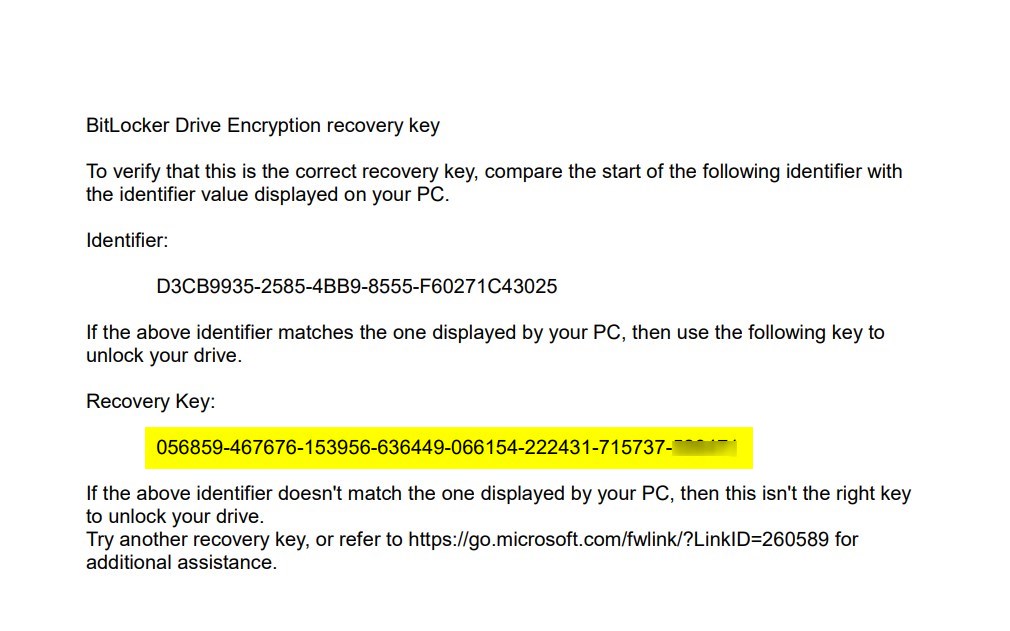
Check physical storage locations containing important paperwork like filing cabinets or home safes.
3Find Your Recovery Key on a USB Flash Drive
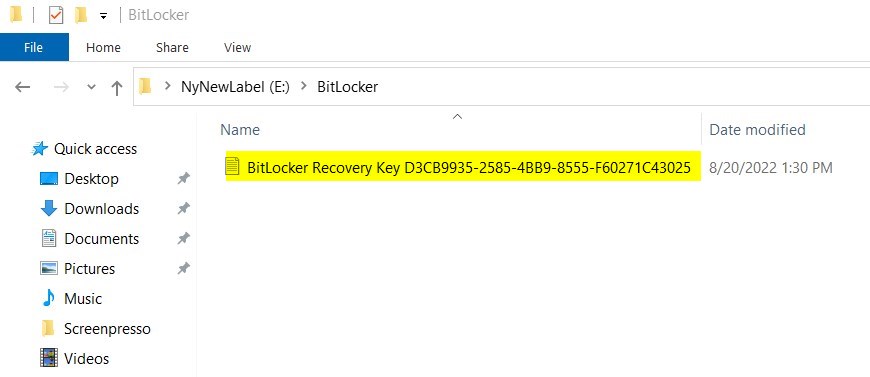
Plug the flash drive into any working computer and open it if you saved the key there. Text files containing the 48-digit sequence appear with names like BitLocker Recovery Key.txt.
4Check with Your Work or School
Organization-managed devices often store recovery keys in cloud directories like Azure Active Directory or keep them with the IT department. Contact the system administrator for retrieval assistance.
What if You Can’t Find Your Recovery Key?
Factory resets become necessary when recovery keys remain missing while Windows demands authentication. Personal files and installed applications vanish during this process, making this option a last resort.
Review the full factory restoration procedure here: How to Factory Reset Windows 11
Summary
- The BitLocker recovery key is very important to unlock your computer if there are sign-in problems.
- You can save this key in your Microsoft account, on paper, on a USB drive, or with your organization if it’s a work or school device.
- Always keep your recovery key safe and easy to find in case you need it.
- If you lose the key and can’t unlock your PC, resetting Windows may be your last option.
Finding your BitLocker recovery key lets you bypass the blue recovery screen and access your files again without wiping your hard drive. You can check your online Microsoft account, look through saved paper documents, or ask your IT administrator to retrieve your key if you cannot find it stored anywhere else.
Was this guide helpful?

About the Author
Richard
Tech Writer, IT Professional
Richard, a writer for Geek Rewind, is a tech enthusiast who loves breaking down complex IT topics into simple, easy-to-understand ideas. With years of hands-on experience in system administration and enterprise IT operations, he’s developed a knack for offering practical tips and solutions. Richard aims to make technology more accessible and actionable. He's deeply committed to the Geek Rewind community, always ready to answer questions and engage in discussions.



No comments yet — be the first to share your thoughts!