How to Encrypt Files in Windows 11


Protecting private information starts with a few clicks. Locating the target file or folder is the first step toward securing data.
Right-click a file or folder, select Properties, click Advanced, and check “Encrypt contents to secure data.” This is only available on Windows 11 Pro and higher.
What is Encryption?
Think of encryption as a digital lockbox for sensitive documents. Scrambling data ensures that only authorized accounts can read the contents. Securing files this way prevents unauthorized viewing if hardware goes missing.
Why encrypt your files? Hardware theft no longer exposes personal documents when cryptographic protection is active.
What happens when you encrypt a folder? Subordinate documents added later inherit the same cryptographic lockdown automatically.
Important Things to Know
File encryption is absent on Windows 11 Home Edition. Upgrading to Windows 11 Pro grants access to this built-in security tool.
Certain items resist encryption attempts. Compressed archives (ZIP), core system files, and mandatory operating system directories remain unencryptable.
How to Lock or Unlock Files and Folders Using Properties
Graphical menus offer the fastest route for securing individual documents.
Steps to Encrypt (Lock) a File or Folder:
- Find the file or folder you want to protect.
- Right-click on it and click Properties.
- In the General tab, click the Advanced... button.
- Check the box that says Encrypt contents to secure data.
- Click OK to close the Advanced Attributes window.
- Click OK or Apply in the Properties window.
- Choose if you want to encrypt just this folder or file, or also everything inside it. Then click OK.
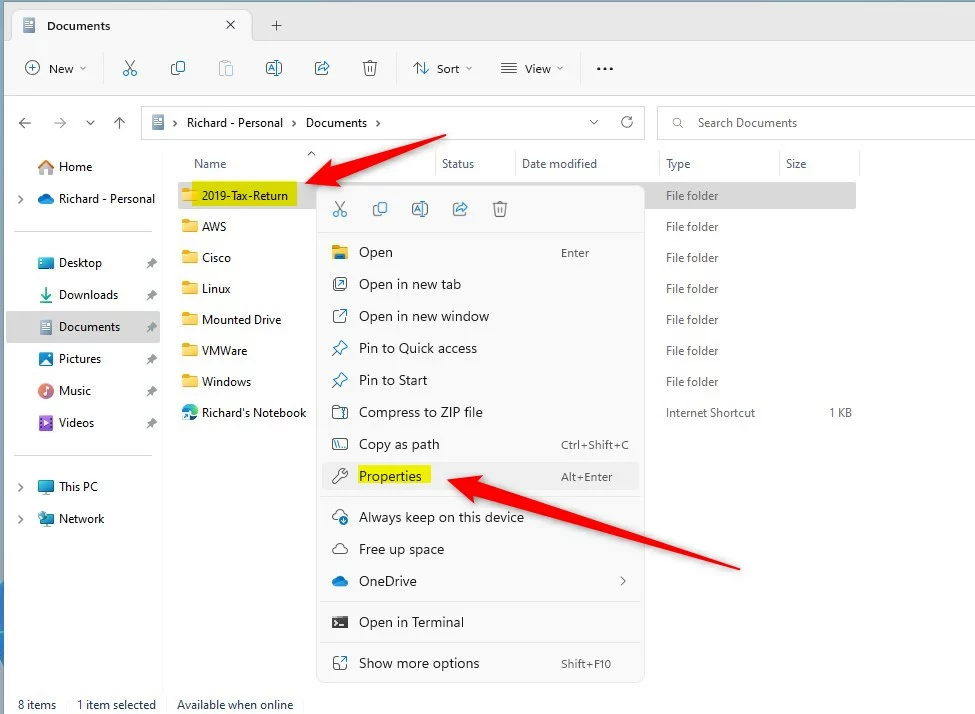
Right-click the target and select Properties.
Image: Right-click your folder or file and choose Properties.
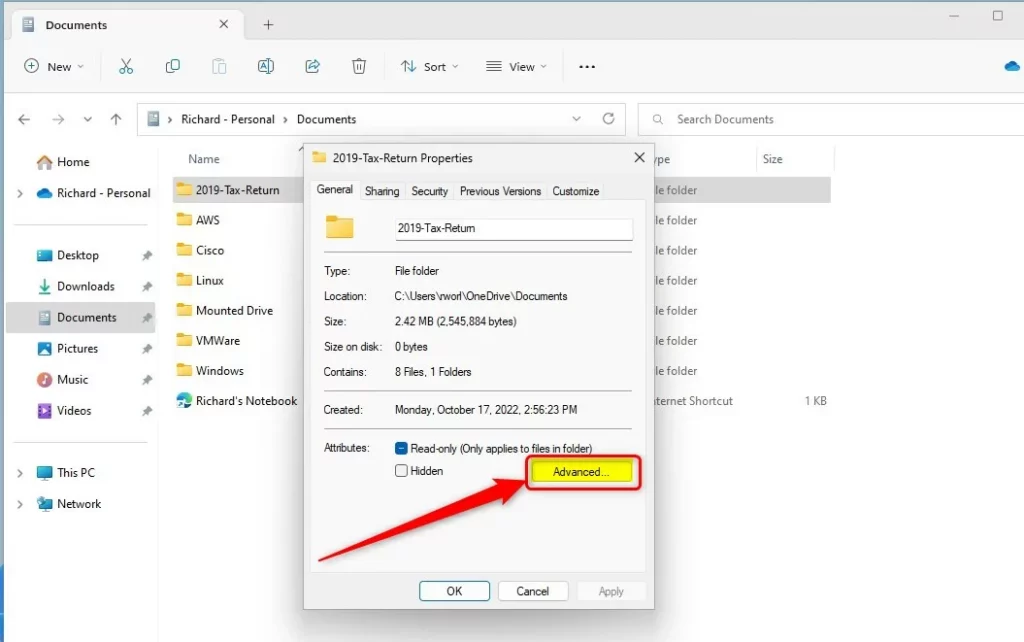
Navigating to the General tab reveals deeper configuration choices.
Image: Click the "Advanced" button.
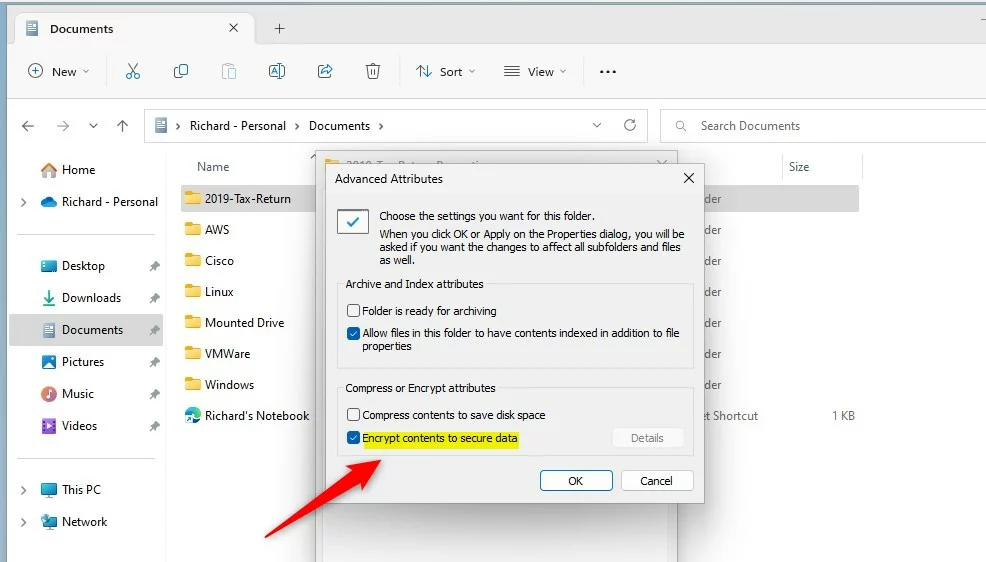
Attribute checkboxes control the final locking mechanism.
Image: Check "Encrypt contents to secure data".
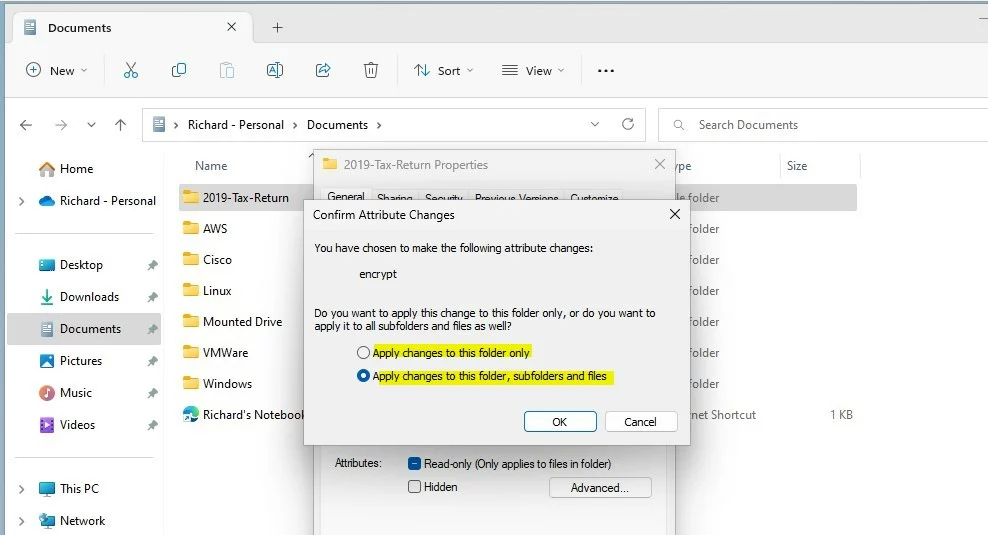
Applying changes cascades the security down to nested directories.
File encryption in Windows 11 offers two choices: encrypt only the selected folder, or encrypt the folder and all its contents, including subfolders. This choice helps control how much data the encryption process covers.
How to Decrypt (Unlock) a File or Folder
Reversing the process requires accessing the same menu. Clearing the attribute checkbox restores the document to an unencrypted state.
How to Lock or Unlock Files and Folders Using Commands
Command-line interfaces like Windows Terminal, PowerShell, or Command Prompt also handle cryptographic tasks.
To Open Windows Terminal:
To Encrypt (Lock) a File
Use this command:
cipher /e "FullFilePathHere"Replace FullFilePathHere with your file's location. For example:
cipher /e "C:\Users\UserName\SecretDocument.txt"To Decrypt (Unlock) a File
Use this command:
cipher /d "FullFilePathHere"Example:
cipher /d "C:\Users\UserName\SecretDocument.txt"To Encrypt (Lock) a Folder and Everything Inside
Use this command:
cipher /e /s:"FullFolderPathHere"Example:
cipher /e /s:"C:\Users\UserName\SecretDocument"To Decrypt (Unlock) a Folder and Everything Inside
Use this command:
cipher /d /s:"FullFolderPathHere"Example:
cipher /d /s:"C:\Users\UserName\SecretDocument"Summary
Safeguarding private documents takes minimal effort. Locking sensitive records thwarts snooping attempts during hardware theft. This foundational security measure defends data integrity against unauthorized entry.- Encryption helps keep your private files safe from others.
- You can encrypt or decrypt files easily using Properties or commands.
- Encrypting files is a good idea if your computer is lost or stolen.
- If you have Windows 11 Home, encryption with this method is not available. Consider upgrading to Windows 11 Pro.
- Stay safe and protect your data!
Was this guide helpful?
100% of readers found this helpful (1 votes)

About the Author
Richard
Tech Writer, IT Professional
Richard is a writer at Geek Rewind who turns complex IT tasks into clear, step-by-step guides. He draws on years of hands-on experience in system administration and enterprise IT operations, focusing on Windows, Linux and WordPress: the problems people actually run into, and the fixes that work. His server and WordPress guides come from systems he runs himself. Richard builds and maintains the platform behind Geek Rewind, from its Ubuntu servers and Nginx configuration to its custom WordPress plugins. Many new tutorials start with readers' questions, and he's always glad to answer them in the comments.

No comments yet — be the first to share your thoughts!