How to Enable or Disable Flashing Taskbar Apps in Windows 11


Flashing taskbar apps in Windows 11 make an application icon blink orange or white when a program needs your attention, such as when a new chat message arrives or a download finishes.
Windows sets the default flash count to 7 times before the icon stops blinking and stays highlighted instead. You can turn this flashing off completely in the Settings app or Registry Editor if the blinking distracts you, while still receiving standard system notifications.
To enable or disable flashing taskbar apps in Windows 11, go to Settings Personalization Taskbar Taskbar behaviors and check or uncheck “Show flashing on taskbar apps”. You can also disable flashing entirely by setting ForegroundFlashCount to 0 in Registry Editor under 🗝️HKEY_CURRENT_USER\
Change Settings via Windows Settings
You can turn flashing taskbar apps Windows 11 on or off using the built-in Settings app without touching advanced tools. Open Settings by pressing Win+I, go to Personalization, and select Taskbar behaviors to find the switch for apps blinking on your screen.
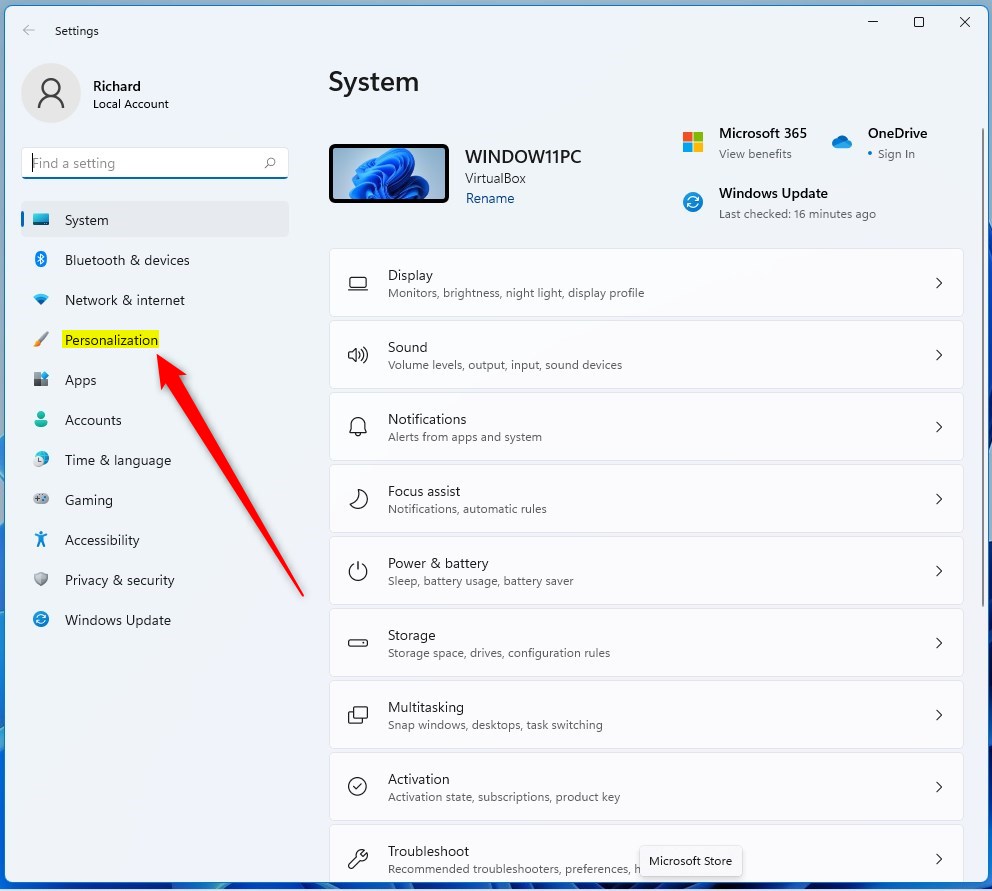
1. Open the Settings app by pressing Win+I.

2. Click Personalization in the left menu.
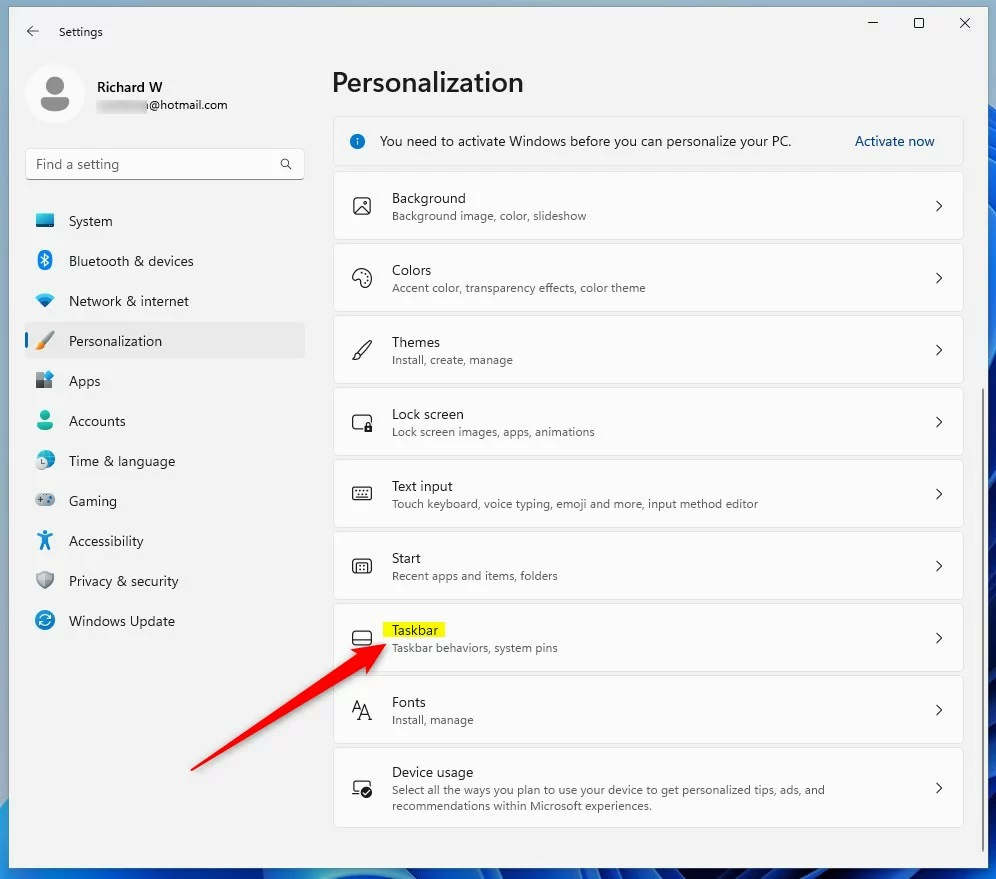
3. Select Taskbar on the right.
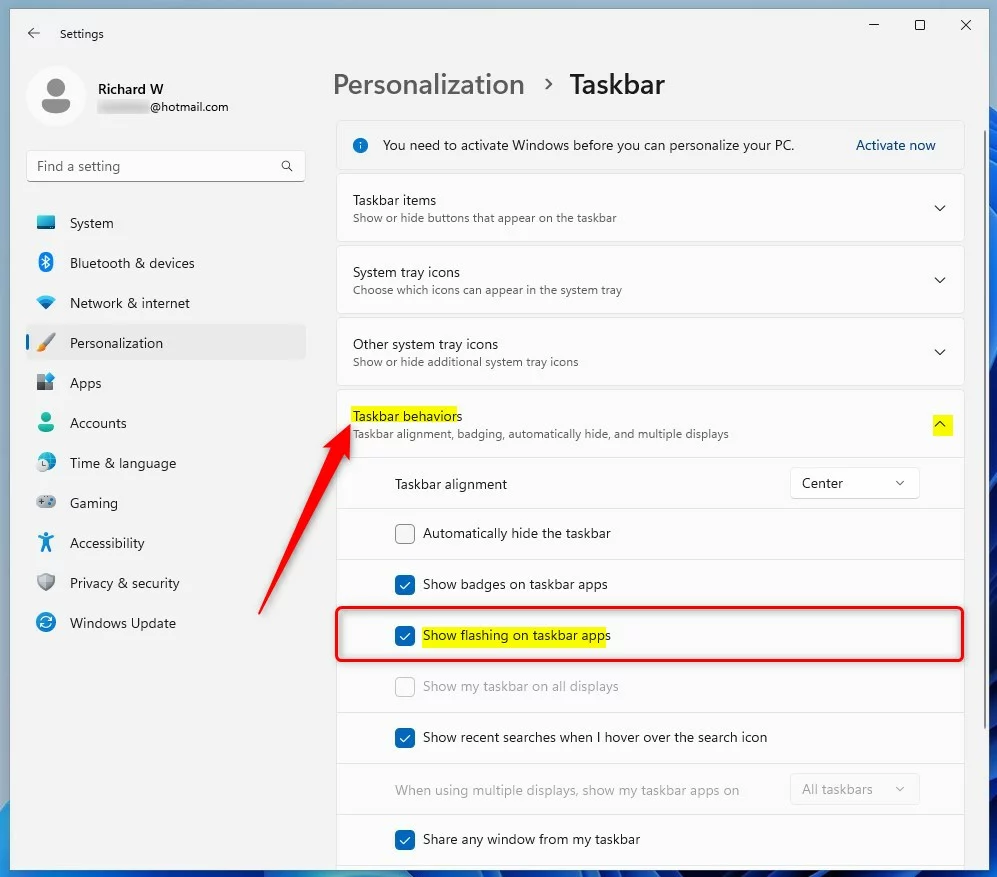
4. Click Taskbar behaviors to expand it.
The "Show flashing on taskbar apps" setting controls whether apps blink to get your attention. To turn on flashing for apps, check the box next to "Show flashing on taskbar apps." To turn off this flashing and stop apps from blinking, uncheck the box.
Advanced: Registry Editor Method
You can change how many times flashing taskbar apps Windows 11 blink by editing the Windows registry. Be careful when making changes here, as incorrect edits can cause system issues. Open the Registry Editor and go to HKEY_CURRENT_USER\Control Panel\Desktop to adjust the ForegroundFlashCount value.
You can control how many times a taskbar app flashes by changing the ForegroundFlashCount setting. This setting determines the number of times a flashing icon appears on the taskbar, helping you manage distractions.
- Press Windows key + R, type regedit, and hit Enter.
- Navigate to:
HKEY_CURRENT_USER\Control Panel\Desktop
The ForegroundFlashCount setting in Windows 11 controls how many times a taskbar app flashes. Find ForegroundFlashCount in the right pane of the Registry Editor. Double-click ForegroundFlashCount to change its value. Setting the value to 0 stops the taskbar app from flashing altogether.
Troubleshooting Persistent Flashing
Sometimes, notification badges or background apps force the taskbar to alert you. Ensure your system is updated by visiting the official Microsoft support documentation for taskbar customization.
Summary
Managing flashing taskbar apps Windows 11 helps you stop annoying blinking or bring back missed alerts. You can control this feature quickly through the Settings app under Taskbar behaviors or fine-tune the exact blink count using the Registry Editor if you want more precise control over your desktop notifications.
Was this guide helpful?

About the Author
Richard
Tech Writer, IT Professional
Richard is a writer at Geek Rewind who turns complex IT tasks into clear, step-by-step guides. He draws on years of hands-on experience in system administration and enterprise IT operations, focusing on Windows, Linux and WordPress: the problems people actually run into, and the fixes that work. His server and WordPress guides come from systems he runs himself. Richard builds and maintains the platform behind Geek Rewind, from its Ubuntu servers and Nginx configuration to its custom WordPress plugins. Many new tutorials start with readers' questions, and he's always glad to answer them in the comments.



[…] recently showed you how to enable or disable Show flashing on taskbar apps in Windows 11 to get your attention when specific actions are […]