How to Enable Print Screen for Snipping Tool in Windows 11


Using the Print Screen key to open Snipping Tool (a built-in screen capture app) lets you take screenshots in Windows 11 with a single key press instead of juggling the default Win+Shift+S shortcut. Turning on this hidden setting swaps the old behavior where pressing the PrtSc key just copies your whole display to the clipboard.
You need Windows 11 version 22H2 or later to use this feature. Setting up the shortcut takes less than thirty seconds through the main system options.
Enable the Print Screen key for Snipping Tool by going to Settings Accessibility Keyboard and turning on “Use the Print Screen button to open screen snipping”. This allows a single press of the PrtSc key to launch the snipping overlay.
How to enable Print Screen for Snipping Tool
To enable print screen Windows 11 shortcuts for the built-in screen capture tool, open the Settings app, go to Accessibility, and turn on the keyboard setting that uses the PrtScn button to open screen snipping. This lets you quickly capture your screen without opening the app first.
- Open the Settings app by pressing Win+I.
- Click on Accessibility in the left sidebar.

windows 11 new settings button - Select the Keyboard tile.
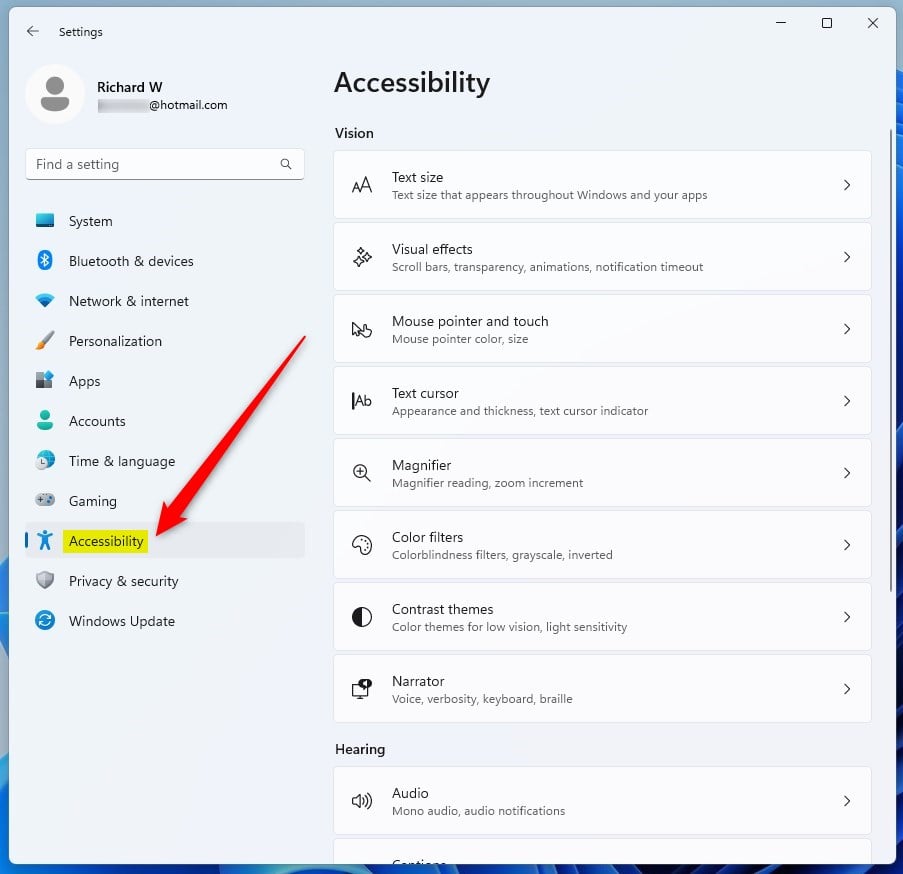
windows 11 accessibility tile - Find the toggle labeled “Use the Print Screen button to open screen snipping”.
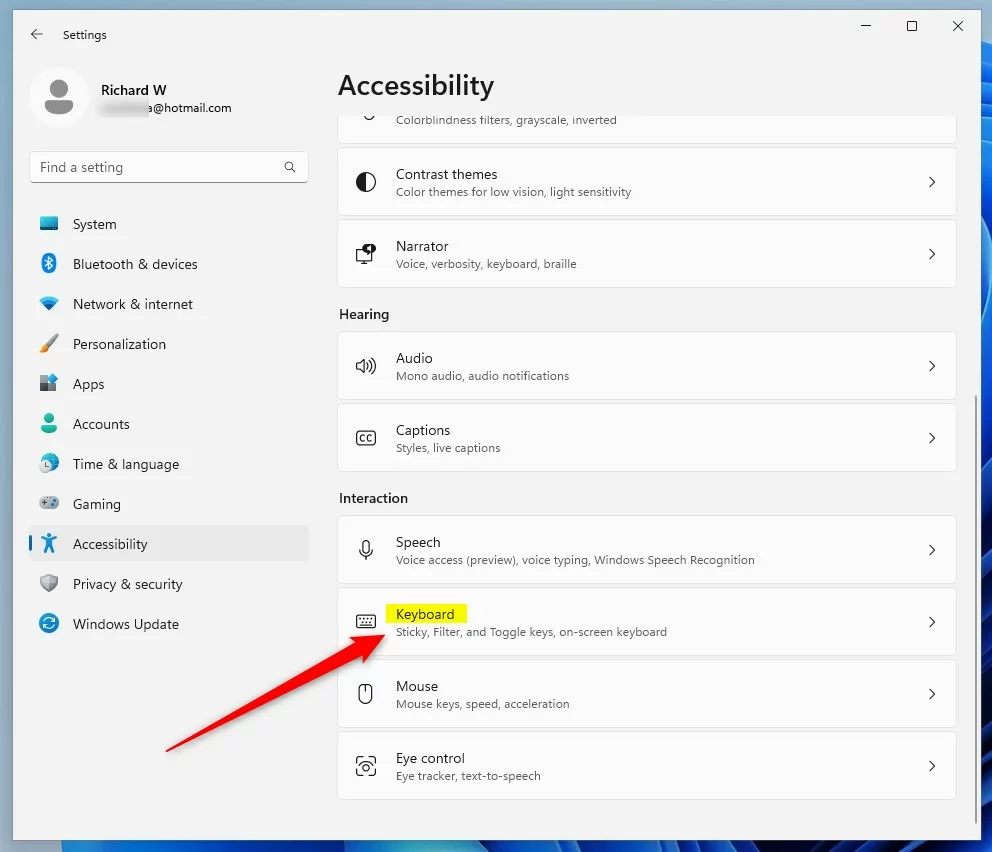
windows 11 accessibility keyboard tile - Switch the toggle to On.
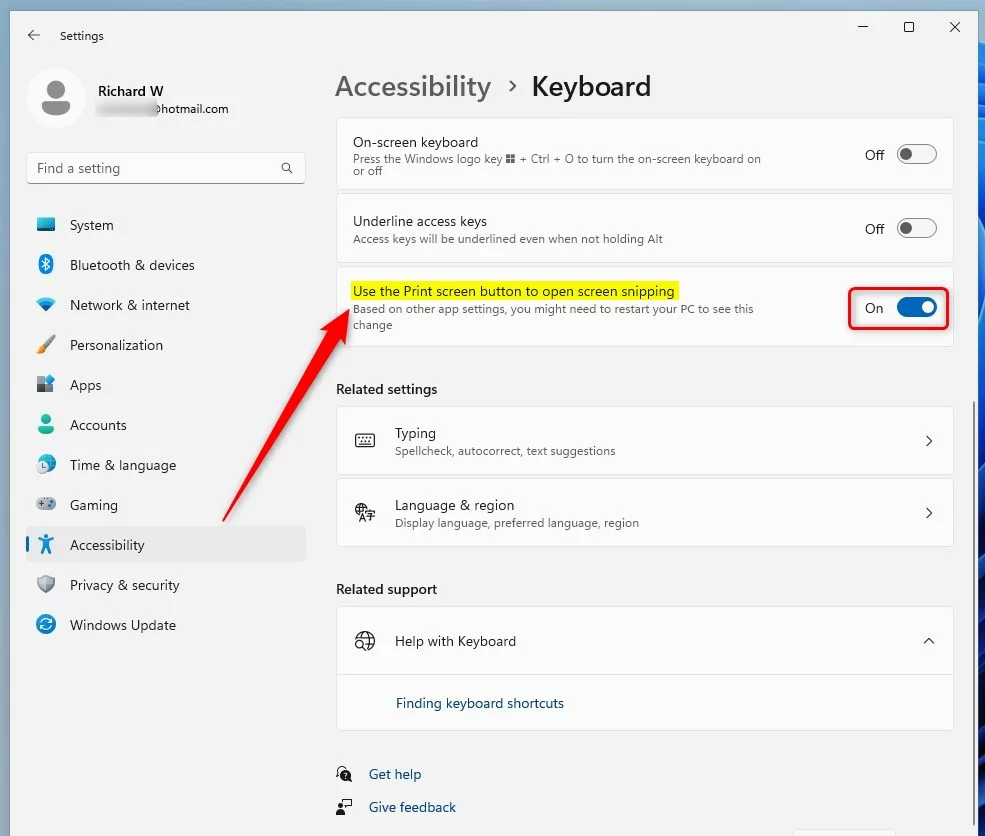
windows 11 keyboard use the print screen button to open screen snipping
Troubleshooting: Print Screen not working
When your print screen not working Windows 11 shortcut fails to open the Snipping Tool, you can fix the issue by updating your keyboard drivers through Device Manager or installing the latest app updates from the Microsoft Store to restore normal shortcut functionality.
- Keyboard Drivers: Right-click the Start button and select Device Manager. Expand Keyboards, right-click your keyboard, and select Update driver.
- Background Apps: Ensure the Snipping Tool is updated via the Microsoft Store.
- Admin Check: If the key is mapped to a third-party app, you may need Administrator privileges to disable the conflicting software in the Task Manager .
Reverting to legacy behavior
How to auto-save screenshots
To automate this, ensure OneDrive is enabled. OneDrive automatically syncs your Pictures\Screenshots folder to the cloud. You can check this in OneDrive Settings Backup Manage backup.
Summary
Making your Print Screen key launch the Snipping Tool in Windows 11 is a quick way to make taking screenshots easier.
Why does my Print Screen key open Snipping Tool instead of copying to clipboard?
This happens because the Windows 11 accessibility setting for the Print Screen key is enabled. This feature overrides the legacy behavior to provide a more modern, interactive screenshot experience. You can revert this by disabling the toggle in Settings under Accessibility Keyboard if you prefer the old clipboard-only method.
Does the Print Screen key work with multiple monitors?
Yes, the Snipping Tool is fully compatible with multi-monitor setups. When you trigger the tool using the Print Screen key, your screens will dim, and you can select which monitor or specific area you wish to capture. It handles high-resolution and varied display scaling across multiple screens automatically.
Was this guide helpful?

About the Author
Richard
Tech Writer, IT Professional
Richard, a writer for Geek Rewind, is a tech enthusiast who loves breaking down complex IT topics into simple, easy-to-understand ideas. With years of hands-on experience in system administration and enterprise IT operations, he’s developed a knack for offering practical tips and solutions. Richard aims to make technology more accessible and actionable. He's deeply committed to the Geek Rewind community, always ready to answer questions and engage in discussions.




[…] To start recording your screen, open the Snipping Tool app. […]