How to Enable or Disable Deleting Diagnostic Data in Windows 11

Deleting diagnostic data in Windows 11 clears the system info and activity logs that Windows stores on your computer and sends to Microsoft. Windows keeps these files to fix bugs and make the operating system safer. By default, any user can clear that history from Settings. The two methods below let you block that, or put it back the way it was.
You need to sign in as an administrator to change this setting. Both methods affect the whole PC, not just your own account.
You can enable or disable deleting diagnostic data in Windows 11 using the Local Group Policy Editor or Registry. For Pro, Enterprise, or Education editions, open gpedit.msc and navigate to Data Collection. For other editions, use the Registry Editor with administrator privileges and modify the DisableDeviceDelete value.
Option One
Enable or Disable Deleting Diagnostic Data in Local Group Policy Editor
Local Group Policy Editor controls whether users can delete the diagnostic data that Windows 11 sends to Microsoft. You change one policy setting to turn the delete option on or off. The editor is only included in Windows 11 Pro, Enterprise, and Education. On Windows 11 Home, search for it and you will find nothing, so use the Registry method further down.
- Open the Start menu and search for
gpedit.msc. Open the result named Local Group Policy Editor. The editor opens with a folder tree on the left and settings on the right. - In the left pane, expand the folders until you reach the path below. Click the last folder to select it.
Computer Configuration > Administrative Templates > Windows Components > Data Collection and Preview Builds
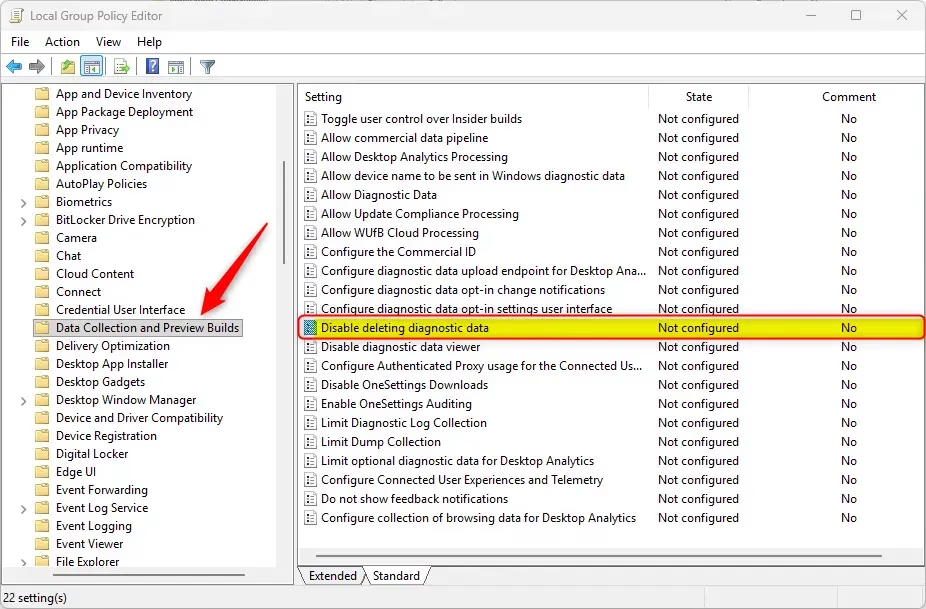
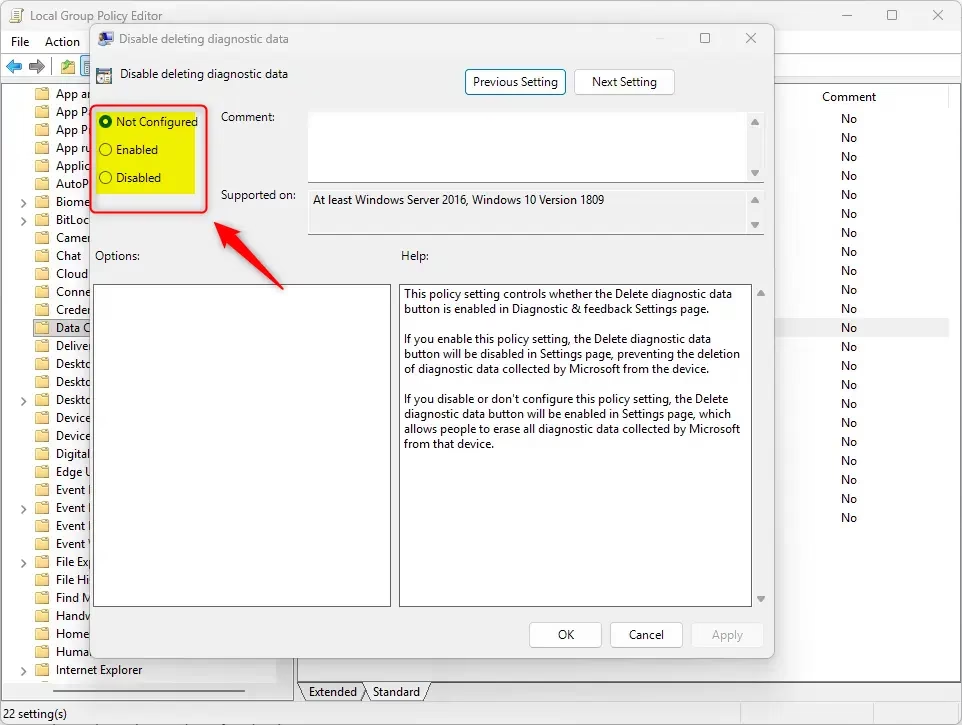
- In the right pane, double-click Disable deleting diagnostic data. A settings window opens with three options: Not Configured, Enabled, and Disabled.
- Pick the option you want, then click OK. The two choices that matter are listed below.
To Enable Deleting Diagnostic Data (Default):
- Select Not Configured.
- Click OK.
To Disable Deleting Diagnostic Data:
- Select Enabled.
- Click OK.
The wording is easy to mix up. The policy is called “Disable deleting diagnostic data”, so setting it to Enabled switches the delete option off. Not Configured returns Windows to its default, where deleting is allowed.
- Close the editor when you are finished.
The change usually applies on its own within a short time. If it doesn't, sign out and back in, or restart the PC. To check the result, go to Settings Privacy & security > Diagnostics & feedback. When deleting is blocked, the Delete diagnostic data button should be unavailable. To undo the change, open the same policy and select Not Configured.
Option Two
Enable or Disable Deleting Diagnostic Data using Registry
The Registry method works on every edition of Windows 11, including Home. It adds or removes a registry value that controls the same setting as the policy above. You apply it with a command from an elevated Command Prompt, so you don't need to browse through Registry Editor by hand.
Before you start, open the Start menu, search for Command Prompt, and choose Run as administrator. Click Yes if User Account Control asks for permission. Then paste in one of the commands below and press Enter. A message saying the operation completed successfully means it worked.
To Enable deleting diagnostic data (Default), run this command:
reg delete "HKEY_LOCAL_MACHINE\SOFTWARE\Policies\Microsoft\Windows\DataCollection" /v DisableDeviceDelete /f
To Disable deleting diagnostic data, run this command:
reg add "HKEY_LOCAL_MACHINE\SOFTWARE\Policies\Microsoft\Windows\DataCollection" /v DisableDeviceDelete /t REG_DWORD /d 1 /f
Sign out and back in, or restart the PC, so Windows picks up the change. If you made a mistake, run the Enable command to go back to the default.
Summary
You can manage this setting through either the Local Group Policy Editor or the Registry. By default, Windows lets you delete diagnostic data. Blocking that option keeps the history on the machine, and standard users cannot clear it. Both methods are fully reversible.
Did this guide fix your problem?

About the Author
Richard
Tech Writer, IT Professional
Richard is a writer at Geek Rewind who turns complex IT tasks into clear, step-by-step guides. He draws on years of hands-on experience in system administration and enterprise IT operations, focusing on Windows, Linux and WordPress: the problems people actually run into, and the fixes that work. His server and WordPress guides come from systems he runs himself. Richard builds and maintains the platform behind Geek Rewind, from its Ubuntu servers and Nginx configuration to its custom WordPress plugins. Many new tutorials start with readers' questions, and he's always glad to answer them in the comments.
No comments yet — be the first to share your thoughts!