

This article explains how to change the Terminal app’s appearance, including enabling dark or light mode in Windows 11.
Windows Terminal is a modern host application for the command-line shells, including Command Prompt, Windows PowerShell, and bash (via Windows Subsystem for Linux (WSL)).
There are many customizations one can do with the Terminal app in Windows. You can change the language, adjust the launch size, set the default profile, change the startup behavior, open the admin window, open Terminal automatically at startup, add copy selection to the clipboard automatically, automatically hide the Terminal window, hide the Terminal app in the notification area when minimized, keep the Terminal icon visible on the taskbar, launch at the center of the screen, show or hide the scrollbar, and more.
You can change the Terminal app appearance to suit your environment. You can select various themes (dark or light themes) for the app. The Windows theme will use the same theme as Windows 11.
Changing the theme in the Terminal app in Windows can help improve your experience and make it more comfortable to use. For instance, you may prefer a darker theme if you work in a low-light environment or at night to minimize eye strain.
Additionally, changing the theme can help you differentiate between multiple Terminal windows or tabs you may have open, making navigating and working with them easier.
Ultimately, the Terminal app’s appearance is a personal preference, and customizing it can make your work more enjoyable and efficient.
Change the Terminal themes
As mentioned, you can change the theme in the Terminal app to suit your environment.
Here’s how to do that.
First, open the Windows Terminal app.
You can do that by clicking on the Start menu and searching for Terminal. Then, under “Best match,” select and open the Windows Terminal app.

When the Terminal app opens, click the down arrow button on the top bar and select Settings (Ctrl +,).

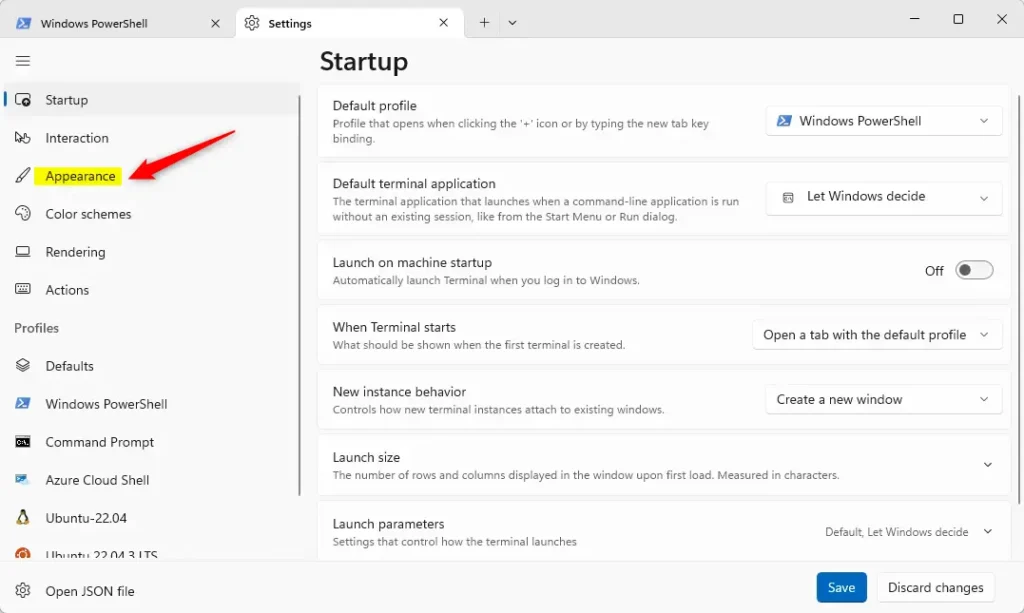
On the Settings window, click on the Appearance tab on the left.
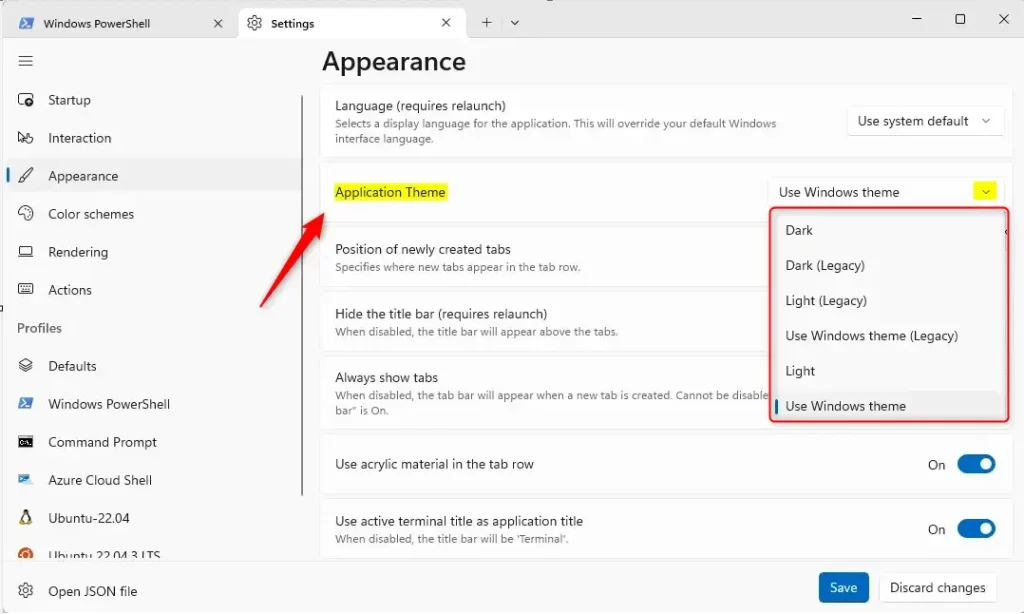
On the right, select the “Application Theme” tile. Then, use the drop-down menu to select the theme you want to use.
- Dark (the default)
- Light
- Use Windows theme
Click the Save button at the bottom to apply your changes.
That should do it!
Conclusion:
Changing the theme in the Terminal app can greatly enhance your user experience and productivity. Here are the key takeaways:
- Adjusting the appearance to a darker or lighter theme can reduce eye strain and create a more comfortable working environment, especially in low-light conditions or during nighttime usage.
- Customizing the theme helps differentiate between multiple Terminal windows or tabs, making navigation and management more efficient.
- Selecting the “Use Windows theme” option ensures consistency with your overall Windows 11 theme, maintaining a cohesive aesthetic across your operating system.
Feel free to share your feedback or additional insights in the comments below.



Leave a Reply