How to Show or Hide the Terminal Icon in Windows 11

The Windows Terminal icon gives you one-click access to Command Prompt, PowerShell and other command-line tools. Windows Terminal is a modern app that puts all of them in a single tabbed window in Windows 11.
The icon is controlled from Terminal’s own Settings page, not the Windows Settings app. The icon appears in the notification area at the right end of the taskbar, which is also called the system tray . Showing it keeps Terminal close at hand if you use the command line often. Hiding it keeps the taskbar free of clutter. Neither choice needs a restart, and you can change it back at any time.
Open Windows Terminal, go to Settings , then Appearance, and toggle “Always display an icon in the notification area ” on or off. Save your changes to apply the setting.
What is Windows Terminal?
Windows Terminal is a built-in app that combines command-line tools like Command Prompt, PowerShell, and WSL (Windows Subsystem for Linux) into a single tabbed window. You can run several command-line environments side by side, each on its own tab or in split panes. You can also customize their appearance with themes, color schemes, and custom keyboard shortcuts.
Windows Terminal is included with Windows 11 22H2 and later. On an earlier Windows 11 build, or on Windows 10, you may need to install it from the Microsoft Store. It works the same way on Windows 11 Home and Pro, so nothing in this guide depends on your edition.
You can customize Windows Terminal in many ways. You can change its language, size, startup settings, and more. One useful option is to always show or hide its icon in the Taskbar ’s notification area .
Windows 11 may place a new tray icon behind the up arrow at the right end of the taskbar , in the overflow area. If you can’t see the Terminal icon after turning it on, click that arrow. You can drag the icon out onto the taskbar to keep it visible.
Why Show or Hide the Terminal Icon?
Show it: Makes it easy to open the Terminal quickly if you use it a lot. It also gives you a visible sign that Terminal is running, which helps if you keep long-running tasks open in the background.
Hide it: Keeps your notification area neat if you don't use Terminal often. Terminal still works as normal. You can open it from the Start menu, from search, or from the right-click menu on the Start button.
How to Always Show the Terminal Icon in 🪟 Windows 11
In short, open Terminal, click the dropdown arrow at the top, and select Settings. Go to the Appearance page and turn on the switch for Always display an icon in the notification area. Then click Save to apply the change. The full steps are below.
Open Windows Terminal: Click the Start button (the Windows icon). Type
Terminalin the search box. Then click Windows Terminal in the results. A Terminal window opens with a tab for your default shell, usually PowerShell.

Open the Windows Terminal app Open Settings in Terminal: Click the small down arrow ▼ at the top of the Terminal window, next to the tabs. Then click Settings. Or press
Ctrl + ,on your keyboard. Either way, a Settings tab opens inside Terminal with a list of pages on the left.

Open the Windows Terminal Settings Go to Appearance: In the Settings window, click Appearance on the left side. The options for the Terminal window itself appear on the right.
Turn On the Notification Icon: Find the option labeled Always display an icon in the notification area. Switch it On. If you can't find it, scroll down the page, because it sits below the theme and language options. The label can differ slightly in older Terminal versions, so update Terminal from the Microsoft Store if it is missing.
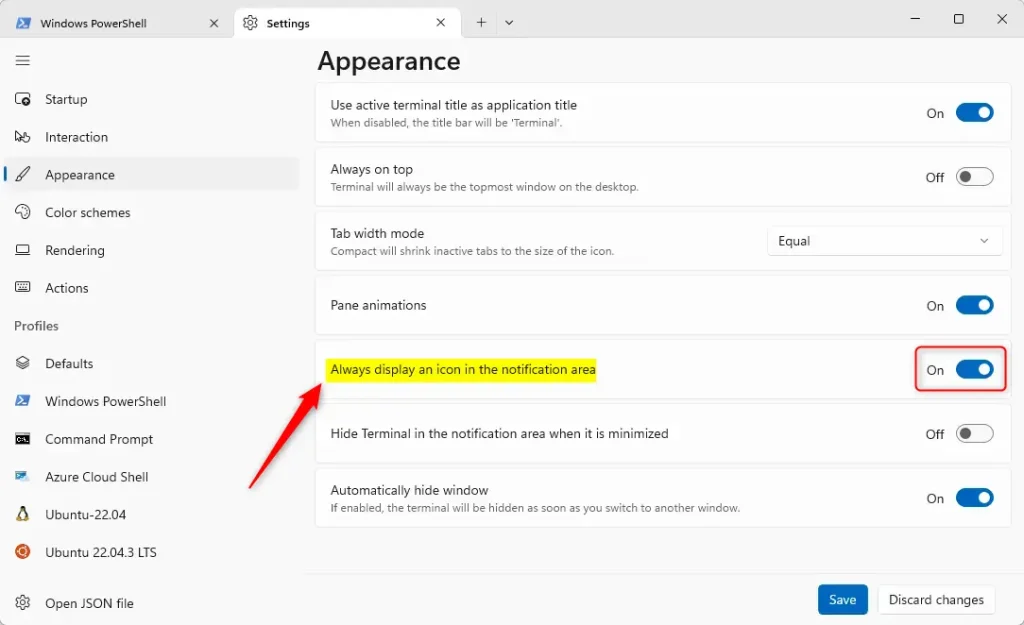
Always display an icon in the notification area Save your changes: Click the Save button at the bottom. Then close the Settings window. Nothing is applied until you click Save, so don't skip this step.
The Windows Terminal icon will now appear in the Taskbar's notification area, making the Terminal easily accessible. This change ensures the Terminal application remains visible for quick use, a valuable feature for users who open it frequently.
If the icon doesn't show up right away, check the overflow area behind the up arrow on the taskbar. You can also look at Settings Personalization Taskbar in Windows and open the Other system tray icons section to see whether Windows has hidden it.
How to Hide the Terminal Icon
If you want to hide the icon later, follow the same steps:
Open Terminal and go to its Settings page.
Click Appearance.
Turn the Always display an icon in the notification area switch Off.
Click Save.
The icon disappears from the notification area, and Terminal keeps working as before.
Summary
- Showing the Terminal icon makes it quick to open if you use it often.
- Hiding the icon keeps your Taskbar clean if you don't use Terminal much.
- You can easily turn this option on or off anytime through Terminal's Settings. No restart is needed, but you must click Save for the change to take effect.
Controlling the Windows 11 Terminal icon lets you balance taskbar convenience with a clean desktop setup. Showing the icon keeps the app within one click if you use command-line tools frequently, while hiding it removes clutter from your notification area when you do not need it.
Have a question about this guide?
Answered by AI from this guide. Good questions may be added to this page — please don't include personal details.
Did this guide fix your problem?

About the Author
Richard
Tech Writer, IT Professional
Richard is a writer at Geek Rewind who turns complex IT tasks into clear, step-by-step guides. He draws on years of hands-on experience in system administration and enterprise IT operations, focusing on Windows, Linux and WordPress: the problems people actually run into, and the fixes that work. His server and WordPress guides come from systems he runs himself. Richard builds and maintains the platform behind Geek Rewind, from its Ubuntu servers and Nginx configuration to its custom WordPress plugins. Many new tutorials start with readers' questions, and he's always glad to answer them in the comments.
No comments yet — be the first to share your thoughts!