How to Check NTLM Signing Using Event ID 4023 in Windows 11

- 3 steps
- Needs administrator rights
- Includes a restart or sign-out
NTLM event ID 4023 in Windows 11 records whether a server-side NTLM connection used signing. You read it in Event Viewer under the Microsoft-Windows-NTLM/Operational log. NTLM (NT LAN Manager) is an older sign-in method that Windows still uses when Kerberos, the main sign-in method on most Windows networks, is not available. Signing adds a check code to each message, and if someone changes a message on the way, the check fails.
Microsoft added the signing audit events 4022 and 4023 in KB5135557, published November 19, 2026. To check them, open Event Viewer, go to the NTLM Operational log, and filter for event ID 4023. Event ID 4022 covers the client side.
A connection counts as signed when two things are true. The negotiated flags (settings the two devices agree on at sign-in) must include the SIGN bit (0x10). The session key (a secret shared for this connection) must be marked Present.
Open Event Viewer as administrator, then go to Applications and Services Logs Microsoft Windows NTLM Operational and filter for event ID 4023. Event 4023 is the server-side NTLM signing audit, logged when another device connects to your PC over NTLM, such as for file sharing. It needs KB5135557 or a later update installed.
What event IDs 4023 and 4022 tell you
Event ID 4023 is the NTLM signing audit event for the server side in Windows 11. Windows now writes NTLM signing status to its own log, and the two event IDs split by which end of the connection your PC is on:
- Event ID 4023 is the server-side event. Your PC logs it when another device connects to it using NTLM, for example when it shares files or folders.
- Event ID 4022 is the client-side event. Your PC logs it when it connects out to another device using NTLM.
Microsoft added these events because clients now offer NTLM message signing by default for non-anonymous connections. That reduces exposure to NTLM relay attacks, where an attacker captures a sign-in and forwards it to a different server to impersonate the user. The audit events help you find connections that are not using signing, so you can deal with them before they cause problems.
If you want the bigger picture on where NTLM is heading, read how NTLM being disabled by default will affect Windows 11.
What you need before you start
This feature is new, and details can change as it rolls out. Microsoft has confirmed the following so far.
- The signing audit events 4022 and 4023 are described in the release notes for KB5135557, published November 19, 2026. Install that update, or a later one, before you look for the events.
- Offering NTLM signing by default arrives with Windows updates released from November 10, 2026. Windows 11 24H2 and 25H2 receive it in KB5132061. Windows 11 23H2 receives it in KB5131087.
- Microsoft does not say in these notes which Windows 11 editions or builds show the audit events, or whether Home and Pro editions of a currently supported Windows 11 version (25H2 or 26H2) differ. Treat the log as unconfirmed on a PC that is missing the updates above.
How to Check NTLM Signing in Event Viewer
Event Viewer is the Windows tool that displays system and application logs. The numbered steps below check event ID 4023 and its signing status. Step 12 repeats the check for event ID 4022.
- Open Event Viewer as administrator. Select Start, type Event Viewer, then select Run as administrator in the results.
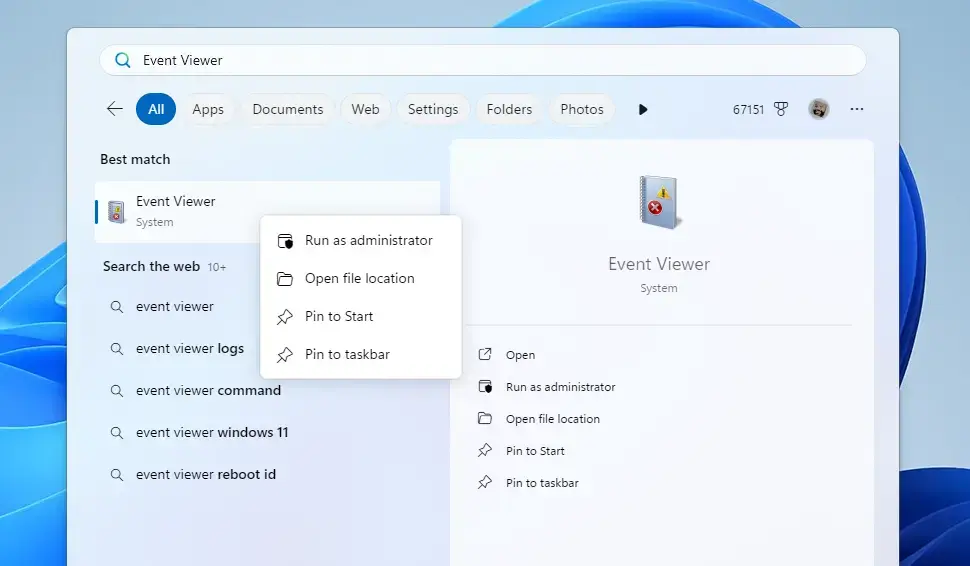
- Allow the prompt. Select Yes if User Account Control asks for permission. The Event Viewer window opens with a folder tree on the left.
- Expand Applications and Services Logs. Select the small arrow beside Applications and Services Logs in the left pane. This folder holds logs for individual Windows features rather than the main System and Security logs.
- Expand Microsoft, then Windows. Select the arrow beside Microsoft, then the arrow beside Windows. A long list of feature folders appears.
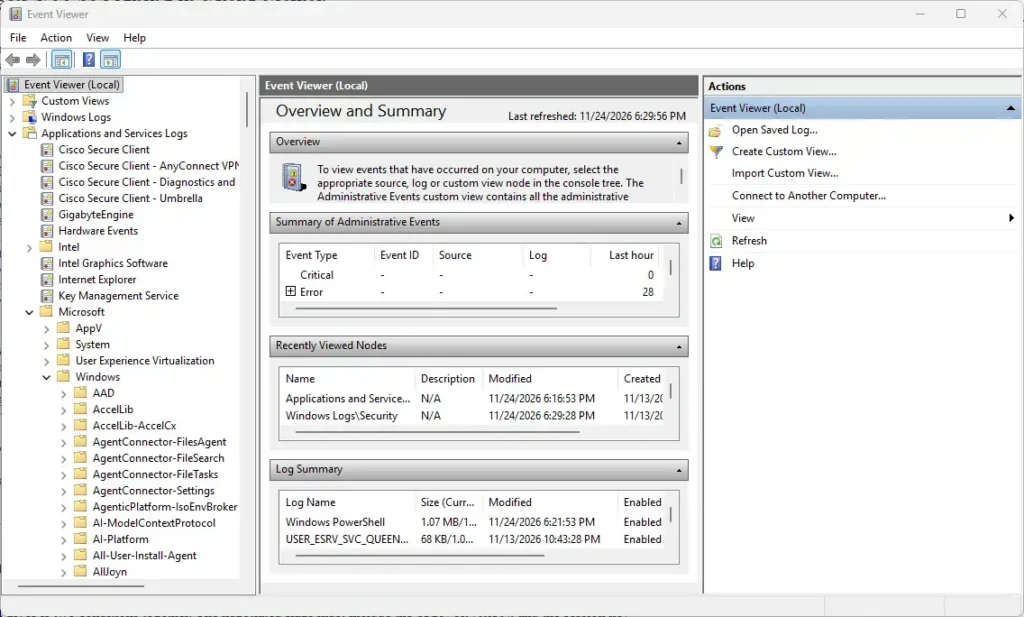
- Expand the NTLM folder. Scroll down to NTLM and select the arrow beside it. A log named Operational appears under it. The full log name is Microsoft-Windows-NTLM/Operational.
- Select Operational. The centre pane lists every event in this log, newest first. If the pane is empty, read the troubleshooting section below.
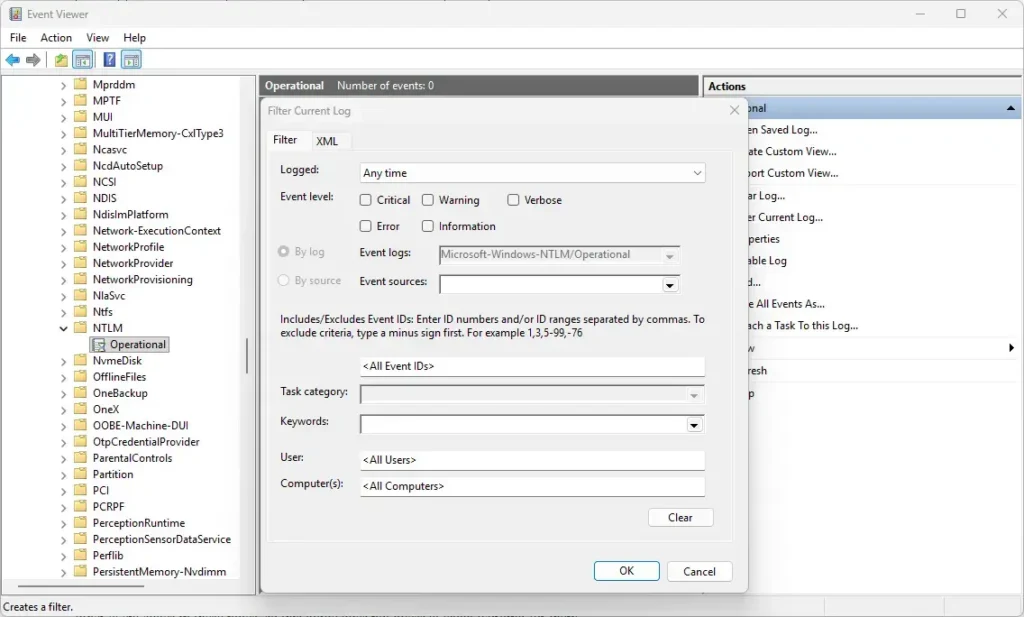
- Select Filter Current Log. This option is in the Actions pane on the right and limits the list to the event IDs you want. A Filter Current Log window opens.
- Enter 4023 in the Event IDs box. Click the box labelled <All Event IDs>, type 4023, then select OK. The list now shows only server-side signing events.
- Select an event in the list. The details appear in the lower pane. The General tab shows the event as readable text. The Details tab shows the same data as structured fields.
- Check the negotiated flags for the SIGN bit. Look for the negotiated flag value and check that it includes the SIGN bit, 0x10. A flag is one on/off setting packed into a larger hexadecimal number, so read the value carefully to see whether that bit is set.
- Check that the session key is Present. Find the session key entry in the event. A session key marked Present alongside the SIGN bit means the connection was signed and secure.
- Repeat the check for client-side events. Select Filter Current Log again, replace 4023 with 4022, then select OK. Read these events the same way.
That’s it. You now know whether the server-side connections (4023) and client-side connections (4022) on this PC were signed. To return to the full list, select Clear Filter in the Actions pane.
How to read the result
Microsoft’s test has two conditions, and both must be true.
- The negotiated flags include the SIGN bit (0x10).
- The session key is marked Present.
When both are true, the connection is signed.
When the SIGN bit is missing, or the session key is not marked Present, the event does not confirm a signed connection. Microsoft’s release notes say the auditing events exist to identify clients that are not using signing. They do not describe any other event states, so this guide does not guess at exact wording for them.
Use the event ID to decide which device to look at:
- An unsigned 4023 event means a device connected to this PC without signing. The client that connected is the one to investigate.
- An unsigned 4022 event means this PC connected out without signing. The target server or the app making the connection is what to investigate.
The General tab of each event is where to look for the connection details. Microsoft’s notes do not say which fields the event lists, so open an event on your own PC to see its layout.
Get more from the log
- Find an event quickly. Select Find in the Actions pane and type a term from the event text.
- Keep a copy for later. With the filter applied, select Save Filtered Log File As in the Actions pane. This helps when you compare results before and after an update.
- Stop old events being overwritten. Select Properties in the Actions pane to see the maximum log size and what happens when the log is full. Raise the size if the events you need are being pushed out.
The same navigation applies to other sign-in logs, such as Windows Hello. The guide on viewing Windows Hello sign-in events, viewing Windows Hello sign-in events in Event Viewer, follows a similar path through the log tree.
If the NTLM log is empty or missing
The most likely reason is that the audit events have not been installed or have not been generated yet. Work through these checks in order.
- The update is missing. The events are documented in KB5135557. Open Settings Windows Update, install pending updates, then restart the PC. A restart is needed here because Windows finishes installing updates when it reboots.
- No NTLM connection has happened. Windows logs an event only when a connection uses NTLM. A PC that authenticates everything over Kerberos can show an empty log. That is not a fault.
- Wrong side of the connection. A PC that only connects out to other devices logs 4022, not 4023. A PC that only receives connections logs 4023. Check both IDs.
- The Operational log is not visible. Confirm you expanded Applications and Services Logs Microsoft Windows NTLM, not the Windows Logs section at the top of the tree. If the NTLM folder is still missing after you install updates, Microsoft’s notes do not say why. Check your Windows 11 version and update status.
- A filter is hiding events. If you see “filtered” in the header, select Clear Filter to check that the log has events at all.
Event Viewer cannot change a signing result. It only reads the log. Nothing in these steps changes a setting, so there is nothing to undo.
Check older NTLM use too
Signing is one part of the NTLM clean-up. NTLMv1 is the older, weaker version of the protocol and has its own audit events. Run that check as well if you are reviewing NTLM use on your PC. The steps for it are in finding NTLMv1 audit events in Event Viewer on Windows 11.
What to do next
Run the 4023 and 4022 filters again after each future Windows update, because the events show how your connections behave under the new default of offering signing. If you find unsigned connections, note which device or app is behind them. Microsoft’s notes explain how to find those connections but do not give a fix, so plan the next step from that source. To prepare for the wider change, see how NTLM disabled by default will affect Windows 11.
Have a question about this guide?
Answered by AI from this guide. Good questions may be added to this page — please don't include personal details.
Did this guide fix your problem?

About the Author
Richard
Tech Writer, IT Professional
Richard is a writer at Geek Rewind who turns complex IT tasks into clear, step-by-step guides. He draws on years of hands-on experience in system administration and enterprise IT operations, focusing on Windows, Linux and WordPress: the problems people actually run into, and the fixes that work. His server and WordPress guides come from systems he runs himself. Richard builds and maintains the platform behind Geek Rewind, from its Ubuntu servers and Nginx configuration to its custom WordPress plugins. Many new tutorials start with readers' questions, and he's always glad to answer them in the comments.
No comments yet — be the first to share your thoughts!