How NTLM Disabled by Default Will Affect Windows 11

- 7 steps
- Needs administrator rights
Microsoft plans to turn NTLM off by default in the next major release of Windows Server and Windows client. That release is not out yet. NTLM (NT LAN Manager) is an older sign-in protocol that Windows still uses when a stronger method, such as Kerberos (a sign-in system that uses secure tickets), is not available.
Microsoft says NTLM will be turned off by default but not removed, and administrators can turn it back on. This post covers what is confirmed so far, who is likely to notice, and what to check on your network now. The release timing is subject to change.
Microsoft plans to ship the next major release of Windows client and Server with NTLM disabled by default, but not removed. NTLM is an older sign-in protocol, and administrators can re-enable it through Group Policy or the registry. Existing Windows 10 and Windows 11 PCs keep working with NTLM, and no setting in Windows 11 turns this on today.
What Microsoft has announced
The plan is set out in Microsoft’s “Retiring NTLM: Frequently asked questions” post on the Windows IT Pro Blog, dated October 19, 2026. NTLM will be disabled by default in the next major release of Server and Client. Microsoft marks that timing as subject to change. You can read the original at Retiring NTLM: Frequently asked questions.
Three points from the announcement matter most:
- Disabled, not removed. The NTLM code stays in Windows. It ships switched off by default.
- Administrators can turn it back on. Group Policy (a settings system for administrators) or the registry (the database where Windows stores its settings) can do this, according to Microsoft.
- Current devices keep working. Existing Windows 10 and Windows 11 devices continue to support NTLM.
Nothing changes on your PC today. No setting in Windows 11 right now turns this behavior on for you.
What “disabled by default” means
A default is the state Windows starts in before anyone changes it. When NTLM is disabled by default, a new installation of that future release will not accept or use NTLM authentication unless an administrator allows it.
That is different from removal. If Microsoft had removed NTLM, no setting could bring it back. Because NTLM is only disabled, an organization with a legacy dependency can re-enable it while it fixes the underlying problem.
Microsoft has not said, in the material this post relies on, how the default applies to a device that upgrades in place from an earlier version. Treat that as unknown until Microsoft documents it.
Why Microsoft is making the change
Microsoft’s announcement is a move from deprecating NTLM (marking it as outdated) to disabling it by default. NTLM is older than the alternatives Windows now prefers. The practical goal is for sign-ins to use Kerberos, a newer authentication protocol that Windows uses inside domains. This post does not go further into the security reasoning, because the notes it draws on do not detail it.
Who will notice the change
Most home users will see no difference. A home PC that signs in with a Microsoft account and browses the web does not depend on NTLM in any way you would notice.
Small offices, schools and companies are more likely to feel it. The sign-in method often hides inside older equipment and software, so the risk sits in the things that connect to your PC, not the PC itself. These are the usual suspects:
- Older file servers and network storage devices that share folders over the network.
- Multifunction printers and scanners that save scans to a shared folder.
- Line-of-business apps that were written years ago and authenticate to a server on their own.
- Shared resources reached by IP address instead of by name. Kerberos needs a server name to work, so a connection by IP address often falls back to NTLM.
- Computers that are not joined to a domain (a managed group of PCs under central control), which often rely on NTLM to reach each other.
The list shows where to look first. It is not a guarantee that any of these will fail, because many of them also support Kerberos when configured correctly.
What has already changed for NTLMv1
NTLM has two versions, and the older one, NTLMv1, is already being phased out in Windows 11 today. Do not confuse this with the upcoming default change, which covers NTLM as a whole.
- NTLMv1 is removed in Windows 11, version 24H2 and later. Some connections based on MS-CHAPv2 (an older sign-in method that some VPN and wireless setups still use) can still show remnants of NTLMv1 cryptography. Credential Guard (a Windows feature that isolates sign-in secrets from the rest of the system) gives fuller protection where its requirements are met.
- Windows now blocks Single Sign-On (a feature that reuses one sign-in across apps) when it uses NTLMv1-derived credentials by default. Starting with the October 13, 2026 Windows security update, Windows uses Enforce mode (the stricter setting that blocks the older method) when its related registry value is not set. The update does not create or change that value, and the change applies only where Credential Guard is disabled.
- A temporary exception exists. Microsoft allows an organization with a critical dependency it cannot migrate yet to loosen this behavior. Microsoft says this reduces protection and should be a scoped, temporary exception.
The details, including the exact value name and settings, are in Microsoft’s KB5066470. This post does not reproduce them, so read the KB article before changing anything. If an app broke after the October 2026 update and uses NTLMv1-based single sign-on, that article is the place to start.
How to prepare your PCs and network
The goal is to find NTLM dependencies while they are still harmless. These steps need no special tools except where noted, and they change nothing on your system.
These steps check your Windows version, your management status and your network connections. Work through them in order:
- Open Settings System About. Under Windows specifications, note the Version and OS build. This tells you whether you are on 24H2 or later, where NTLMv1 is already removed.
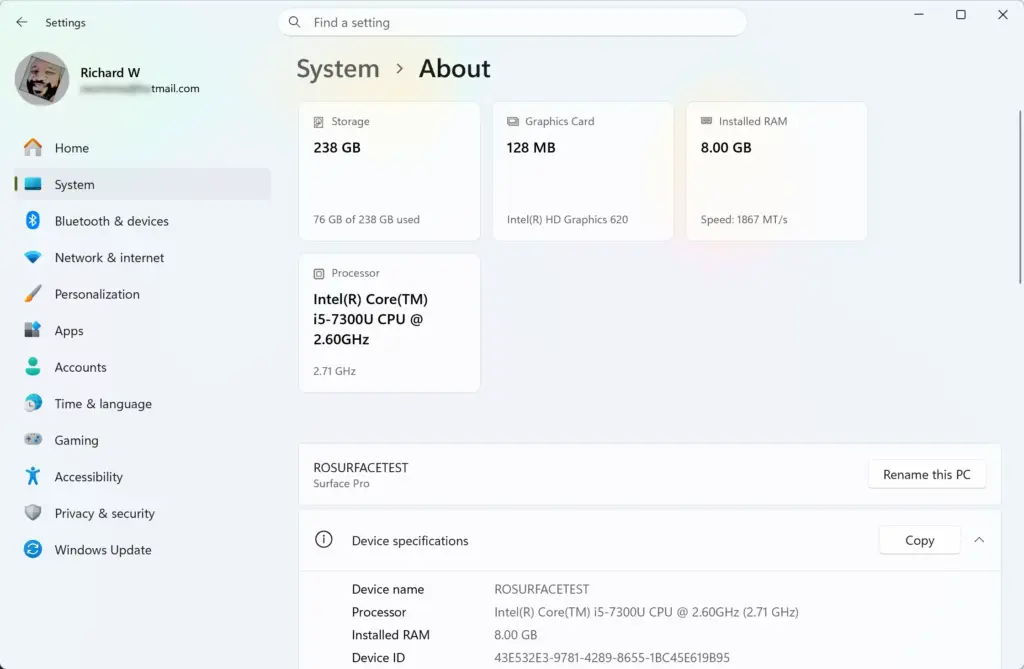
Settings › System › About - Open Settings Accounts Access work or school. If a work or school account is listed, your IT team likely controls sign-in policy, so ask them about their NTLM plan before you change anything yourself.
- List the older systems your PC connects to. Include file servers, network storage, scan-to-folder printers and legacy business apps, and note which ones you reach by IP address.
- Connect to shared resources by name. Use \\COMPUTER-NAME\share instead of \\192.0.2.10\share. If the connection works by name and a domain is in place, it can use Kerberos instead of NTLM.
- Ask each vendor whether the device or app supports Kerberos. Request a firmware or software update if it does not. Record any answer that says NTLM is required.
- Read KB5066470 if you use single sign-on with older credentials. It covers the NTLMv1 changes already shipping and the temporary exception for them.
- Administrators only: decide who is allowed to re-enable NTLM, and write down where that setting lives. Changing it requires administrator privileges, and the exact Group Policy and registry locations are not confirmed here.
Step 4 can fail. If a connection works by IP address but fails by name, the name is probably not resolving or the server has no record for Kerberos to use. Check that the name resolves from the PC before you blame NTLM. If the connection works by name but you still suspect NTLM, you need auditing tools to be sure, which this post does not cover.
How to re-enable NTLM when the change arrives
Microsoft has not yet published the exact policy name or registry location, and Windows 11 has no Settings toggle for it. Until Microsoft documents them, the details stay open:
[Registry method: to be verified]
[Group Policy path: to be verified]
Treat re-enabling as a temporary measure
Use the re-enable option as a bridge, not a destination. Apply it to the narrowest set of machines that need it, and record why. Then work through the list from the previous section so each dependency has a plan to move to Kerberos or be replaced. This mirrors Microsoft’s own advice for the NTLMv1 exception, which it describes as scoped and temporary.
What is not known yet
Several details are unconfirmed as of this writing, and they can change while Microsoft rolls this out:
- The exact release name and date. Microsoft says only “the next major release of Server and Client (subject to change).”
- Whether in-place upgrades keep NTLM enabled or switch it off.
- The exact Group Policy and registry settings for re-enabling NTLM.
- Which tools Microsoft will recommend for finding NTLM use on a network.
This post is based on Microsoft’s October 19, 2026 announcement and will need updating when those details appear. If a menu name, setting or date in this post conflicts with Microsoft’s documentation, follow Microsoft.
What to do next
Check Microsoft’s FAQ page again when a release date is confirmed, and finish the inventory from the steps above before then. If network changes have blocked your connections, resetting Windows Firewall to its default settings may help. resetting default firewall settings in Windows 11 and restoring Windows Firewall settings to default cover the steps. Location access for apps is a separate setting under Security & Privacy, and it is worth a look if apps ask for your location. default location access for apps in Windows 11 explains it.
Have a question about this guide?
Answered by AI from this guide. Good questions may be added to this page — please don't include personal details.
Did this guide fix your problem?

About the Author
Richard
Tech Writer, IT Professional
Richard is a writer at Geek Rewind who turns complex IT tasks into clear, step-by-step guides. He draws on years of hands-on experience in system administration and enterprise IT operations, focusing on Windows, Linux and WordPress: the problems people actually run into, and the fixes that work. His server and WordPress guides come from systems he runs himself. Richard builds and maintains the platform behind Geek Rewind, from its Ubuntu servers and Nginx configuration to its custom WordPress plugins. Many new tutorials start with readers' questions, and he's always glad to answer them in the comments.
No comments yet — be the first to share your thoughts!