Increase Text Size in Ubuntu Linux: A Step-by-Step Guide


Increasing text size in Ubuntu Linux makes the words on your screen larger, which cuts eye strain on high-resolution displays. Ubuntu 22.04 LTS and newer versions have built-in settings that scale the font across the whole desktop, so you don’t need extra software. The steps below use the standard GNOME desktop that Ubuntu ships with. If you run a different flavor such as Kubuntu or Xubuntu, the Settings app looks different.
To increase text size in Ubuntu, open Settings , go to Accessibility, and turn on Large Text under Seeing. This scales the text on the whole desktop to about 1.2 times its original size, with no restart needed. For finer control, run gsettings set org.gnome.desktop.interface text-scaling-factor with a value such as 1.25 in the Terminal app. Use 1.0 to restore the default.
How to increase font size in Ubuntu Linux
The quick version: open the Settings app, go to Accessibility, and turn on Large Text. Everything on screen gets easier to read, and your display resolution and app layouts stay as they are. The change applies to your user account only, so other users on the same machine are not affected.
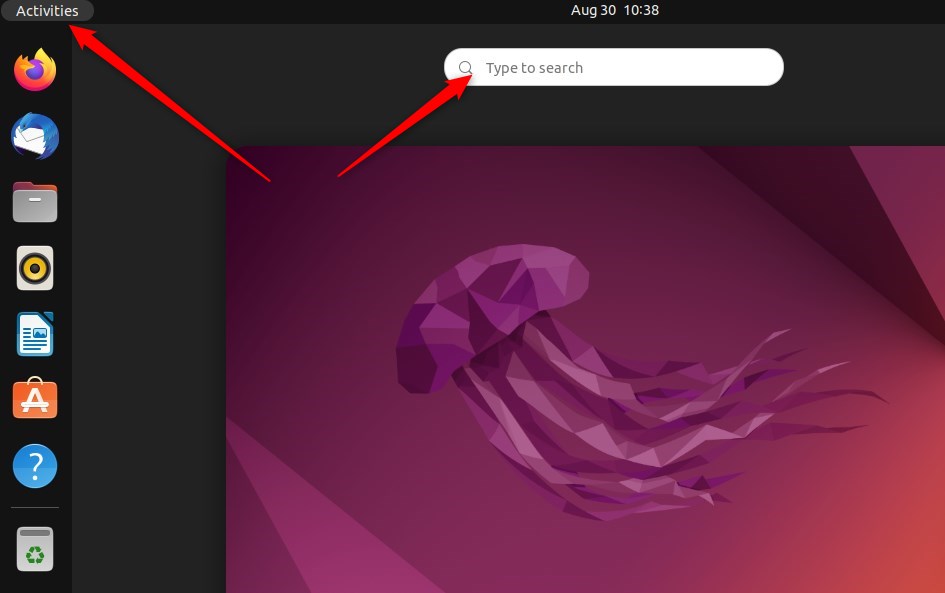
Here’s how to do it, starting with how to open the Settings app.
System tweaks, user accounts, and updates all live in the central Settings panel. Everything below starts there, and you can reach it two ways.
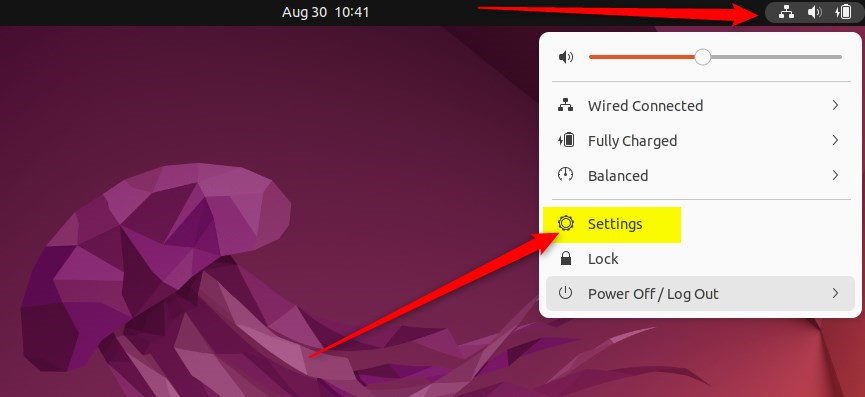
- Click the System menu in the top-right corner of your desktop. It’s the cluster of small icons for network, volume and power. A panel opens with quick toggles and a few buttons along the bottom.
- From the System menu, choose Settings, as shown below. The Settings window opens with a list of categories on the left.
That gets you to the same window.
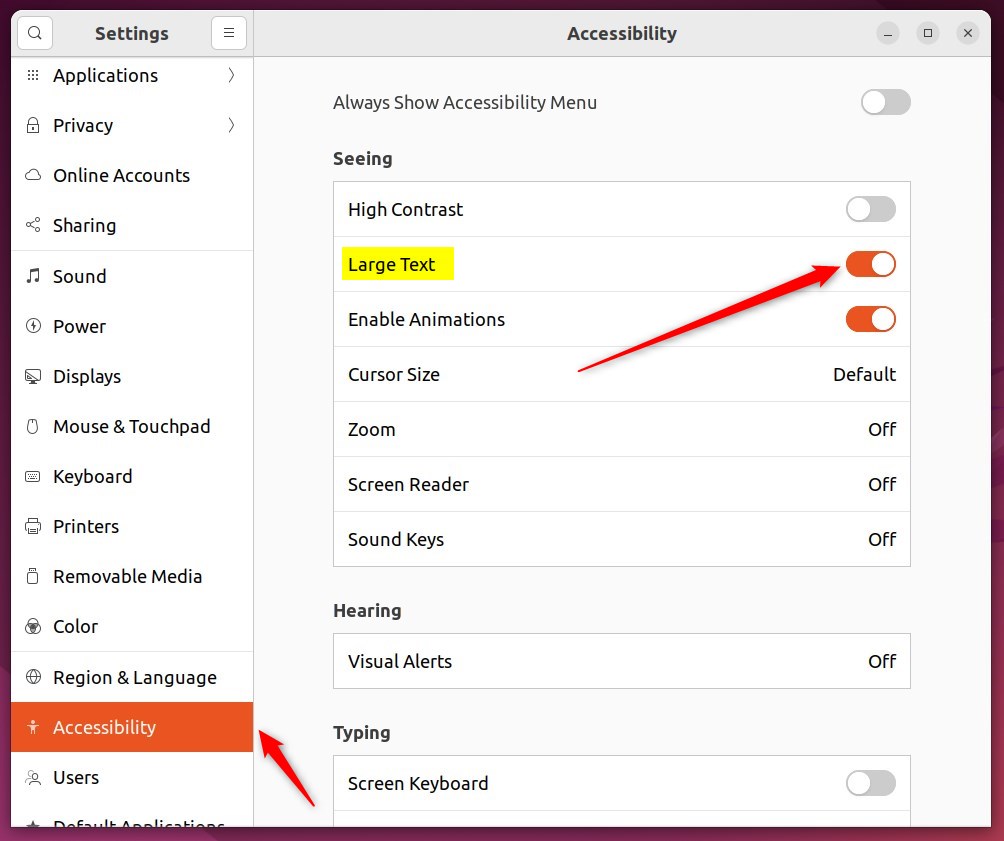
- In the Settings app, click Accessibility in the sidebar. On Ubuntu 22.04 it shows up as a tile or list entry, depending on your window size. If you can’t see it, scroll down the sidebar or widen the window.
The Accessibility page opens, with its options grouped under headings such as Seeing, Hearing and Typing.
- Under Seeing, find Large Text. The path is Settings Accessibility Seeing
- Turn the Large Text switch to On.
The text in the Settings window and across the desktop gets bigger right away. You don’t need to log out or restart.
To go back to the default size, open Settings Accessibility Seeing again and move the Large Text switch to Off. The text shrinks back immediately.
Your Ubuntu fonts and text size update automatically after these steps. Large Text scales the text to roughly 1.2 times its original size. That is a fixed step, not a slider. If it is still too small or too big for you, the command-line method below lets you pick your own value.
Many applications also let you resize text on the spot. Press CTRL + + to make the text larger, and CTRL + – to make it smaller. This works in most web browsers and in the Terminal app. It only affects that one app, and the system-wide setting stays untouched. In many browsers, Ctrl+0 returns the page to its default zoom.
How to increase font size in Ubuntu Linux from the command terminal
To change the font size from the command line, open the Terminal app and run the gsettings scaling command with the number you want. The code block below shows the exact command. This sets the system text size instantly, so you don’t have to click through the graphical settings.
Anything higher makes text larger, and anything lower makes it smaller. Try small steps, such as 1.25 or 1.5, because very large values can push parts of windows off the screen. To undo the change, run the same command with 1.0. This also gives you finer control than the Large Text switch, which only offers one fixed step.
Increasing the text size in Ubuntu Linux makes the font much larger than the default. Other methods exist for changing font size, such as the Scaling Factor option in the GNOME Tweaks app. The steps described here are enough for most users.
That should do it!
Conclusion:
- Adjusting the font size in Ubuntu Linux is essential for improving readability, especially for users with poor vision or larger displays.
- By accessing the System Settings panel and toggling the Large Text switch under Accessibility, users can conveniently increase the text size.
- Alternatively, advanced users can utilize the command line to change the text size by a specific scaling factor.
- The ability to adjust text size in Ubuntu Linux ensures a more comfortable and customized user experience for all individuals, regardless of their visual requirements or display setups.
Have a question about this guide?
Answered by AI from this guide. Good questions may be added to this page — please don't include personal details.
Did this guide fix your problem?

About the Author
Richard
Tech Writer, IT Professional
Richard is a writer at Geek Rewind who turns complex IT tasks into clear, step-by-step guides. He draws on years of hands-on experience in system administration and enterprise IT operations, focusing on Windows, Linux and WordPress: the problems people actually run into, and the fixes that work. His server and WordPress guides come from systems he runs himself. Richard builds and maintains the platform behind Geek Rewind, from its Ubuntu servers and Nginx configuration to its custom WordPress plugins. Many new tutorials start with readers' questions, and he's always glad to answer them in the comments.
No comments yet — be the first to share your thoughts!