How to Change Dock Icon Size in Ubuntu Linux


Changing the dock icon size in Ubuntu Linux lets you resize the app shortcuts on your screen to fit your setup. The dock, also called the launcher or Dash, sits on the side or bottom of the screen and holds your favorite apps and the apps you have open.
You can set the icons anywhere from 16 pixels up to 64 pixels, depending on your screen size and what feels comfortable. Ubuntu 23.10 and newer include this setting in the main Appearance page of Settings, so you do not need to install extra tools. The steps below assume the default Ubuntu desktop with its standard dock. Other Ubuntu flavors, such as Kubuntu, use a different desktop and different menus.
Open Settings , select Appearance in the sidebar, and drag the Icon size slider under Dock to set icons between 16 and 64 pixels. The change applies as you drag, and no restart or log out is needed. This works on Ubuntu 23.10 and newer, where the setting is built in.
How to change the size of the Dock or launcher in Ubuntu Linux
You change the dock icon size from Settings. Open Settings , select the Appearance tab, and find the icon size slider under Dock. Drag it to make the icons larger or smaller.
The slider changes the icon size and the width of the dock together, so you cannot set one without the other. The change applies as soon as you move the slider. You do not need to restart or log out.
Resizing the icons also resizes the dock itself. A larger icon size gives you a wider dock that takes up more screen space. A smaller size leaves more room for your windows.
Here is how to do it in Ubuntu. First open Settings , then use the slider. There are two ways to open Settings, and either one works.
The first way is through the Activities overview, which works the same on any recent Ubuntu release.
- Click Activities in the top-left corner of the screen, or press the Super key (the Win on most keyboards). The Activities overview opens.
- Type Settings. The Settings app appears in the search results.
- Click the Settings icon, or press Enter, to open it.

The second way is through the system menu, in case you prefer the mouse.
- Click the System menu in the top-right corner of your desktop. This is the group of icons for network, sound and power. A panel drops down.
- On the System menu, select Settings, as highlighted below. The Settings window opens.

- In the Settings app, click the Appearance tile in the left sidebar. The Appearance panel opens on the right, with the theme options at the top and the Dock settings below them.
The list is long and Appearance is near the top. Some older Ubuntu releases do not have the dock size slider in this panel, so check that you are on Ubuntu 23.10 or newer.
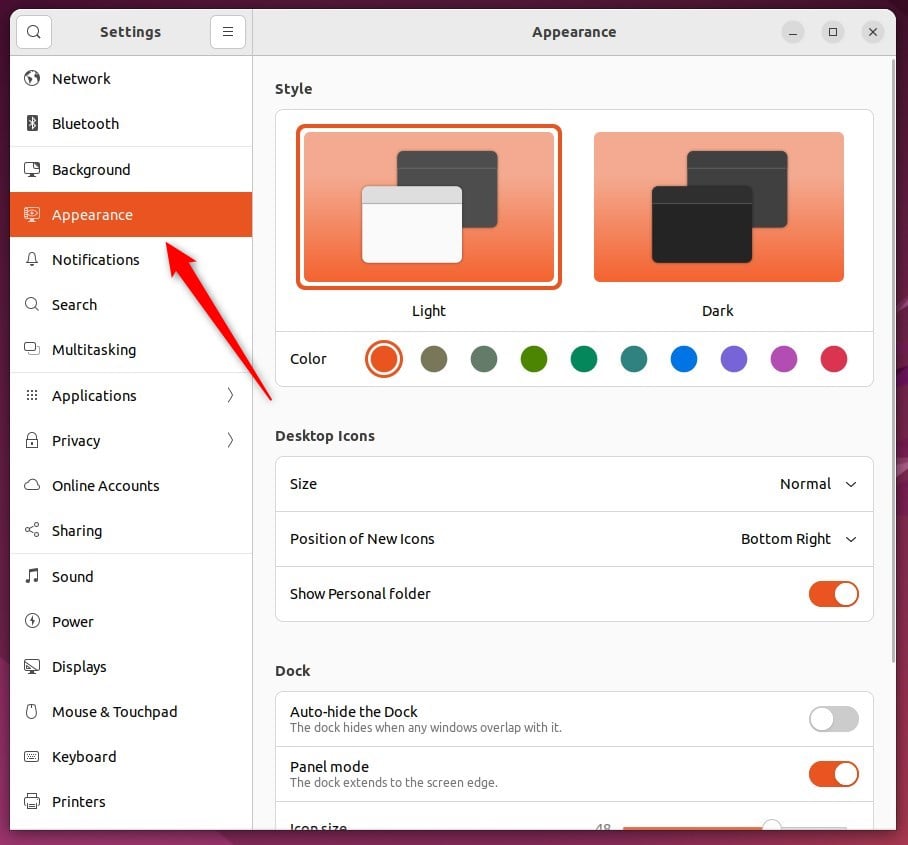
- On the System Settings - Appearance panel, scroll down to the Dock section.
- Drag the Icon size slider to the right to make the icons and the dock bigger, or to the left to make them smaller. The dock resizes right away while you drag.
Move the slider a little at a time and watch the dock. This is quicker than guessing a number and going back to correct it.
The available options range from 16 to 64 pixels. At the small end the icons are tiny and can be hard to tell apart on a high-resolution screen. At the large end the dock can cover a lot of the screen, especially on a laptop. For most displays, a value somewhere in the middle works well.
To undo the change, open the same panel and drag the slider back. The default size on a fresh Ubuntu install is usually 48 pixels.
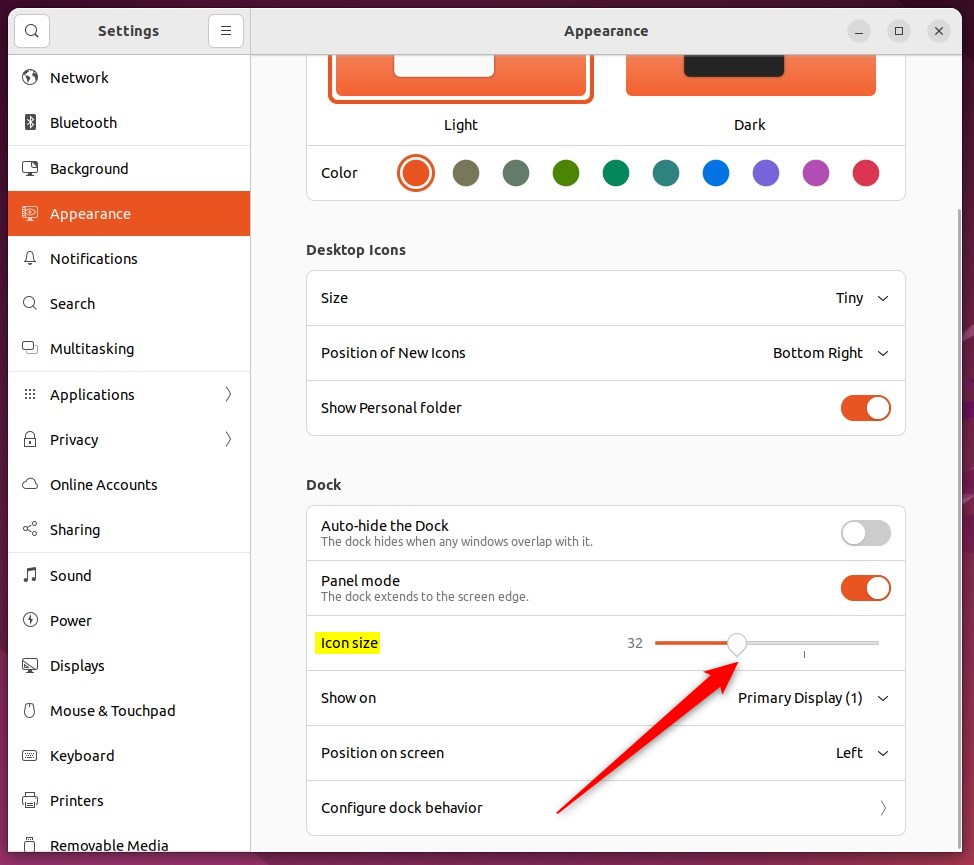
Once the dock looks the way you want, close the Settings app. Your choice is saved automatically, so there is no Apply or Save button to click. The size stays the same after you log out or restart.
Adjusting the icon size helps you fit the dock to your screen. A small screen usually works better with smaller icons, which leave more room for your windows. A large or high-resolution display often looks better with bigger icons that are easier to see and click.
- This guide shows how to change the size of the icons on the dock, or launcher, in Ubuntu Linux so the desktop fits your preferences.
- Follow the steps and you can change the size of the application icons on the dock. The overall size of the dock changes with them, so it suits your screen and the way you work.
- The screenshots show each step, so you can check that your screen matches.
- If you run into an error or have a tip to add, leave a comment so other readers can benefit too.
Have a question about this guide?
Answered by AI from this guide. Good questions may be added to this page — please don't include personal details.
Did this guide fix your problem?

About the Author
Richard
Tech Writer, IT Professional
Richard is a writer at Geek Rewind who turns complex IT tasks into clear, step-by-step guides. He draws on years of hands-on experience in system administration and enterprise IT operations, focusing on Windows, Linux and WordPress: the problems people actually run into, and the fixes that work. His server and WordPress guides come from systems he runs himself. Richard builds and maintains the platform behind Geek Rewind, from its Ubuntu servers and Nginx configuration to its custom WordPress plugins. Many new tutorials start with readers' questions, and he's always glad to answer them in the comments.
[…] can customize or change how the Dock appears. One can hide it automatically, change its position, increase or decrease the icons, show it on all monitors, and […]