Auto-Hide Dock in Ubuntu Linux: A Step-by-Step Guide


Auto-hide dock in Ubuntu Linux shrinks your desktop panel out of view when an application window gets close to it, giving you extra screen space. This feature runs on Ubuntu 22.04 LTS and later versions to keep your workspace clean and stop you from accidentally clicking app icons.
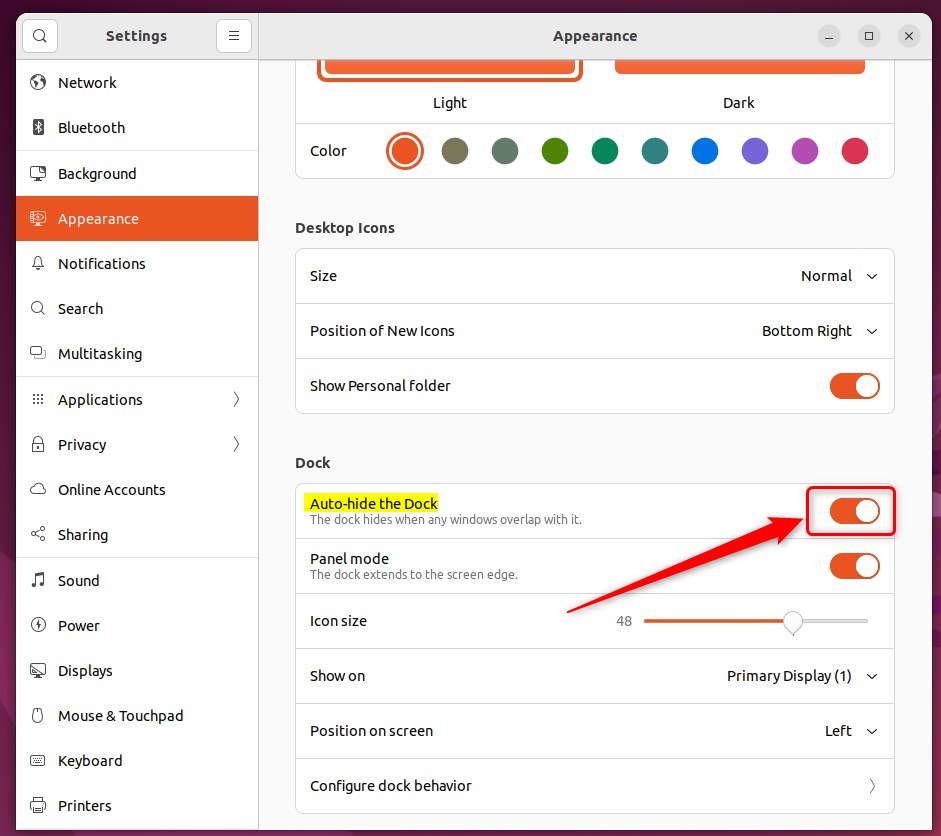
Auto-hide the Dock in Ubuntu by opening Settings, clicking Appearance, and toggling “Auto-hide the Dock” to the On position. This will make the Dock disappear when a window overlaps it.
How to auto-hide the Dock in Ubuntu Linux
To auto-hide Dock Ubuntu elements and clear up your screen space, open the Settings app, click on Appearance or Desktop, and turn on the switch for panel auto-hide. This makes the left-hand application launcher slide out of view whenever an open window covers it, and it pops back up when you move your mouse to the edge of the screen.
Here’s how to do that.
Open the System Settings panel to change desktop preferences.

Alternatively, click on the System menu at the top-right corner of the top bar on your desktop.
On the System menu, select Settings, as highlighted below.

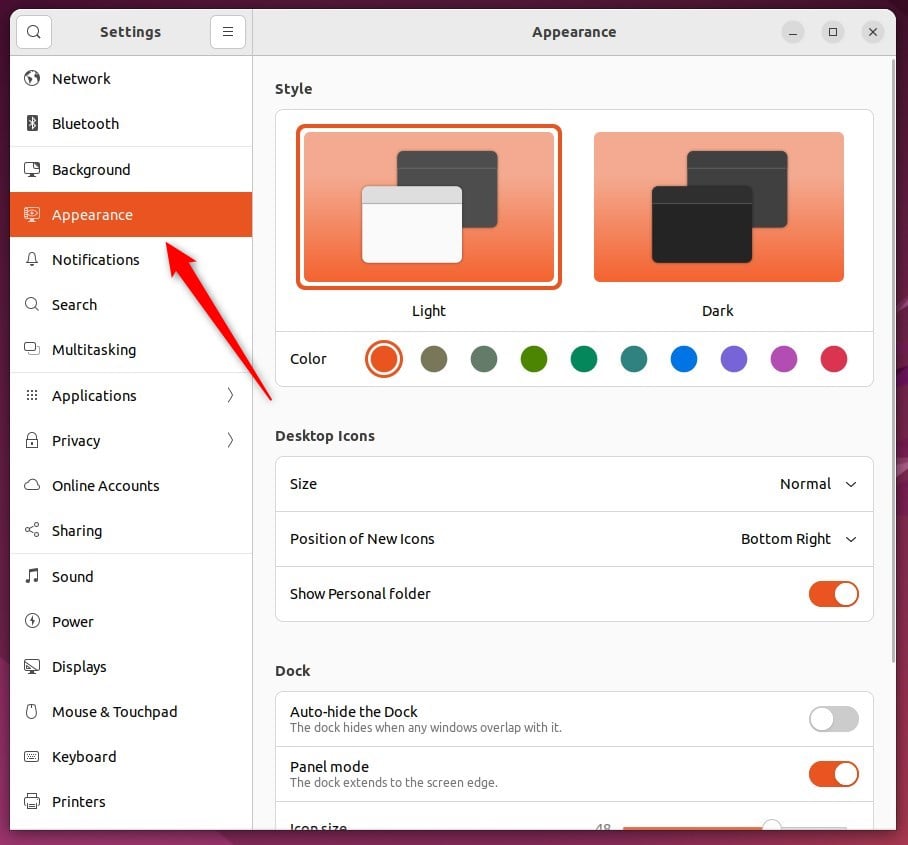
Click on the Appearance tile to open the panel in the Settings app.
That should do it!
Hiding the dock automatically helps you make the most of your screen space.
- Configuring the Dock to hide when a window overlaps with it automatically can improve screen space utilization in Ubuntu Linux.
- The step-by-step guide provided easy-to-follow instructions for toggling the "Auto-hide the Dock" setting in the System Settings panel.
- Users can now effortlessly manage the visibility of the Dock based on their preferences.
Was this guide helpful?

About the Author
Richard
Tech Writer, IT Professional
Richard is a writer at Geek Rewind who turns complex IT tasks into clear, step-by-step guides. He draws on years of hands-on experience in system administration and enterprise IT operations, focusing on Windows, Linux and WordPress: the problems people actually run into, and the fixes that work. His server and WordPress guides come from systems he runs himself. Richard builds and maintains the platform behind Geek Rewind, from its Ubuntu servers and Nginx configuration to its custom WordPress plugins. Many new tutorials start with readers' questions, and he's always glad to answer them in the comments.


No comments yet — be the first to share your thoughts!