

This article describes steps to change the size of icons on the Dock or launcher in Ubuntu Linux.
By default, the Dock (or apps launcher) in Ubuntu Linux has application icons that are left-aligned or docked on the left side of the screen. However, you can move the Dock to the bottom of the right of your screen.
You can also change the size of the Dock in Ubuntu Linux. This is because the application icons on the Dock are proportional to the size of the Dock. Therefore, if you increase the icon size, you also increase the size of the Dock.
So, if you have a small screen and want to create a bigger work area, you can decrease the size of the icons, which also decreases the size of the Dock.
On the other hand, if the icons are too small, you can increase them so they can be seen clearly.
Below is how to change the size of application icons on the Dock in Ubuntu Linux.
How to change the size of the Dock or launcher in Ubuntu Linux
As mentioned above, the application icons on the Dock are proportional to the size of the Dock. If you increase the icons, you also increase the Dock.
You can increase or decrease the size of the icons and the Dock simply by increasing the dock icons.
Below is how to do that in Ubuntu Linux.
Ubuntu Linux has a centralized location for the majority of its settings. From system configurations to creating new users and updating, all can be done from the System Settings panel.
To get to System Settings, open the Activities overview and start typing Settings.

Alternatively, click on the System menu at the top-right corner of the top bar on your desktop.
On the System menu, select Settings, as highlighted below.

In the Settings app, click on the Appearance tile.
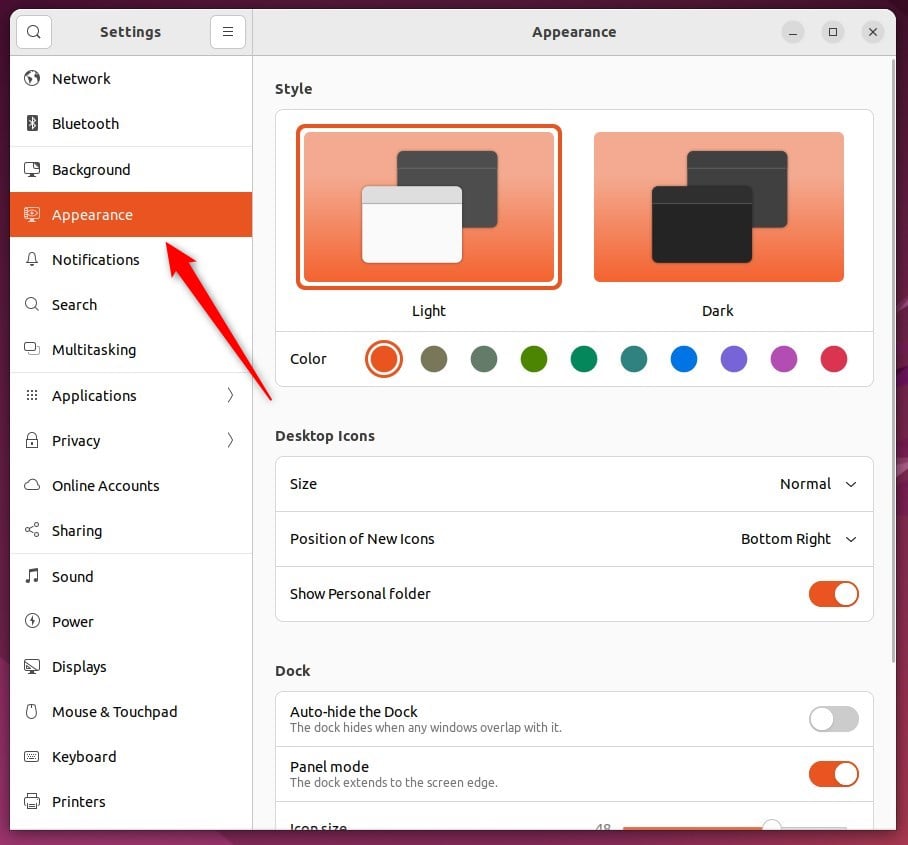
On the System Settings -> Appearance settings panel, use the Icon size slider under Dock to increase or decrease both the icons and dock sizes.
You can choose between 16 and 64 pixels.
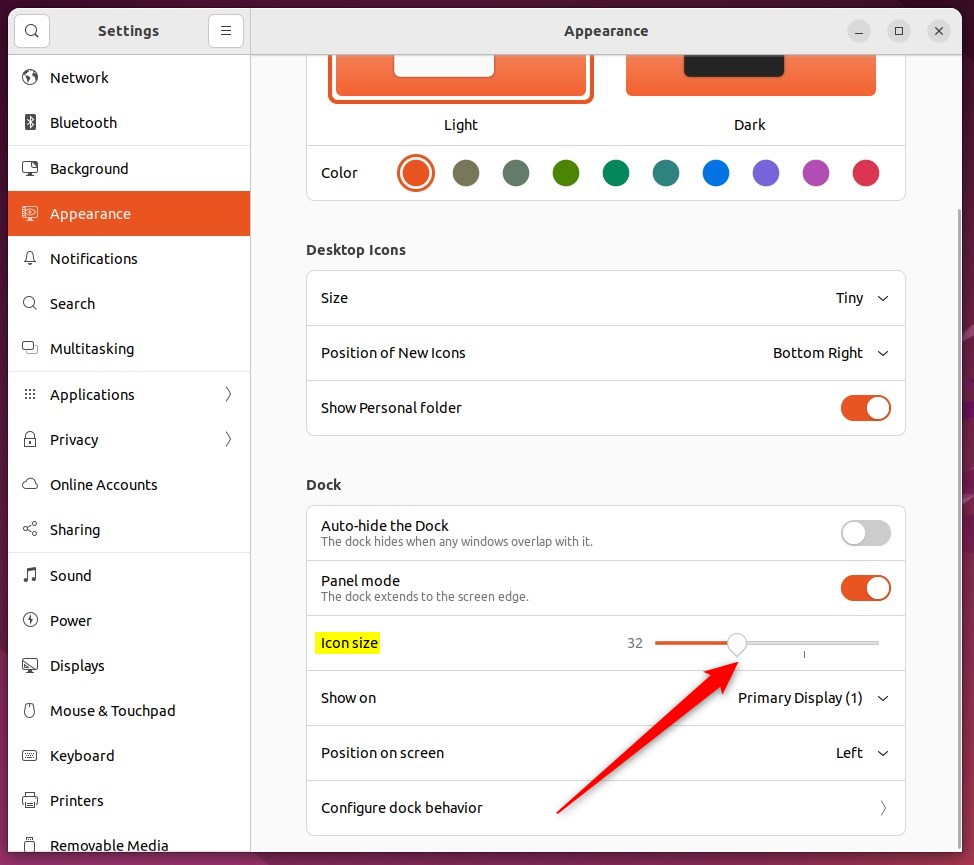
That should do it! You can now close the Settings app.
Conclusion:
- The article provides a comprehensive guide on changing the size of icons on the Dock or launcher in Ubuntu Linux, catering to users’ preferences for workspace customization.
- By following the steps outlined, users can seamlessly modify the size of application icons on the Dock, subsequently adjusting the Dock’s overall size to suit their specific workspace requirements.
- Including descriptive visuals further enhances the user experience, facilitating a clear understanding of the process.
- Readers are encouraged to leave comments if they encounter errors or wish to contribute additional insights, fostering an interactive and collaborative learning environment.


Leave a Reply to How to Reset the Dock to Default Settings in Ubuntu Linux – Geek Rewind Cancel reply