Prevent Users from Changing Passwords in Windows 11


Blocking password changes in Windows 11 stops standard users on a shared PC from updating their sign-in password without your approval. It suits family or work computers where one person should control every password, for example a child’s account, a kiosk-style account or a shared account on a small office PC.
The rule applies to the account you pick. Administrator accounts are not restricted by it and can still change passwords whenever needed. You can set up the block in two ways. The first is the Local Users and Groups tool, which is available on Windows 11 Pro and Enterprise. The second is the Command Prompt, which also works on Windows 11 Home. Both methods apply to local accounts. A Microsoft account has its password managed online, so this setting is not the right control for it.
Prevent users from changing passwords by opening Local Users and Groups, right-clicking the user account, selecting Properties, and checking the “User cannot change password” box. This applies to Windows 11 Pro, Enterprise, and Education editions for local accounts.
Allow or prevent users from changing their passwords using Local Users and Groups.
Local Users and Groups lets you prevent password changes for specific accounts on your PC. This tool is not included in Windows 11 Home. If you run Home, skip to the Command Prompt method further down. To check your edition, go to Settings System About and look under Windows specifications. You also need to be signed in with an administrator account.
- Press the Win+R on your keyboard to open the Run dialog.
You should see a small Run box with a text field in the bottom-left corner of the screen.
- Type lusrmgr.msc into the Open field, then press Enter or click OK.
The Local Users and Groups console opens. If you get a message that Windows cannot find the file, you are most likely on Home edition, which does not have this console.
lusrmgr.msc
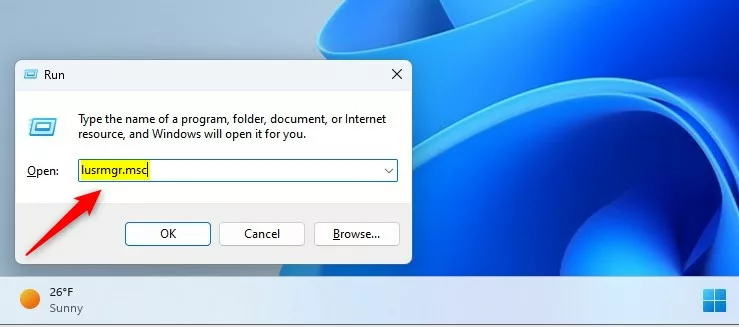
- In the left pane of the console, select the Users folder. The right pane lists every local account on the PC.
- Right-click the account you want to restrict.
- Select the Properties command in the context menu .
The account’s properties window opens.

On the General tab of the account Properties window, you will see a list of check boxes. Use the one named "User cannot change password":
- Check the box to stop the user from changing their password.
- Uncheck the box to let the user change their password again.
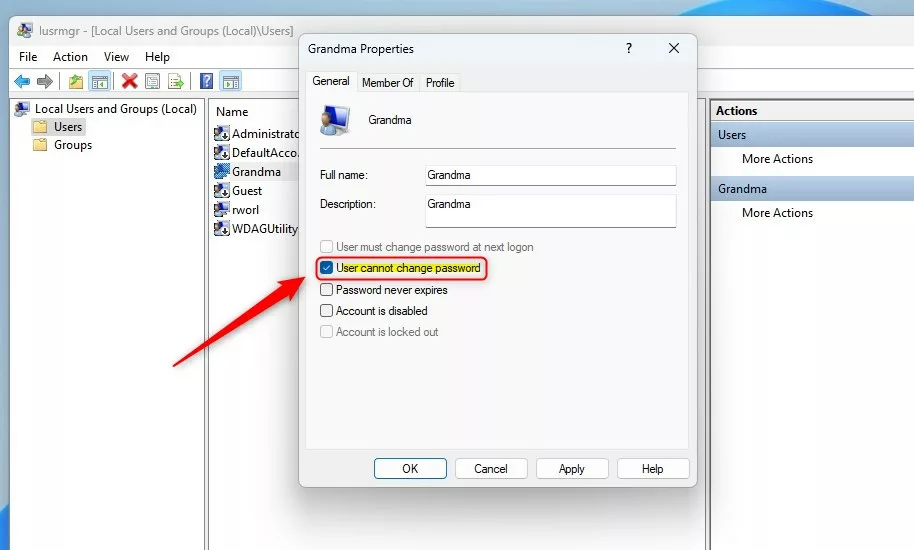
- Click the OK button to save the change.
- Close the Local Users and Groups console.
The change applies right away. You do not need to restart the PC. To undo it, open the same Properties window and clear the box.
Allow or prevent users from changing their passwords via the command line
Command Prompt and Windows Terminal let you prevent password changes with a simple text command. This method works on every edition of Windows 11, Home included, so use it if Local Users and Groups is missing on your PC. You run a net user command as administrator to block or allow any local account from changing its sign-in password.
- Launch Windows Terminal as administrator with administrator rights.
If the window title does not say Administrator, close it and reopen it with the run as administrator option. Without elevated rights the command will fail with an access denied error.
Run the next command to restore password modification rights. Replace the account name in the command with the real name of the local account.
net user "user name" /PasswordChg:Yes
Example: Allow Grandma to change her password:
net user "Grandma" /PasswordChg:Yes
To block password changes on an account, run this command instead. Again, use the real account name.
net user "user name" /PasswordChg:No
Example: Disallow Grandma from changing her password:
net user "Grandma" /PasswordChg:No
If the command works, the console reports that it completed successfully. The change takes effect immediately, with no restart. If it says the user name could not be found, check the spelling of the account name against the list in Local Users and Groups or Settings Accounts
That completes the process.
Conclusion:
- You can manage password change permissions for standard accounts in Windows 11 using Local Users and Groups (Pro and Enterprise) or the command line (all editions).
- Administrators can prevent standard users from changing their passwords, while users in the Administrators group are not bound by the restriction and can still change passwords.
- Either method can be reversed at any time, which helps you keep tight control over who can change sign-in details on a Windows 11 machine.
Have a question about this guide?
Answered by AI from this guide. Good questions may be added to this page — please don't include personal details.
Did this guide fix your problem?

About the Author
Richard
Tech Writer, IT Professional
Richard is a writer at Geek Rewind who turns complex IT tasks into clear, step-by-step guides. He draws on years of hands-on experience in system administration and enterprise IT operations, focusing on Windows, Linux and WordPress: the problems people actually run into, and the fixes that work. His server and WordPress guides come from systems he runs himself. Richard builds and maintains the platform behind Geek Rewind, from its Ubuntu servers and Nginx configuration to its custom WordPress plugins. Many new tutorials start with readers' questions, and he's always glad to answer them in the comments.
No comments yet — be the first to share your thoughts!