

This article explains how to add a passkey for your Microsoft account on your Android phone.
A passkey is a security mechanism restricting access to a system or device. Passkeys are commonly used to secure computers, smartphones, and other electronic devices and protect sensitive data and information.
You can use a passkey to sign in to Microsoft apps and websites, including Microsoft 365 and Copilot on desktop and mobile browsers. On your Microsoft account sign-in screen, use your passkey by choosing the Sign-in options and then selecting face, fingerprint, PIN, or security key.
Setting up a passkey for your Microsoft account on your phone is an essential security measure that provides a high level of protection. With a passkey, you’ll be required to enter a unique code whenever you want to access your Microsoft account on your phone, adding an extra layer of security. This ensures that only you can access your account and keeps your personal information safe from unwanted access by others.
Overall, it’s a simple yet highly effective security measure that can help keep your Microsoft account safe and secure, giving you the confidence that your account is well-protected.
Set up a passkey for your Microsoft account on your Android phone
As mentioned above, users can set up a passkey on your Android device for their Microsoft account.
Here’s how to do it.
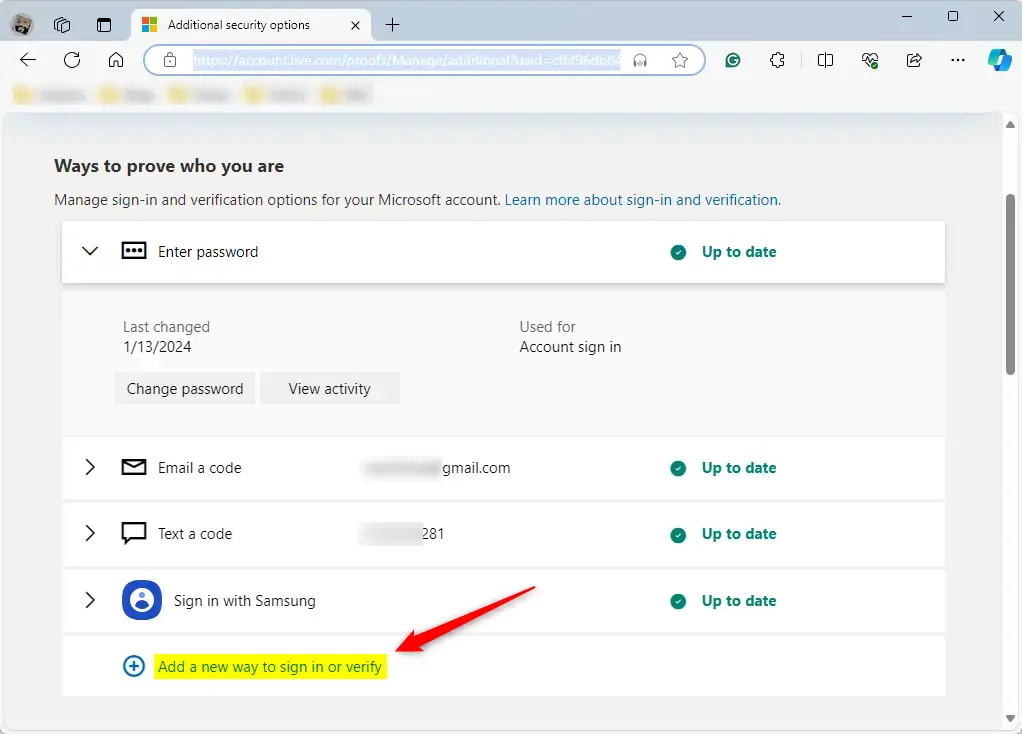
First, sign in to your Microsoft account and go to Advanced Security Options page. Click “Add a new way to sign in or verify.”
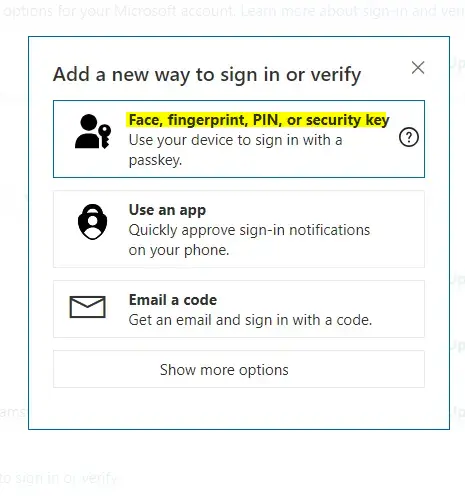
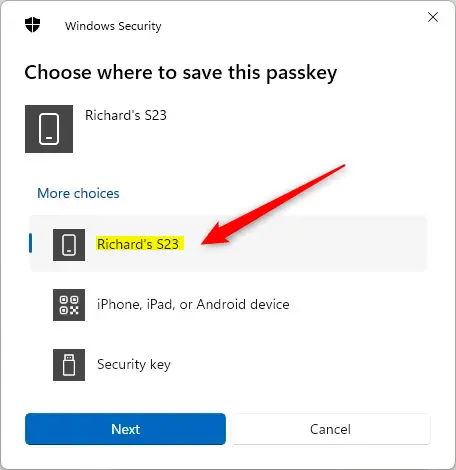
Then, select “Face, fingerprint, PIN, or security key.” Then, select your Android phone and click Next to continue.
Next, select “Save another way” when prompted. Then, select “Google Password Manager” to save your passkey.
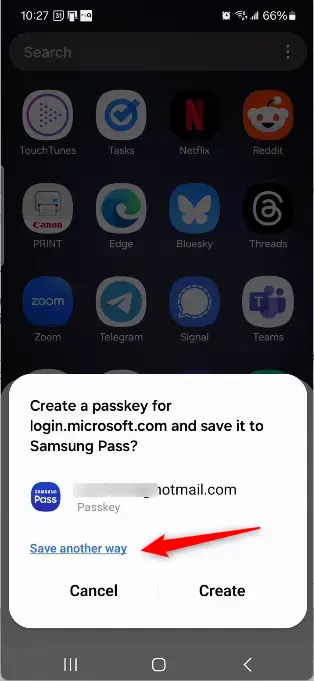
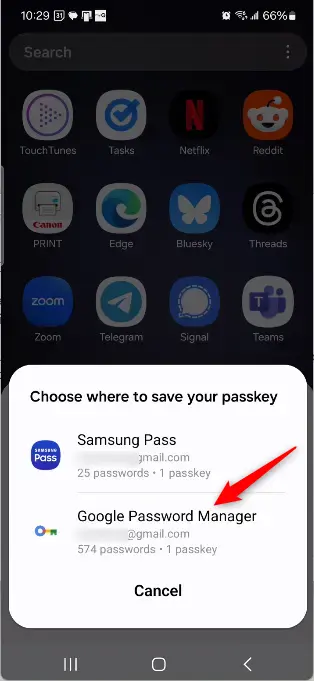
Next, click the “Use once” when prompted and click Create.
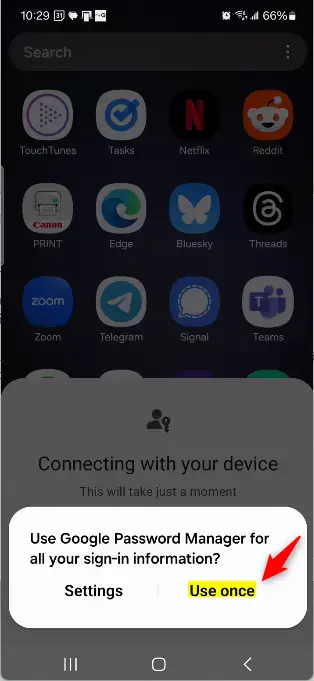
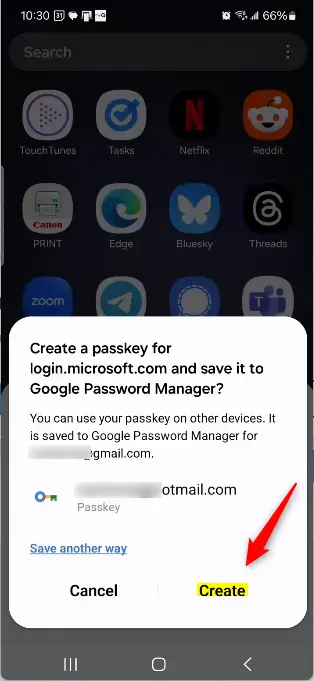
Next, continue on your device to complete the setup.
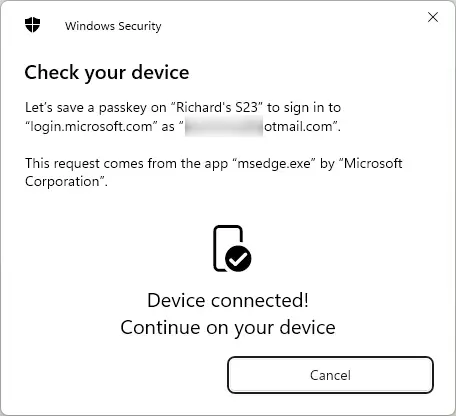
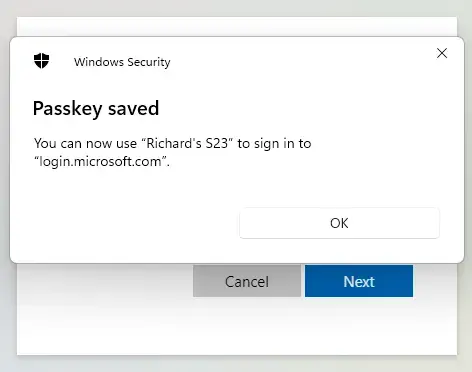
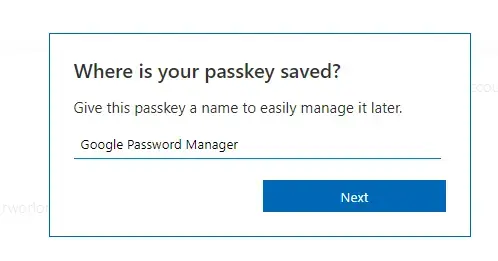
Finally, enter a name for your passkey and click OK to finish.
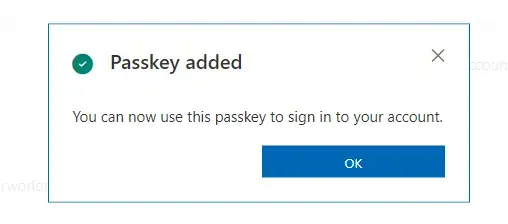
That should do it!
Conclusion:
- Setting up a passkey for your Microsoft account on your Android phone is a crucial security measure to protect your personal information.
- It adds a layer of security to ensure that only you can access your account.
- By following the simple steps outlined in this article, you can confidently secure your Microsoft account on your Android device.
- If you encounter any issues or have further insights, feel free to utilize the comments section below.



Leave a Reply