How to Enable or Disable Microsoft Edge Sign-In


You enable or disable Microsoft Edge sign-in by configuring the BrowserSignin policy.
This policy dictates whether users can sign into Microsoft Edge using their Microsoft account to sync data or access personalized services.
For instance, disabling BrowserSignin prevents users from syncing bookmarks and passwords across their Windows 11 devices.
To fully block profile sign-ins, you should also disable the NonRemovableProfileEnabled policy alongside BrowserSignin.
When BrowserSignin is enabled or left unconfigured, you retain the ability to sign into Microsoft Edge with your Microsoft account at any time.
Disable Microsoft Edge sign-in by creating two DWORD values, BrowserSignin and NonRemovableProfileEnabled, in the Windows Registry under PoliciesMicrosoftEdge, and setting both to 0. To re-enable, delete these registry entries.
Enable or Disable Sign-in to Microsoft Edge
You can choose whether people can sign in to Microsoft Edge with their Microsoft account by changing a setting called BrowserSignin.
- Open the Windows Registry and navigate to this folder path:
Computer\HKEY_LOCAL_MACHINE\SOFTWARE\Policies\Microsoft\Edge
First, you’ll need to open the Windows Registry. To do this, you need administrator privileges. Before you make any changes, it’s a really good idea to back up your registry or create a System Restore point.
- Right-click on the
Edgefolder. SelectNew>DWORD (32-bit) Value. - Name the first new DWORD
BrowserSignin. - Create a second DWORD and name it
NonRemovableProfileEnabled. - Double-click on
BrowserSigninand set the value data to0to disable signing into Microsoft Edge. - Double-click on
NonRemovableProfileEnabledand set the value data to0.
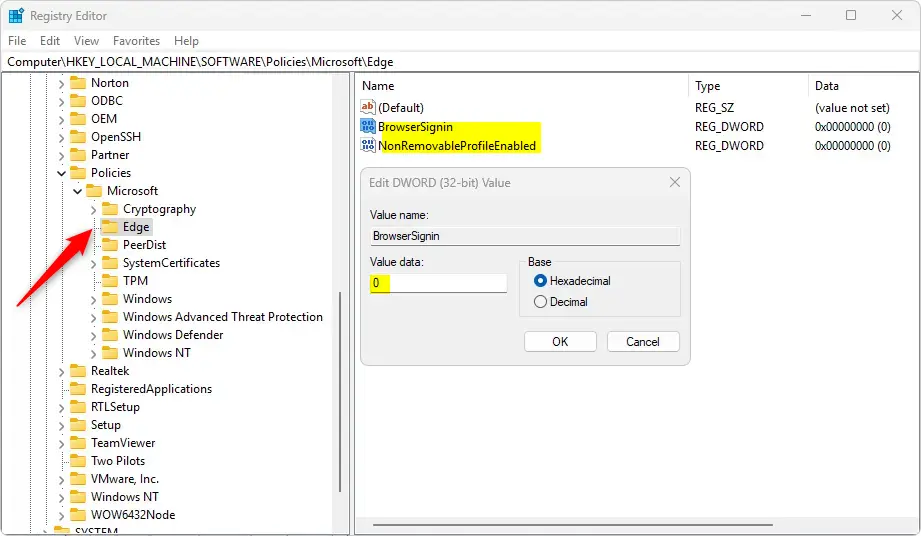
BrowserSignin and NonRemovableProfileEnabled entries to go back to the default settings. This allows users to sign into Microsoft Edge with their Microsoft account again.You may need to restart your computer to apply the changes.
That should do it!
Reference: Microsoft.com
Summary
Changing the BrowserSignin setting lets you decide if people can sign in to Microsoft Edge with their accounts, giving you control over account features.
- Control User Sign-in: Administrators can restrict or allow users to sign into Microsoft Edge with their Microsoft account.
- Registry Modifications: Changes should be made using the Windows Registry. Always create backups and restore points beforehand.
- Prevent Automatic Sign-in: The NonRemovableProfileEnabled policy works with the BrowserSignin policy to prevent automatic sign-ins.
- Easy to Reverse: Deleting the DWORD entries restores the default behavior, making it easy to adjust settings later.
- System Reboot May Be Required: A reboot may be necessary to apply any changes made to the registry.
By following these steps, you can effectively manage Microsoft Edge sign-ins on Windows 11.
How do I sign in to Microsoft Edge?
Open Microsoft Edge then Click on the profile icon in the top-right corner of the browser window and Select "Sign in to sync data". Enter your Microsoft account email (the one you use for MSN, Outlook, etc.) and click Next. Enter your password and click Sign in.
Why can't I sign on Microsoft Edge?
Restart your computer A program or process currently running on your computer might be causing problems with Microsoft Edge. You can restart your computer to see if that fixes the problem.
Was this guide helpful?

About the Author
Richard
Tech Writer, IT Professional
Richard, a writer for Geek Rewind, is a tech enthusiast who loves breaking down complex IT topics into simple, easy-to-understand ideas. With years of hands-on experience in system administration and enterprise IT operations, he’s developed a knack for offering practical tips and solutions. Richard aims to make technology more accessible and actionable. He's deeply committed to the Geek Rewind community, always ready to answer questions and engage in discussions.



No comments yet — be the first to share your thoughts!