Disable Autofill Addresses in Chrome


To disable autofill addresses in Chrome, type chrome://settings/addresses into the address bar and turn off Save and fill addresses. You can also get there through Settings Autofill and passwords > Addresses and more. Once the switch is off, Chrome stops filling in your name, phone number and street address on web forms.
Chrome saves this personal information by default to speed up online checkout. The change takes less than 60 seconds in the browser settings. After that, Chrome no longer stores or suggests your private details when you fill out a form.
To disable autofill addresses in Chrome, go to Settings Autofill and passwords > Addresses and more. Use the toggle switch to turn off “Save and fill addresses.” This stops Chrome from saving and suggesting your contact information on websites.
Enable/Disable Saving Addresses in Chrome
The settings method is the right choice for a single PC or a single Chrome profile. Open Chrome, go to Settings, choose Autofill and passwords, and turn off the switch for addresses. Chrome then stops saving and suggesting your location details.
Turning the switch off does not delete addresses Chrome has already saved. They stay on the same page until you remove them. If you want them gone, open the menu next to each saved address and delete it.
Follow these steps to change your settings. The steps are the same on Windows 11 Home and Pro.
- Open the Google Chrome browser.
- Click the Customize and control icon (three vertical dots) in the top right corner. A menu drops down.
- Select Settings. The settings page opens in a new tab.
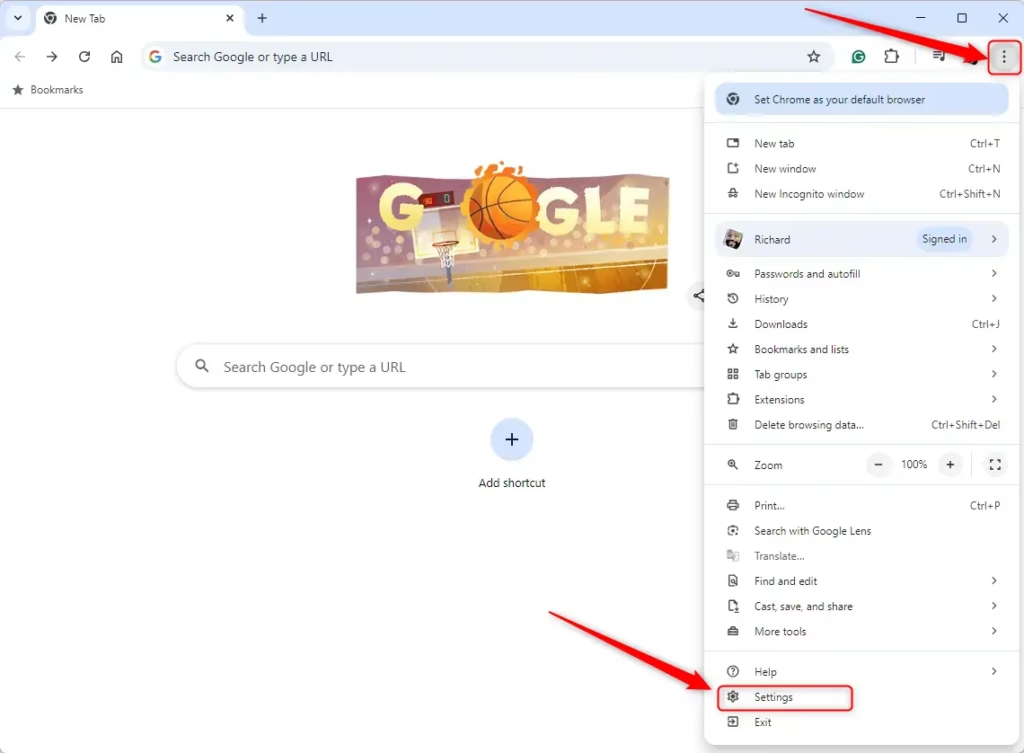
- Click Autofill and passwords in the left-hand menu. The right side now lists Google Password Manager, Payment methods and Addresses and more.
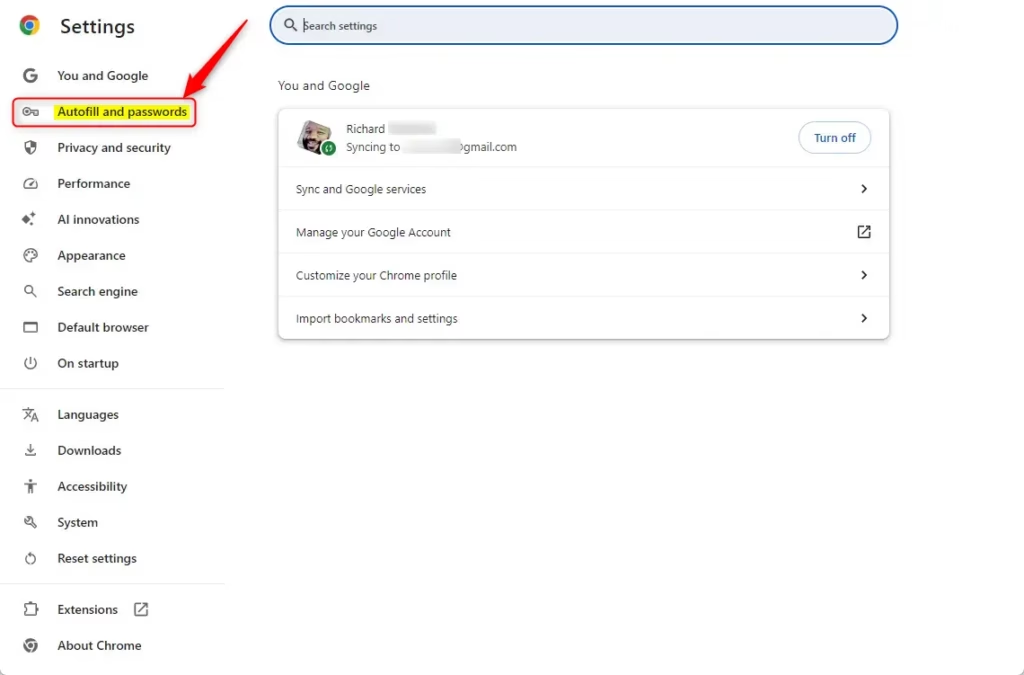
- Click the Addresses and more tile. You will see the address switch at the top and a list of any saved addresses below it. This is the same page that chrome://settings/addresses opens directly.
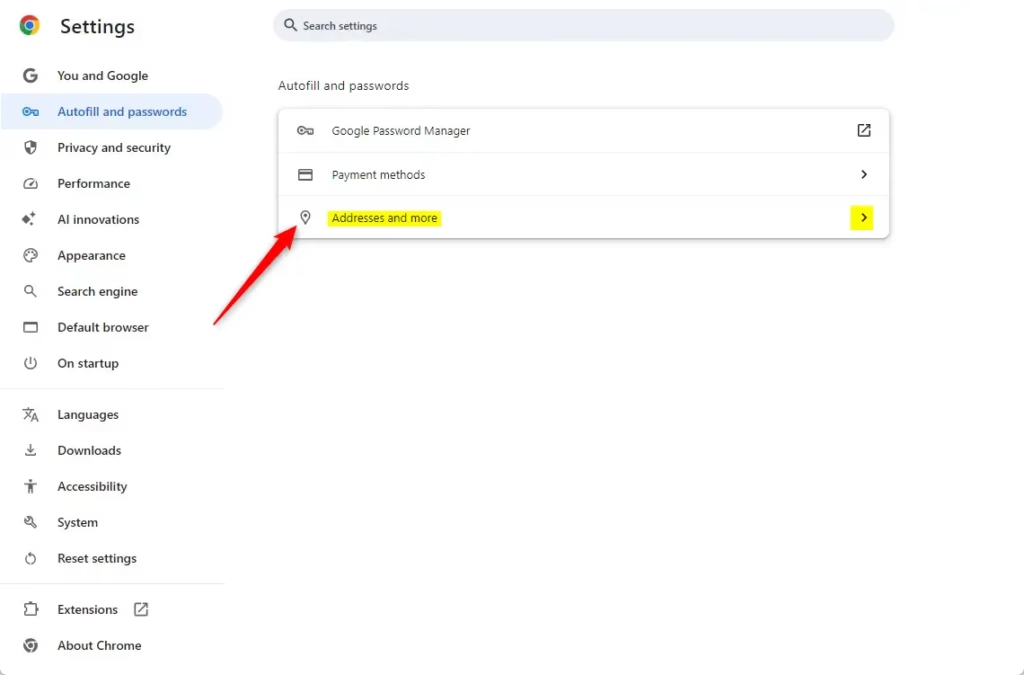
- Click the toggle switch next to Save and fill addresses to turn it off. The switch turns grey when it is off. Click it again at any time to turn it back on.
If the switch is greyed out and you cannot click it, or the page says Chrome is managed by your organization, a policy is controlling the setting. That can be a work or school policy, or the registry method described below. Remove the policy to get the switch back.
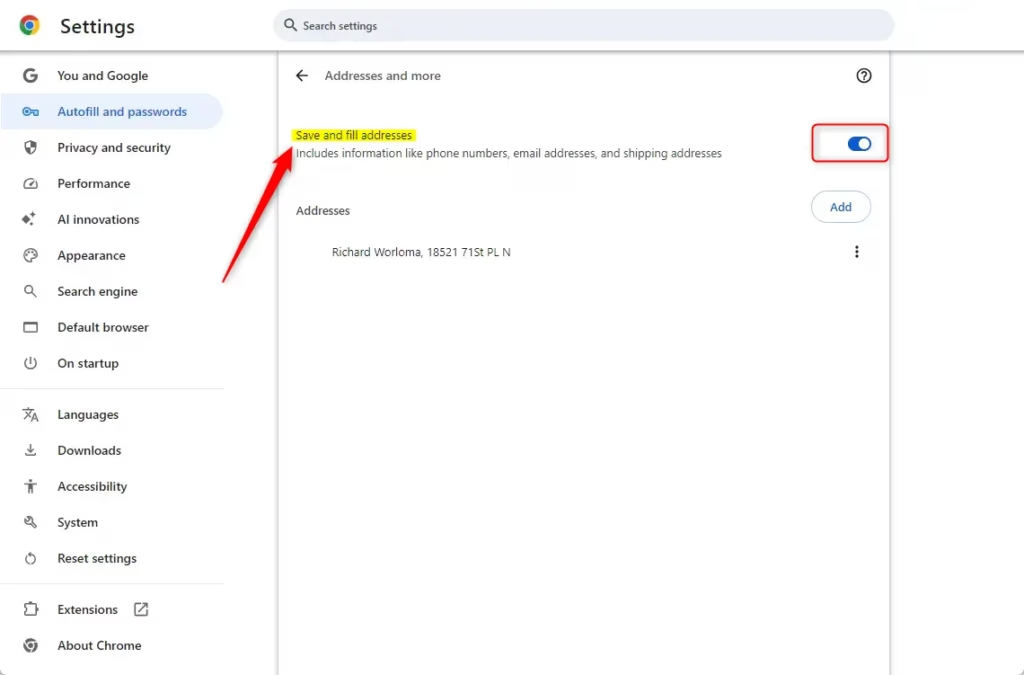
Close the settings tab once you are done. Chrome saves the change right away, so you do not need to restart the browser.
Enable / Disable save and fill addresses in Chrome using the Registry
You can disable Chrome autofill addresses for every user on a PC, or across a network, by editing the Windows Registry. A registry policy tells Chrome not to save or fill location details. Open Registry Editor from the Windows search bar, go to HKEY_LOCAL_MACHINE\SOFTWARE\Policies\Google\Chrome, and create a new value there.
This method works on both Windows 11 Home and Pro. You need an administrator account to change anything under HKEY_LOCAL_MACHINE.
To use this method, open the Windows Registry and go to the following path:
Computer\HKEY_LOCAL_MACHINE\SOFTWARE\Policies\Google\Chrome
Remember to back up your registry before making any changes, or create a System Restore point as a precaution. A wrong edit in the registry can cause problems, and a backup lets you undo it.
The Windows Registry is a database that stores low-level settings for Windows and apps. Here you use it to disable address autofill centrally. The Google and Chrome keys (shown as folders in the left pane) may not exist yet. If they are missing, create them first.
- Right-click the Policies key, select New Key, and name it Google. Skip this if it already exists.
- Right-click the Google key, select New Key, and name it Chrome. Skip this if it already exists.
- Right-click inside the right pane of the Chrome key, or right-click the Chrome key itself, and select New DWORD (32-bit) Value.
- Name the new value AutofillAddressEnabled. It appears in the list with a default data value of 0.
- Double-click AutofillAddressEnabled and set Value data to 0 to turn the feature off, or 1 to turn it on. Click OK.
- Restart Chrome, or type chrome://restart into the address bar, to apply the change.
After Chrome restarts, the address switch in Chrome settings should be greyed out and marked as managed. That tells you the policy has taken effect.
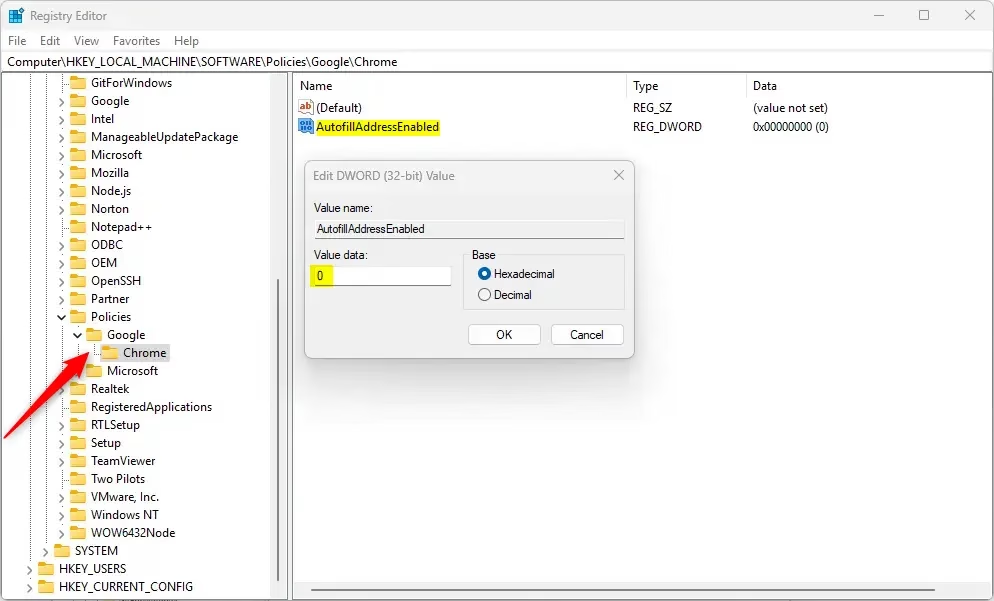
To revert to the default, delete the AutofillAddressEnabled entry. Right-click it, select Delete, confirm, and restart Chrome. The switch in Chrome settings then becomes available again.
Reference:
Conclusion
Keeping control over how Chrome saves and uses your address information is important for privacy and a tidy browser experience. For one PC, the settings toggle is enough. Use the registry policy only when you need to enforce the setting for every user.
Have a question about this guide?
Answered by AI from this guide. Good questions may be added to this page — please don't include personal details.
Did this guide fix your problem?

About the Author
Richard
Tech Writer, IT Professional
Richard is a writer at Geek Rewind who turns complex IT tasks into clear, step-by-step guides. He draws on years of hands-on experience in system administration and enterprise IT operations, focusing on Windows, Linux and WordPress: the problems people actually run into, and the fixes that work. His server and WordPress guides come from systems he runs himself. Richard builds and maintains the platform behind Geek Rewind, from its Ubuntu servers and Nginx configuration to its custom WordPress plugins. Many new tutorials start with readers' questions, and he's always glad to answer them in the comments.
No comments yet — be the first to share your thoughts!