
This article explains how to change the Maximum PIN length in Windows 11.
Windows 11 allows you to sign in with a PIN. This personal PIN is a recommended, fast, and secure way to log in to your Windows device and access other apps and services.
Windows PIN is part of the Windows Hello security feature. It gives you other sign-in options. You can use a picture password, PIN, fingerprint, and face to sign into Windows. The PIN is secure because it is tied to the specific device where you created it.
Your Windows Hello PIN does not expire. By default, it cannot be longer than 127 characters. The default length is 4 digits.
You can change the maximum PIN length anytime.
Why Change Your PIN Length?
The Local Group Policy Editor is the primary method to change maximum PIN length in Windows 11. Open the Group Policy Editor by searching for “Edit group policy” in the Start menu, then navigate to Computer Configuration > Administrative Templates > System > PIN Complexity to locate and modify the “Maximum PIN length” setting.
What Happens When You Change the Maximum PIN Length?
If you change the maximum PIN length, users must change their PIN to meet the new PIN complexity requirements if they haven’t already.
Change Maximum PIN Length in Windows
Windows admins can change the maximum PIN length for users on Windows 11.
Here’s how to do it.
Method 1: Using Local Group Policy Editor
- ⚙️ Admin Required – Open the Local Group Policy Editor. Search for “Edit group policy” on the Start menu.
- Navigate to these folders:
Computer Configuration > Administrative Templates > System > PIN Complexity - In the PIN Complexity details pane on the right, find and double-click “Maximum PIN length” settings.
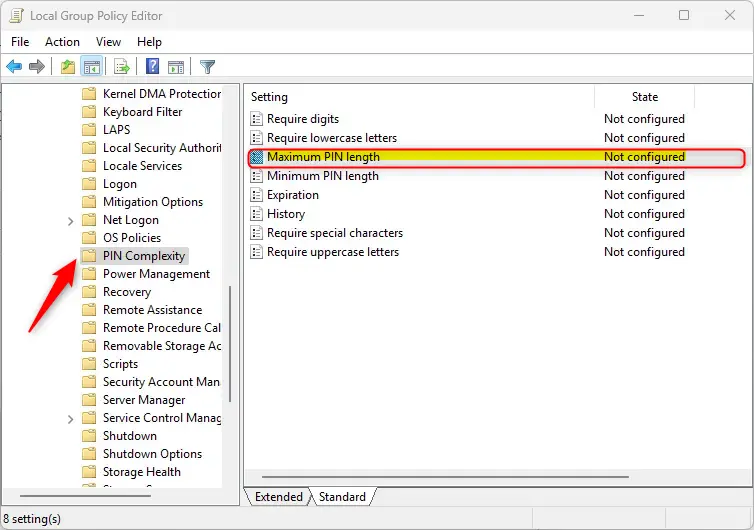
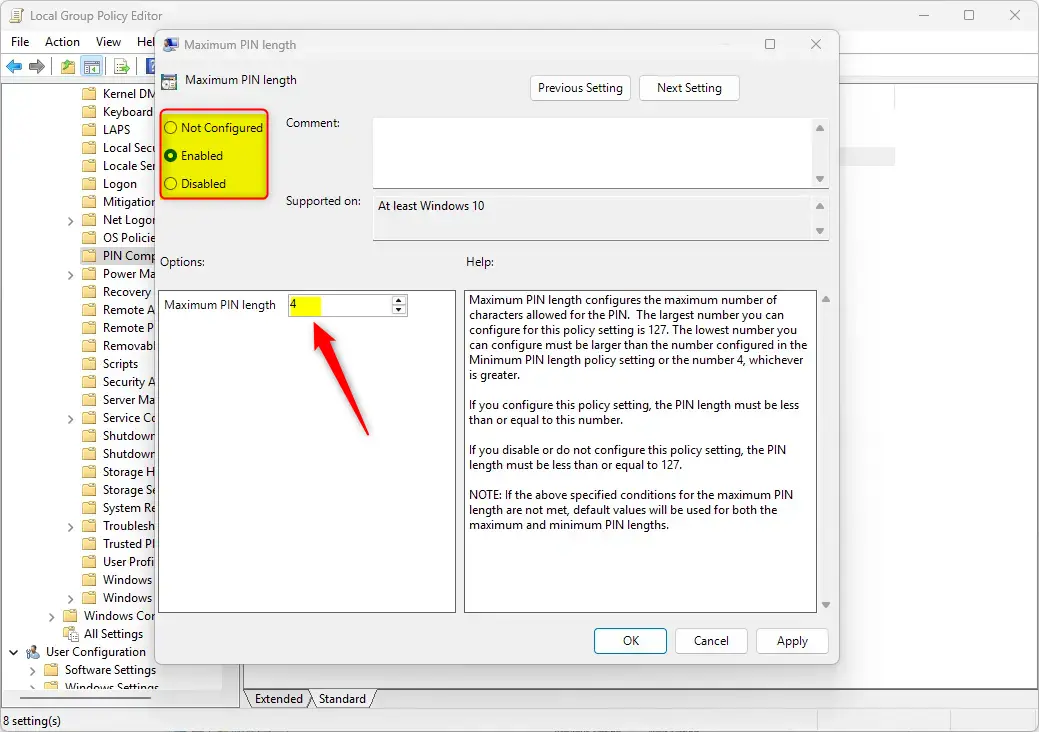
- In the “PIN Complexity” window, choose one of these options:
- Not Configured (default) – Same as Disabled.
- Enabled – You set the maximum PIN length. The largest number you can use is 127. The smallest number must be larger than the Minimum PIN length setting or 4, whichever is greater.
- Disabled – PIN length must be 127 or less.
- Click OK to save your changes.
Method 2: Using the Registry
Another way to change the maximum PIN length is to use the Windows Registry. However, this method is more advanced.
⚠️ Important: Remember to back up your registry before making any changes. Or create a System Restore point as a backup.
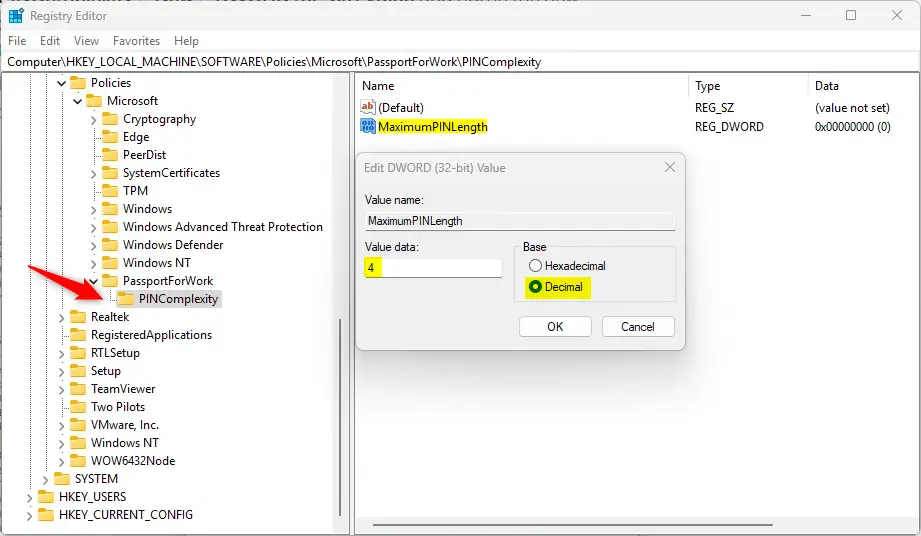
- ⚙️ Admin Required – Open the Registry Editor and navigate to this folder path:
HKEY_LOCAL_MACHINE\SOFTWARE\Policies\Microsoft\PassportForWork\PINComplexity - If you do not have the PassportForWork and/or PINComplexity keys in the registry path, create new keys to match the path above.
- Right-click PINComplexity > New > DWORD (32-bit) Value and name the new DWORD
MaximumPINLength. - Double-click
MaximumPINLengthand select Decimal under Based. Then type a number between 4 and 127 for the PIN length you want.
- To restore the default behavior, delete the
MaximumPINLengthvalue you created. - You may need to restart your computer to apply the changes.
That should do it!
Reference
Summary
Changing the maximum PIN length in Windows 11 is straightforward. Here are the key points:
- Windows 11 supports a maximum PIN length of up to 127 characters. The default is 4 digits.
- You can modify the maximum PIN length using the Local Group Policy Editor or the Windows Registry Editor.
- A longer PIN helps protect your device from unauthorized access by making it harder to guess.
- Back up your registry or create a restore point before making changes to avoid problems.
- Users may need to update their existing PINs if they don’t meet the new length requirements after the change.
- These steps ensure a more secure user experience on your Windows 11 device.
Frequently Asked Questions
How do I change the maximum PIN length in Windows 11?
What is the default maximum PIN length in Windows 11?
Can I change the maximum PIN length using the Windows Registry?
What happens if I set a longer maximum PIN length?
Is it safe to modify the maximum PIN length settings?



Leave a Reply