Follow
🪟

Windows

Windows 3 min read
How to Enable or Disable Energy Saver in Windows 11

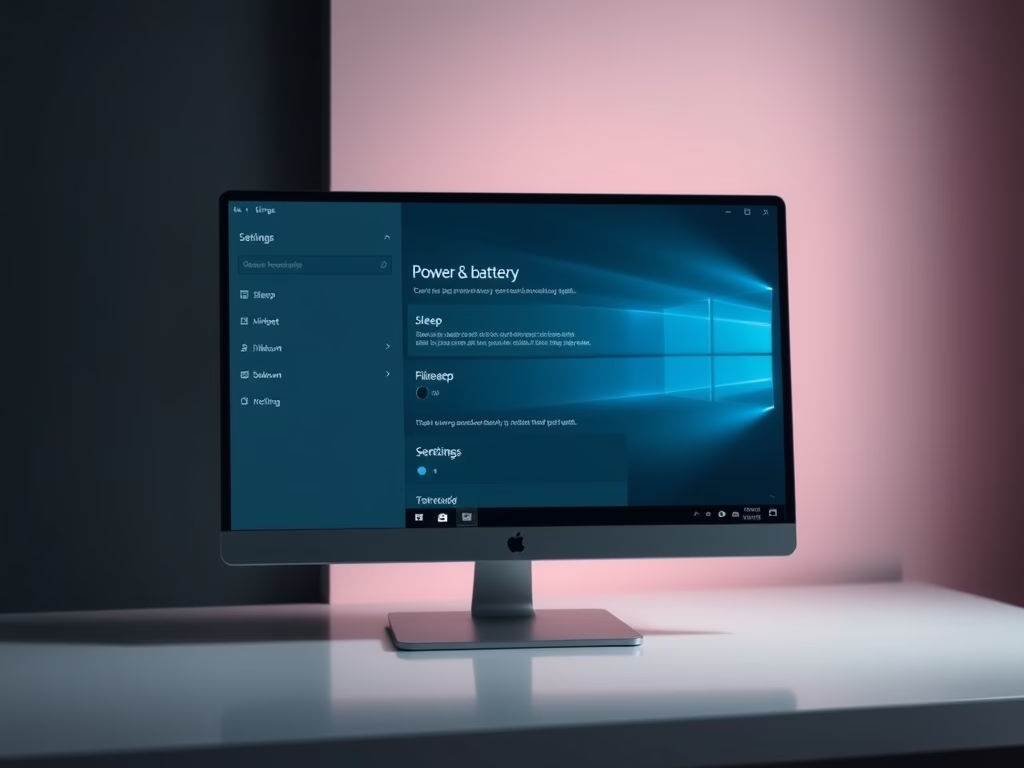
Energy Saver in Windows 11 conserves power and extends battery life, especially when unused. Users can activate it via Settings under System and Power & battery, or through Quick Settings. Advanced users may modify the Registry Editor to control Energy Saver by adjusting the EcoModeState value. It's beneficial for both savings and the environment.

February 4, 2026 Read more →
Windows 2 min read
How to Save Battery Life Using Energy Saver in Windows

Windows features an Energy Saver mode that reduces power usage on laptops, extending battery life. Users can easily activate or schedule it to turn on automatically at specified battery levels through the Settings menu or PowerShell. This ensures laptops remain functional longer between charges, enhancing user convenience.

Windows 2 min read
How to Change What the Power Button Does in Windows 11

This guide explains how to customize the power button behavior on Windows 11 to optimize functionality. Users can choose from options like Sleep, Hibernate, Shutdown, Display Off, or Do Nothing, enabling them to save time or energy based on their needs. Adjustments can be made easily via the Settings app.

Windows 2 min read
How to Close All Open Apps in Windows 11 at once

This guide outlines how to quickly close all open apps in Windows 11 using Command Prompt or PowerShell, excluding essential programs like File Explorer. By executing specific commands, users can enhance computer performance and resolve issues related to multiple applications running simultaneously. However, caution is advised as unsaved work may be lost.

Windows 2 min read
Discover Hidden Features in Windows 11 Using ViVeTool

Windows 11 users can access hidden features using ViVeTool, a free and user-friendly program. By following simple steps to download, extract, and run commands in Command Prompt, users can enable or disable features before their public release, enhancing their Windows experience. Restarting the PC is necessary for changes to take effect.

Windows 3 min read
How to Add a Family Member in Microsoft Family Safety

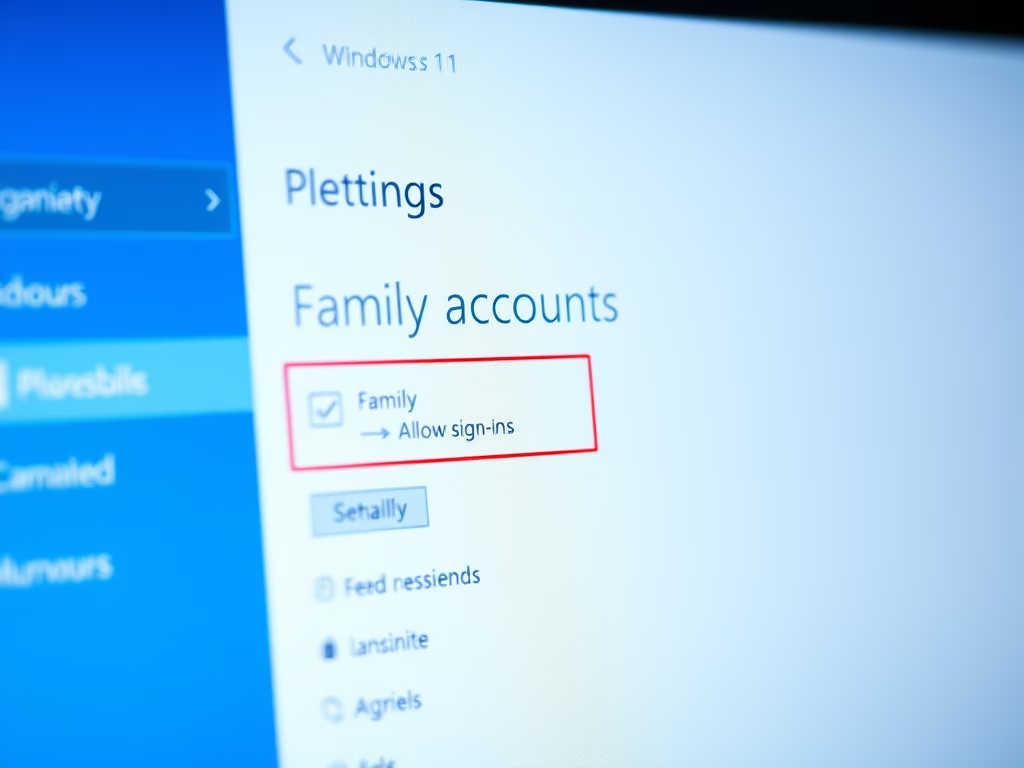
Microsoft Family Safety enables families to monitor online activities and set controls for children. To add a member, sign in to your Microsoft account, select a family group, and enter the new member’s email. Set limits and permissions, send an invite, and review settings periodically for effective management.

Windows 2 min read
How to Download All Files from OneDrive to Windows

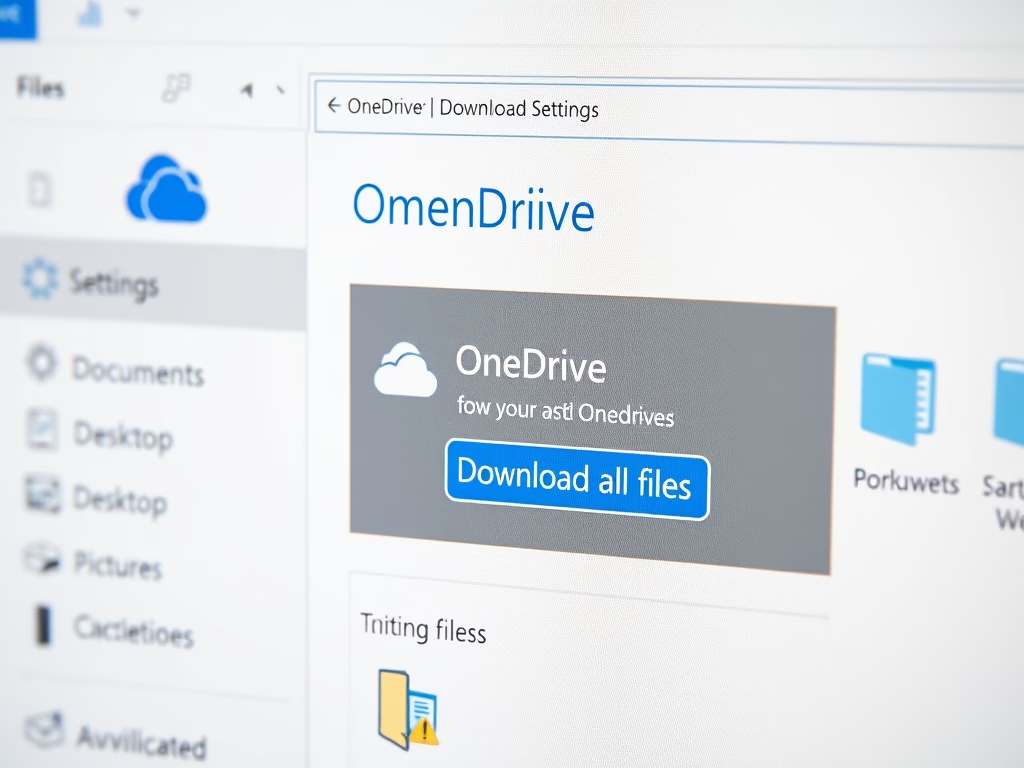
OneDrive is a Microsoft cloud storage app that allows users to access files on various devices. Downloading files to a Windows computer enables offline access and provides a backup. To download, users should access OneDrive settings and choose to download all files, considering potential storage space usage.

Windows 3 min read
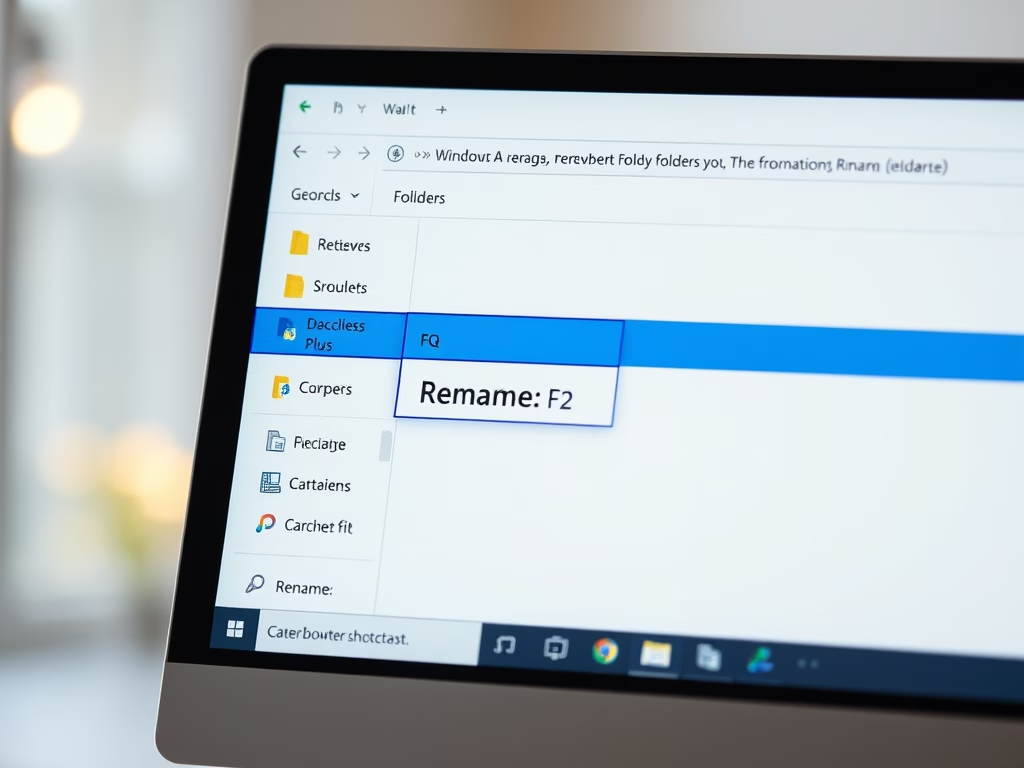
How to Rename Folders in Windows 11

This guide outlines various methods to rename folders in Windows 11, enhancing file organization. Users can rename folders through keyboard shortcuts, single clicks, the command bar, or right-click menus. Advanced users have the option to use PowerShell or Command Prompt. Avoid using specific characters when naming folders for best results.

Windows 3 min read
How to Delete Folders in Windows 11

This guide details how to safely delete unnecessary folders on a Windows 11 PC. It explains that deleted folders typically move to the Recycle Bin, allowing for recovery. Users can delete folders using keyboard shortcuts, File Explorer, or command-line tools. Learning to delete helps free up space and maintain organization.

Windows 2 min read
How to Add or Remove the Navigation Pane in Windows 11

This guide explains how to show or hide the navigation pane in Windows 11's File Explorer. The navigation pane displays folders for easy access but may take up space. Users can toggle it via the View menu in File Explorer or by using advanced registry commands in Windows Terminal. A restart is required for registry changes.

Windows 2 min read
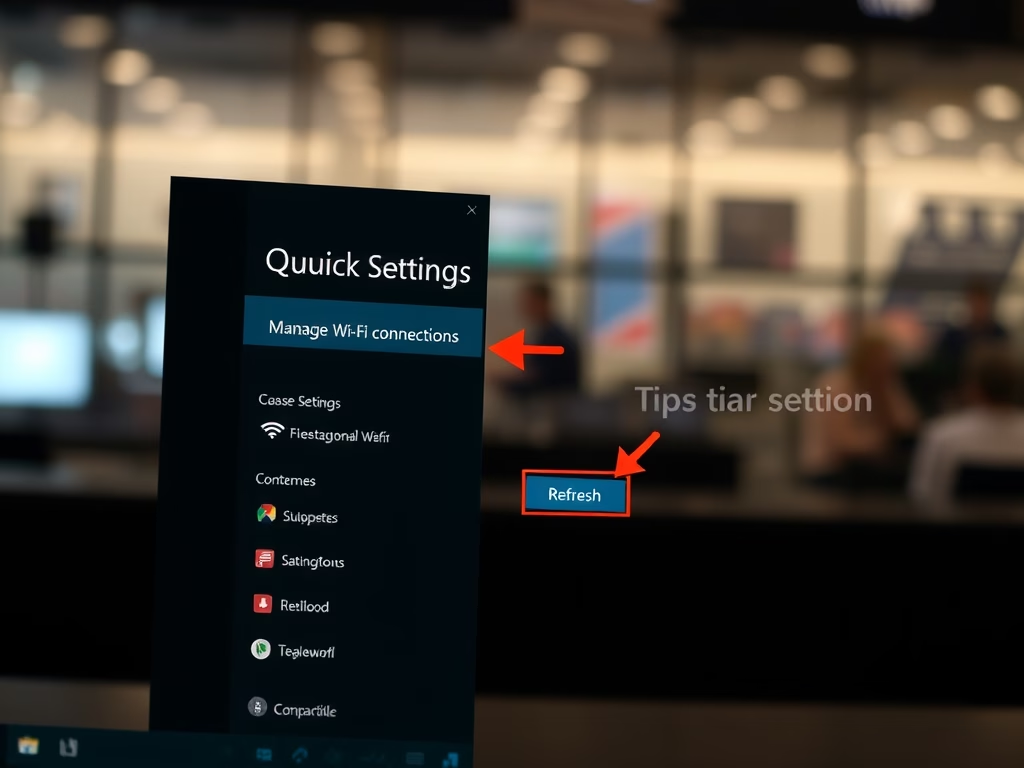
How to Refresh Wi-Fi Networks in Windows 11

This guide explains how to refresh the list of Wi-Fi networks on a Windows 11 PC when not all networks are visible. Users can quickly rescan using the Quick Settings menu or by restarting the Wi-Fi service through Windows Terminal commands. Refreshing helps locate newly available networks nearby.

Windows 2 min read
How to Rotate Images in Windows 11’s File Explorer

This guide explains how to rotate images on a Windows 11 computer using File Explorer, the Photos app, or Paint. Users can easily select a picture and use the rotate options available in these applications to adjust their images’ orientation. Each method is straightforward and requires no additional software.

Windows 2 min read
How to Pause and Resume Printing in Windows 11

Windows 11 simplifies the process of pausing and resuming print jobs. This feature is useful when addressing printer issues like changing ink or fixing jams. To use it, access Settings, select your printer under Bluetooth & devices, and click the pause or resume button. This allows for better management of print tasks.