How to Add Members to Your Microsoft Family Group


You add new members to your Microsoft Family group by sending them an email invitation, which the invited person must accept to join. This process ensures only intended users become part of the family safety settings.
A Microsoft Family group is a tool that helps you manage screen time, content filters, and app access for your children on Windows PCs and Xbox consoles. Adding members lets you share these management responsibilities or include everyone in your digital household.
For example, you can add a child to monitor their usage on a Windows 11 PC or an adult who can help you set limits and approve downloads.
This process can be completed through the Microsoft Family Safety website or app.
Sign in to family.microsoft.com as the organizer and select “Add a family member.” Choose the role for the new member and send the invitation for them to accept.
Step 1Go to the Family Hub Website
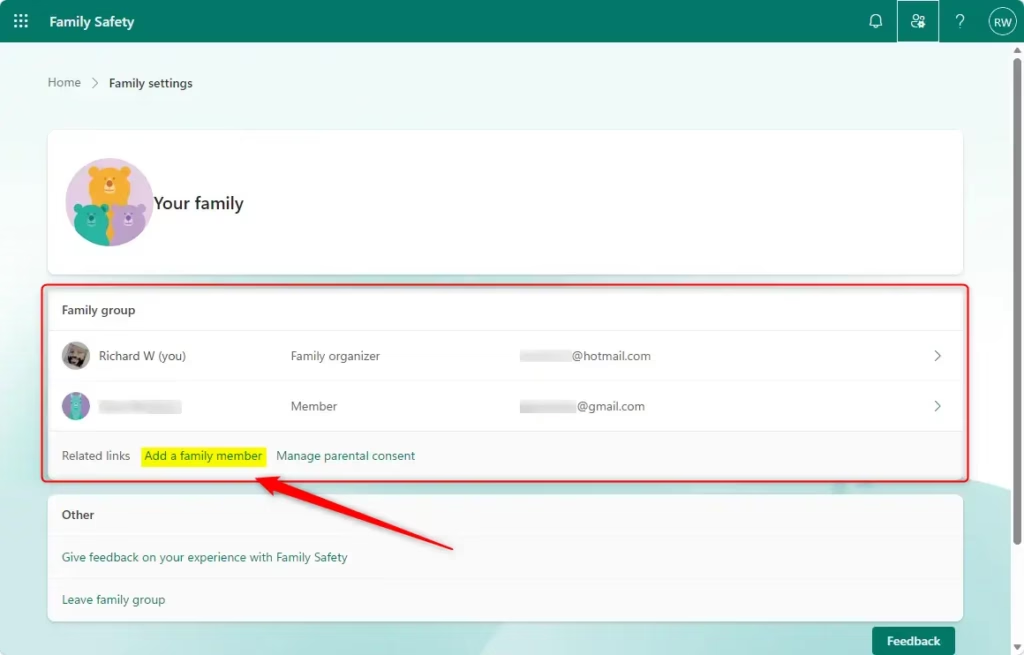
You can add a Microsoft family member by visiting the Family Hub website at family.microsoft.com and signing in with your organizer account.
- Sign in as the Organizer: You need to use the Microsoft account that is set up as the Family Organizer. This is usually the account you used when you first set up Family Safety. Go to family.microsoft.com and sign in with your organizer details.💡TipMake sure you sign in with the right account! If you have more than one Microsoft account, check which one is the organizer. Signing in with a regular member account will not give you the needed permissions.
- Find the “Add” Option: After you log in, you will see a list of your current family members. Look for a clear button or link that says something like “Add a family member.” It is usually easy to see on the main page.
Step 2Choose Their Role
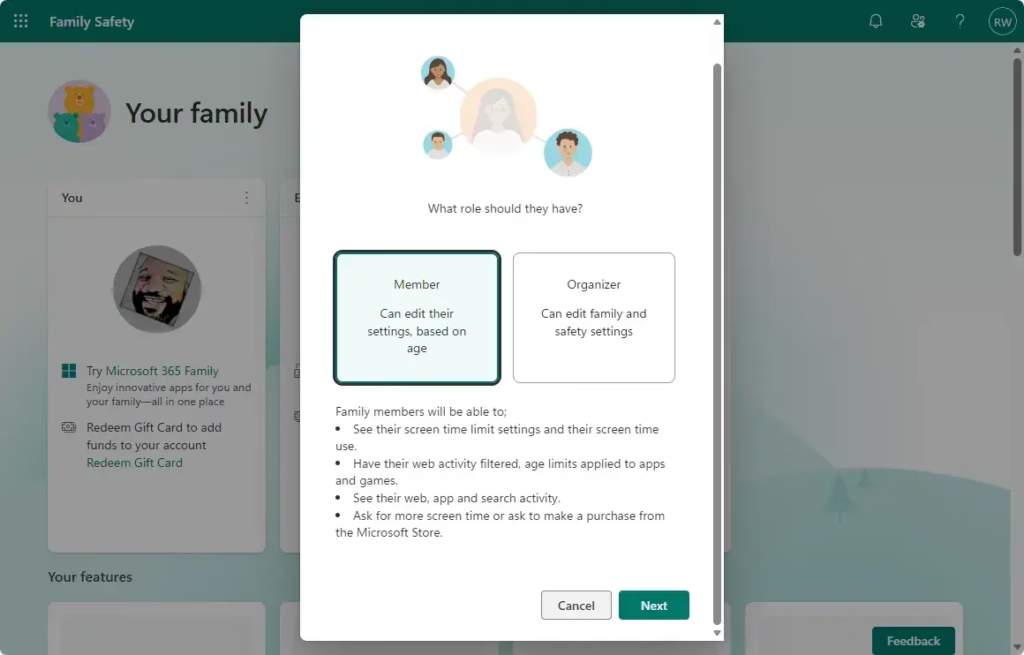
Adding a person to a Microsoft family group requires selecting a role. Users can choose between 'Member' to give them access to group features or 'Organizer' to grant full control over the group.
- Select the Role: When you click “Add a family member,” you will be asked to pick a role for the person you are inviting. There are two main choices:
Choose the correct role and click “Next.”
The Organizer role gives a person the power to manage the Microsoft family group. Grant the Organizer role only to trusted adults. Granting this role requires caution due to its extensive management capabilities for the family group.
- Member: This is usually for children. Organizers can watch what members do online. Organizers can also control which apps, games, and websites members can use.
- Organizer: This role is for adults in the family group. Organizers can manage other members. They can add or remove people from the group. They can also change settings for everyone. You can have more than one organizer.
Step 3What Happens for the Person You Invite
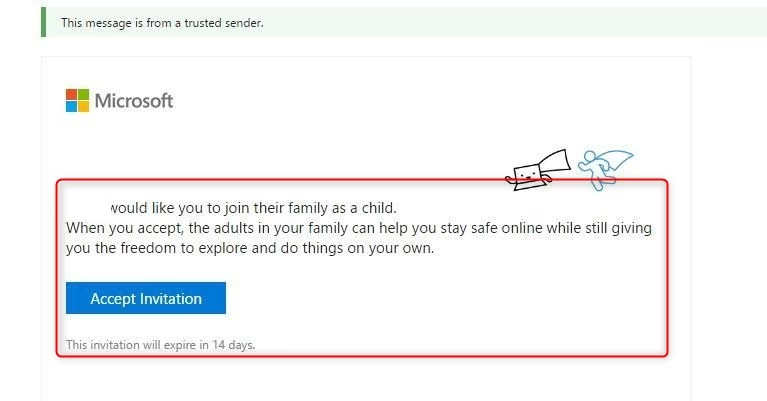
After you invite someone to your Microsoft family group, they’ll receive an email or text with a link to accept the invitation.
- Check Their Email (or Texts): The person you invited will get an email (or a text message if you used their phone number) with a link to join your family group. The email will be from Microsoft.
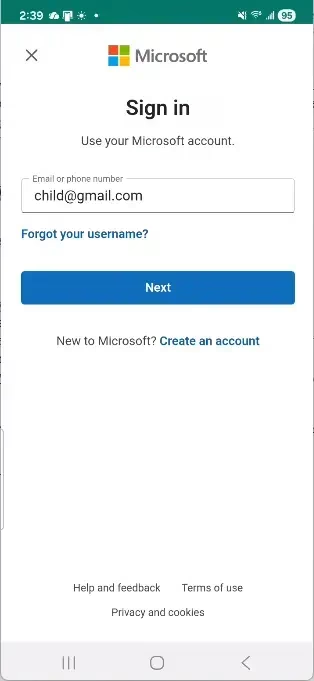
- Accept the Invitation: They need to click the link in the invitation. This will take them to a Microsoft page. There, they will be asked to sign in with their Microsoft account.
An invited person must leave an active Microsoft Family group before joining a new group. The invited person can ask the current group organizer to remove the invited person, or the invited person can leave the group if the invited person has the right permissions. This removal process ensures the invited member joins the new family group easily, allowing the invited member to participate in family safety features for children under 18.
- If they are an adult: They will sign in, confirm they want to join your family group, and that is usually all!
- If they are a child (under the legal age): This is a bit more complicated. They will be asked to get permission from an adult. This means you (or another organizer) will get another message asking you to approve them joining. This is important to make sure children are added with a parent’s okay.
Adding Family Members with the Family Safety App
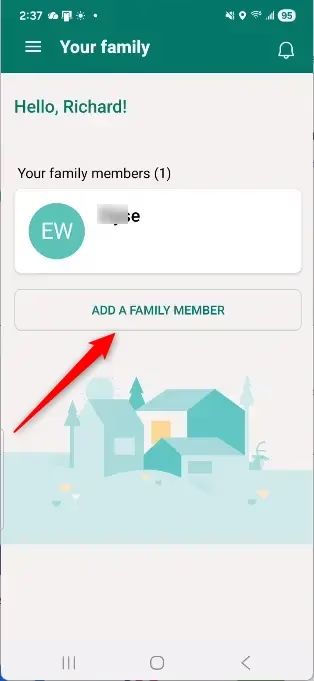
You can add a Microsoft family member using the Family Safety app on your phone or tablet by opening the app and finding the ‘Add a family member’ option.
- Open the App: Open the Microsoft Family Safety app on your phone or tablet.
- Go to Add Member: Look through the app until you find an option to “Add a family member.”
- Enter Details and Role: Like on the website, you will be asked to enter the email address or phone number of the person you want to invite. You will also choose their role (Member or Organizer).
- Tap “Invite”: Check your choices and tap “Invite to family group.” The person you invited will then follow the same steps as shown in the web method to accept.💡TipThe Family Safety app is great for quickly checking activity reports or changing settings when you are away from your computer.
Reference:
https://support.microsoft.com/en-us/family-safety/add-people-to-your-family-group
Summary
Adding a Microsoft family member is simple, whether you use the Family Hub website or the Family Safety app.
Was this guide helpful?

About the Author
Richard
Tech Writer, IT Professional
Richard, a writer for Geek Rewind, is a tech enthusiast who loves breaking down complex IT topics into simple, easy-to-understand ideas. With years of hands-on experience in system administration and enterprise IT operations, he’s developed a knack for offering practical tips and solutions. Richard aims to make technology more accessible and actionable. He's deeply committed to the Geek Rewind community, always ready to answer questions and engage in discussions.




No comments yet — be the first to share your thoughts!