

This article explains enabling or disabling to always display the Terminal icon in the notification area in Windows 11.
Windows Terminal is a modern host application for the command-line shells, including Command Prompt, Windows PowerShell, and bash (via Windows Subsystem for Linux (WSL)).
There are many customizations one can make to the Terminal app in Windows. You can change the language, adjust the launch size, set the default profile, change the startup behavior, open the admin window, open Terminal automatically at startup, add copy selection to the clipboard automatically, automatically hide the Terminal window, hide the Terminal app in the notification area when minimized, and more.
The Terminal app also has a feature that displays the Terminal icon in the Taskbar’s notification area.
Enabling or disabling the Terminal icon to always display in the notification area in Windows 11 can be useful for users who frequently use the Terminal app. If you enable the display of the Terminal icon in the notification area, you can easily access the app from there without having to search for it in the Start menu or Taskbar.
On the other hand, if you prefer a clean notification area and don’t use the Terminal app frequently, you can disable the display of the icon to reduce clutter.
Always display the Terminal icon in the notification area
As mentioned, users can always display the Terminal icon in the notification area on the Taskbar.
Here’s how to do it.
First, open the Windows Terminal app.
You can do that by clicking on the Start menu and searching for Terminal. Then, under “Best match,” select and open the Windows Terminal app.

When the Terminal app opens, click the down arrow button on the top bar and select Settings (Ctrl +,).

On the Settings window, click on the Appearance tab on the left. Then, select the “Always display an icon in the notification area” tile and toggle the switch button to the On position to enable it.
To disable it, toggle the switch button to the Off position.
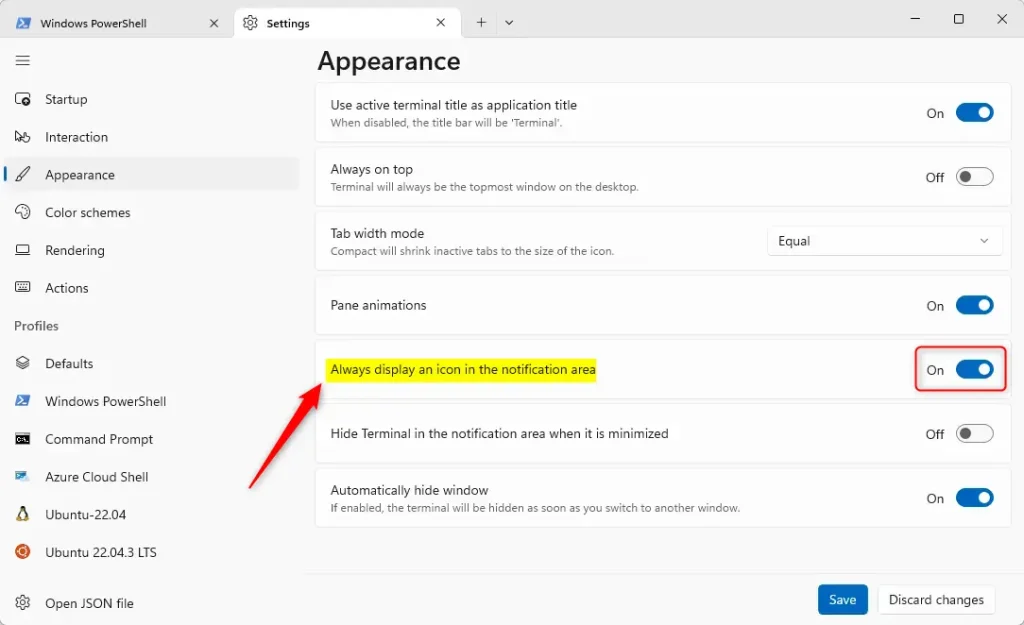
Click the Save button at the bottom to save your changes, then exit.
That should do it!
Conclusion:
- Enabling or disabling the display of the Terminal icon in the notification area can help manage clutter in the Taskbar.
- Accessing the Terminal app from the notification area provides convenience for frequent users.
- Following the provided steps, users can easily configure the display of the Terminal icon based on their preference.

Leave a Reply to How to customize the Terminal app’s appearance in Windows 11 – Geek Rewind Cancel reply