How to Enable Picture-in-Picture in Microsoft Edge

Microsoft Edge Microsoft Edge is the default browser for Windows 11. If you prefer something else, you can switch to their preferred or favorite browser at any time. Because Edge is built on Chromium, it works much like Google Chrome.
Why use Picture-in-Picture?
This feature lets you watch a video in a small, floating window while you work on other tabs or apps. It is great for multitasking.
What happens when done?
Once enabled, you can detach videos from their webpage and move them anywhere on your screen. You can keep watching while you browse the web or finish your work.
Enable or Disable Picture-in-Picture in Edge Settings
You can change this setting easily within the browser.
- Open the Microsoft Edge browser.
- Click the three horizontal dots in the top right corner and select Settings.
- Click Privacy, search, and services on the left side.

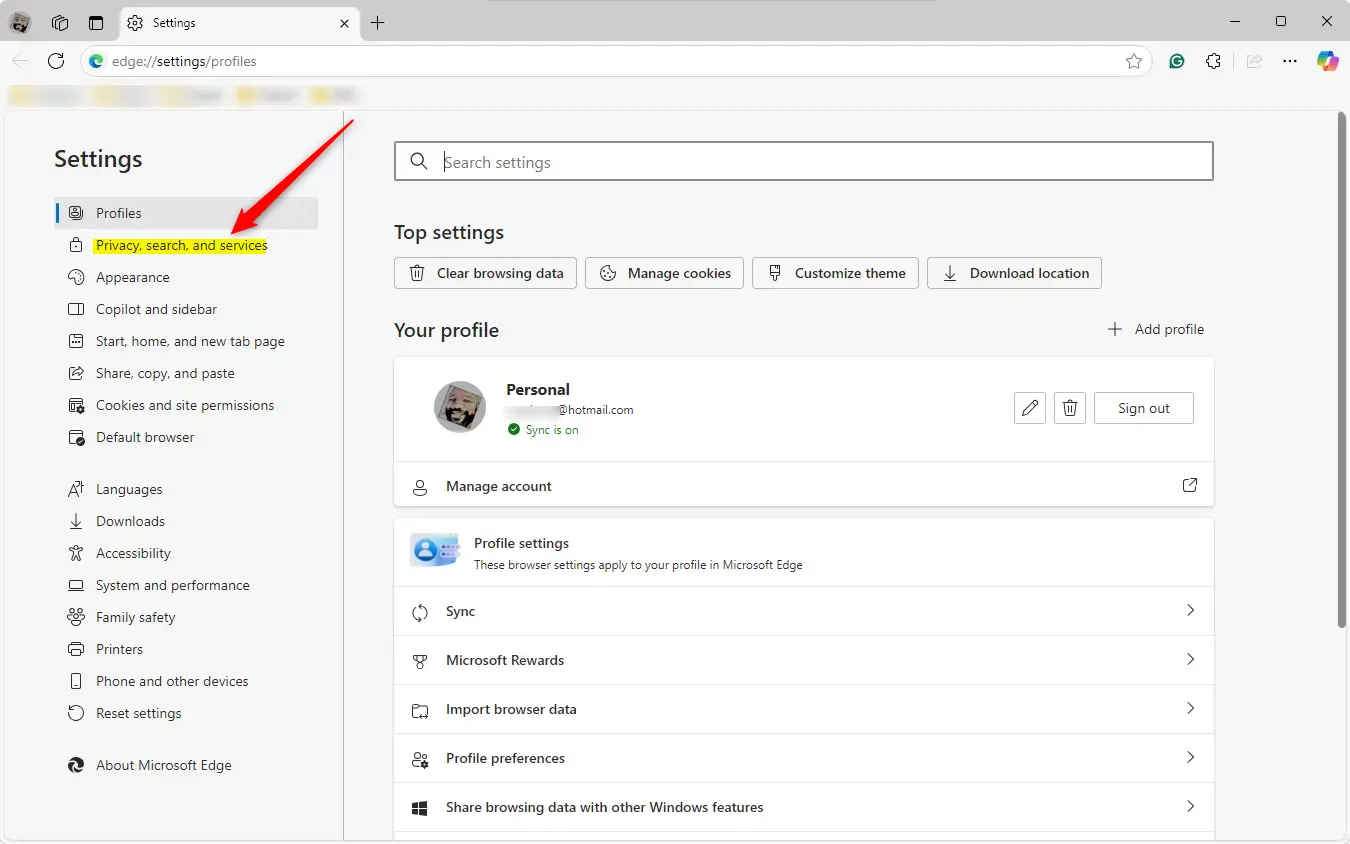
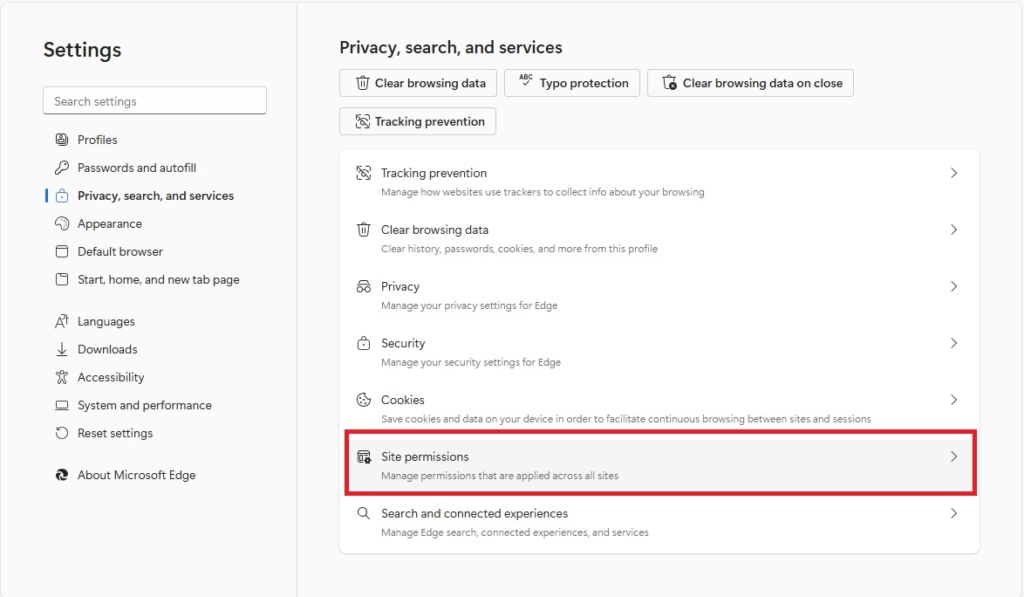
- Find the Site permissions section and click it.
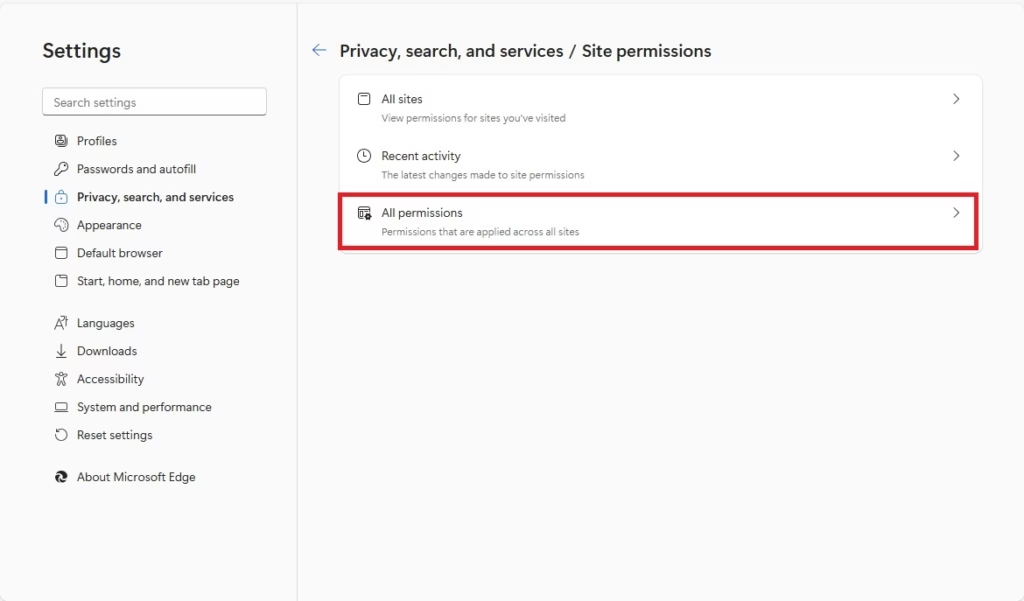
- Click All permissions to see more options.
- Click Automatic picture-in-picture.
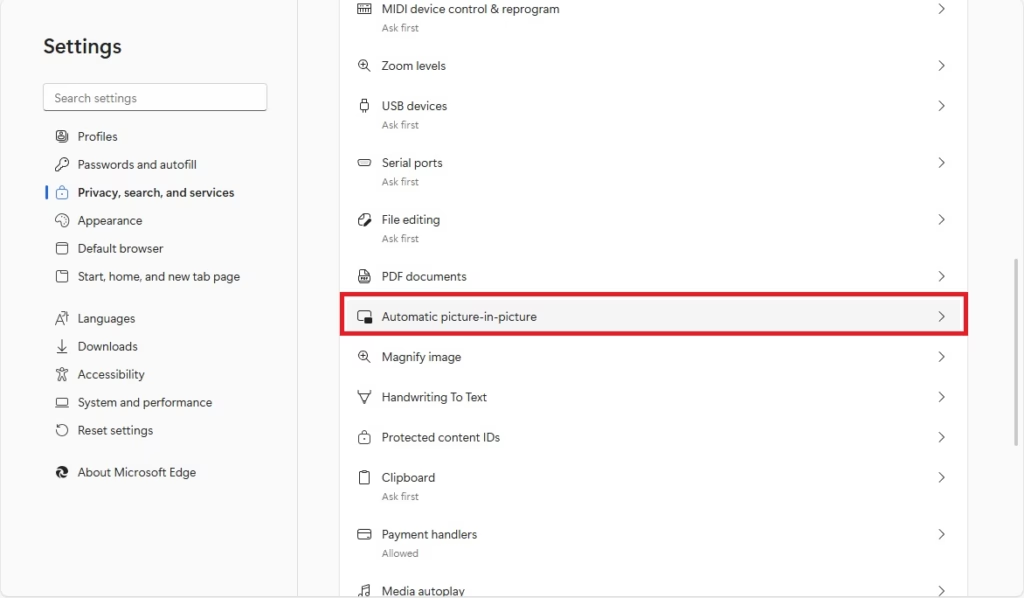
- Toggle the switch to On or Off.
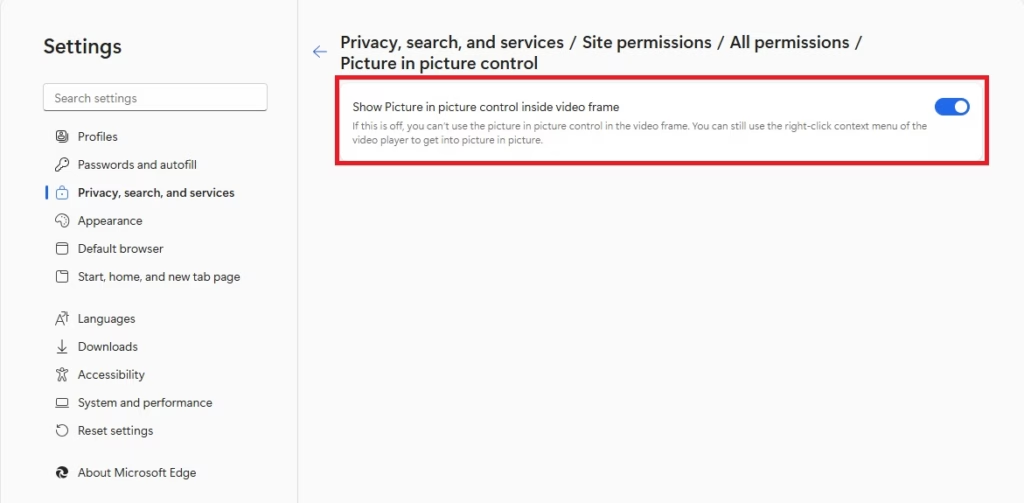
Enable or Disable Picture-in-Picture via Registry
Note: This method requires admin privileges. Always back up your registry or create a System Restore point before editing the registry to keep your system safe.
1. Open the Windows Registry and go to this path:
Computer\HKEY_LOCAL_MACHINE\SOFTWARE\Policies\Microsoft\Edge
2. Right-click in the empty space, select New, then DWORD (32-bit) Value. Name it PictureInPictureOverlayEnabled.
3. Double-click the file and change the value:
1 = Turn on the overlay.
0 = Turn off the overlay for all users.
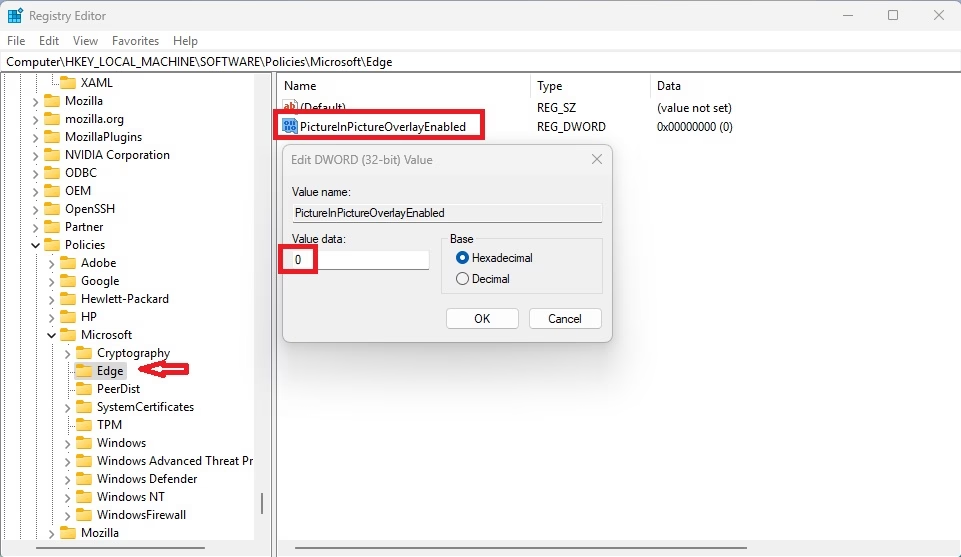
4. To go back to the original settings, just delete the PictureInPictureOverlayEnabled file:
PictureInPictureOverlayEnabled
You may need to restart your computer to see the changes.
Summary
The Picture-in-Picture feature is a simple way to multitask by keeping videos visible while you work. You can control this feature through the standard Edge settings or by using the Windows Registry. Always remember to back up your registry before making manual changes to your system settings. For more information, check the Microsoft.
Was this guide helpful?



Leave a Reply