
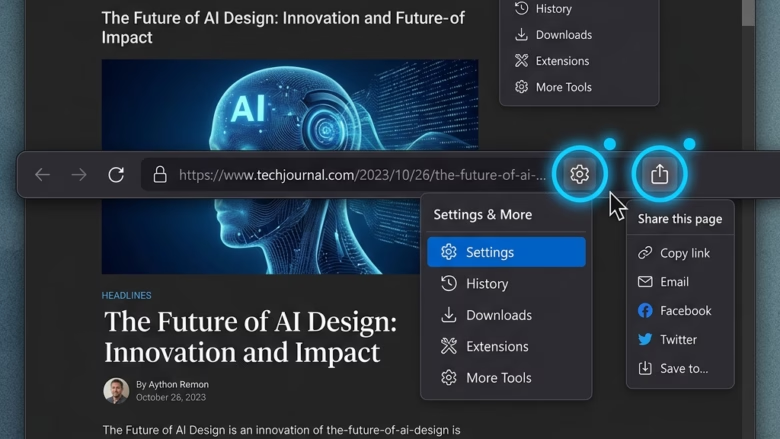
Microsoft Edge has a built-in Share menu. It sends a link to another app, a nearby device or an email address, and it can also generate a QR code for the page you are on.
Right-click the Start button , select Terminal (Admin), paste reg add “🗝️HKLM\
Why enable or disable Share?
Turning the feature off helps prevent accidental sharing on a PC that several people use, and it removes a little clutter from the browser. Turning it back on restores access to the native Windows sharing tools from inside Edge.
What happens when done?
You need administrator access to do this, because the ConfigureShare policy applies to the whole system rather than to one user profile.
The ConfigureShare policy controls this behavior through the Microsoft Edge browser settings. You set it with a command, so you do not need the Local Group Policy Editor. That matters on Windows 11 Home, which does not include that editor. The steps are the same on Home and Pro.
Steps to Configure Sharing
- Right-click the Start button and choose Terminal (Admin). You can also search for Windows Terminal, right-click it and select Run as administrator.
- Select Yes if the User Account Control prompt appears. A Windows Terminal window opens, and its title bar or tab should show that it is running as administrator.
- Decide whether you want to disable or re-enable Share. Copy the matching command from the code blocks below and paste it into the terminal.
- Press Enter to run it. The terminal should report that the operation completed successfully. If you see an “Access is denied” message, the window is not elevated. Close it and start again from step 1.
- Close all Edge windows and reopen Edge. The Share button is then hidden or restored, depending on the command you ran.
The elevated terminal is required because the command writes a machine-wide policy. In Edge, you can open edge://policy and select Reload policies to check that the change was picked up.
reg delete "HKLM\SOFTWARE\Policies\Microsoft\Edge" /v ConfigureShare /f
To Disable Share:
reg add "HKLM\SOFTWARE\Policies\Microsoft\Edge" /v ConfigureShare /t REG_DWORD /d 1 /f
Summary
It only takes effect if you run the commands in an elevated console. To undo the change, run the enable command in the same way and restart Edge.
Have a question about this guide?
Answered by AI from this guide. Good questions may be added to this page — please don't include personal details.
Did this guide fix your problem?

About the Author
Richard
Tech Writer, IT Professional
Richard is a writer at Geek Rewind who turns complex IT tasks into clear, step-by-step guides. He draws on years of hands-on experience in system administration and enterprise IT operations, focusing on Windows, Linux and WordPress: the problems people actually run into, and the fixes that work. His server and WordPress guides come from systems he runs himself. Richard builds and maintains the platform behind Geek Rewind, from its Ubuntu servers and Nginx configuration to its custom WordPress plugins. Many new tutorials start with readers' questions, and he's always glad to answer them in the comments.
No comments yet — be the first to share your thoughts!