How to Protect Your Windows 11 PC from Viruses


You protect your Windows 11 PC from viruses by enabling Microsoft Defender Antivirus and keeping Windows updated.
Microsoft Defender Antivirus is Windows 11’s built-in, free security software that detects and removes malware. Keeping Windows updated ensures you have the latest security patches against emerging threats.
In 2023, over 90 million new malware variants were detected, highlighting the constant need for robust protection. Failing to secure your PC can lead to stolen personal data, ransomware attacks, or even complete system compromise.
This guide shows you how to leverage these core Windows 11 features to build strong defenses against viruses and malware.
Hardware-Level Security: The Foundation
Windows 11 uses hardware to stop threats before they start. Features like TPM 2.0 and Microsoft Pluton act as a digital vault for your security keys. This makes it much harder for attackers to bypass your login or steal sensitive data.
Is Windows Defender Enough for a Home User?
Yes, for most users, Microsoft Defender is highly effective. It provides real-time protection, behavioral monitoring, and cloud-based scanning. It is built directly into the OS, meaning it is optimized for performance and does not conflict with system updates.
Does Windows 11 Need Third-Party Antivirus Software?
Generally, no. Windows Security provides comprehensive endpoint protection that rivals paid software. Unless you have specific enterprise needs, the built-in tools are sufficient to defend against modern malware and phishing attacks.
Smart App Control: A New Layer of Defense
Smart App Control is a powerful Windows 11 feature. It blocks untrusted or potentially malicious apps from running. It uses AI to analyze software behavior before allowing it to execute. What happens when done? Your PC will only run apps that are verified as safe, significantly reducing the chance of accidental infection.
Controlled Folder Access for Ransomware Protection
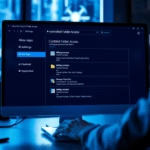
Ransomware encrypts your files and demands payment. Controlled Folder Access prevents unauthorized programs from changing files in your protected folders. FLAG: Requires Admin Privileges — You can enable this in Windows Security under Virus & threat protection settings.
Identity and Access Management
Use Windows Hello for biometric login instead of simple passwords. For even better security, use Passkeys. These replace traditional passwords with cryptographic keys, making it impossible for hackers to steal your credentials via phishing.
Summary
To keep your PC safe, use these layers of security:
- Enable Hardware Security: Ensure TPM 2.0 is active in your BIOS.
- Use Smart App Control: Keep this enabled to block suspicious software.
- Activate Ransomware Protection: Turn on Controlled Folder Access.
- Update Regularly: Always install the latest download-update-for-windows-11/" class="sal-link" rel="noopener" target="_blank" data-sal-id="23053">Windows updates to patch security holes.
- Use Modern Login: Switch to Windows Hello or Passkeys.
What is the difference between Windows Security and Microsoft Defender?
Windows Security is the dashboard or interface where you manage your PC’s safety settings. Microsoft Defender is the actual antivirus engine running in the background. They work together to provide a complete security suite, including firewall, account protection, and device performance monitoring, all in one central location.
Was this guide helpful?

About the Author
Richard
Tech Writer, IT Professional
Richard, a writer for Geek Rewind, is a tech enthusiast who loves breaking down complex IT topics into simple, easy-to-understand ideas. With years of hands-on experience in system administration and enterprise IT operations, he’s developed a knack for offering practical tips and solutions. Richard aims to make technology more accessible and actionable. He's deeply committed to the Geek Rewind community, always ready to answer questions and engage in discussions.


No comments yet — be the first to share your thoughts!