How to Upgrade from Windows 10 to Windows 11

You upgrade from Windows 10 to Windows 11 by performing a free in-place upgrade through Windows Update or using the Windows 11 Installation Assistant.
This process replaces your existing Windows 10 operating system with the newer Windows 11, bringing a refreshed interface and enhanced features like Snap Layouts and Microsoft Teams integration. It’s a significant update that modernizes your PC experience.
To successfully make this leap, your PC must meet specific hardware requirements, including a TPM 2.0 module and Secure Boot capabilities, which are standard on most machines manufactured after 2017. Windows 11 is designed for improved performance and enhanced security.
Once the upgrade is complete, you’ll find your desktop looks modern, your applications are readily accessible, and your personal files are preserved within their original folders, though some settings might adjust to the new design.
Check if your PC is ready
Before you start, you must make sure your computer meets the Windows 11 minimum requirements. Microsoft provides a simple tool to check this for you.
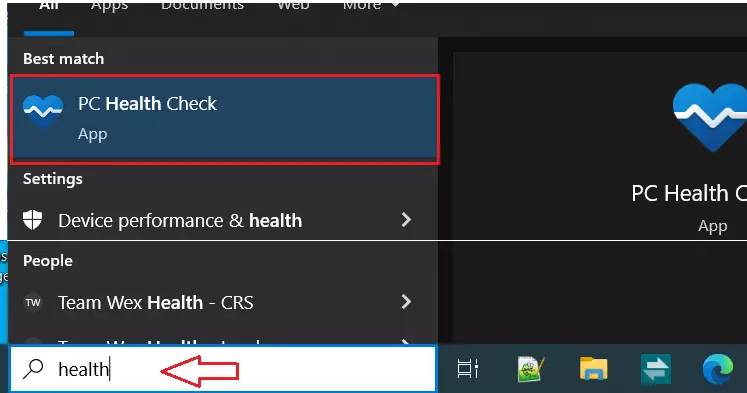
- Click the Search box on your taskbar.
- Type
healthinto the box. - Select PC Health Check App from the results.
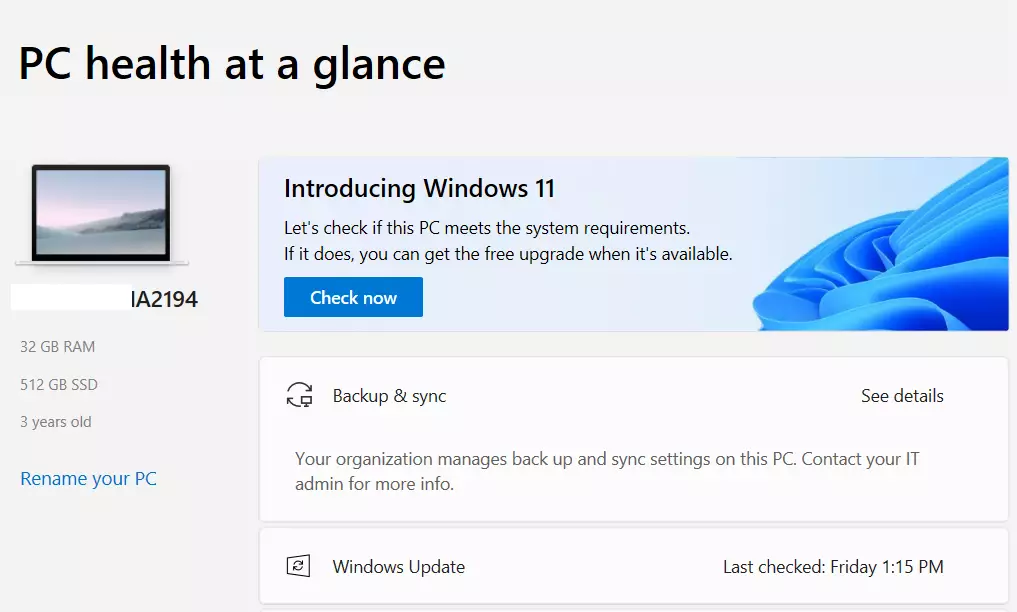
Once the app opens, click the Check now button under the “Introducing Windows 11” section.
Installation Methods Comparison
| Method | Best For | Difficulty |
|---|---|---|
| Windows Update | Standard users | Easy |
| Installation Assistant | Forcing an update | Medium |
| Media Creation Tool | Clean install | Advanced |
How to upgrade to 🪟 Windows 11
If your computer passes the test, follow these steps to start the upgrade. Note: This process requires admin privileges to install system updates.
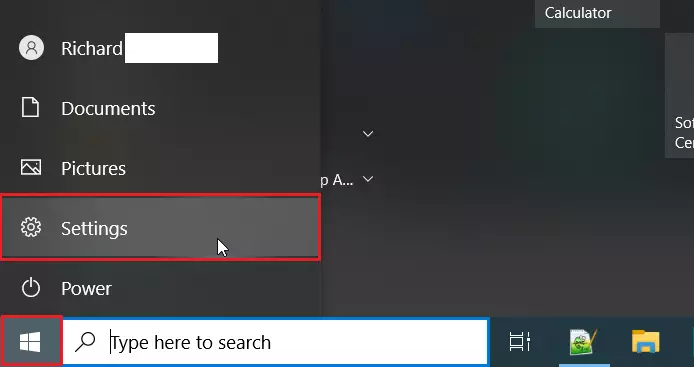
- Click the Start button and select Settings (the gear icon).
- Click on Update & Security.

- Select Windows Updates and click Check for updates.
- If you see “Feature update to Windows 11,” click Download and install.

After the files download, restart your computer when prompted. The installer will open to guide you through the final setup.
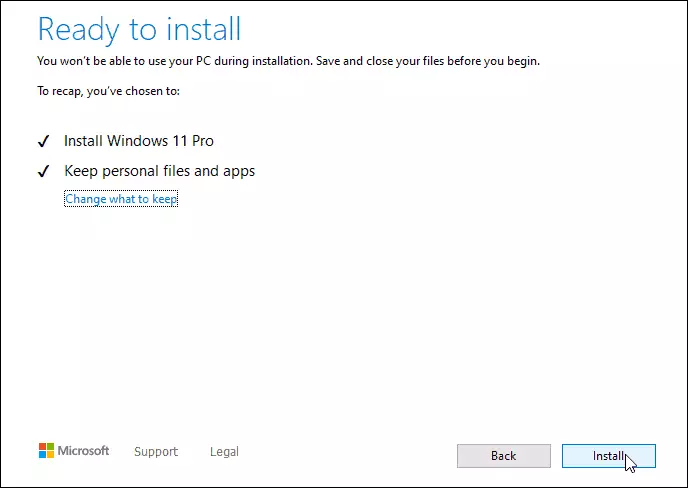
- Click Next to continue the setup process.

- Choose which files and apps you want to keep, then click Next.
- Click Install to begin. This may take some time depending on your internet speed.
Troubleshooting and Errors
If you see a ‘What needs your attention’ message, it means your PC is missing a specific requirement like Secure Boot or TPM 2.0. You may need to enter your BIOS/UEFI settings to enable these features. If the update fails, check your disk space in 📁C:\Windows\System32 or ensure you have a stable internet connection.
Summary
Upgrading is a simple process if your hardware is ready. Always use the PC Health Check app first to verify your system compatibility. Make sure to back up your important files before you begin the installation. Once the process is finished, your computer will be updated with the latest tools and security features from Microsoft.
Can I move back to 🪟 Windows 10 if I don’t like 🪟 Windows 11?
Yes, you have a 10-day window to roll back to Windows 10. Go to Settings > System > Recovery and select the Go back button. This process restores your previous version using the Windows.old folder. After 10 days, you would need to perform a clean install to return to Windows 10.
Was this guide helpful?

About the Author
Richard
Tech Writer, IT Professional
Richard, a writer for Geek Rewind, is a tech enthusiast who loves breaking down complex IT topics into simple, easy-to-understand ideas. With years of hands-on experience in system administration and enterprise IT operations, he’s developed a knack for offering practical tips and solutions. Richard aims to make technology more accessible and actionable. He's deeply committed to the Geek Rewind community, always ready to answer questions and engage in discussions.



No comments yet — be the first to share your thoughts!