How to Setup External Monitors in Windows 11

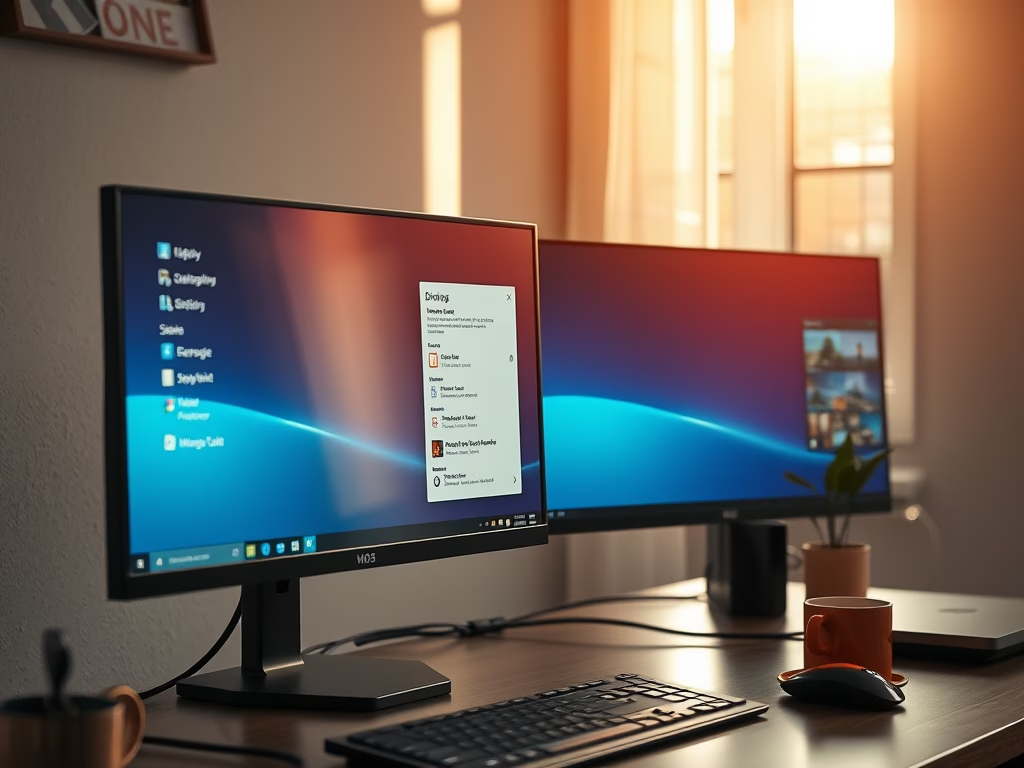
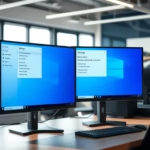
Adding a second monitor to your computer makes your work much easier. It gives you more space to open windows and see more information at once.
Connect your monitor via HDMI, DisplayPort, or USB-C. Press Windows Key + P to open the Project menu and select “Extend” to use it as a separate workspace.
Why use external monitors in 🪟 Windows 11?
Using multiple screens helps you multitask. You can keep a document open on one screen and your research on the other. This saves you from constantly switching between tabs. It makes your work much easier and gives you more space to see information at once.
What happens when you are done?
Once you finish these steps, your computer will treat your screens as a single, larger workspace. You can drag windows from one screen to the other with your mouse. You will have a more efficient setup for your daily tasks.
Quick Start: The ⊞ Win+P Shortcut
The fastest way to manage your displays is the ⊞ Win+P keyboard shortcut. Pressing Windows Key + P opens the Project menu. From here, you can quickly toggle between PC screen only, Duplicate, Extend, and Second screen only.
Check Your Cables First
Before diving into Windows 11 settings for your external monitors, the first thing to check is your cables.
Display Modes Comparison
| Mode | What it does |
|---|---|
| Duplicate | Shows the same image on both screens. |
| Extend | Creates a larger, combined workspace. |
How to Setup External Monitors in 🪟 Windows 11
- Click the Start button and select Settings (or press Windows key + I).
- Go to the System tab on the left.
- Click on Display.

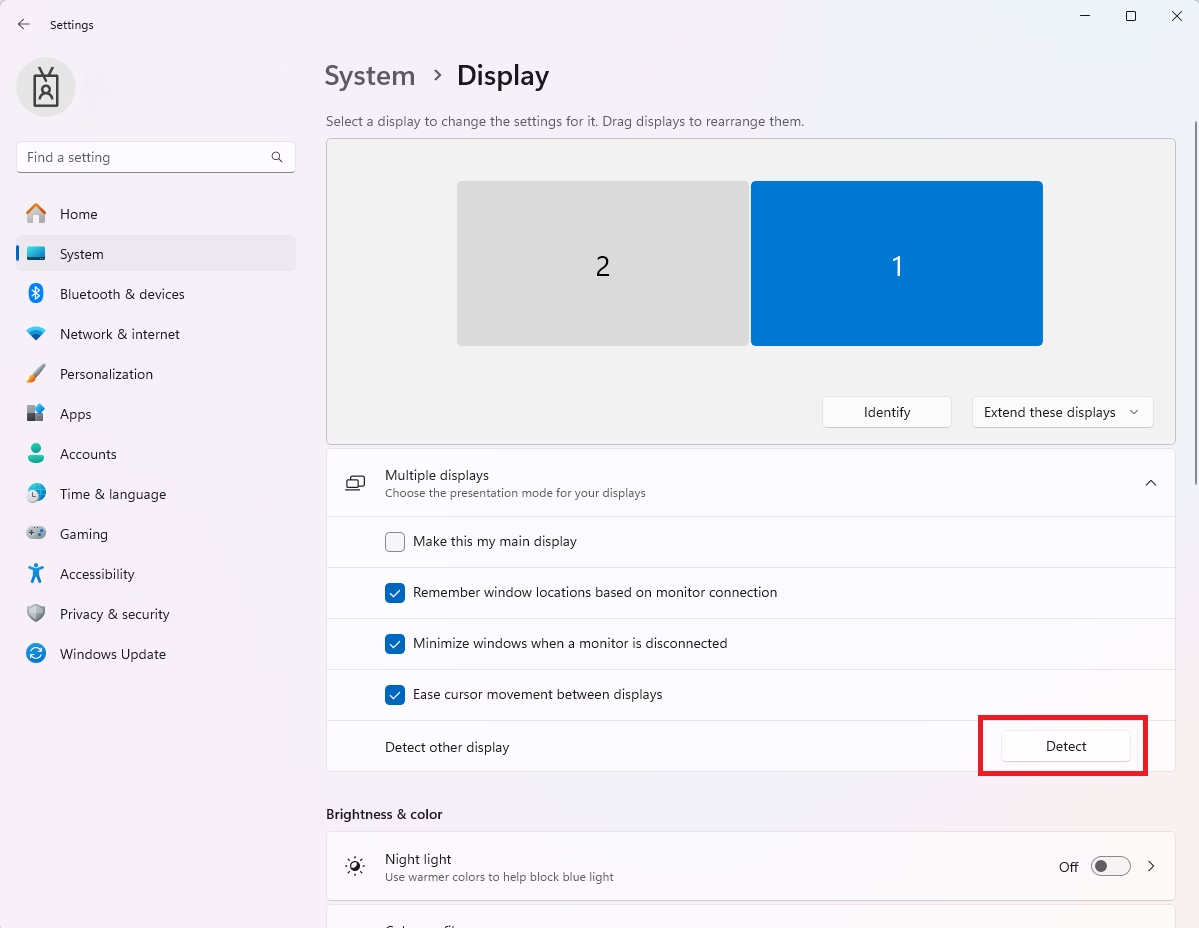
windows 11 start settings - If your monitor is not showing, scroll down to Multiple displays and click Detect.

Windows Display Settings tile
How to Identify and Arrange Your Screens
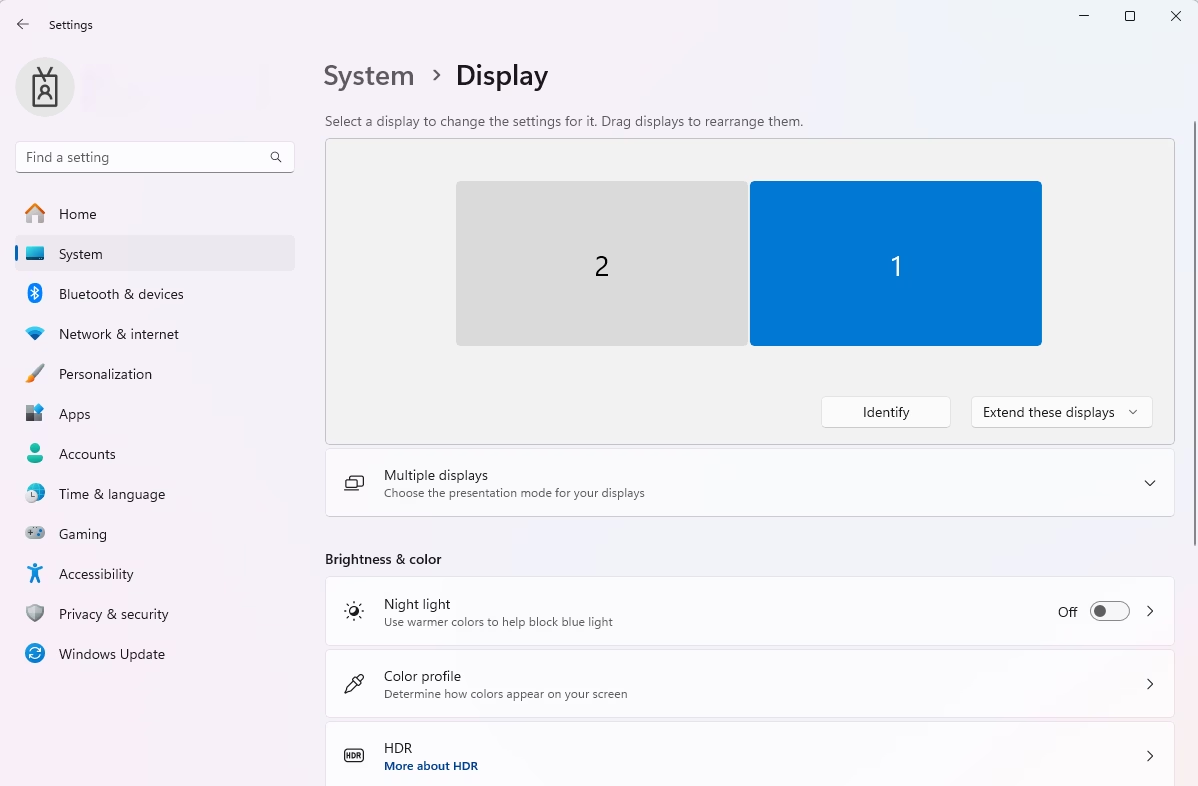
Windows needs to know where your monitors are on your desk. Click Identify to see a number on each screen. In the Display settings menu, click and drag the boxes to match your physical layout. Click Apply to save.
Advanced Display Settings
You can customize each screen individually. Select a monitor in the Display menu to change its Display resolution or Refresh rate. Higher refresh rates make movement look smoother. If your monitor supports it, you can also toggle HDR settings for better color and brightness.
Wireless Display Connectivity
If you prefer not to use cables, Windows 11 lets you connect external monitors wirelessly.
Note: Most display settings do not require special permissions. However, if you are working in a corporate office, you may need admin privileges to change certain driver or display adapter settings located in 🗝️HKEY_LOCAL_MACHINE\SOFTWARE.">📁C:\Windows\System32 or the registry at 🗝️HKEY_LOCAL_MACHINE\SOFTWARE.
Summary
Setting up external monitors in Windows 11 is a straightforward process that can really boost your productivity.
Why is my second monitor showing a black screen?
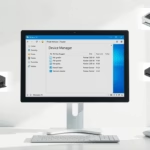
A black screen often means the monitor is not receiving a signal. Check that your cable is secure and the monitor is powered on. Try a different cable or port. You may also need to update your graphics drivers via Device Manager to ensure compatibility with your display hardware.
How do I fix screen flickering on external monitors in 🪟 Windows 11?
Flickering is usually caused by an incorrect refresh rate or an outdated graphics driver. Go to Advanced display settings and ensure the refresh rate matches your monitor’s specifications. If the issue persists, visit your manufacturer’s website to download the latest driver updates for your specific graphics card.
Can I use different resolutions for multiple monitors?
Yes, Windows 11 allows you to set unique resolutions for every connected monitor. Simply select the specific monitor in the Display settings menu and adjust the resolution dropdown to match the native resolution of that screen. This ensures the sharpest image quality for each individual display device.
Was this guide helpful?

About the Author
Richard
Tech Writer, IT Professional
Richard, a writer for Geek Rewind, is a tech enthusiast who loves breaking down complex IT topics into simple, easy-to-understand ideas. With years of hands-on experience in system administration and enterprise IT operations, he’s developed a knack for offering practical tips and solutions. Richard aims to make technology more accessible and actionable. He's deeply committed to the Geek Rewind community, always ready to answer questions and engage in discussions.

What if the in the multiple display setting, Windows 11 does not detect any external monitor (Windows 10 worked fine)