How to Reset Microsoft Store App in Windows 11


You reset the Microsoft Store app in Windows 11 by accessing its app settings and clicking the “Reset” button.
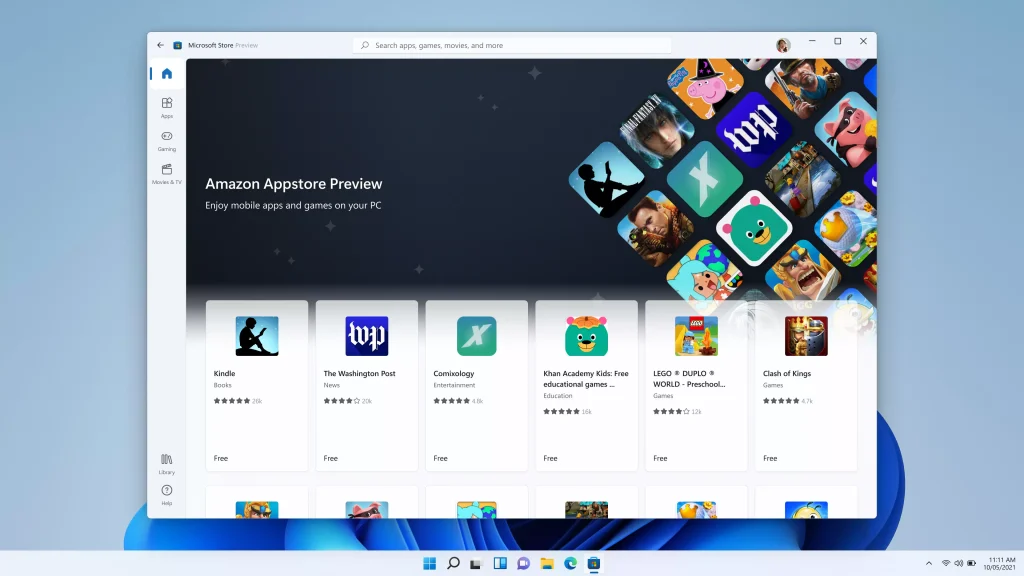
The Microsoft Store is the central hub for downloading and managing applications on your Windows PC, analogous to an app marketplace.
Resetting the Store clears corrupted data and temporary files, returning it to its default state without affecting your installed programs.
This process can resolve common issues like download errors or app loading problems, effectively giving the Store a fresh start.
For instance, if you’re experiencing frequent error codes like 0x80070005, a reset is often the quickest solution.
Remember, after a reset, you will need to sign back into your Microsoft account.
Open Start, right-click Microsoft Store, select App settings, and click Reset. Alternatively, press Windows Key + R, type wsreset.exe, and press Enter to clear the cache. This resolves common app issues by restoring it to default settings.
Prerequisites
Before you dive in, make sure your internet connection is stable. It’s also a good idea to check for any pending updates. Go to Settings > Windows Update. Keeping your system up-to-date is your best defense against app errors.
Method 1Using App Settings
You can reset the Microsoft Store app in Windows 11 right from its settings to fix problems without losing your data.
- Open your Start menu.
- Find the Microsoft Store icon.
- Right-click on it and select App settings.
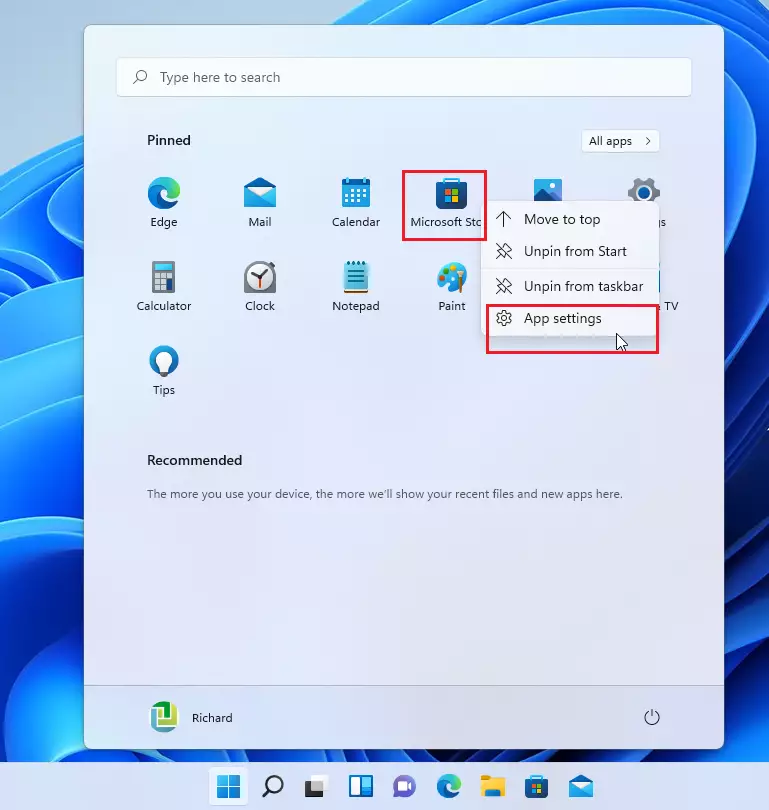
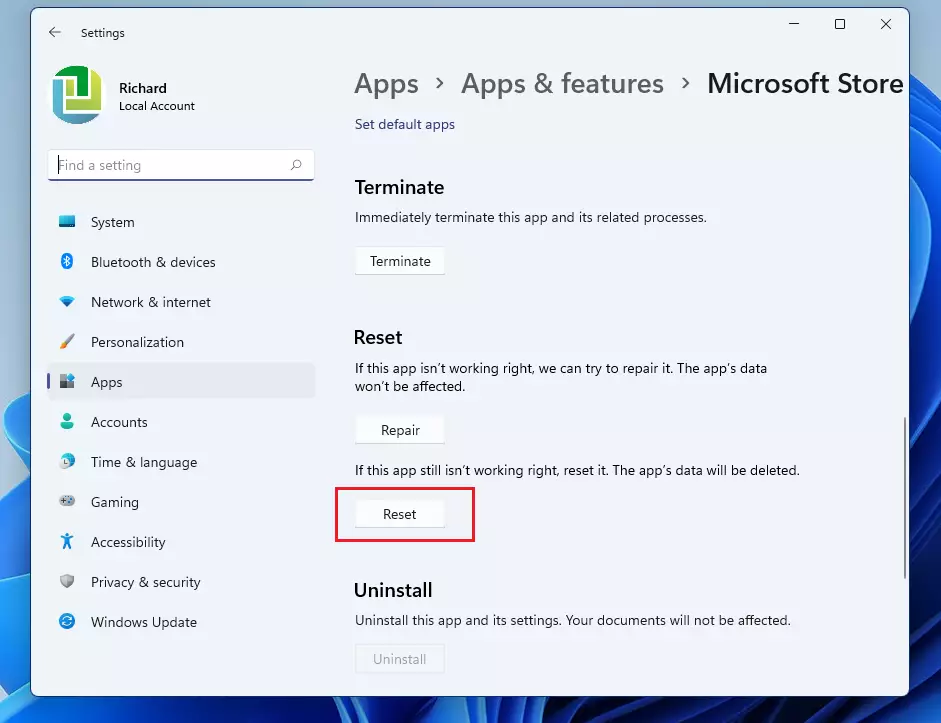
Scroll down until you see the Reset section. You can try the Repair button first, which doesn’t delete your data. If that doesn’t work, click the Reset button.
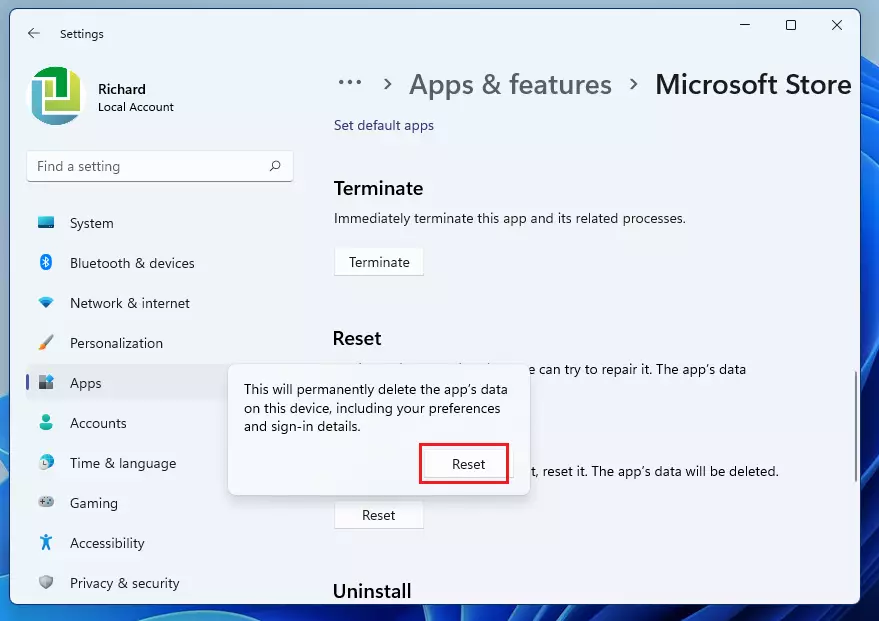
A warning will pop up to let you know this will delete the app’s data, including your sign-in details. Click Reset again to confirm.
Method 2Using WSReset.exe
Running the WSReset.exe tool is a quick way to reset the Microsoft Store in Windows 11 by clearing its cache, which helps fix many common issues.
- Press Windows Key + R on your keyboard.
- Type wsreset.exe and press Enter.
- A blank command prompt window will open. Wait for it to close automatically; the Store will then launch on its own.
Method 3Using PowerShell (Admin Required)
If other methods don’t work, you can reset the Microsoft Store in Windows 11 by using PowerShell with admin rights to re-register the app.
- Click the Start button and type PowerShell.
- Right-click the result and choose Run as administrator.
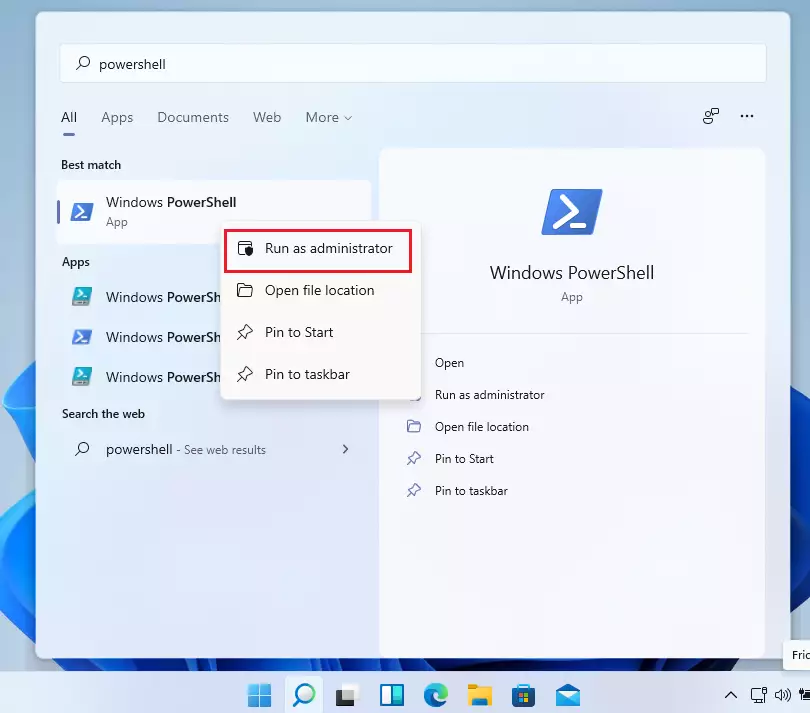
To reset the store for your own user account, copy and paste this command into the window and press Enter:
Get-AppXPackage *Microsoft.WindowsStore* | Foreach {Add-AppxPackage -DisableDevelopmentMode -Register “$($_.InstallLocation)\AppXManifest.xml”}
If you want to reset the store for everyone who uses this computer, use this command instead:
Get-AppxPackage -AllUsers *WindowsStore* | Foreach {Add-AppxPackage -DisableDevelopmentMode -Register "$($_.InstallLocation)\AppXManifest.xml"}
Advanced Repair: SFC and DISM
If the Store is still acting up, it’s possible that some of your system files are damaged. Requires admin privileges.
- Open PowerShell as administrator.
- Type
sfc /scannowand press Enter. - After that finishes, type
DISM /Online /Cleanup-Image /RestoreHealthand press Enter.
Summary
If your Microsoft Store is crashing or not opening in Windows 11, you can easily fix it by resetting the app through its settings or by using the WSReset.exe tool. For more stubborn issues, re-registering the app with PowerShell can resolve deeper problems.
What should I do if the Microsoft Store is completely missing from my PC?
If the app is missing, you can reinstall it using PowerShell. Open PowerShell as an administrator and run the command: Get-AppxPackage -AllUsers Microsoft.WindowsStore | Foreach {Add-AppxPackage -DisableDevelopmentMode -Register “$($_.InstallLocation)\AppXManifest.xml”}. This will force Windows to reinstall the store package from your system files.
Does resetting the store require a Windows restart?
No, you don’t need to restart Windows after resetting the Microsoft Store; you can open the app right away to see if it’s fixed.
Was this helpful? Let us know in the comments below!
Was this guide helpful?

About the Author
Richard
Tech Writer, IT Professional
Richard, a writer for Geek Rewind, is a tech enthusiast who loves breaking down complex IT topics into simple, easy-to-understand ideas. With years of hands-on experience in system administration and enterprise IT operations, he’s developed a knack for offering practical tips and solutions. Richard aims to make technology more accessible and actionable. He's deeply committed to the Geek Rewind community, always ready to answer questions and engage in discussions.



No comments yet — be the first to share your thoughts!