
This article explains how to enable or disable PIN expiration in Windows 11.
Windows 11 allows you to sign in with a PIN. This personal PIN is a recommended, fast, and secure way to log in to your Windows device and access other apps and services.
Windows PIN is part of the Windows Hello security feature that enables other sign-in options. One can use a picture password, PIN, fingerprint, and face to sign into Windows. Hello, the PIN is secure because it is tied to the specific device on which it was set up.
Windows Hello PIN does not expire by default.
If you want, specify the period (in days) that a PIN can be used before the system requires the user to change it. The PIN can be set to expire after any number of days between 1 and 730, or PINs can be set never to expire if the policy is set to 0.
Enable or disable PIN expiration
As mentioned, the admin can configure Windows 11 to allow PIN to expire after a specified number of days.
Here’s how to do it.
First, open the Local Group Policy Editor (gpedit.msc). (Search for “Edit group policy”) on the Start menu.
Then, navigate the folders below:
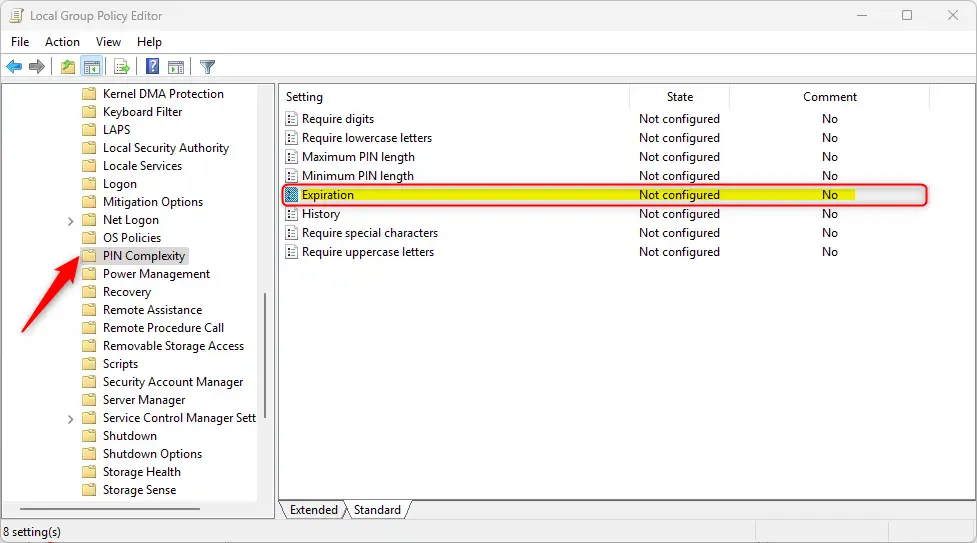
Computer Configuration > Administrative Templates > System > PIN Complexity
In the PIN Complexity details pane on the right, locate and double-click the “Expiration” settings.
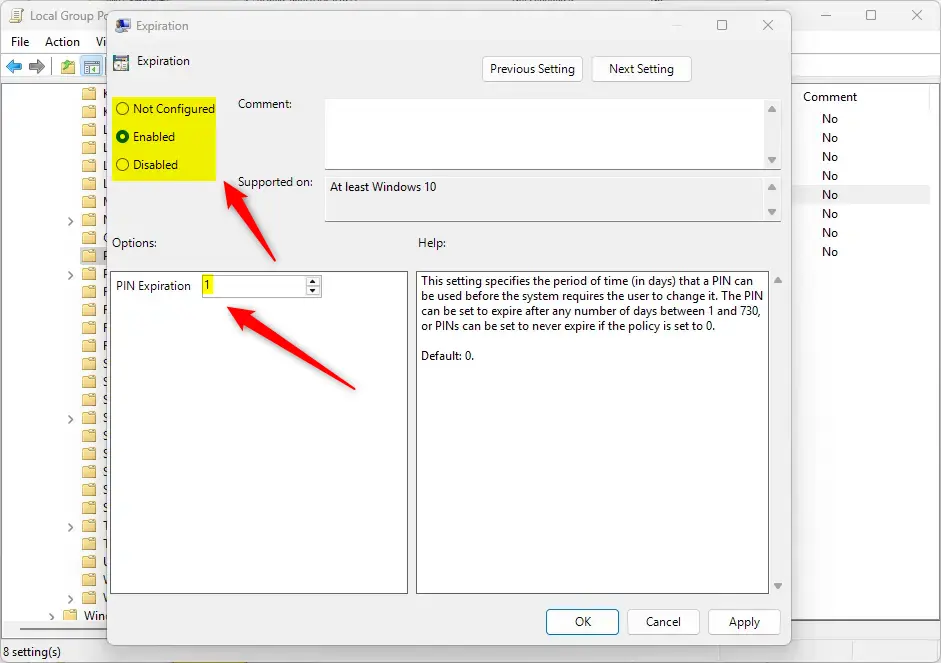
On the “Expiration” window, set the option to Not Configure, Enabled, or Disabled.
- Not Configured (default) – Same as Disabled.
- Enabled:
- PIN Expiration: Set the PIN to expire after any number of days between
1and730, or PINs can be set never to expire if the policy is set to0.
- PIN Expiration: Set the PIN to expire after any number of days between
- Disabled
Click OK to save your changes.
Enable or disable PIN expiration using the Registry
Another way to enable or disable Windows Hello PIN expiration is to use the Windows Registry Editor.
Remember to back up your registry before making any changes or create a System Restore point as a precaution.
First, open the Windows Registry and navigate to the folder key path below.
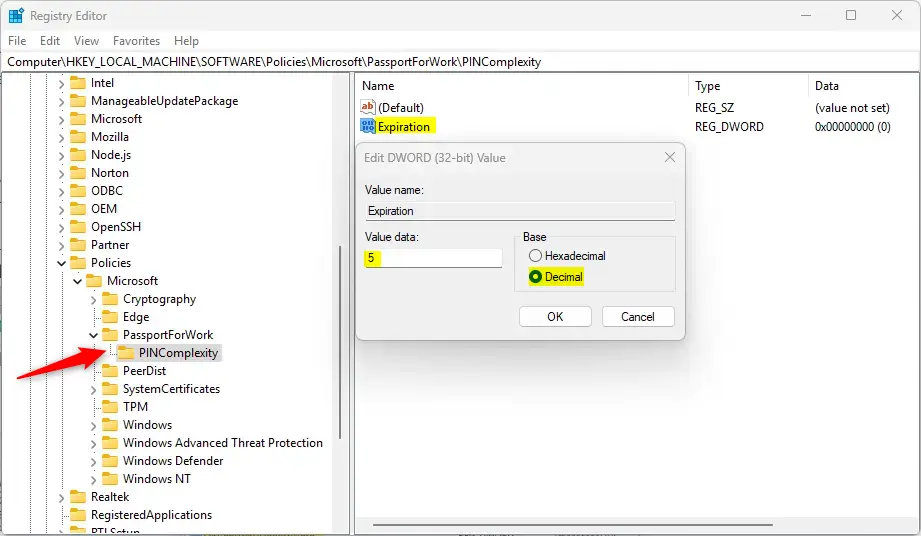
ComputerHKEY_LOCAL_MACHINESOFTWAREPoliciesMicrosoftPassportForWorkPINComplexity
If you do not have the PassportForWork and/or PINComplexity keys in the registry key path, create new keys to match the path above.
Right-click PINComplexity > New > DWORD (32-bit) Value and name the new DWORD Expiration.
Double-click Expiration and select Decimal under Based. Then, type a number between 1 and 730 for the days the PIN expires.
To restore the default behavior and prevent the PIN from expiring, delete the Expiration name created above.
Expiration
You may have to reboot your computer to apply the changes.
That should do it!
Reference:
Conclusion:
In summary, managing PIN expiration in Windows 11 can greatly enhance your device’s security while providing flexibility. Here are the key points to remember:
- Windows 11 allows you to set policies for PIN expiration.
- The default setting is for the PIN to not expire.
- You can specify a range of expiration terms from 1 to 730 days, or set the PIN to never expire.
- Two methods to configure PIN expiration include using the Local Group Policy Editor and the Windows Registry Editor.
- Always back up your registry and consider creating a System Restore point before making changes.
- Regularly review your PIN settings to ensure they align with your security needs.
By taking these steps, you ensure a secure and adaptable login method for your Windows 11 device.

Leave a Reply