How to Change Copilot Voice in Windows 11

You change Copilot’s voice in Windows 11 by navigating to its settings and selecting from the available options.
Copilot is your built-in AI assistant for Windows 11, designed to help with tasks like managing settings and generating text. Adjusting its voice makes interacting with it more personal.
Windows 11 offers four distinct voices for Copilot: Grove, Wave, Meadow, and Canyon. You can switch between these to find the one you prefer for all spoken responses.
Change Copilot’s voice by opening Copilot, clicking the Settings icon, selecting Voice, and choosing from Grove, Wave, Meadow, or Canyon. Copilot will use the selected voice for all spoken responses.
How to Change the Voice for Copilot
Follow these steps to change the voice settings:
- Open Copilot by visiting copilot.microsoft.com or by clicking the Copilot app on your Windows taskbar.
- Make sure you sign in to Copilot if you have not done so already.
- Click the Settings icon (your profile picture) in the top right corner.
- Select Voice from the menu.
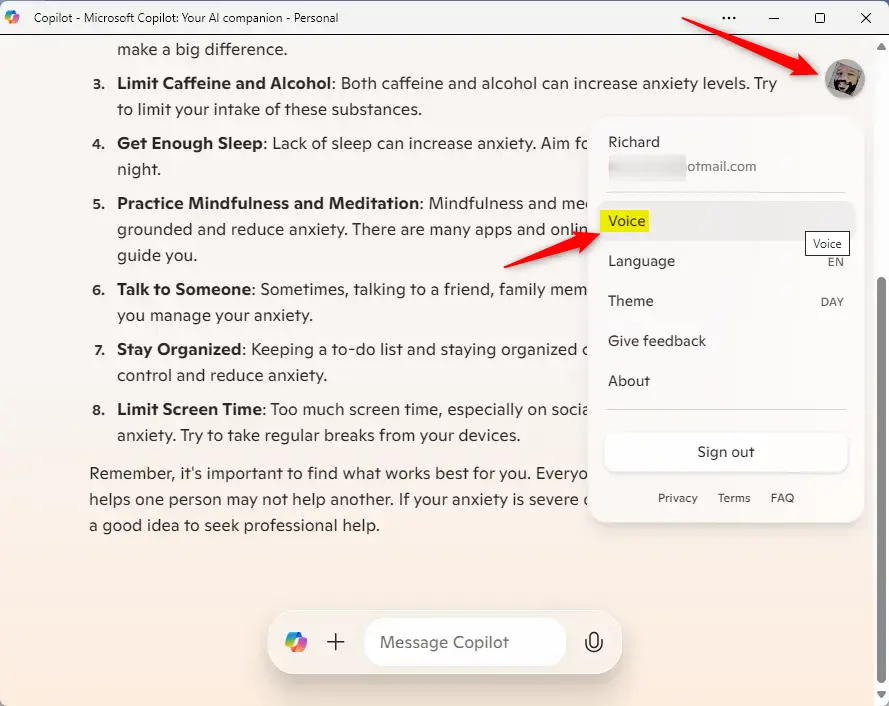
Then, pick your favorite voice from the list:
- Grove
- Wave
- Meadow (this is the default)
- Canyon
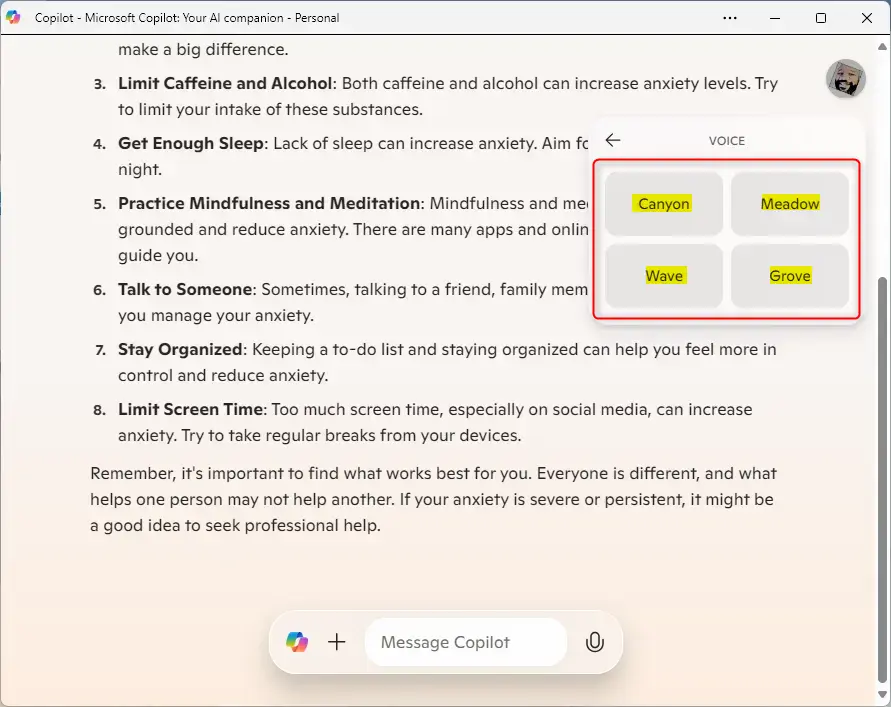
Once you select a new voice, Copilot will start using it immediately for future responses.
Summary
Changing Copilot’s voice makes your AI assistant feel more personal. Here’s a quick recap:
- Simple Steps: You can find the voice settings right inside the Copilot menu.
- Choices: You have four voice styles to choose from: Grove, Wave, Meadow, and Canyon.
- Customization: Changing the voice makes your interactions with the AI feel more comfortable and personal to you.
Was this guide helpful?

About the Author
Richard
Tech Writer, IT Professional
Richard, a writer for Geek Rewind, is a tech enthusiast who loves breaking down complex IT topics into simple, easy-to-understand ideas. With years of hands-on experience in system administration and enterprise IT operations, he’s developed a knack for offering practical tips and solutions. Richard aims to make technology more accessible and actionable. He's deeply committed to the Geek Rewind community, always ready to answer questions and engage in discussions.



No comments yet — be the first to share your thoughts!