How to enable or disable notification suggestions in Windows 11


You enable or disable notification suggestions in Windows 11 directly within the Settings app under the System > Notifications section.
Notification suggestions are pop-up alerts that appear when Windows 11 detects you haven’t interacted with notifications from a particular app in a while. These suggestions prompt you to turn off notifications for that app.
For example, if you consistently ignore notifications from a gaming app, Windows 11 might offer to stop showing you those pop-ups. This feature aims to streamline your taskbar by reducing banner clutter from apps you rarely use.
You can toggle these suggestions off if you find them distracting or keep them enabled to automatically manage your app notification visibility.
Change settings in the Settings App
This is the easiest way to control notifications for most users.
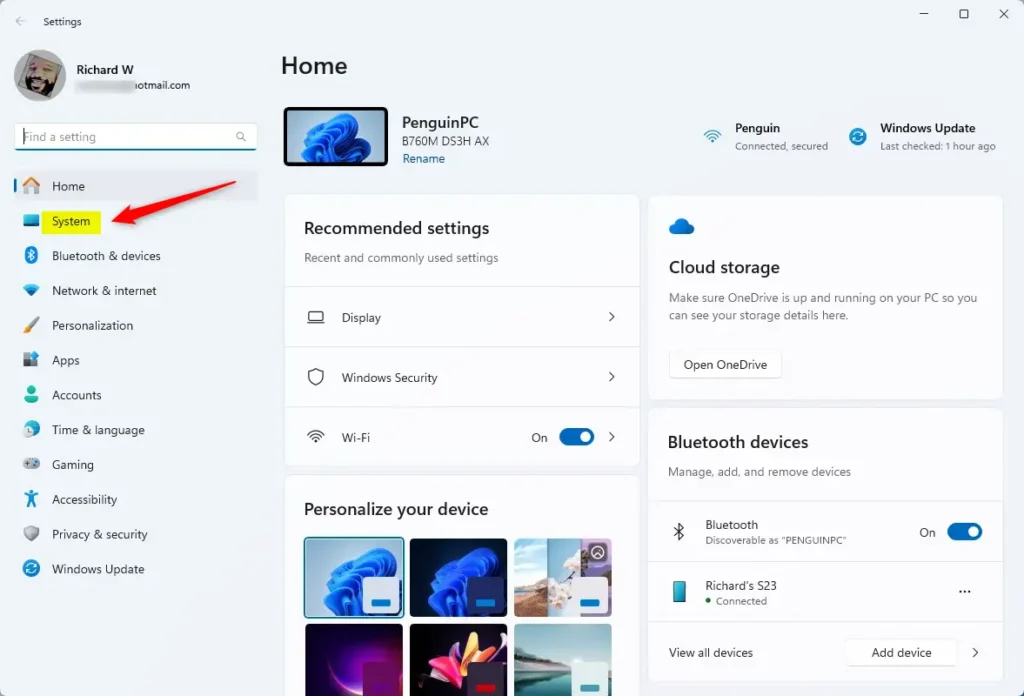
- Open the Windows Settings app. You can do this by opening the Start menu or pressing the Windows key + I on your keyboard to launch the Settings app.
- Click on the System button on the left sidebar.
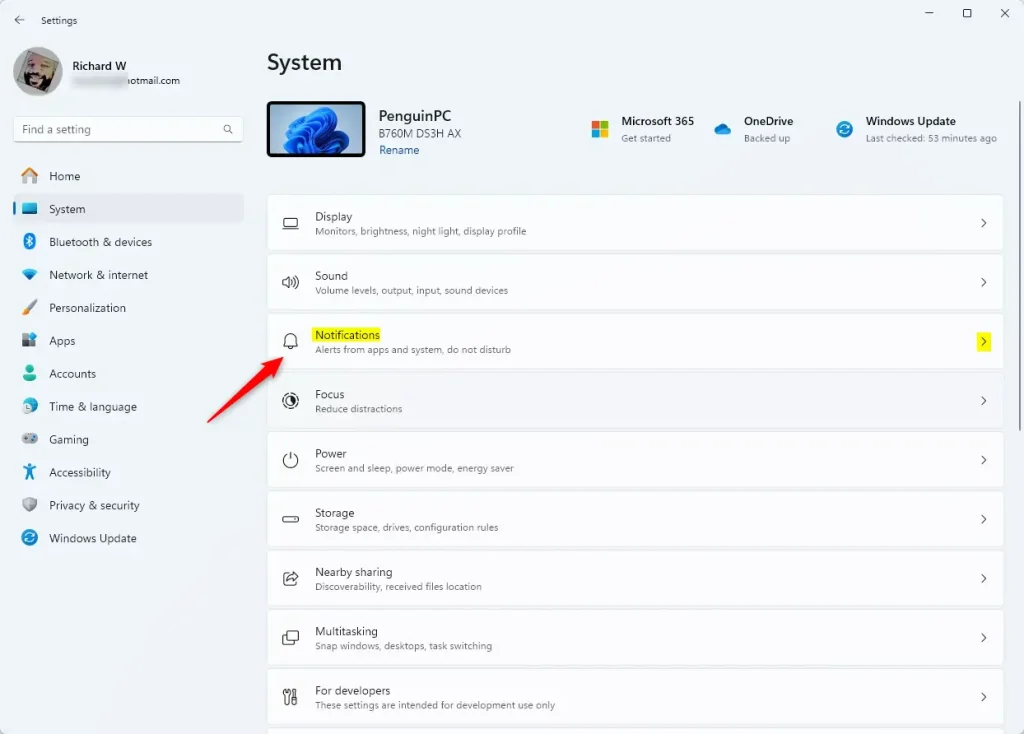
- Select the Notifications tile on the right.
- Find the section labeled “Notifications from apps and other senders.”
- Click the toggle switch for Notification Suggestions to turn it on or off.
- Close the settings window when finished.
Change settings using the Registry Editor
Note: This method requires admin privileges. Only use this method if you are comfortable working with system files.
- Open the Windows Registry by searching for it in the Start menu.
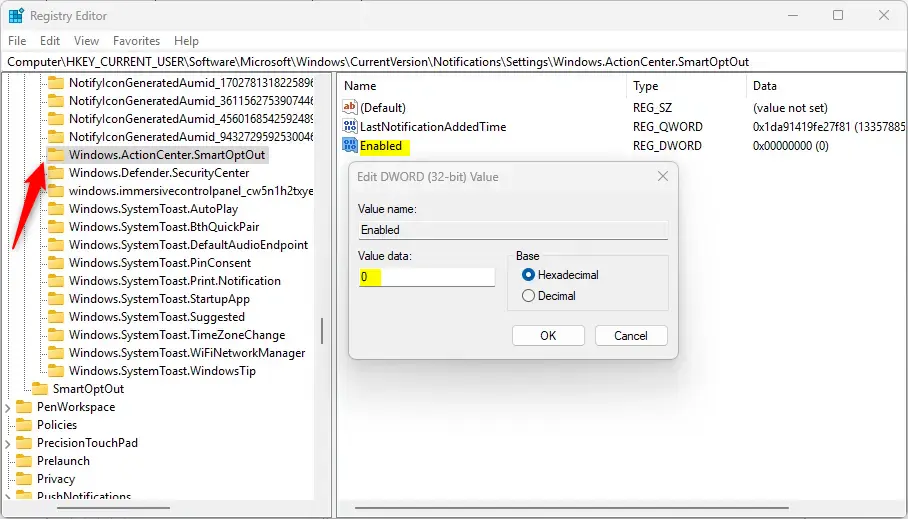
- Navigate to the following path:
Computer\HKEY_CURRENT_USER\Software\Microsoft\Windows\CurrentVersion\Notifications\Settings\Windows.ActionCenter.SmartOptOut - Look for the Enabled (REG_DWORD) item in the right pane. If it is not there, right-click a blank space, select New > DWORD (32-bit) Value, and name it
Enabled. - Double-click Enabled and change the value to
0to turn the feature off. - To turn the feature back on in the future, delete the Enabled item you created.
- Restart your computer to apply the changes.
Summary
Windows 11 allows you to control how often you receive suggestions to mute apps. You can easily toggle this feature using the main Settings menu, or you can use the Registry Editor for more advanced control. By managing these settings, you gain full control over your notification experience.
How do I enable notification suggestions in Windows 11?
Can I disable notification suggestions for specific apps in Windows 11?
What are notification suggestions in Windows 11?
How can I turn off notification suggestions using the Windows Registry?
Will turning off notification suggestions stop all notifications?
Was this guide helpful?

About the Author
Richard
Tech Writer, IT Professional
Richard, a writer for Geek Rewind, is a tech enthusiast who loves breaking down complex IT topics into simple, easy-to-understand ideas. With years of hands-on experience in system administration and enterprise IT operations, he’s developed a knack for offering practical tips and solutions. Richard aims to make technology more accessible and actionable. He's deeply committed to the Geek Rewind community, always ready to answer questions and engage in discussions.




No comments yet — be the first to share your thoughts!