How to Stream Google Drive to a Folder or Drive Letter in Windows 11


You can stream Google Drive to a folder or a dedicated drive letter in Windows 11 by using Google Drive for desktop.
This feature allows you to access all your Google Drive files directly from your PC without needing to download them all locally. You can choose to have your Google Drive appear as a virtual drive letter, much like your C: or D: drives, or as a regular folder within your Windows user profile.
Google Drive for desktop version 63.0.14.0 and later supports this streaming functionality, making it easy to manage your cloud storage.
This approach saves significant local storage space while providing seamless access to your documents, photos, and videos.
Stream Google Drive to a folder or drive letter by opening Google Drive for desktop preferences, clicking the Settings gear icon, and selecting your desired streaming location under “Google Drive streaming location.” Choose a drive letter or specify a folder, then click Save.
Why stream Google Drive?
Streaming files allows you to access your cloud storage without downloading every file to your hard drive. This saves significant disk space while keeping your files accessible via Windows File Explorer. When you open a file, it downloads on demand.
What happens when you are done?
Once configured, your computer will map your cloud storage as a virtual drive or folder. You will see sync status icons on your files, indicating whether they are available online or cached locally for offline access.
Stream vs. Mirror: Understanding the Difference
Streaming keeps files in the cloud and downloads them only when you need them. Mirroring creates a complete copy of your files on your computer, which takes up more space but allows for faster access without an internet connection.
Step-by-Step: Configuring Streaming Location
Note: You must have administrative access to your computer to change these system-level settings. 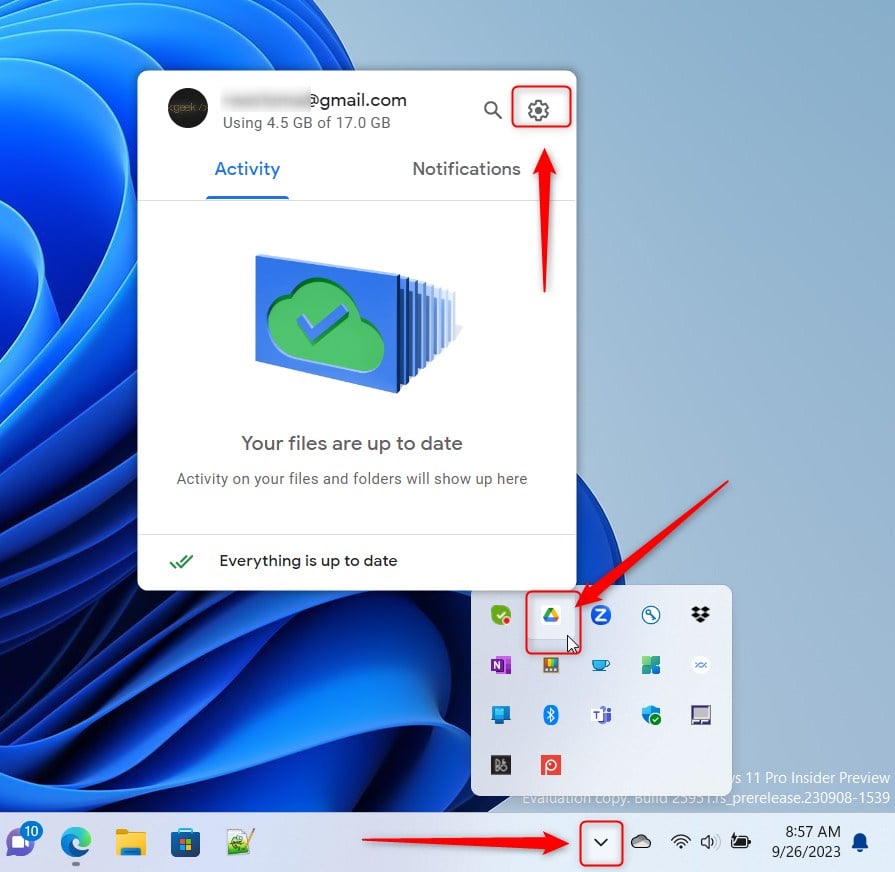
- Open the Google Drive icon in your taskbar notification area.
- Click the Settings (gear) icon at the top right of the window.
- Select Preferences.

This image has an empty alt attribute; its file name is Start-Google-Drive-settings-app-preferences.jpg - Click the Settings gear icon again on the new page.

Google Drive launch on login on or off - Look for the section labeled “Google Drive streaming location.”
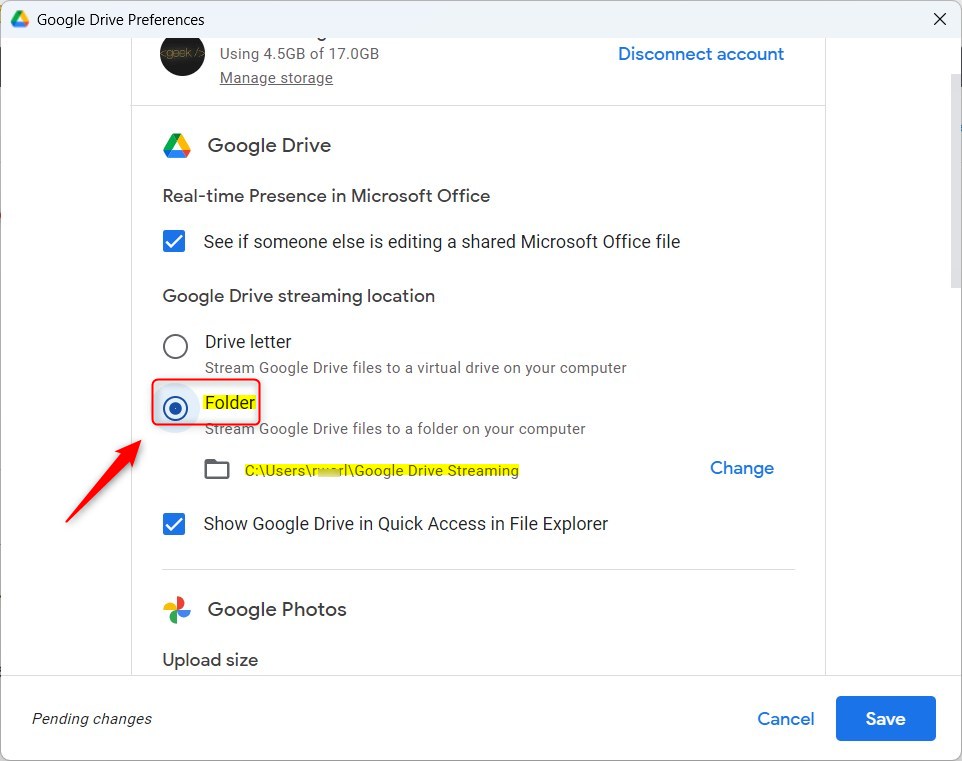
- Choose between Drive letter or Folder.
- If you choose a drive letter, pick any available letter from the list.
- If you choose a folder, your files will be placed in a location like
C:\\Users\\GenericUser\\Google Drive Streaming.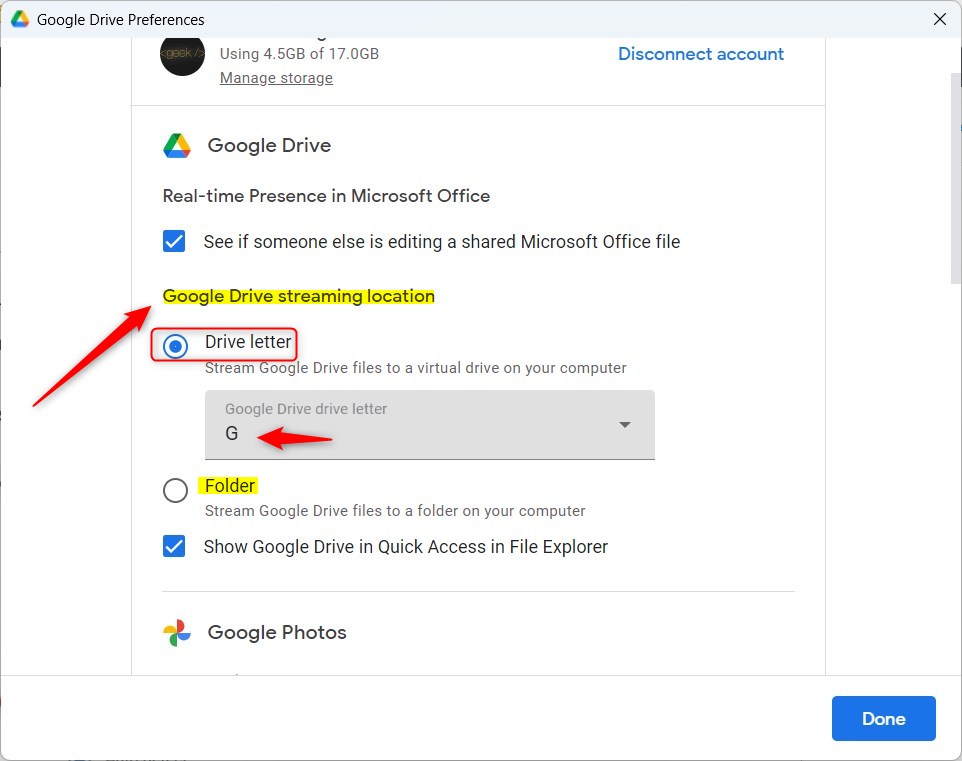
Windows 11 Choose where to stream Google Drive - Click the Save button to finish.
Windows 11 Choose where to stream Google Drive
Verifying Your Drive Mapping
After saving, open File Explorer. You should see your Google Drive mapped as a new drive letter (e.g., G:) or as a folder in your user directory. You can right-click this folder and select Pin to Quick access for faster navigation.
Troubleshooting Sync Issues
If your files do not appear, ensure the Google Drive for desktop app is running. Check the taskbar icon for error messages. If you encounter permission errors, ensure your user account has read/write access to the destination path, such as C:\Users\GenericUser\AppData\Local\Google\DriveFS.
Managing Offline Access
To keep specific files available without internet, right-click any file or folder within the Google Drive stream and select Offline access > Available offline. This forces the app to download a local copy to your hard drive.
Summary
Streaming Google Drive on Windows 11 is an effective way to manage cloud storage without filling up your hard drive. By choosing between a drive letter or a folder, you can integrate your files seamlessly into your workflow. Remember to manage your offline files carefully to balance convenience and disk space usage.
Does streaming Google Drive take up space on my hard drive?
Streaming files minimizes disk usage because files remain in the cloud until you open them. However, Google Drive does use a small amount of cache space on your local drive to store recently opened files for faster access. You can manage this cache in the app settings to optimize your storage.
Was this guide helpful?

About the Author
Richard
Tech Writer, IT Professional
Richard, a writer for Geek Rewind, is a tech enthusiast who loves breaking down complex IT topics into simple, easy-to-understand ideas. With years of hands-on experience in system administration and enterprise IT operations, he’s developed a knack for offering practical tips and solutions. Richard aims to make technology more accessible and actionable. He's deeply committed to the Geek Rewind community, always ready to answer questions and engage in discussions.



[…] settings with the Google Drive app on Windows. Users can install and start Google Drive at login, stream Google Drive to a folder or driver letter, pause syncing, and […]
[…] Google Drive app on Windows to manage your files. You can install and start Google Drive at login, stream Google Drive to a folder or driver letter, pause syncing, add files and photos to sync with Google Drive, stream or mirror their files on […]
[…] can install and start Google Drive at login, stream Google Drive to a folder or driver letter, pause syncing, add files and photos to sync with Google Drive, and […]