How to Add Phone Link to Windows 11 Widgets Board


You add the photos-in-the-phone-link-app-on-windows-11/" class="sal-link" rel="noopener" target="_blank" data-sal-id="34013">calls-in-windows-11/" class="sal-link" rel="noopener" target="_blank" data-sal-id="12978">Phone Link app to your Windows 11 Widgets board to quickly access your phone’s notifications and features directly from your desktop.
Phone Link, formerly known as Your Phone, is a Windows feature that connects your Android or iPhone to your PC. This integration allows you to manage calls, texts, photos, and app notifications without needing to pick up your phone.
It comes pre-installed on Windows 11, functioning as a core productivity tool right out of the box. By adding it to the Widgets board, you gain instant visibility into your phone’s activity, reducing distractions and keeping you focused on your PC tasks.
System Requirements and Setup
To use this, you need a Microsoft Account on both your PC and your phone. You must install the Link to Windows app from the Google Play Store on your Android device. For the best experience, ensure your phone is running Android 15 or a compatible version. Samsung Galaxy integration offers extra features like running mobile apps directly on your desktop.
Initial QR Code Pairing Guide
- Open the Phone Link app on your Windows 11 PC.
- Select your device type (Android).
- A QR code will appear on your screen.
- Open the Link to Windows app on your phone and scan the code.
- Follow the on-screen prompts to grant necessary permissions.
Pinning Phone Link to Your Widgets Board
Widgets are small windows that show live updates. Pinning Phone Link lets you see alerts at a glance.
- Open Widgets by pressing Windows key + W.
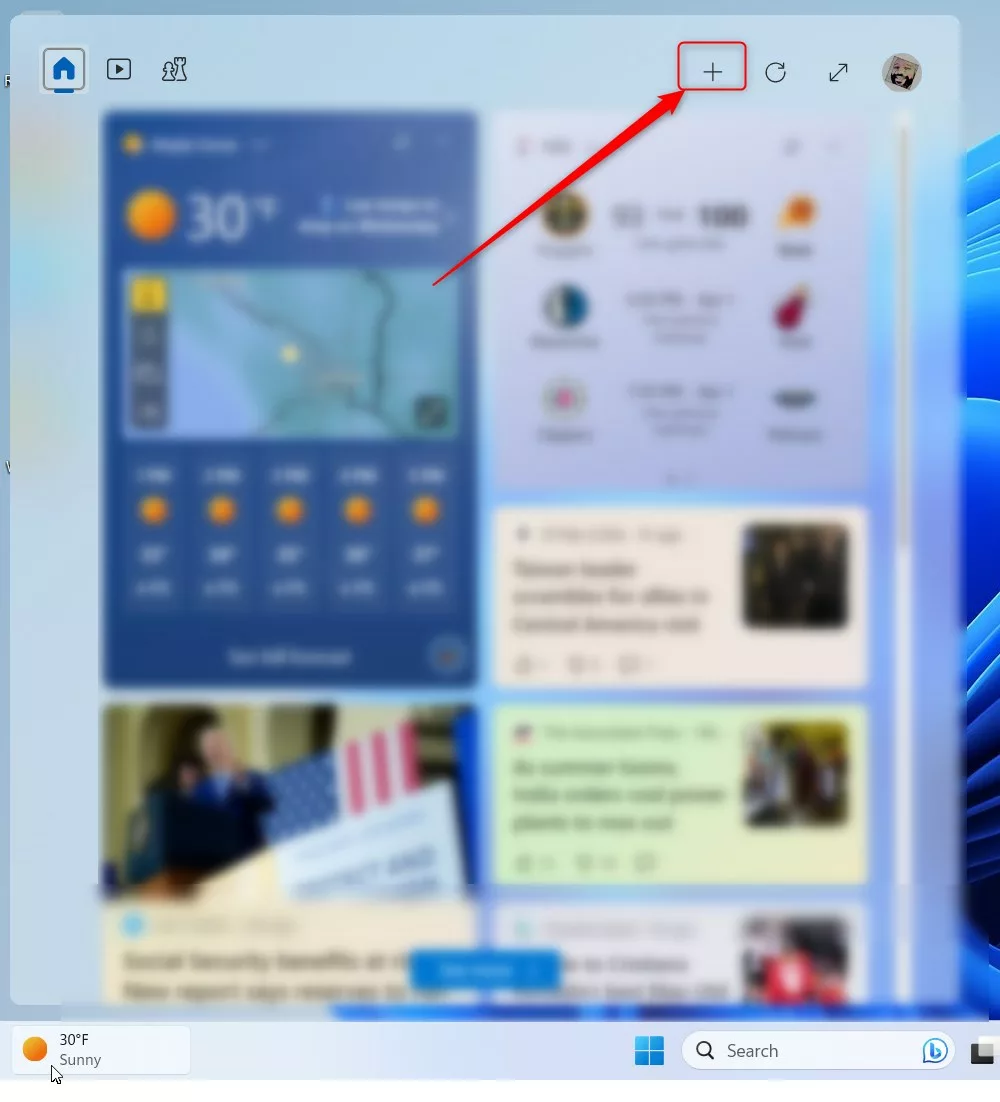
- Click the Add widgets (+) icon near your user profile.
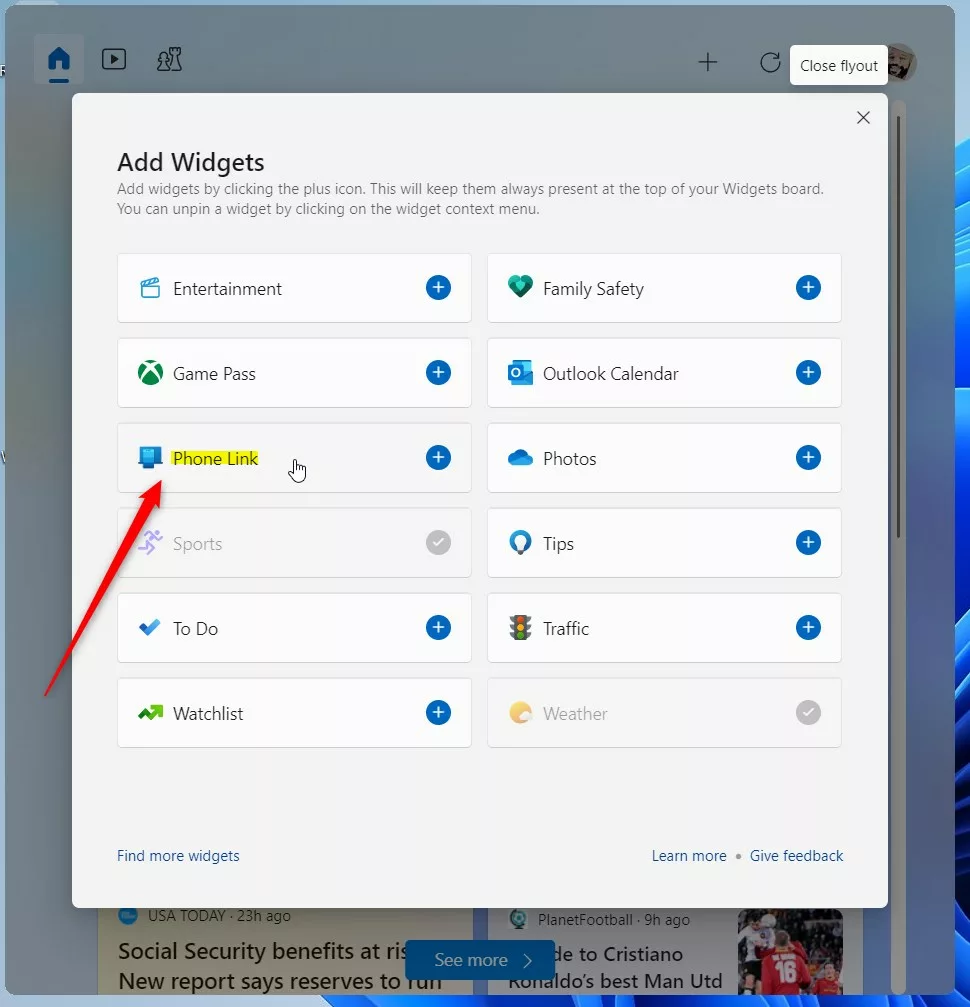
- Find Phone Link in the list and click it to add it to your board.
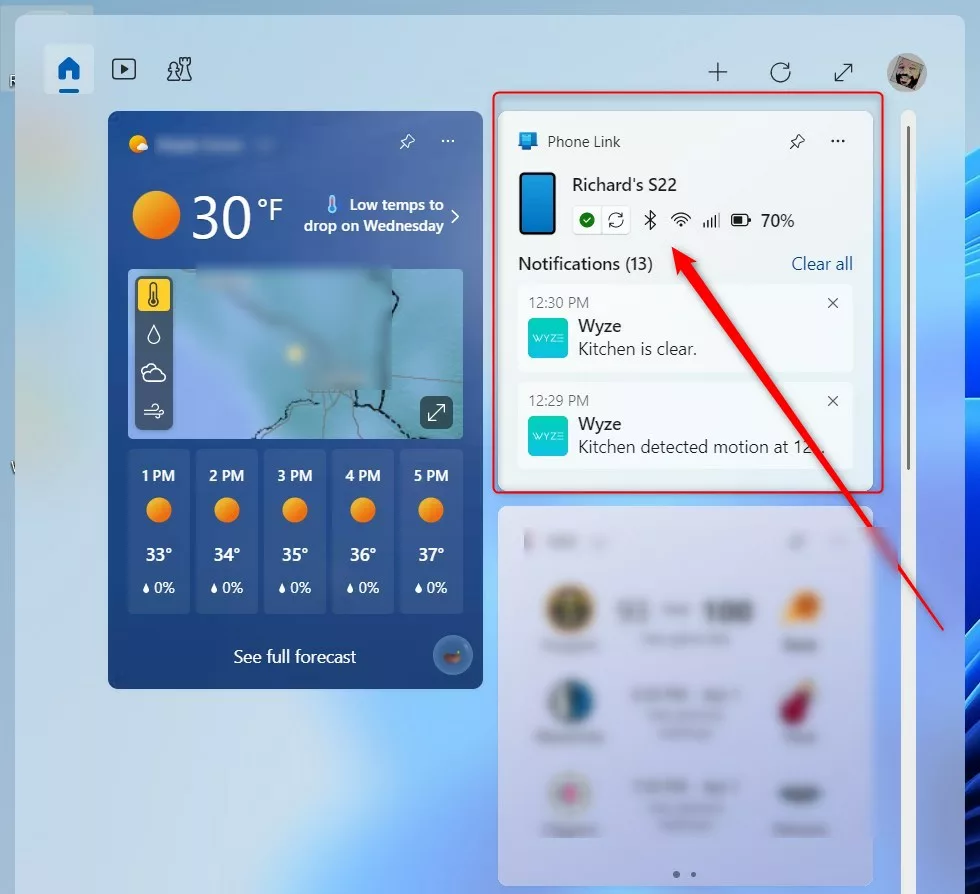
After you add it, the widget appears on your board. You can click and drag the tile to move it.
Managing Permissions and Troubleshooting
If you face issues, check your notification permissions. Go to Settings > Apps > Phone Link to ensure all permissions are enabled. Note: Some advanced settings may require admin privileges to modify system-level notification access.
Why can’t I see my notifications in Phone Link?
Ensure your phone and PC are on the same Wi-Fi network. Check that ‘Focus Assist’ or ‘Do Not Disturb’ is not blocking alerts. Verify that you have granted ‘Notification Access’ within the Link to Windows app settings on your mobile device to allow data syncing.
Does Phone Link work with iPhone on Windows 11?
Yes, Phone Link supports basic integration for iPhone, including calls, messages, and contacts. However, advanced features like app streaming and photo gallery access are currently optimized primarily for Android devices, specifically those with deep Samsung Galaxy integration.
Removing the Phone Link Widget
- Open your Widgets board.
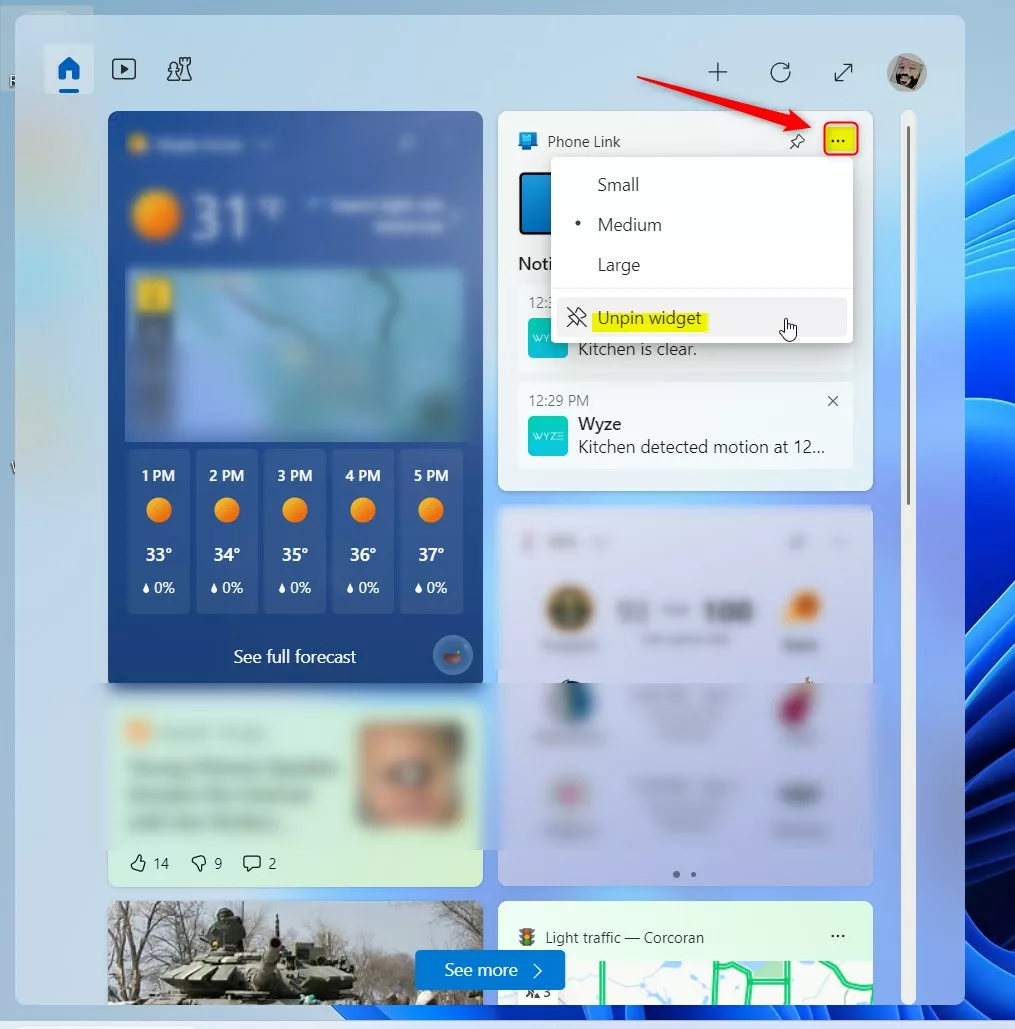
- Click the More options (…) button on the Phone Link tile.
- Select Unpin widget to remove it.
Summary
The Phone Link Windows 11 integration is essential for modern productivity. By following this setup guide, you can sync your Android to your PC, manage notifications, and keep your workspace organized. For further technical details, visit the official Microsoft support page.
How do I manage permissions for Phone Link?
Open the Phone Link app on your PC and go to Settings. From there, you can manage permissions for messages, photos, and calls. On your Android device, navigate to Settings > Apps > Link to Windows to ensure all required permissions like contacts and notifications are toggled to the ‘On’ position.
Was this guide helpful?

About the Author
Richard
Tech Writer, IT Professional
Richard, a writer for Geek Rewind, is a tech enthusiast who loves breaking down complex IT topics into simple, easy-to-understand ideas. With years of hands-on experience in system administration and enterprise IT operations, he’s developed a knack for offering practical tips and solutions. Richard aims to make technology more accessible and actionable. He's deeply committed to the Geek Rewind community, always ready to answer questions and engage in discussions.


[…] the Widgets board, you can add or remove Phone Link, enable or disable the open Widgets board on hover, sign in or out of the Widgets board, reinstall […]
[…] or disable auto startup for the phone link app, send and receive text messages from the app, add or remove Phone Link on the widgets board, turn dark mode on or off, open your phone screen in the app, turn show notifications for all my […]
[…] disable auto startup for the phone link app, send and receive text messages from the app, add or remove Phone Link on the widgets board, turn dark mode on or off, open your phone screen in the app, turn show […]
[…] disable auto startup for the phone link app, send and receive text messages from the app, add or remove Phone Link on the widgets board, turn dark mode on or off, open your phone screen in the app, turn show […]
[…] or disable auto startup for the phone link app, send and receive text messages from the app, add or remove Phone Link on the widgets board, turn dark mode on or off, open your phone screen in the app, turn show notifications for all my […]