How to Control Desktop Background Changes in Windows 11


You control desktop background changes in Windows 11 by modifying registry settings or using Group Policy Editor.
This process locks your chosen wallpaper, preventing users from altering it. You’ll typically do this for branding consistency or parental controls on shared computers.
Windows 11 offers features like Spotlight and slideshows for dynamic backgrounds, but you might need to disable these options. For example, businesses often set a single, approved background across all employee machines.
After applying these changes, the “Choose your photo” option will disappear from Personalization settings. Your desktop background will remain fixed until you reverse the configuration.
You can prevent desktop background changes in Windows 11 using the Local Group Policy Editor or Registry Editor. To use Group Policy, navigate to User Configuration > Administrative Templates > Control Panel > Personalization and enable “Prevent changing desktop background.” For the Registry Editor, set the DWORD value NoChangingWallPaper to 1 at 🗝️HKEY_CURRENT_USER\Software\Microsoft\Windows\CurrentVersion\Policies\ActiveDesktop.
Before You Begin: System Restore
Before modifying system files, always create a System Restore point. This allows you to revert your computer to its previous state if something goes wrong. Search for “Create a restore point” in the Start menu to get started.
Method 1Using the Local Group Policy Editor
You can prevent desktop background changes in Windows 11 using the Local Group Policy Editor, a tool that helps manage system settings.
To start, open the Local Group Policy Editor by pressing ⊞ Win+R, typing gpedit.msc, and hitting Enter.
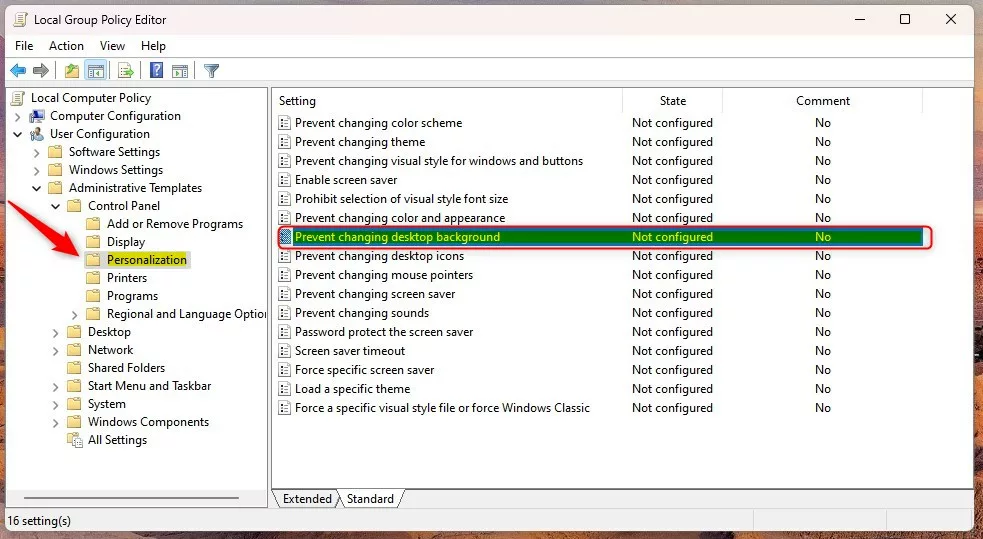
Then, navigate through the folder tree on the left:
User Configuration > Administrative Templates > Control Panel > Personalization
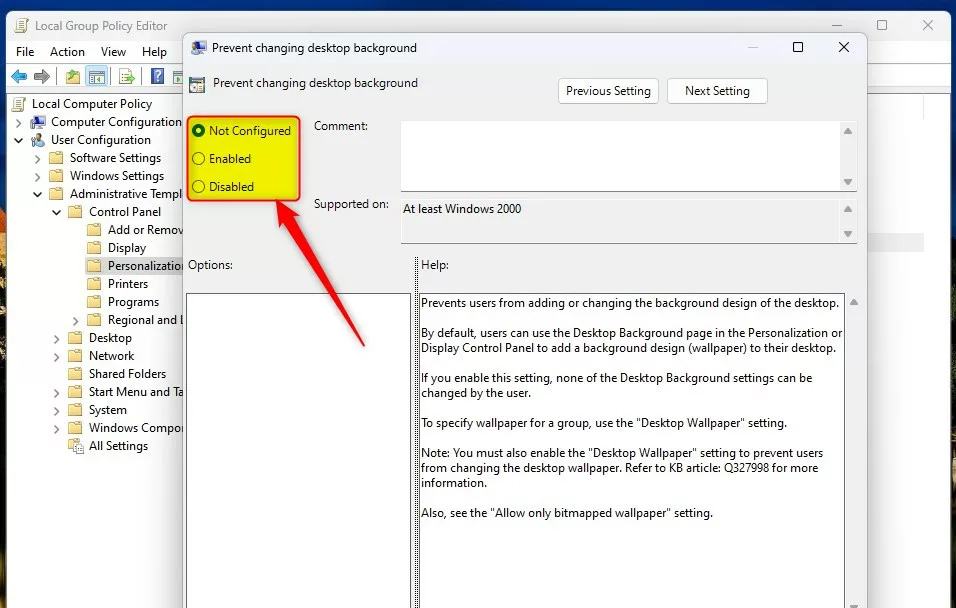
Double-click the setting labeled “Prevent changing desktop background” in the Personalization folder.
Choose ‘Enabled’ to lock the background. Click OK to save your changes.
For more details, check out Microsoft’s official documentation on GPO settings.
Method 2Using the Registry Editor
You can also prevent desktop background changes in Windows 11 by using the Registry Editor, but be careful as it’s an advanced tool.
Open the Windows Registry Editor by typing regedit in the Start menu.
Navigate to these two locations:
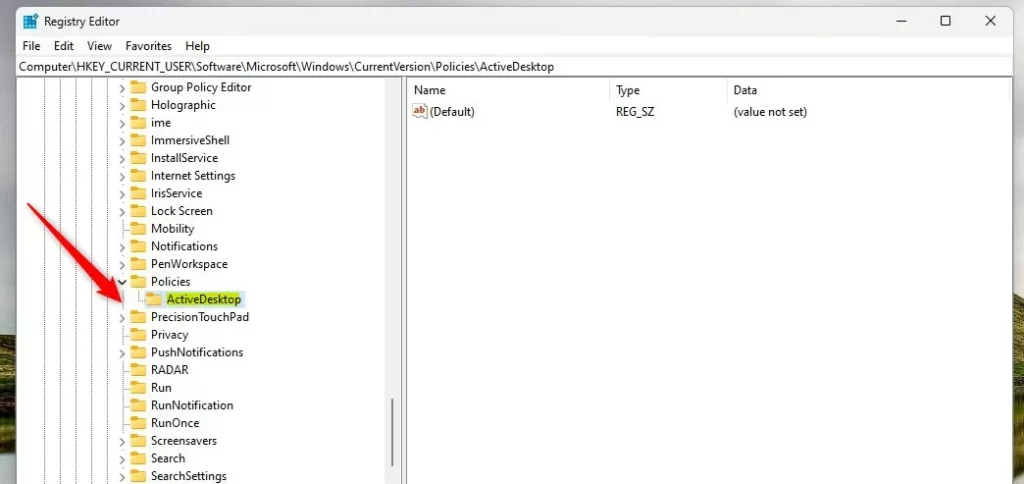
🗝️HKEY_CURRENT_USER\Software\Microsoft\Windows\CurrentVersion\Policies\ActiveDesktop
🗝️HKEY_LOCAL_MACHINE\SOFTWARE\Microsoft\Windows\CurrentVersion\Policies\ActiveDesktop
If you don’t see an ‘ActiveDesktop’ folder, right-click the ‘Policies’ folder. Then, select ‘New’ > ‘Key’ and name it ‘ActiveDesktop’.
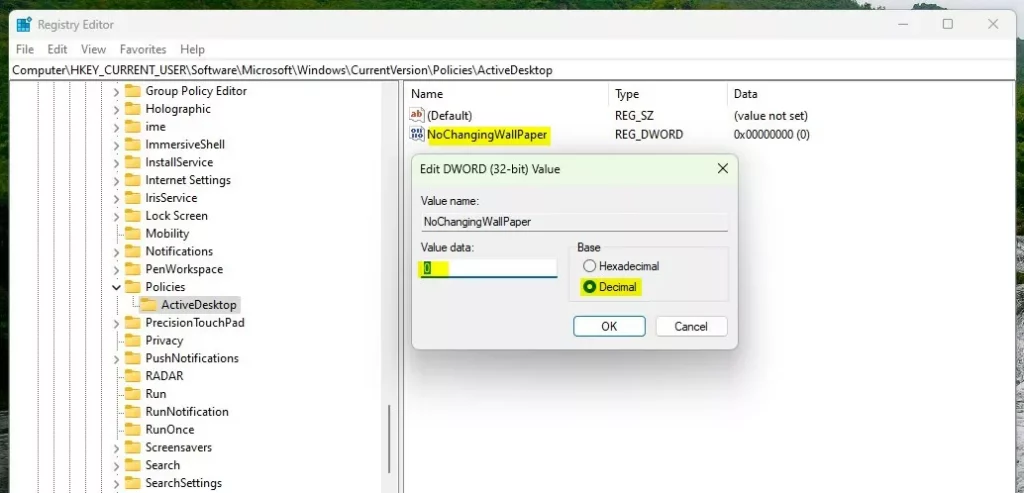
Right-click in the empty space on the right. Select ‘New’ > ‘DWORD (32-bit) Value’ and name it NoChangingWallPaper. Set the “Value data” to 1 to block changes. Restart your computer to apply this wallpaper lock.
Troubleshooting Background Issues
If your Windows 11 desktop background keeps changing on its own, we’ll look at common reasons why and how to fix them.
- Windows Spotlight: If you use Spotlight, Windows will automatically update your background daily. Switch to a “Picture” or “Solid color” in Settings to stop this.
- Sync Settings: If you sign into multiple PCs, Windows might sync your theme. Go to Settings > Accounts > Windows backup and turn off “Remember my preferences.”
- Third-party software: Some apps like Wallpaper Engine can override system settings. Disable these apps if you want to lock your background manually.
Summary
You can prevent desktop background change actions in Windows 11 by using the Local Group Policy Editor or the Registry Editor. These methods ensure your wallpaper remains locked, preventing unauthorized updates. Always remember to create a restore point before making system changes to keep your PC safe.
Why does my 🪟 Windows 11 background change automatically every day?
This is likely because you have the Windows Spotlight feature enabled. Spotlight automatically downloads and updates your desktop background with new images from Microsoft every day. To stop this, go to Settings > Personalization > Background and change the setting from Windows Spotlight to Picture or Slideshow.
Can I prevent background changes without using the Registry Editor?
Yes, you can use the Local Group Policy Editor if you are using Windows 11 Pro or Enterprise. This is a safer, more user-friendly method than editing the registry directly. Go to the Personalization policy folder and enable the ‘Prevent changing desktop background’ setting to lock your wallpaper.
Was this guide helpful?

About the Author
Richard
Tech Writer, IT Professional
Richard, a writer for Geek Rewind, is a tech enthusiast who loves breaking down complex IT topics into simple, easy-to-understand ideas. With years of hands-on experience in system administration and enterprise IT operations, he’s developed a knack for offering practical tips and solutions. Richard aims to make technology more accessible and actionable. He's deeply committed to the Geek Rewind community, always ready to answer questions and engage in discussions.


No comments yet — be the first to share your thoughts!