How to Enable or Disable OneDrive Sync Notifications in Windows 11

You enable or disable OneDrive sync notifications in Windows 11 to control alerts about your cloud file status.
OneDrive acts as your built-in cloud storage, letting you access files from any device. Managing its notifications helps you stay informed about sync issues or maintain a less interrupted PC experience.
By default, Windows 11 notifies you when OneDrive sync pauses, often due to battery saver mode or metered connections after setup.
Adjusting these notifications means you can either reduce interruptions or ensure you receive critical updates about your file syncing process.
Open OneDrive settings by clicking the gear icon, then select Settings. Toggle the “Notify me when syncing is paused” switch to On or Off to control these alerts.
Enable or Disable Notifications in OneDrive Settings
You can quickly turn OneDrive sync notifications on or off right from the OneDrive app’s settings menu.

When the app opens, click the gear icon labeled Help & Settings and then select Settings.
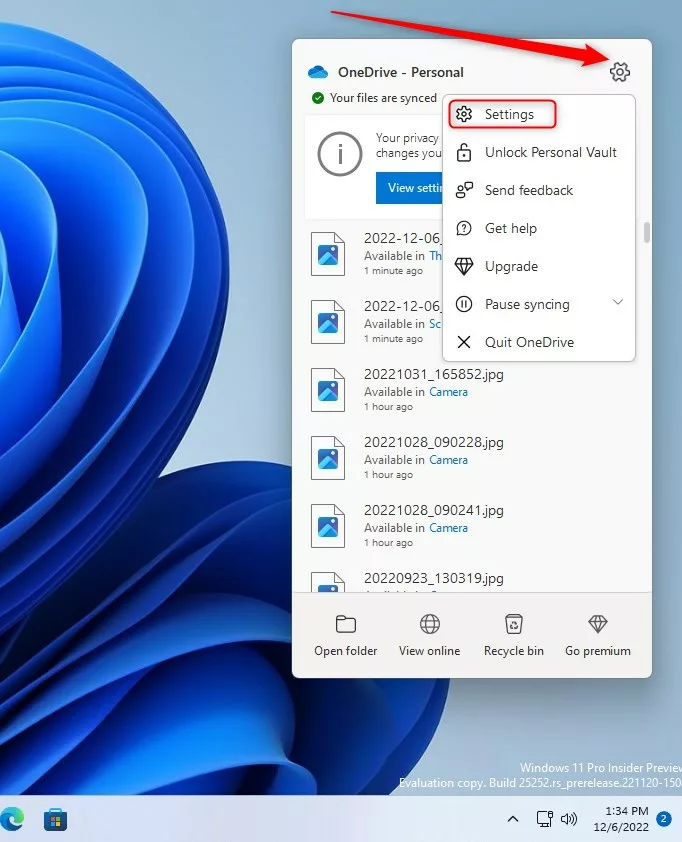
Find the Notifications section. Then, flip the switch for Notify me when syncing is paused to On or Off, whichever you prefer.

Understanding Notification Types
| Notification Type | Description |
|---|---|
| File Activity | Alerts when others edit shared files. |
| On This Day | Memories from your photo collection. |
| System Alerts | Sync pauses or connection issues. |
Enterprise Management via Group Policy
IT admins can control OneDrive sync notifications for everyone in the company using the Group Policy Editor.
Change Notifications via the Registry
You can change OneDrive sync notifications using the Windows Registry, but you’ll need administrator permission and must follow the steps carefully.
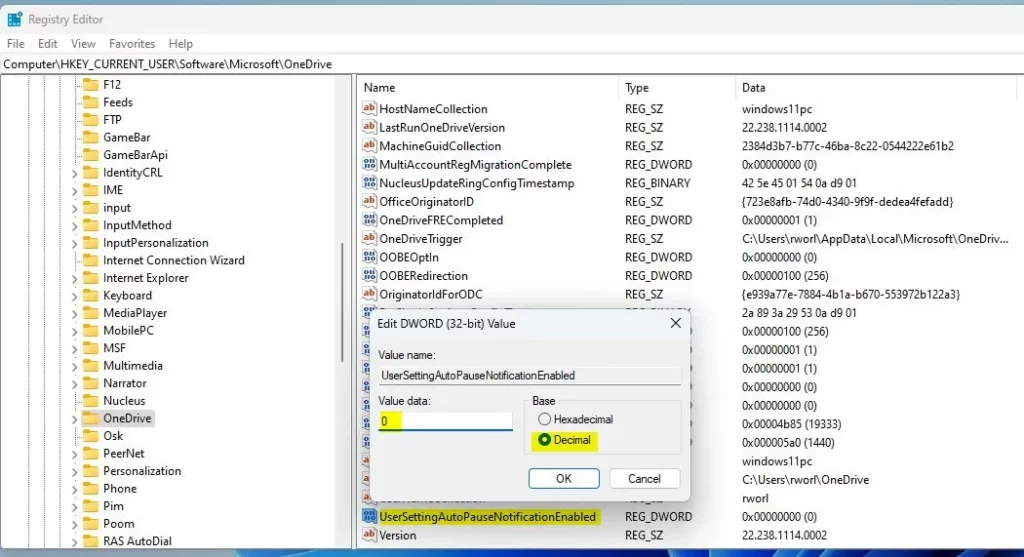
HKEY_CURRENT_USER\Software\Microsoft\OneDriveIf you do not see the OneDrive folder, right-click the Microsoft folder, select New, and then create a Key named OneDrive.

Right-click in the empty space on the right side of the OneDrive folder. Select New > DWORD (32-bit) Value. Name it UserSettingAutoPauseNotificationEnabled. Double-click this new value. Set the Value data to 1 to turn notifications on, or 0 to turn them off.
Troubleshooting Common Issues
If your OneDrive sync notifications aren’t showing up, check your Windows Notification Center settings to ensure OneDrive alerts are allowed.
Summary
You can manage OneDrive sync alerts through the app settings, Group Policy, or the Windows Registry. Adjusting these settings helps you stay informed about your file status without unnecessary interruptions. Always verify your battery and connection settings to ensure these notifications work as expected.
Does disabling notifications stop OneDrive from syncing files?
No. Disabling notifications only stops the visual pop-ups and alerts from appearing on your screen. Your files will continue to sync in the background as long as the OneDrive app is running and you have an active internet connection.
Will disabling ‘On This Day’ notifications delete my photos?
No. Disabling ‘On This Day’ notifications simply stops OneDrive from showing you memory reminders. Your photos remain safely stored in your OneDrive cloud storage and on your local device. You can view them anytime by opening your OneDrive photo folder.
Was this guide helpful?

About the Author
Richard
Tech Writer, IT Professional
Richard, a writer for Geek Rewind, is a tech enthusiast who loves breaking down complex IT topics into simple, easy-to-understand ideas. With years of hands-on experience in system administration and enterprise IT operations, he’s developed a knack for offering practical tips and solutions. Richard aims to make technology more accessible and actionable. He's deeply committed to the Geek Rewind community, always ready to answer questions and engage in discussions.




No comments yet — be the first to share your thoughts!