How to Find Printer Details on Windows 11


You find printer details on Windows 11 by accessing the settings-in-windows-11/" class="sal-link" rel="noopener" target="_blank" data-sal-id="9140">Settings app. Printer details include the model name, manufacturer, and the port it uses, crucial for troubleshooting or purchasing supplies.
Knowing your exact printer model, like an HP OfficeJet Pro 9015e, helps you download the correct drivers or order compatible ink cartridges.
Windows 11 makes this information readily available within its system settings, so you can quickly locate what you need.
Why check printer details?
Checking these details helps you troubleshoot connection issues or ensure you have the correct driver installed. It saves you from having to crawl under your desk to look at a sticker on the back of the machine.
What happens when you are done?
Once you finish these steps, you will see a full list of your printer’s specifications, including its status, model name, and current software version.
Navigating to Printer Settings
Windows 11 has a Settings app that lets you configure many settings for your device. To get started, click the Start menu and select Settings.

Inside the Settings window, click Bluetooth & devices on the left menu.
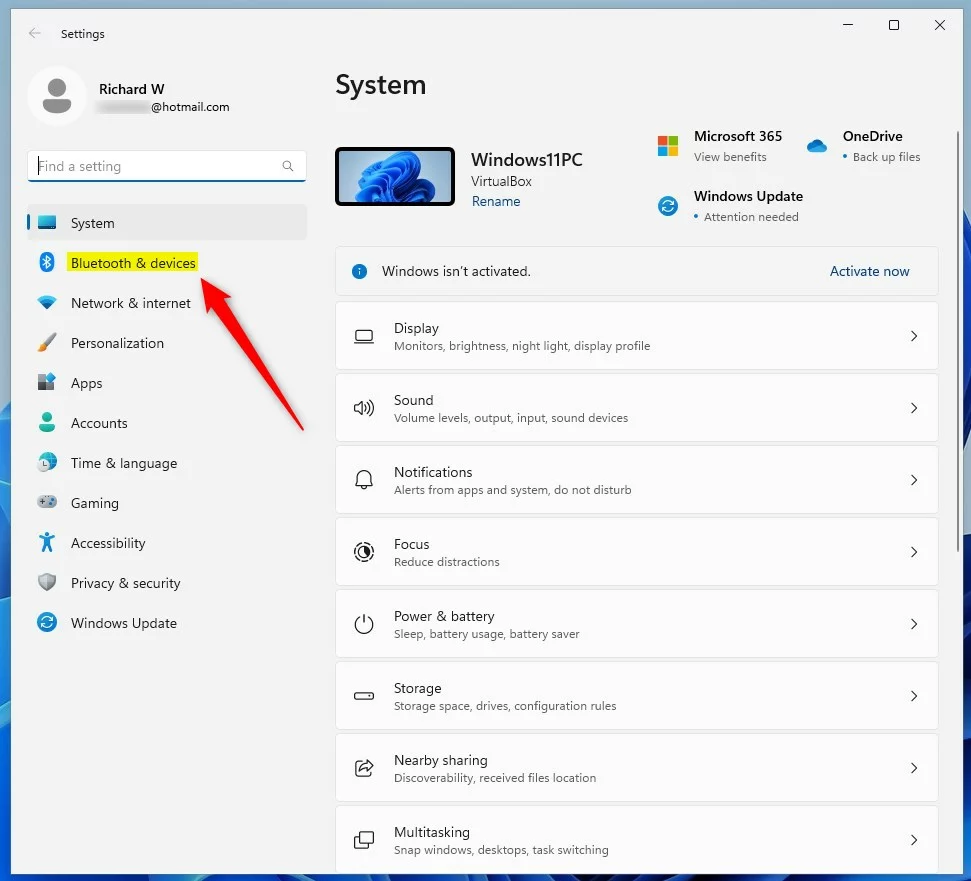
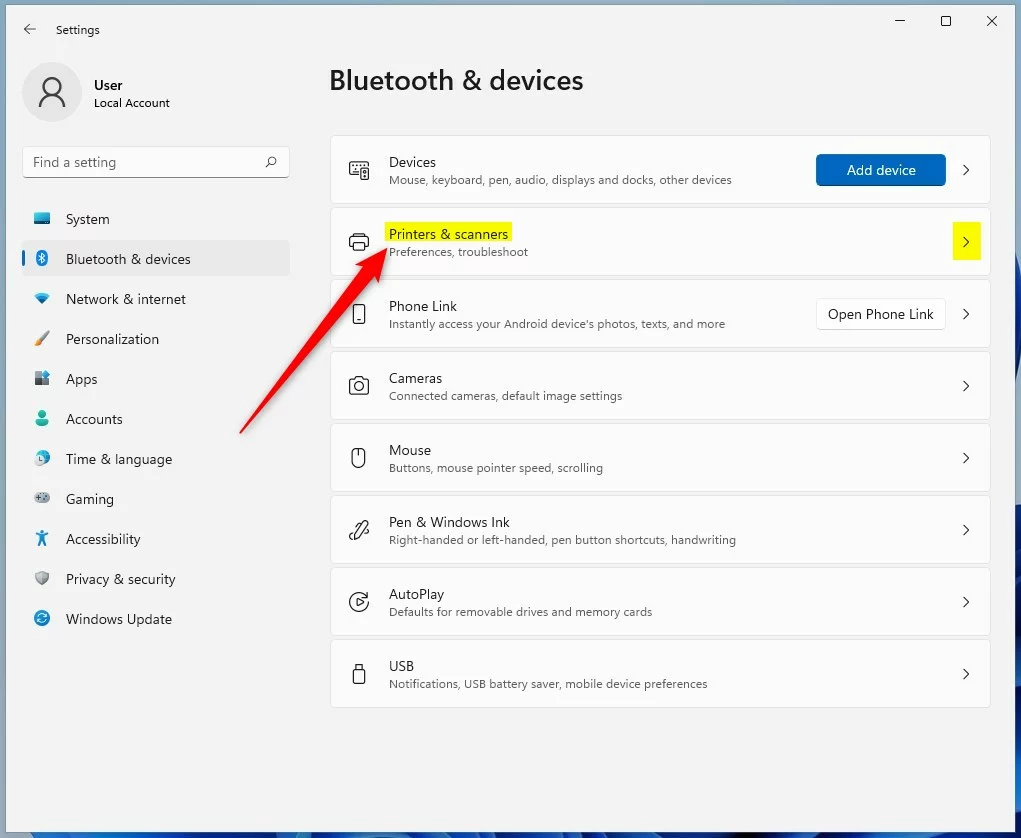
On the right side of the screen, click on the Printers & scanners box to open it.
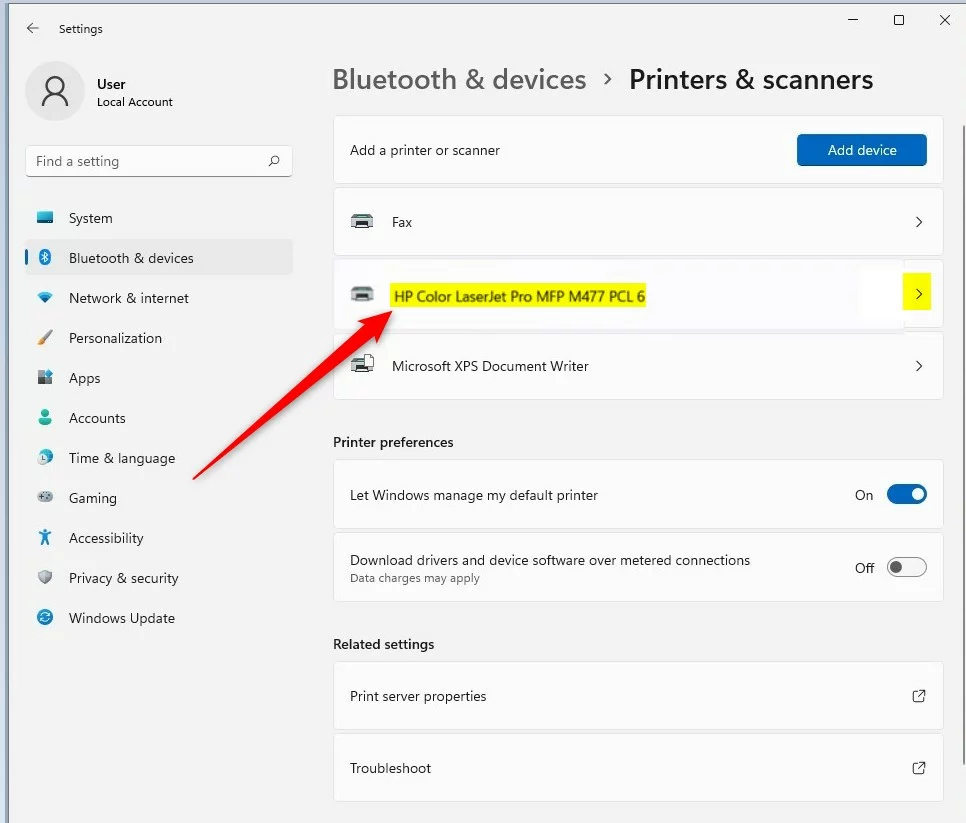
You will see a list of printers connected to your computer. Click on the specific printer you want to check.
Look for the section labeled More information. Click on Device information to expand it. You will now see all the technical details for your printer, such as the manufacturer and model number.
Legacy Control Panel vs. Modern Settings
While the new Settings app is the standard, some users prefer the classic view. You can still access the legacy Devices and Printers folder by opening the Run dialog (Win + R) and typing control printers. This opens the older interface which provides different diagnostic tools compared to the modern UI.
| Feature | Modern Settings | Legacy Control Panel |
|---|---|---|
| Navigation | Settings > Bluetooth & devices | Control Panel > Hardware and Sound |
| Ease of Use | High | Moderate |
| Advanced Config | Limited | Extensive |
Troubleshooting Printer Connectivity
If your printer is not showing up, first check your physical connections. Ensure the power cable is plugged in and the USB or network cable is secure. If you are using a network printer, verify that your computer and printer are on the same local network. Note: Changing network port settings or installing new printer drivers may require Administrator privileges.
Summary
You can quickly find your printer’s model and manufacturer by navigating to Settings > Bluetooth & devices > Printers & scanners. Clicking on your printer and opening the Device information section displays everything you need to know about your hardware. If you encounter issues, use the legacy Control Panel or check your network status to restore connectivity.
Why can’t I see my printer in Windows 11?
If your printer is missing, it may be turned off or disconnected from your network. Check your cables and Wi-Fi connection. You may also need to manually add the device by clicking ‘Add device’ in the Printers & scanners menu or by checking for driver updates via Windows Update.
How do I set a default printer in Windows 11?
To set a default printer, go to Settings, then Bluetooth & devices, and select Printers & scanners. Toggle off the setting that says ‘Let Windows manage my default printer.’ Then, click on your preferred printer from the list and select the button labeled ‘Set as default’ to confirm your choice.
Was this guide helpful?

About the Author
Richard
Tech Writer, IT Professional
Richard, a writer for Geek Rewind, is a tech enthusiast who loves breaking down complex IT topics into simple, easy-to-understand ideas. With years of hands-on experience in system administration and enterprise IT operations, he’s developed a knack for offering practical tips and solutions. Richard aims to make technology more accessible and actionable. He's deeply committed to the Geek Rewind community, always ready to answer questions and engage in discussions.



No comments yet — be the first to share your thoughts!