How to Enable or Disable FilterKeys in Windows 11


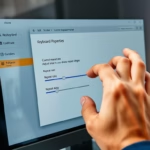
FilterKeys is an accessibility feature designed to help users who have difficulty typing. It tells your computer to ignore brief or repeated keystrokes. This prevents unwanted keystrokes if you have a tremor or struggle with key timing.
Why use it? It makes typing more accurate by filtering out accidental touches.
What happens when done? Your keyboard will wait for a specific duration before accepting a key press, reducing errors.
Understanding FilterKeys Sub-Settings
You can customize how your keyboard behaves by adjusting specific sub-features within the FilterKeys menu. These settings help you fine-tune your typing assistance:
- Slow Keys: Tells the computer to wait for a key to be held down for a set time before it registers.
- Bounce Keys: Ignores repeated keystrokes that happen in quick succession.
- Repeat Keys: Allows you to adjust the keyboard repeat rate or disable the repeat function entirely.
These features are distinct from StickyKeys, which helps users press multiple keys at once, such as Ctrl+Alt+Delete.
Enable or Disable FilterKeys on the Sign-in Screen
You can change this setting before you log in to your user account.
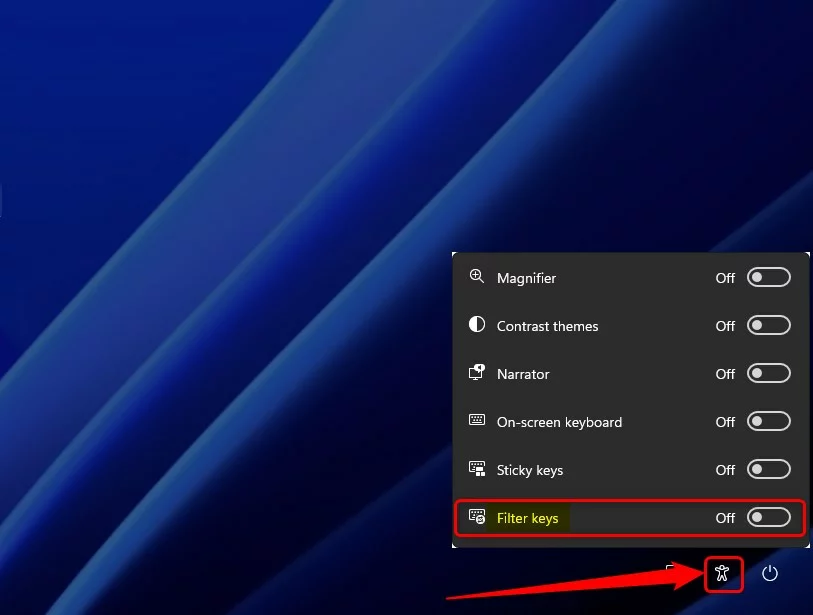
- On the sign-in screen, look for the Accessibility icon in the bottom right corner.
- Click the icon and find the FilterKeys option.
- Toggle the switch to turn it On or Off.
Note: Changing system-wide accessibility settings may require admin privileges if your account is restricted.
Enable or Disable FilterKeys Using a Shortcut
This is the fastest way to toggle the feature. You can use the Win + U shortcut to open accessibility settings quickly.
- Locate the Right SHIFT key on your keyboard.
- Press and hold this key for eight seconds.
- Wait for a beep sound.
- A prompt will appear asking if you want to turn the feature on or off. Click Yes to confirm.
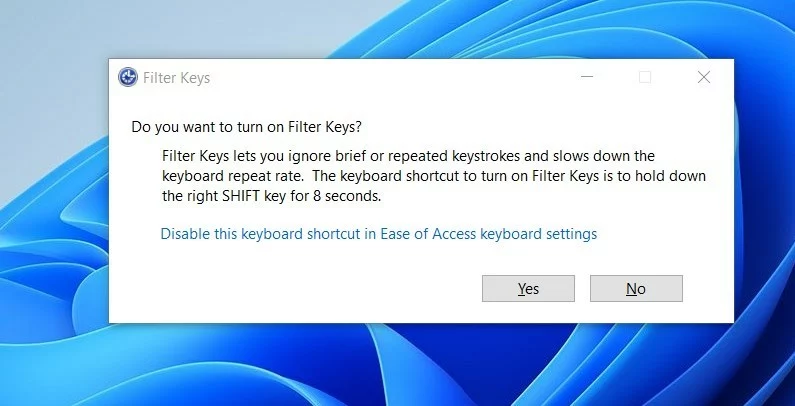
How to Disable the Shortcut
To prevent accidental activation, go to Settings > Accessibility > Keyboard > Filter keys. Uncheck the box labeled Keyboard shortcut for Filter keys.
Enable or Disable FilterKeys in Settings
You can manage this through the main Windows Settings app menu.
- Click the Start button and open Settings.
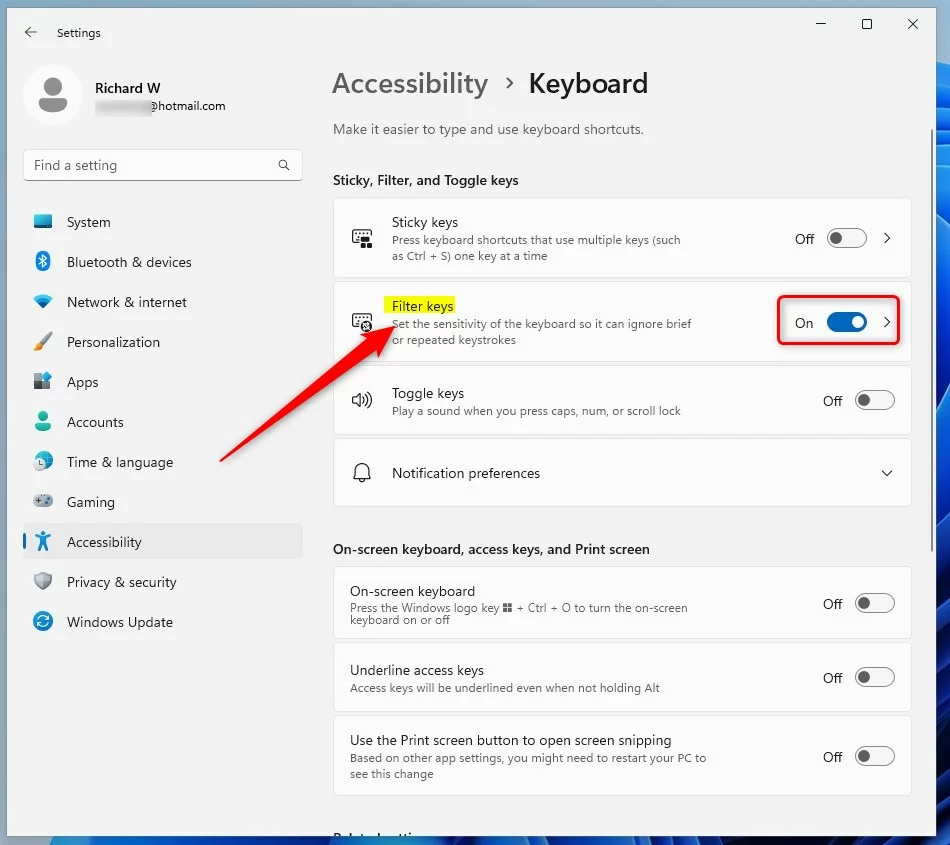
- Go to Accessibility in the left sidebar.
- Select Keyboard.
- Look for the Filter keys section and toggle the switch to the On or Off position.
Troubleshooting and Tones
If your keys are not typing immediately, FilterKeys is likely active. You can turn off the notification sound by unchecking Play a sound when Filter keys is turned on or off in the Keyboard settings menu.
Enable or Disable FilterKeys in Control Panel
You can also use the classic Control Panel app interface.
- Open the Control Panel.
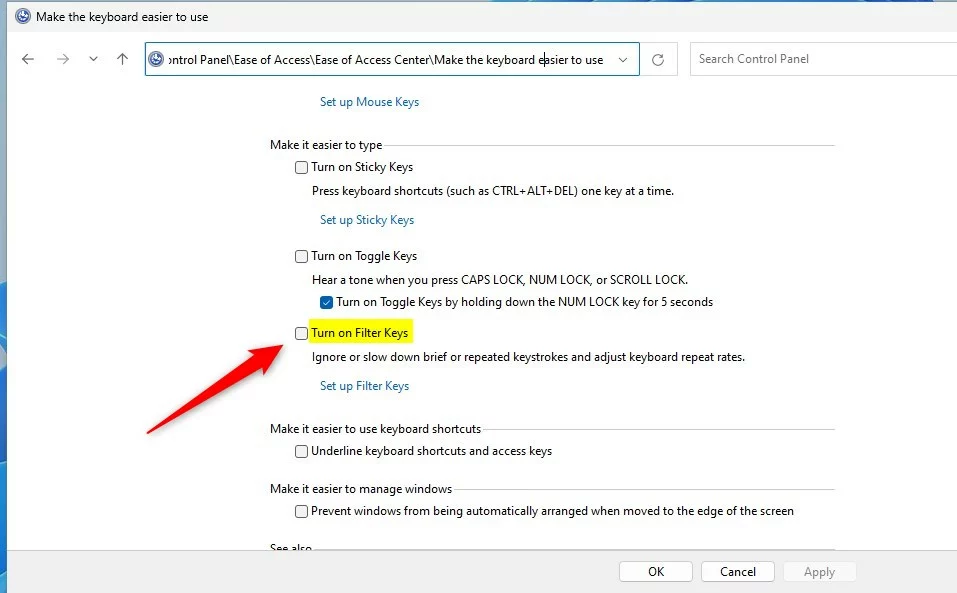
- Go to Ease of Access, then Ease of Access Center.
- Select Make the keyboard easier to use.
- Check or uncheck the box next to Turn on Filter Keys.
- Click Save to apply your changes.
Summary
FilterKeys is a powerful tool for improving typing accuracy in Windows 11. By configuring Slow Keys, Bounce Keys, and Repeat Keys, you can tailor your keyboard sensitivity to your specific needs. Whether you use the shortcut, Settings, or Control Panel, you now have full control over these accessibility features.
Reference: Microsoft.com
How do I know if FilterKeys is currently enabled?
You can check if FilterKeys is active by looking at your system tray. If enabled, a small icon resembling a stopwatch or keyboard may appear. Additionally, if you notice a delay between pressing a key and the character appearing on your screen, the feature is likely turned on.
Was this guide helpful?

About the Author
Richard
Tech Writer, IT Professional
Richard, a writer for Geek Rewind, is a tech enthusiast who loves breaking down complex IT topics into simple, easy-to-understand ideas. With years of hands-on experience in system administration and enterprise IT operations, he’s developed a knack for offering practical tips and solutions. Richard aims to make technology more accessible and actionable. He's deeply committed to the Geek Rewind community, always ready to answer questions and engage in discussions.



[…] Filter Keys make the keyboard ignore brief or repeated keystrokes that could cause typing errors. […]
[…] Filter Keys – ignores extra repeated key presses. […]
[…] Filter Keys: Ignore repeated or accidental key presses. […]
[…] How to use Filter Keys […]