How to Change Projecting Settings in Windows 11

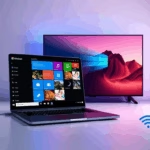
This guide explains how to manage your projecting settings in Windows 11. Whether you want to use a second screen or mirror your phone, these steps will help you get connected.
Why? You might want to view photos or videos from your phone on your computer screen. You can mirror your other devices to your Windows 11 PC using devices can project. By using a wireless display app, you can show your phone or tablet screen on your computer and use your mouse and keyboard to control it.
What happens? When you change these settings, you decide how often your computer shows a pop-up notification asking for your permission before another device can connect to your screen.
Understanding Connection Types
You can connect your computer to a projector or monitor in two main ways: wired and wireless.
- Wired Connections: Use cables like HDMI, DisplayPort, or USB-C. These are usually more stable and offer better resolution.
- Wireless Connections: Use Miracast or WiGig docks to project your screen without cables. This is great for convenience but requires a strong Wi-Fi signal.
How to Change Projecting Settings
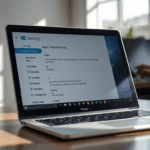
1. Open the Settings app. You can do this by pressing the Windows key + I on your keyboard or by clicking Start, then Settings.

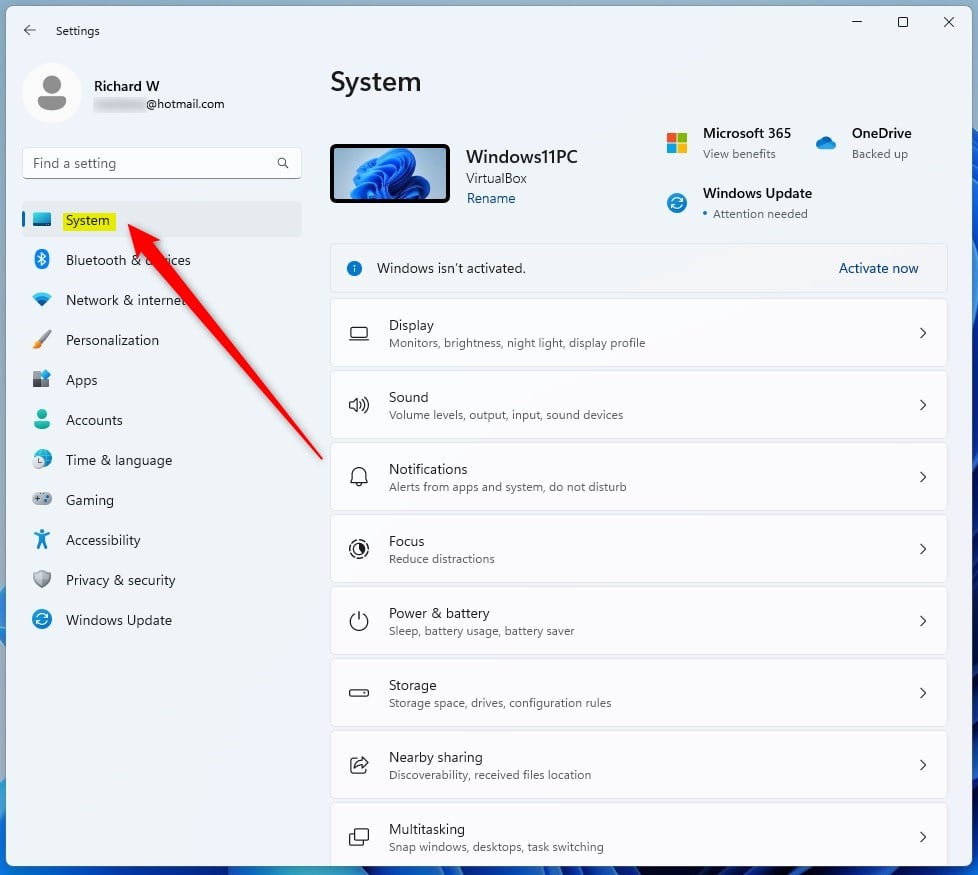
2. Once the Settings window opens, click on System on the left-hand menu.
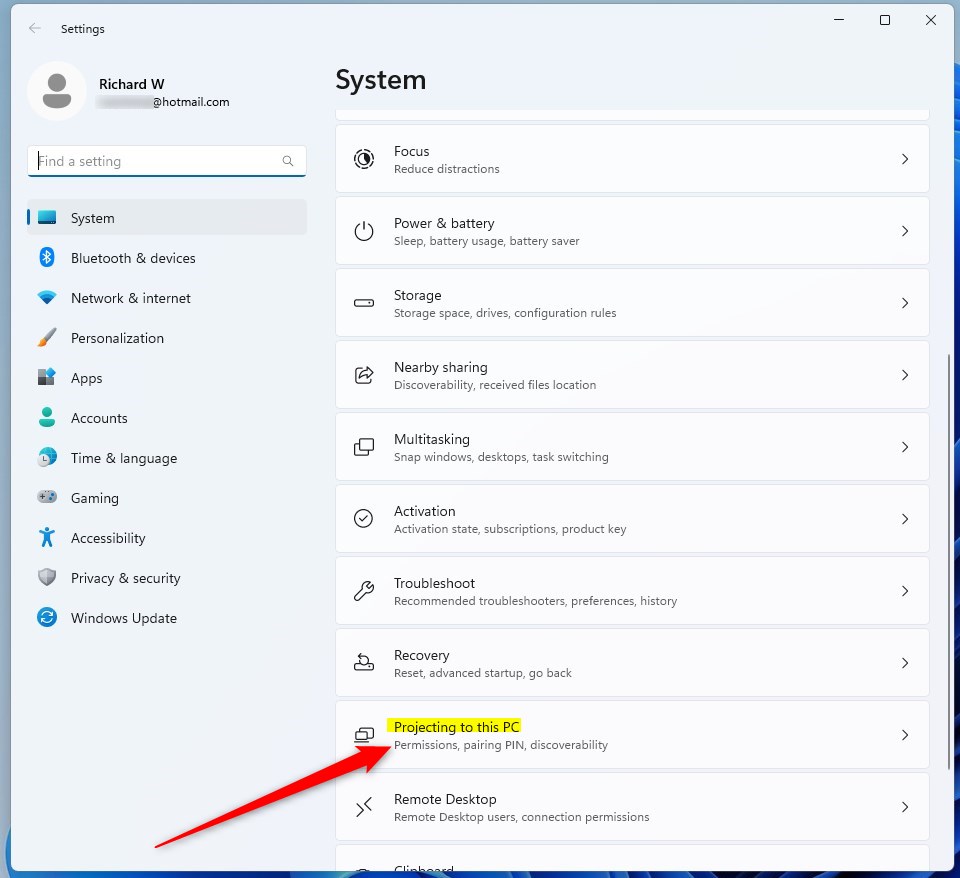
3. On the right side of the screen, look for the option labeled Projecting to this PC and click on it to open the settings.
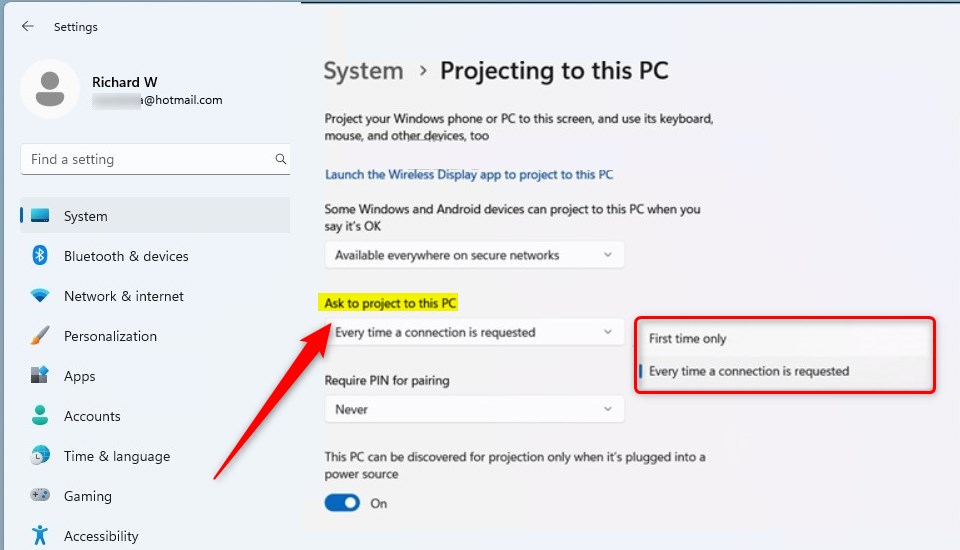
4. Locate the dropdown menu under Ask to project to this PC. Choose your preferred option from the list:
- First time only: The computer will only ask for permission the very first time a device tries to connect.
- Every time a connection is requested: The computer will show a pop-up every single time a device tries to project to your screen.
Using Keyboard Shortcuts
The fastest way to manage your screen mode is the Windows key + P shortcut. This opens a menu where you can choose:
- PC screen only: Only your main monitor shows the image.
- Duplicate: Both screens show the exact same thing.
- Extend: Your desktop stretches across both screens.
- Second screen only: Only the external projector or monitor shows the image.
Troubleshooting Common Issues
Why is my Windows 11 PC not detecting the projector? Check your cable connections first. If using wireless, ensure both devices are on the same network. You may need to update your graphics drivers via Device Manager.
What should I do if the screen is flickering? This often happens due to a loose cable or an unsupported resolution. Try lowering the resolution in Settings > System > Display.
Summary
Managing your projecting settings in Windows 11 allows you to control how your device interacts with external monitors and wireless displays. By using the Windows + P shortcut or the System settings menu, you can easily switch between display modes or configure security prompts for wireless connections. Always ensure your cables are secure or your wireless network is stable to avoid common connection or flickering issues.
How do I change the resolution of my projected screen?
Go to Settings, select System, and click on Display. Select the external monitor from the top visual representation, scroll down to Display Resolution, and choose the recommended setting for your specific hardware to ensure the best image quality.
Can I project to another Windows 11 PC wirelessly?
Yes, you can. Ensure the “Wireless Display” optional feature is installed on the receiving PC. Once enabled, you can use the Connect app or the Windows + K shortcut on the sending device to find and project to the other computer.
Was this guide helpful?

About the Author
Richard
Tech Writer, IT Professional
Richard, a writer for Geek Rewind, is a tech enthusiast who loves breaking down complex IT topics into simple, easy-to-understand ideas. With years of hands-on experience in system administration and enterprise IT operations, he’s developed a knack for offering practical tips and solutions. Richard aims to make technology more accessible and actionable. He's deeply committed to the Geek Rewind community, always ready to answer questions and engage in discussions.

No comments yet — be the first to share your thoughts!