How to Check HDR Display Support in Windows 11

This guide explains how to check your display capabilities for high dynamic range (HDR) in Windows 11.
Why check HDR support?
HDR, or High Dynamic Range, makes your screen look better. It creates brighter highlights and deeper shadows. This allows you to see more detail in both dark and bright areas of a video or game. What happens when done? You will know if your monitor can handle HDR. If it can, you can turn it on for a better experience.
HDR Hardware Requirements Checklist
Before you check your settings, ensure your hardware meets these standards:
- GPU: Must support PlayReady 3.0 and have a modern graphics driver.
- Cable: Use HDMI 2.0 or higher, or DisplayPort 1.4.
- Monitor: Look for VESA DisplayHDR certification or Dolby Vision support.
| Requirement | Standard |
|---|---|
| HDMI | 2.0 or higher |
| DisplayPort | 1.4 or higher |
| DirectX | Version 12 or higher |
How to check your HDR support
You can check these settings using the Windows Settings menu. You do not need special permissions for these steps.
- Open the Settings app by pressing Windows key + I.

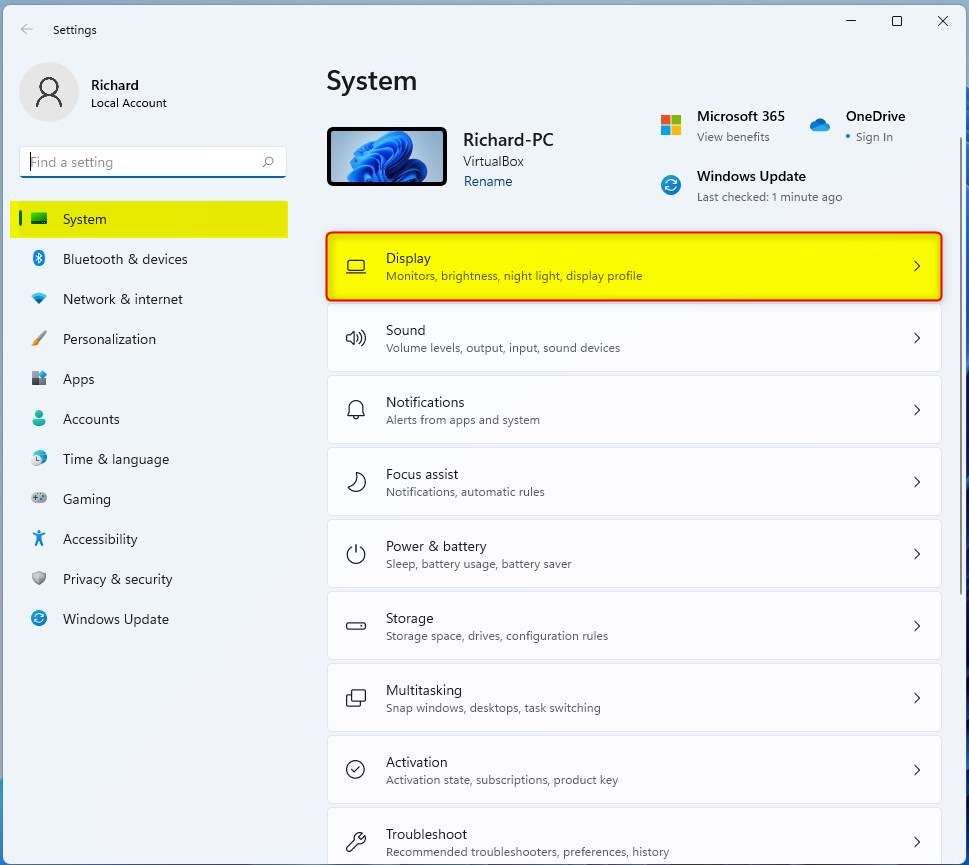
- Click on the Display tile on the right side.
- Look for the Brightness & color section and click HDR.
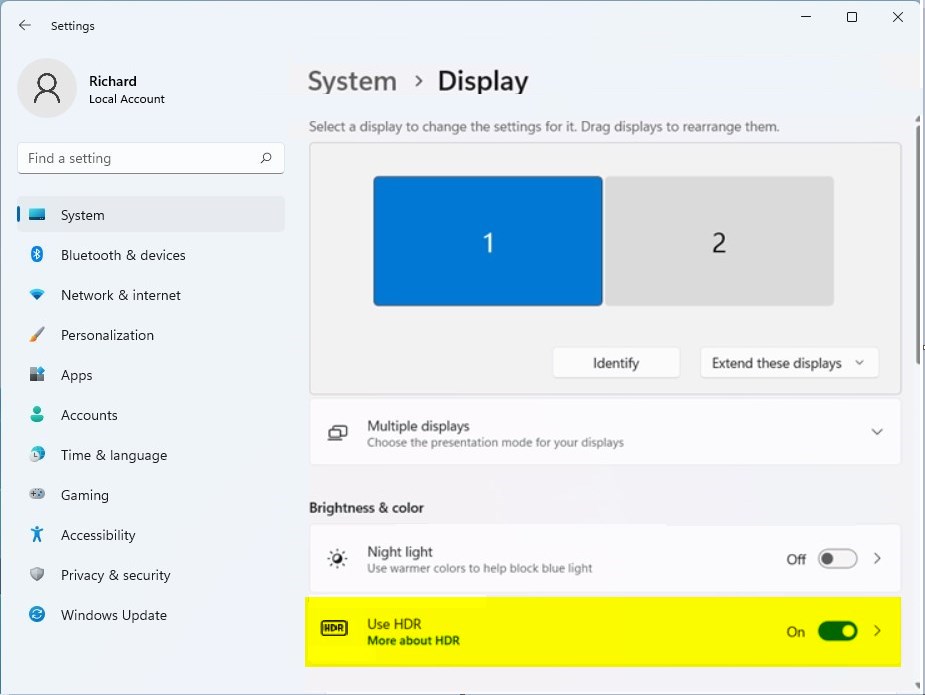
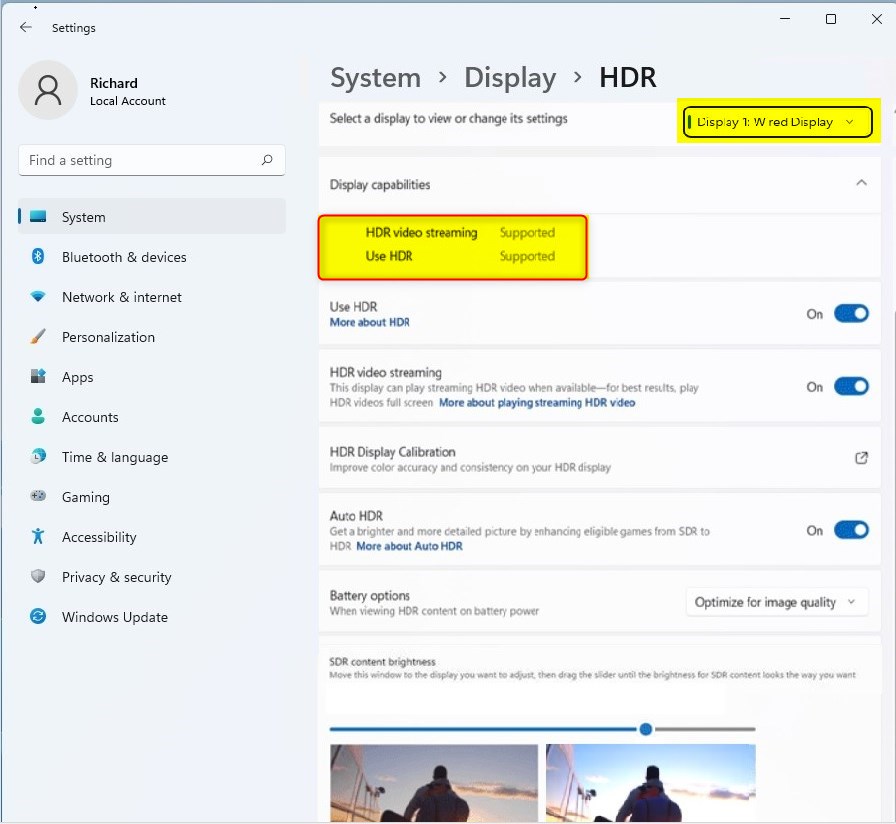
- Select your monitor from the dropdown menu.
- Check the Display capabilities section to see if HDR is Supported.
Troubleshooting: Why is the HDR toggle missing?
If the HDR toggle is missing, your graphics driver might be outdated. (Admin Privilege Required) Open Device Manager by right-clicking the Start button. Expand Display adapters, right-click your graphics card, and select Update driver. Also, ensure you are not using Night light, as it can interfere with HDR color profiles.
How to calibrate your display
If HDR looks washed out, your colors may be off. Download the official Windows HDR Calibration app from the Microsoft Store. This tool helps you set the correct brightness and color saturation for your specific monitor.
How to enable Auto HDR for games
Auto HDR automatically upgrades the color and lighting of older games to HDR quality. In the HDR settings menu, toggle the Auto HDR switch to On. This works best with games built on DirectX 11 or DirectX 12.
Summary
Checking for HDR support is a quick way to see if your hardware can handle high-quality video. By navigating to Settings > Display > HDR, you can instantly see if your screen supports HDR streaming. If it says Supported, enable it to enjoy richer colors. If you face issues, update your drivers or use the calibration app to fix washed-out colors.
Why does my HDR display look washed out?
Washed-out colors often happen because your monitor is not calibrated correctly for HDR content. Ensure you have the latest graphics drivers installed and use the Windows HDR Calibration app to adjust your peak brightness and color balance settings for a more natural, vibrant look.
Was this guide helpful?

About the Author
Richard
Tech Writer, IT Professional
Richard, a writer for Geek Rewind, is a tech enthusiast who loves breaking down complex IT topics into simple, easy-to-understand ideas. With years of hands-on experience in system administration and enterprise IT operations, he’s developed a knack for offering practical tips and solutions. Richard aims to make technology more accessible and actionable. He's deeply committed to the Geek Rewind community, always ready to answer questions and engage in discussions.




[…] post shows students and new users steps to change or adjust high dynamic range (HDR) or Standard dynamic range (SDR) content brightness in Windows […]
[…] Not all displays are optimized for HDR content. A display that doesn’t support HDR will stream in the appropriate Standard dynamic range (SDR). […]