Enable or Disable Online Speech Recognition in Windows 11


You can enable or disable online speech recognition in Windows 11 to improve dictation accuracy using Microsoft’s cloud services.
Online speech recognition leverages powerful cloud processing, offering significantly better voice understanding than Windows 11’s built-in offline capabilities.
This cloud-based service learns your unique speech patterns, boosting its accuracy over time for tasks like voice commands and dictation.
When enabled, Windows 11 sends your voice data to Microsoft servers for analysis and improved recognition accuracy.
Disabling it means your PC will rely solely on less accurate, device-based speech recognition, though features like the narrator-in-windows-11/" class="sal-link" rel="noopener" target="_blank" data-sal-id="23854">Narrator app will still function.
Prerequisites: Setting Up Your Microphone
Before you begin, ensure your microphone is working correctly. Go to Settings > System > Sound and run the Microphone setup wizard to ensure your voice is captured clearly. This ensures that both cloud-based and local speech recognition function at their best.
Voice Access vs. Windows Speech Recognition (WSR)
In newer Windows 11 22H2 updates and beyond, Microsoft has introduced Voice Access. This is a modern, more robust accessibility feature that replaces the legacy Windows Speech Recognition (WSR). While WSR was designed for basic dictation, Voice Access allows you to control your entire desktop, open apps, and browse the web using only your voice.
How to turn Online Speech Recognition on or off in Settings
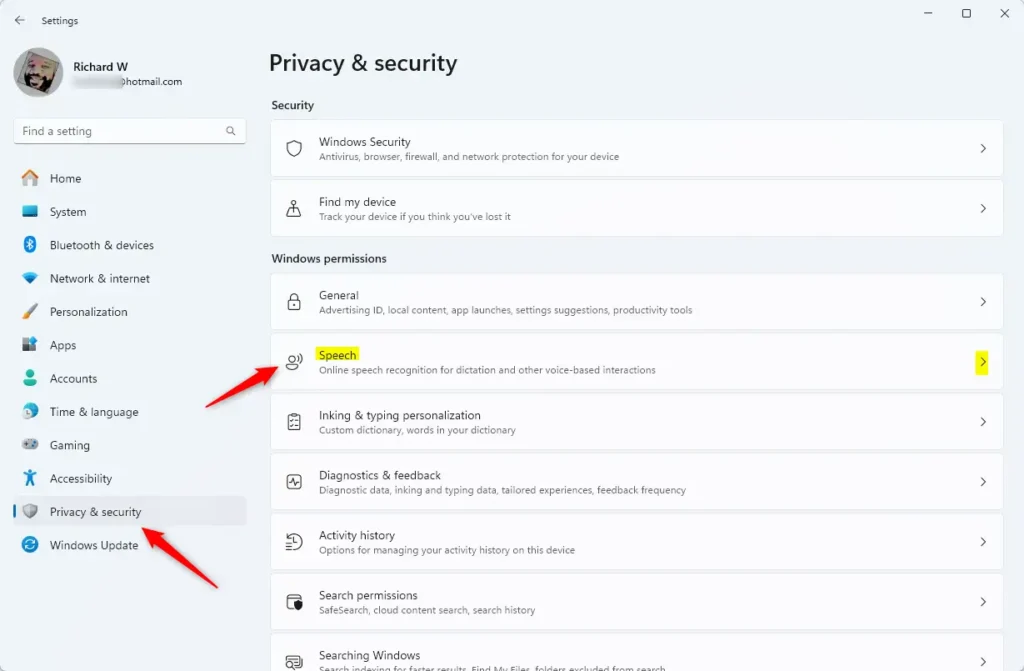
1. Open the Windows Settings app.
2. Select Privacy & security on the left menu.
3. Click the Speech tile on the right.
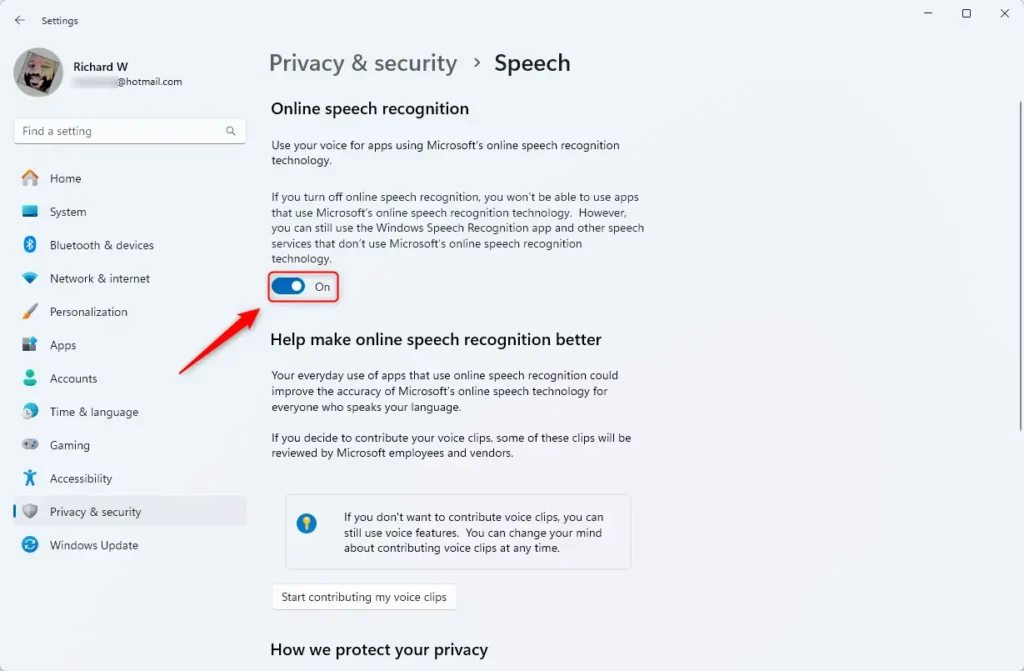
4. Toggle the switch to On to enable it, or Off to disable it.
How to manage settings using Group Policy (Admin Required)
Note: This method requires admin privileges.
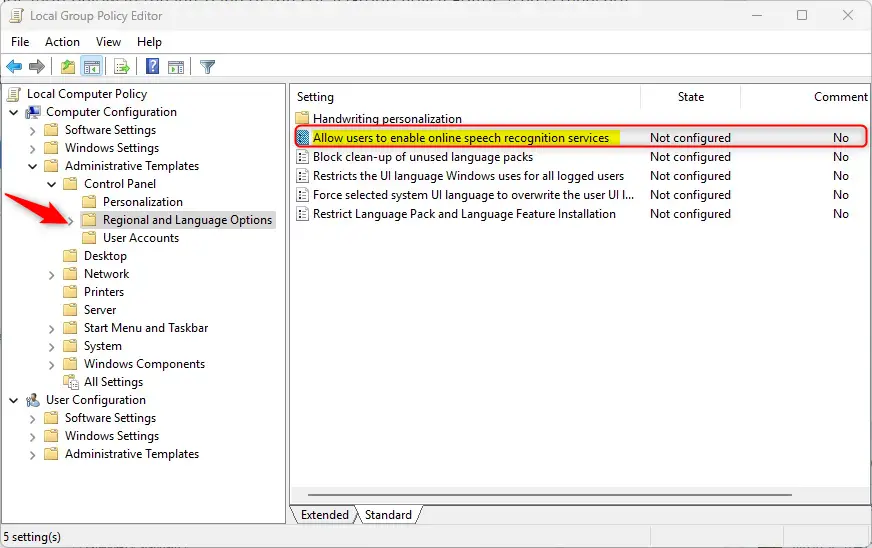
1. Search for “Edit group policy” in the Start menu and open it.
2. Go to this path: Computer Configuration > Administrative Templates > Control Panel > Regional and Language Options.
3. Double-click Allow users to enable online speech recognition services.
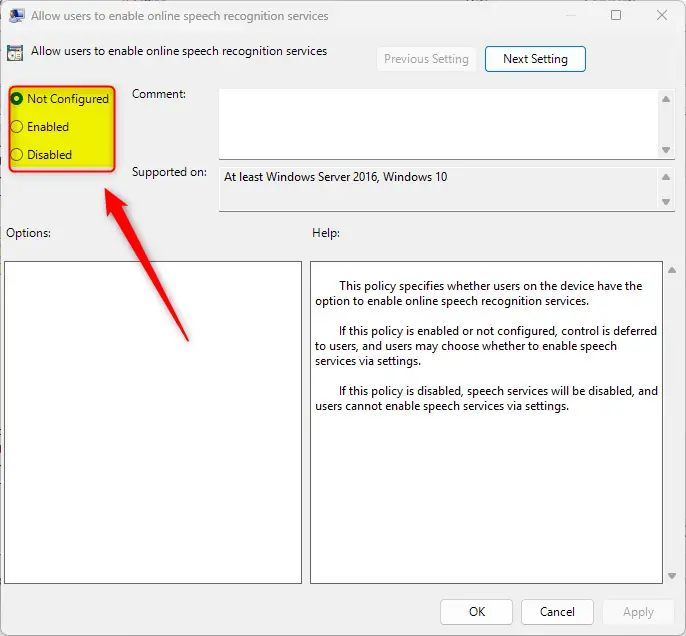
4. Choose Enabled, Disabled, or Not Configured. Click OK to save.
How to use the Registry Editor (Admin Required)
Note: This method requires admin privileges.
1. Open the Windows Registry editor.
2. Go to this path: Computer\HKEY_LOCAL_MACHINE\SOFTWARE\Policies\Microsoft\InputPersonalization
3. Double-click the AllowInputPersonalization item. Set the value to 0 to disable it.
4. If the item does not exist, right-click, create a new DWORD (32-bit) value, name it AllowInputPersonalization, and set it to 0.
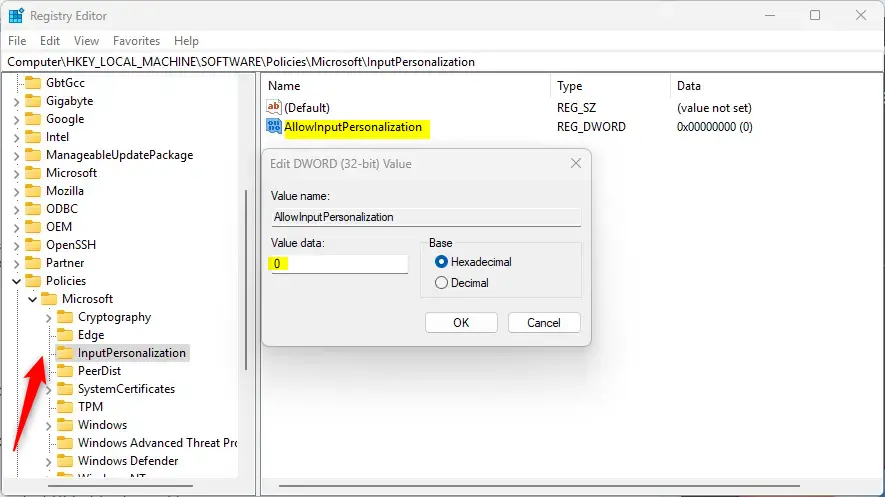
5. Restart your computer for the changes to take effect.
Summary
You can control online speech recognition to balance between better accuracy and your personal privacy. By understanding the difference between cloud-based processing and local recognition, you can choose the best setup for your needs. Whether you use the Settings app for a quick change or the Group Policy/Registry Editor for deeper control, you can easily manage these Windows 11 accessibility features.
Does Windows 11 still support legacy Windows Speech Recognition?
Yes, Windows 11 still includes legacy Windows Speech Recognition for backward compatibility. However, Microsoft recommends using the newer Voice Access feature for better performance and more comprehensive control over your operating system. Voice Access is built for modern workflows and provides a more intuitive experience for users with mobility impairments.
Is my voice data sent to Microsoft when using online speech recognition?
Yes, when online speech recognition is enabled, your voice data is sent to Microsoft cloud-based services to improve transcription accuracy. If you are concerned about voice data privacy, you can disable this feature in settings to rely solely on local, device-based speech recognition, which keeps your data on your computer.
Was this guide helpful?

About the Author
Richard
Tech Writer, IT Professional
Richard, a writer for Geek Rewind, is a tech enthusiast who loves breaking down complex IT topics into simple, easy-to-understand ideas. With years of hands-on experience in system administration and enterprise IT operations, he’s developed a knack for offering practical tips and solutions. Richard aims to make technology more accessible and actionable. He's deeply committed to the Geek Rewind community, always ready to answer questions and engage in discussions.




No comments yet — be the first to share your thoughts!