How to Choose which Apps to get Notifications from in Phone Link app

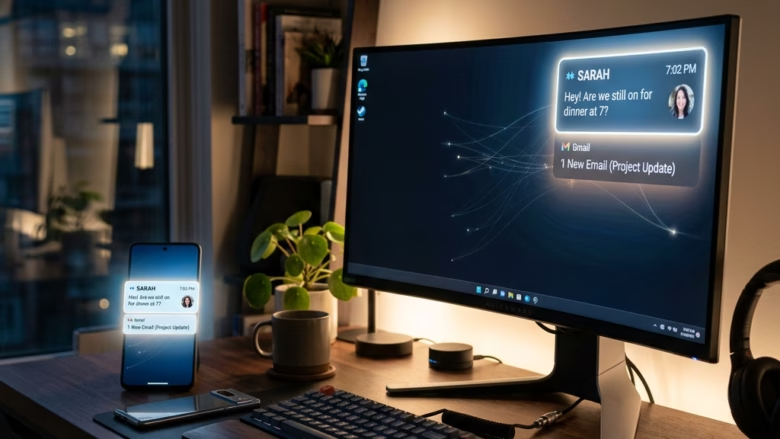
The Phone Link app lets you control which apps send notifications to your PC.
Open Phone Link on your PC, go to Settings, then Notifications. Select “Manage notifications” and toggle on or off the apps you want to receive alerts from on your computer.
Phone Link lets you see alerts from your Android phone right on your Windows 11 PC. You can customize these settings to put important alerts first and silence the less critical ones.
This helps you stay focused. It cuts down on distractions from less urgent app notifications, like those from games or social media apps you don’t need constant updates from on your desktop.
Once configured, your PC will only display notification banners or feed alerts for the apps you specifically select. This keeps your computer screen tidy while ensuring you never miss crucial alerts from apps like text messages or your email.
Was this guide helpful?

About the Author
Richard
Tech Writer, IT Professional
Richard, a writer for Geek Rewind, is a tech enthusiast who loves breaking down complex IT topics into simple, easy-to-understand ideas. With years of hands-on experience in system administration and enterprise IT operations, he’s developed a knack for offering practical tips and solutions. Richard aims to make technology more accessible and actionable. He's deeply committed to the Geek Rewind community, always ready to answer questions and engage in discussions.



No comments yet — be the first to share your thoughts!