How to Show All Windows on Alt+Tab Across Desktops


You can show all open windows across all your virtual desktops using the Alt+Tab switcher in Windows 11.
The Alt+Tab shortcut is a built-in Windows feature that lets you quickly switch between your open applications. By default, it might only show windows from your current desktop.
This guide helps you configure Windows 11 to display every single open window, regardless of which virtual desktop it resides on, when you press Alt+Tab or Ctrl+Alt+Tab.
Enabling this setting ensures you never miss an open application, even if it’s on a different desktop space.
Why This Matters
Task View (Win+Tab) is a virtual desktop manager. It helps you quickly switch between all your open apps across multiple desktops. This makes multitasking easier and keeps your work organized.
You can create virtual desktops to group apps by type. For example, you might have one desktop for work, one for entertainment, and one for projects. Multiple desktops are great for keeping different projects separate. They also help you quickly switch before a meeting.
What Happens When Done
By default, Windows only shows open windows on Alt+Tab or Ctrl+Alt+Tab on your current desktop.
After completing these steps, you can choose one of two options:
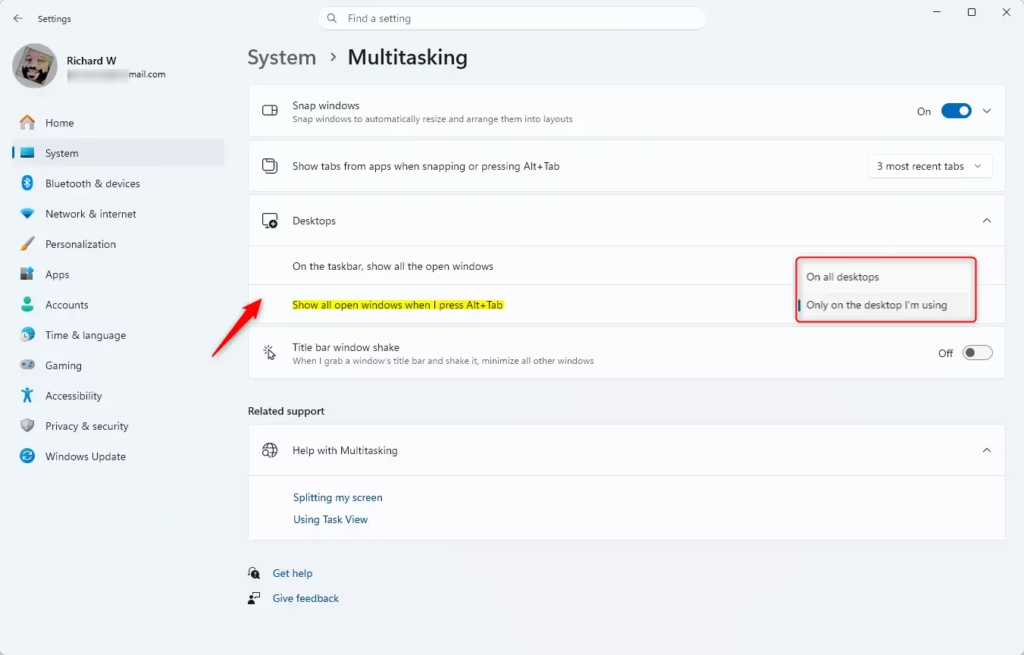
- All desktops = All windows open on every desktop will show. You can quickly switch to any window. If the window is on a different desktop, you will automatically switch to that desktop.
- Only on the desktop I’m using = Only windows on your current desktop will show. Windows on other desktops won’t appear. You’ll need to use Task View to switch between them.
Option One
Show All Open Windows Using Settings
- Open Settings by pressing Win+I.
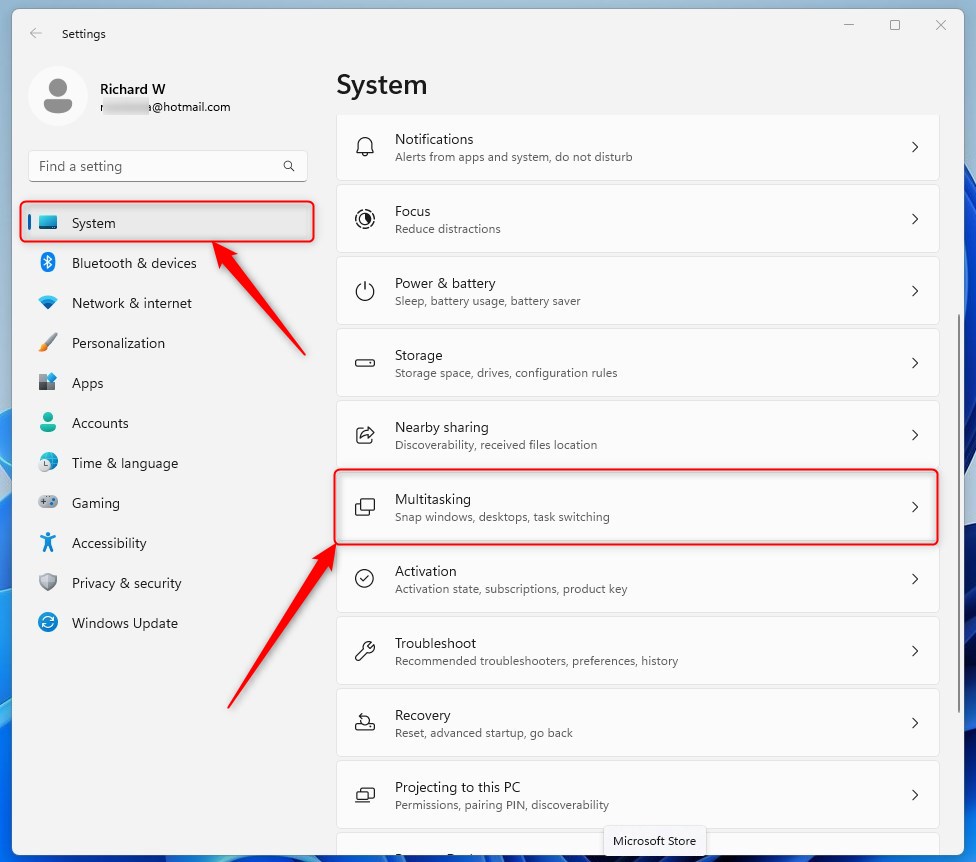
- Click System on the left side. Then click Multitasking on the right side.
- Open Mulitasking Settings
- Click Desktops on the right side to expand it.
- In the “Show all the open windows when I press Alt+Tab” dropdown, select On all desktops or Only on the desktop I’m using (default).
- Close Settings.
Option Two
Show All Open Windows Using Windows Terminal
⚠️ Requires Admin Privileges
This option will not work when Administrator protection is turned on.
Open Windows Terminal as an administrator and run one of the commands below.
To show all windows on all desktops:
reg add "HKEY_CURRENT_USER\Software\Microsoft\Windows\CurrentVersion\Explorer\Advanced" /v VirtualDesktopAltTabFilter /t REG_DWORD /d 0 /f
To show only windows on your current desktop (default):
reg add "HKEY_CURRENT_USER\Software\Microsoft\Windows\CurrentVersion\Explorer\Advanced" /v VirtualDesktopAltTabFilter /t REG_DWORD /d 1 /f
Option Three
Show All Open Windows Using Registry Editor
⚠️ Requires Admin Privileges
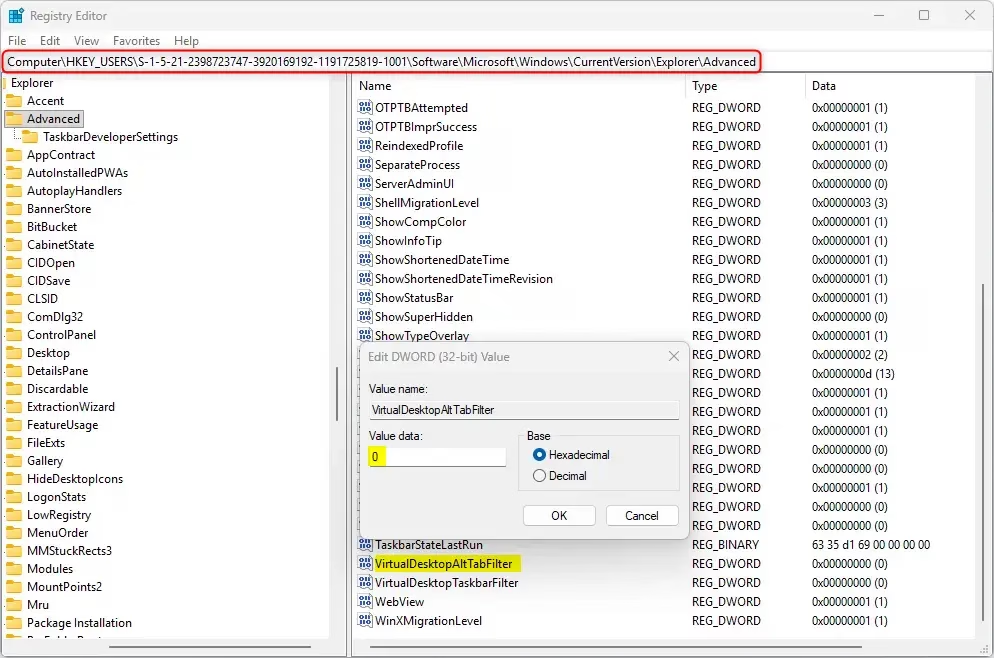
- Open Registry Editor by typing
regedit.exein your search bar. - Navigate to this location in the left pane:
HKEY_USERS\<SID>\Software\Microsoft\Windows\CurrentVersion\Explorer\AdvancedReplace
<SID>with the actual SID for your account. For example:HKEY_USERS\S-1-5-21-2398723747-3920169192-1191725819-1001\Software\Microsoft\Windows\CurrentVersion\Explorer\Advanced - In the right pane, find VirtualDesktopAltTabFilter. Double-click it to edit it.
- Enter 0 (for “On all desktops”) or 1 (for “Only on the desktop I’m using” – default). Click OK.
- Restart the explorer process, sign out and sign back in, or restart your computer to apply the changes.
- Close Registry Editor.
To find your SID, use the steps below:
Copy and paste the command below into PowerShell. Press Enter.
Get-WmiObject win32_useraccount | Select name,sid
Find the SID (example: “S-1-5-21-2398723747-3920169192-1191725819-1001”) for the account you want to configure. You will need to know the SID of the person’s account.
Summary
You now know three ways to control what windows appear when you press Alt+Tab or Ctrl+Alt+Tab in Windows 11. The easiest method is using Settings. If you prefer the command line, use Windows Terminal. For advanced users, Registry Editor offers the same control. Choose the method that works best for you. Your choice will stick until you change it again.
Why is my AltTab switching desktops?
Your Alt+Tab is switching desktops because Windows 11 settings are configured to show all open windows across every virtual desktop. When you select a window located on a different desktop, Windows automatically switches your view to that specific desktop to bring the application into your active workspace for easier multitasking.
What does Ctrl +Tab do?
In most Windows applications, Ctrl+Tab is a keyboard shortcut used to cycle through open tabs within a single program, such as a web browser or document editor. However, when used in the context of system navigation, it functions similarly to Alt+Tab, allowing you to switch between your active application windows.
How do I see all desktops?
To see all your virtual desktops, press the Windows key + Tab on your keyboard to open the Task View interface. This view displays a horizontal bar at the top of your screen showing all active virtual desktops, allowing you to switch between them, create new ones, or close existing desktops.
How do I fix the AltTab glitch?
If Alt+Tab feels glitchy or behaves unexpectedly, navigate to Settings, select System, and click Multitasking. Under the Alt+Tab section, adjust the dropdown menu to your preferred setting. Choosing 'Only on the desktop I'm using' will restrict the switcher to your current workspace, which often resolves confusion caused by cross-desktop window visibility.
Was this guide helpful?

About the Author
Richard
Tech Writer, IT Professional
Richard, a writer for Geek Rewind, is a tech enthusiast who loves breaking down complex IT topics into simple, easy-to-understand ideas. With years of hands-on experience in system administration and enterprise IT operations, he’s developed a knack for offering practical tips and solutions. Richard aims to make technology more accessible and actionable. He's deeply committed to the Geek Rewind community, always ready to answer questions and engage in discussions.



No comments yet — be the first to share your thoughts!