How to Add and Remove Quick Access Folders on Navigation Pane of File Explorer in Windows 11

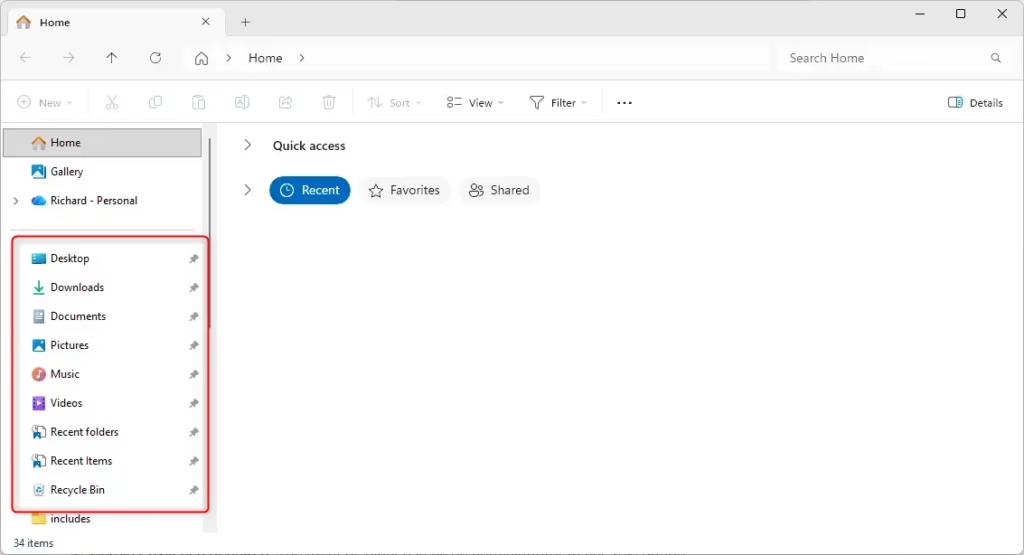
You can add and remove Quick Access folders from the File Explorer navigation pane in Windows 11 to customize your workflow.
Quick Access itself is a default Windows 11 feature that displays your most frequently used folders and pinned locations within the File Explorer’s Home view.
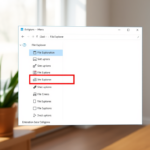
In Windows 11, the navigation pane on the left side of File Explorer can also show these Quick Access items when “Show all folders” is unchecked, providing quick access to your important directories.
Removing specific folders from the navigation pane doesn’t disable Quick Access entirely; it simply declutters your view by hiding those selected items from the left-hand panel.
This modification helps you create a cleaner File Explorer interface, focusing only on the folders you need readily available in that specific location.
Here’s How:
⚠️ Admin Privileges Required: You must be signed in as an administrator to use this option.
- Open the Windows Terminal app as administrator.
- Copy and paste the command you want to use below.
- Press Enter to run the command.
Add Quick Access Folders to Navigation Pane of File Explorer for All Users
This is the default setting.
reg add "HKEY_LOCAL_MACHINE\SOFTWARE\Microsoft\Windows\CurrentVersion\Explorer\Desktop\NameSpace\DelegateFolders{3936E9E4-D92C-4EEE-A85A-BC16D5EA0819}" /ve /d "CLSID_FrequentPlacesFolder" /fRemove Quick Access Folders from Navigation Pane of File Explorer for All Users
reg delete "HKEY_LOCAL_MACHINE\SOFTWARE\Microsoft\Windows\CurrentVersion\Explorer\Desktop\NameSpace\DelegateFolders{3936E9E4-D92C-4EEE-A85A-BC16D5EA0819}" /fThat should do it!
Summary
Quick Access in File Explorer helps you find your favorite folders quickly. If the Quick Access folders cluttering your navigation pane bother you, you can hide them using a simple Windows Terminal command. Just open Terminal as an administrator and run one of the commands above. The first command adds Quick Access back to the navigation pane. The second command removes it. Either way, your Quick Access section in Home stays the same.
Where is quick access in File Explorer?
Quick Access is located in the Home section of File Explorer, which you can open by pressing ⊞ Win+E. It also appears in the navigation pane on the left side of the window. If you do not see it, ensure that the 'Show all folders' setting is disabled in your folder options.
Did 🪟 Windows 11 get rid of Quick Access?
No, Windows 11 did not remove Quick Access. It remains a core feature of File Explorer, though it is now primarily integrated into the Home view. While you can customize or hide it from the navigation pane using registry edits, the functionality remains available for pinning and accessing your favorite folders.
How do I turn on quick access?
To enable Quick Access, open File Explorer, click the three-dot menu, and select Options. Under the General tab, ensure 'Open File Explorer to' is set to Home. If you previously removed it from the navigation pane, you may need to use the registry command to restore the Quick Access folder visibility.
How do I get my Quick Access folder back?
To restore Quick Access to your navigation pane, you must run a specific command in the Windows Terminal as an administrator. Use the command: reg add "🗝️HKEY_LOCAL_MACHINE\SOFTWARE\Microsoft\Windows\CurrentVersion\Explorer\Desktop\NameSpace\DelegateFolders\{3936E9E4-D92C-4EEE-A85A-BC16D5EA0819}" /ve /d "CLSID_FrequentPlacesFolder" /f. After pressing Enter, the Quick Access folder will reappear in your File Explorer navigation pane.
Was this guide helpful?

About the Author
Richard
Tech Writer, IT Professional
Richard, a writer for Geek Rewind, is a tech enthusiast who loves breaking down complex IT topics into simple, easy-to-understand ideas. With years of hands-on experience in system administration and enterprise IT operations, he’s developed a knack for offering practical tips and solutions. Richard aims to make technology more accessible and actionable. He's deeply committed to the Geek Rewind community, always ready to answer questions and engage in discussions.
No comments yet — be the first to share your thoughts!