How to Show or Hide the Network Folder in Windows 11

If you use Windows 11, you might have noticed the Network folder on the left side of your File Explorer. This folder helps you quickly find other computers or devices connected to your network.
By default, Windows 11 shows the Network folder to make browsing your network easy. But if you don’t use it or find it distracting, you can hide it. And if it’s missing and you want it back, you can show it again.
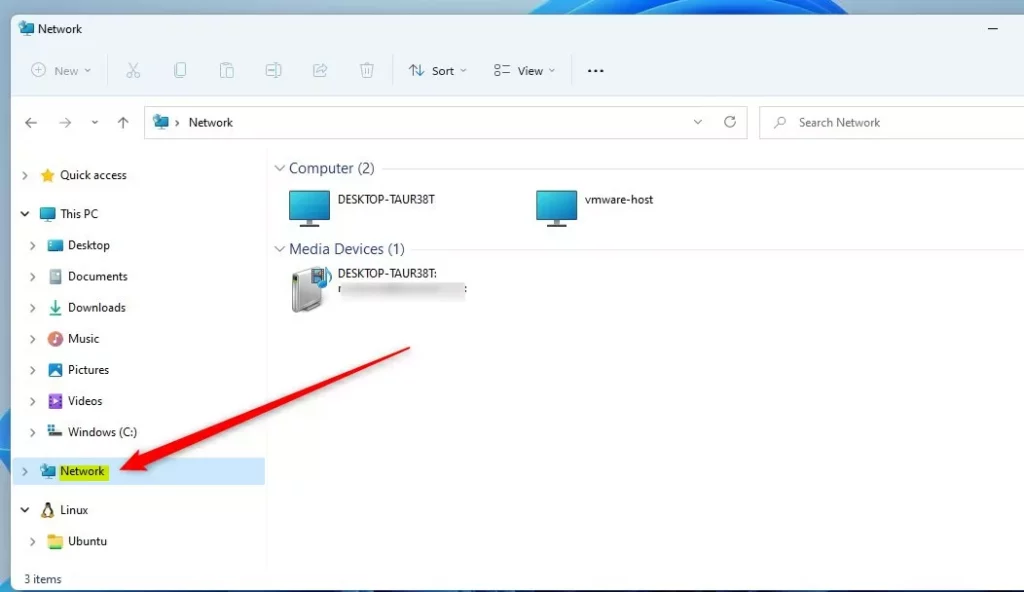
What Does the Network Folder Look Like?
Here is an example of the Network folder in the File Explorer navigation pane:
Why Would You Want to Hide or Show This Folder?
You might want to hide the Network folder if you don’t use it often. This makes your File Explorer cleaner and less cluttered. You might want to show it if you regularly access other computers on your network or if you accidentally hid it.
The Easiest Way: Using the Navigation Pane
The quickest way to show or hide the Network folder is right from the File Explorer navigation pane. Here’s how:
- Open File Explorer.
- Look at the left side where your folders are listed.
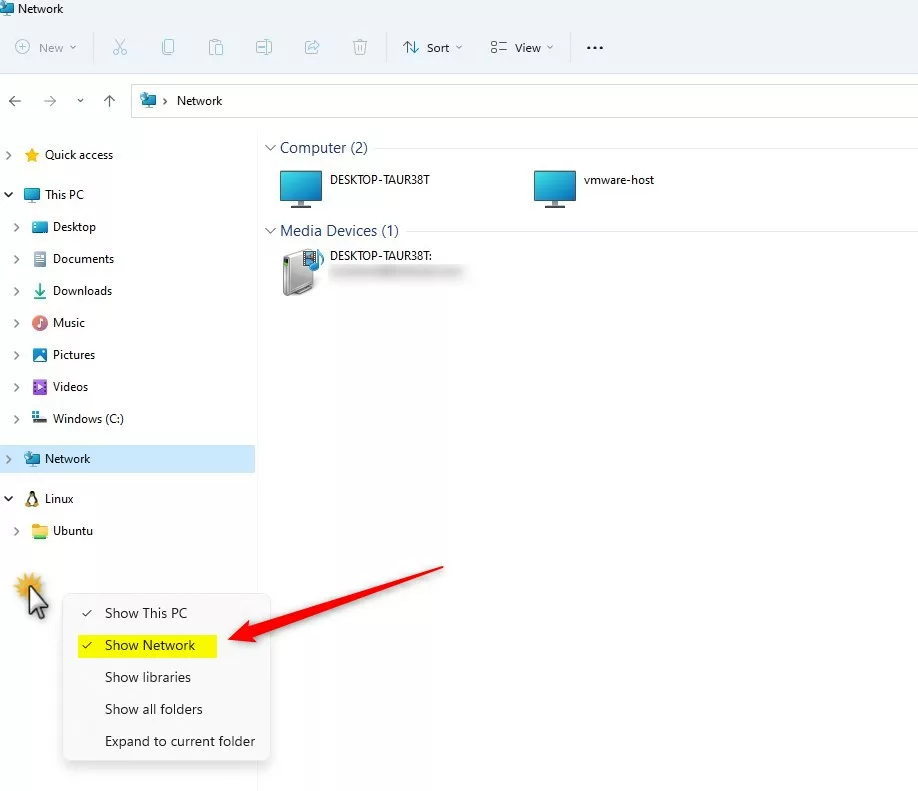
- Right-click on an empty space in that left pane. Do not click on a folder.
- You will see a menu with several options.
- Click on Show Network to add the Network folder if it’s missing.
- If the Network folder is there and you want to hide it, uncheck Show Network.
Using Folder Options
If you prefer, you can also use the Folder Options settings to show or hide the Network folder:
- Open File Explorer.
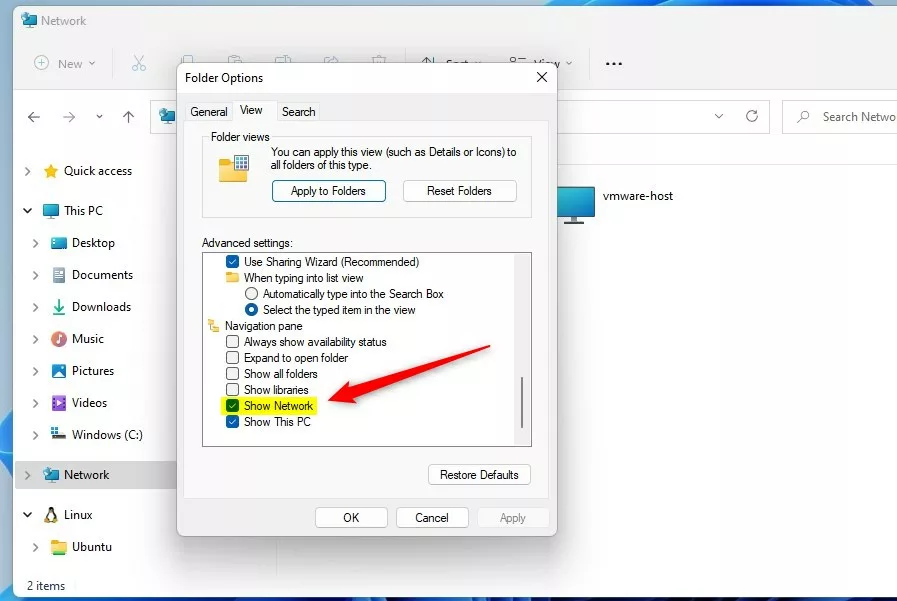
- Click on the three dots … at the top, then select Options.
- In the “Folder Options” window, click the View tab.
- Scroll down to the section called Navigation pane.
- Check the box next to Show Network to show the folder.
- Uncheck it to hide the folder.
- Click OK to save your changes.
Advanced Method: Using the Windows Registry
If you are comfortable making changes to your computer’s system files, you can show or hide the Network folder by editing the Windows Registry. This method is for advanced users. Be careful when making these changes.
⚠️ Admin Privileges Required
- Press ⊞ Win+R on your keyboard, type
regedit, and press Enter to open the Registry Editor. - Navigate to this folder path:
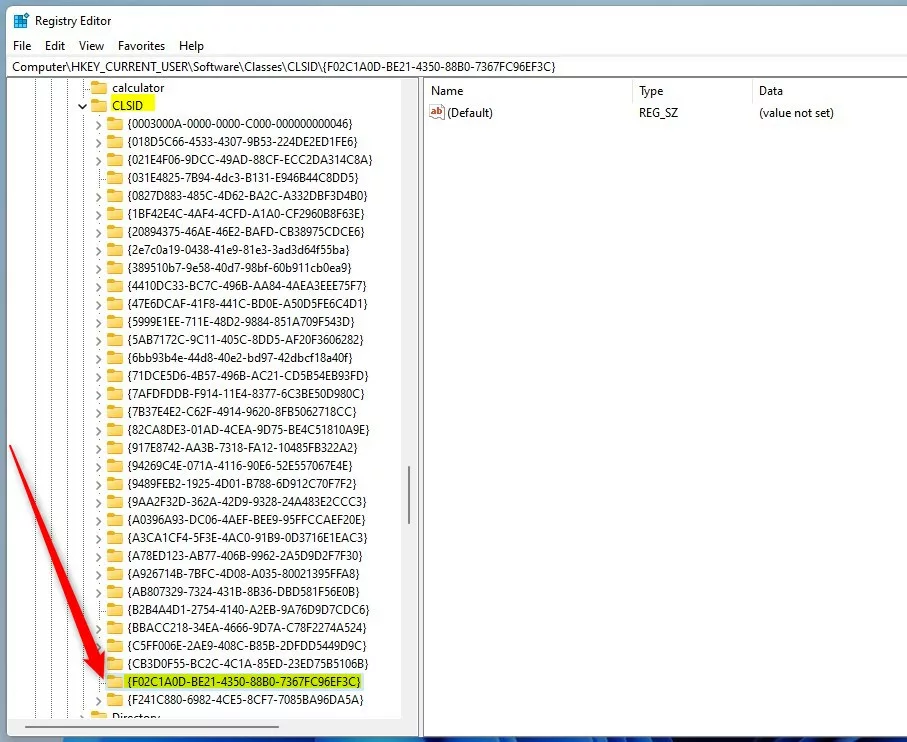
HKEY_CURRENT_USER\Software\Classes\CLSID\{F02C1A0D-BE21-4350-88B0-7367FC96EF3C} - If you don’t see the
{F02C1A0D-BE21-4350-88B0-7367FC96EF3C}folder, right-click on CLSID, select New > Key, and name it{F02C1A0D-BE21-4350-88B0-7367FC96EF3C}. - Click on this new folder. Then in the right pane, right-click and choose New > DWORD (32-bit) Value.
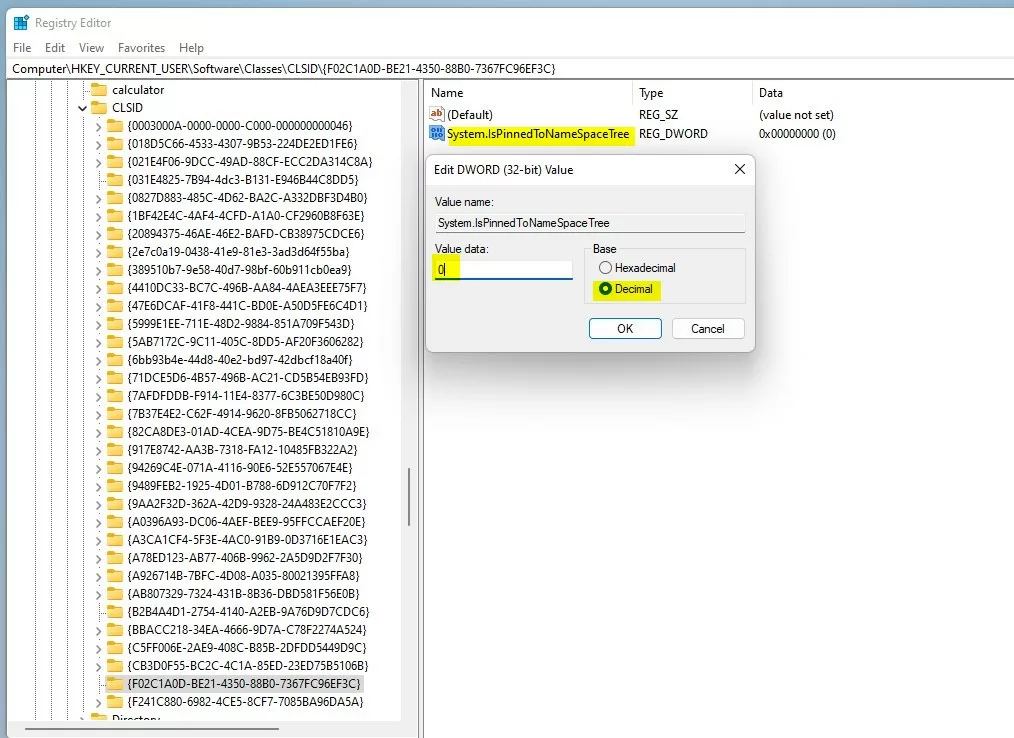
- Name this new value
System.IsPinnedToNameSpaceTree. - Double-click on it and set the value data to:
1to show the Network folder.
0to hide the Network folder.- Click OK and close the Registry Editor.
- Restart your computer to see the changes.
Summary
The Network folder in Windows 11 helps you find other devices on your network quickly. You have three ways to control whether it shows or hides:
- Right-click in the File Explorer navigation pane for the fastest method.
- Use Folder Options for a more detailed settings approach.
- Edit the Windows Registry if you need advanced control.
Hiding or showing this folder does not affect your computer’s network connection. Your computer still connects to your network normally. You are just choosing whether to see the folder or not in File Explorer.
Now you can customize your File Explorer to show only what you want to see!
Was this guide helpful?

About the Author
Richard
Tech Writer, IT Professional
Richard, a writer for Geek Rewind, is a tech enthusiast who loves breaking down complex IT topics into simple, easy-to-understand ideas. With years of hands-on experience in system administration and enterprise IT operations, he’s developed a knack for offering practical tips and solutions. Richard aims to make technology more accessible and actionable. He's deeply committed to the Geek Rewind community, always ready to answer questions and engage in discussions.


No comments yet — be the first to share your thoughts!